> ## Documentation Index
> Fetch the complete documentation index at: https://docs.imagine.art/llms.txt
> Use this file to discover all available pages before exploring further.
# Motion Design
> Turn a product into a storyboard-driven motion graphics ad — pick a style, generate scene-by-scene, then refine each scene independently.
Motion Design turns a product photo into a motion-graphics-style ad built from a storyboard: a set of individually generated scenes, not one single video generation. It shares its product picker with [URL to Ad](/ad-studio/url-to-ad), then branches into its own storyboard flow once you've picked a style.
 ## How Motion Design works
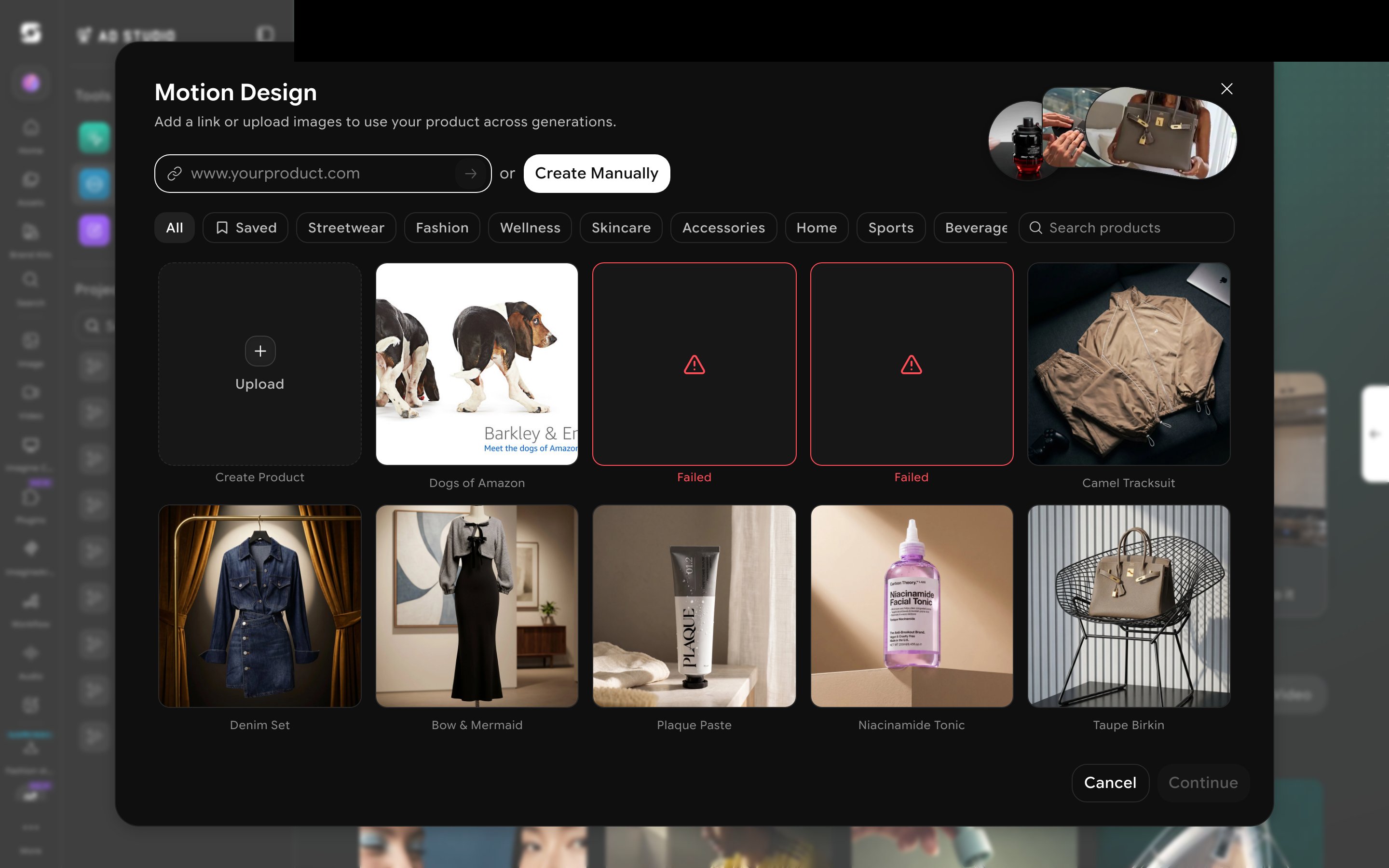
In the left sidebar under **Tools**, click **Motion Design**. This opens the same product picker as URL to Ad — paste a URL, upload images, or pick an existing product from your library or the preset categories.
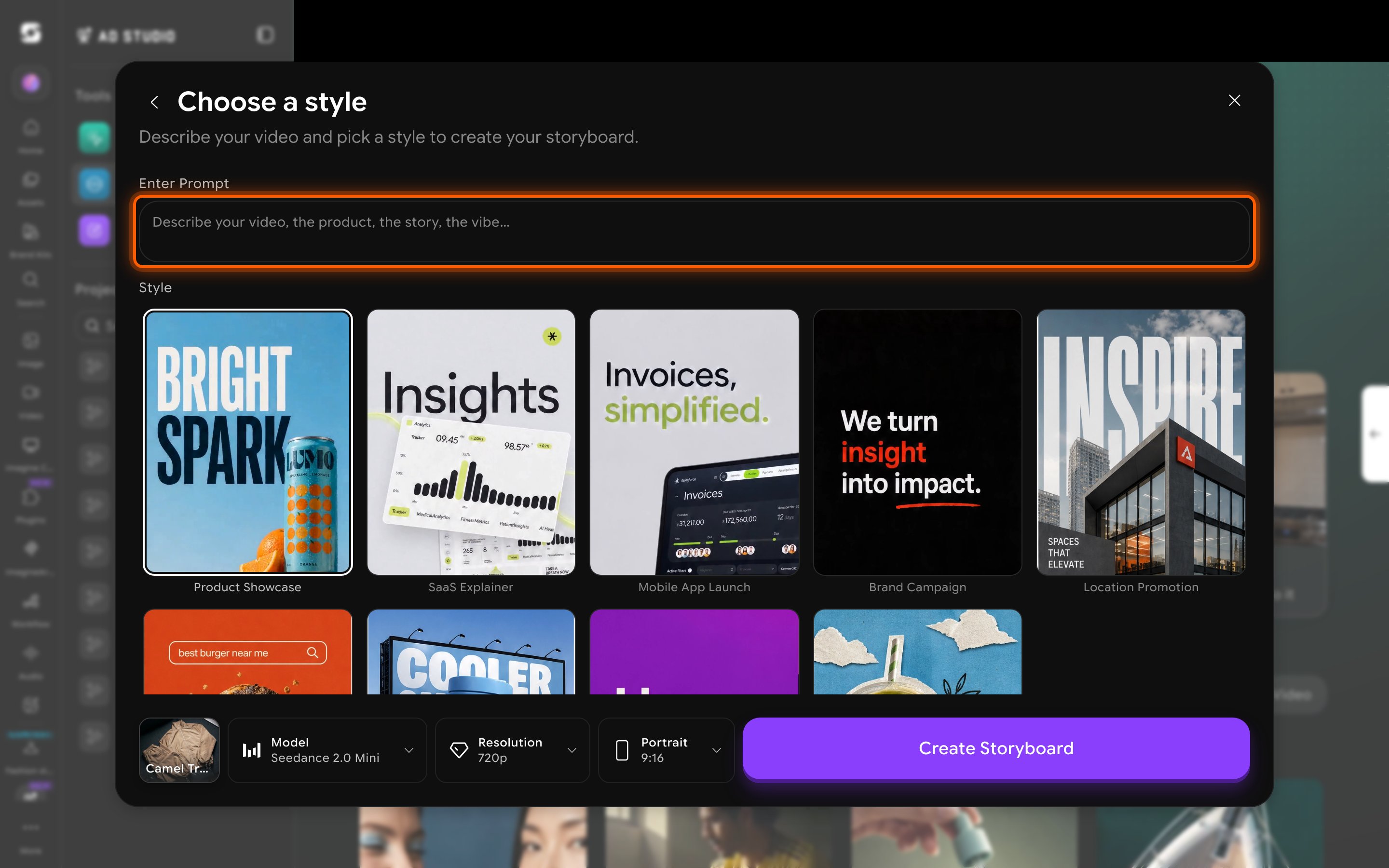
On **Choose a style**, describe the video, the product, and the vibe, then pick a style template — Product Showcase, SaaS Explainer, Mobile App Launch, Brand Campaign, Location Promotion, and more.
## How Motion Design works
In the left sidebar under **Tools**, click **Motion Design**. This opens the same product picker as URL to Ad — paste a URL, upload images, or pick an existing product from your library or the preset categories.
On **Choose a style**, describe the video, the product, and the vibe, then pick a style template — Product Showcase, SaaS Explainer, Mobile App Launch, Brand Campaign, Location Promotion, and more.
 Motion Design is scoped to ByteDance's Seedance lineup only — a narrower, purpose-built set compared to the much larger model list in the general Video tool.
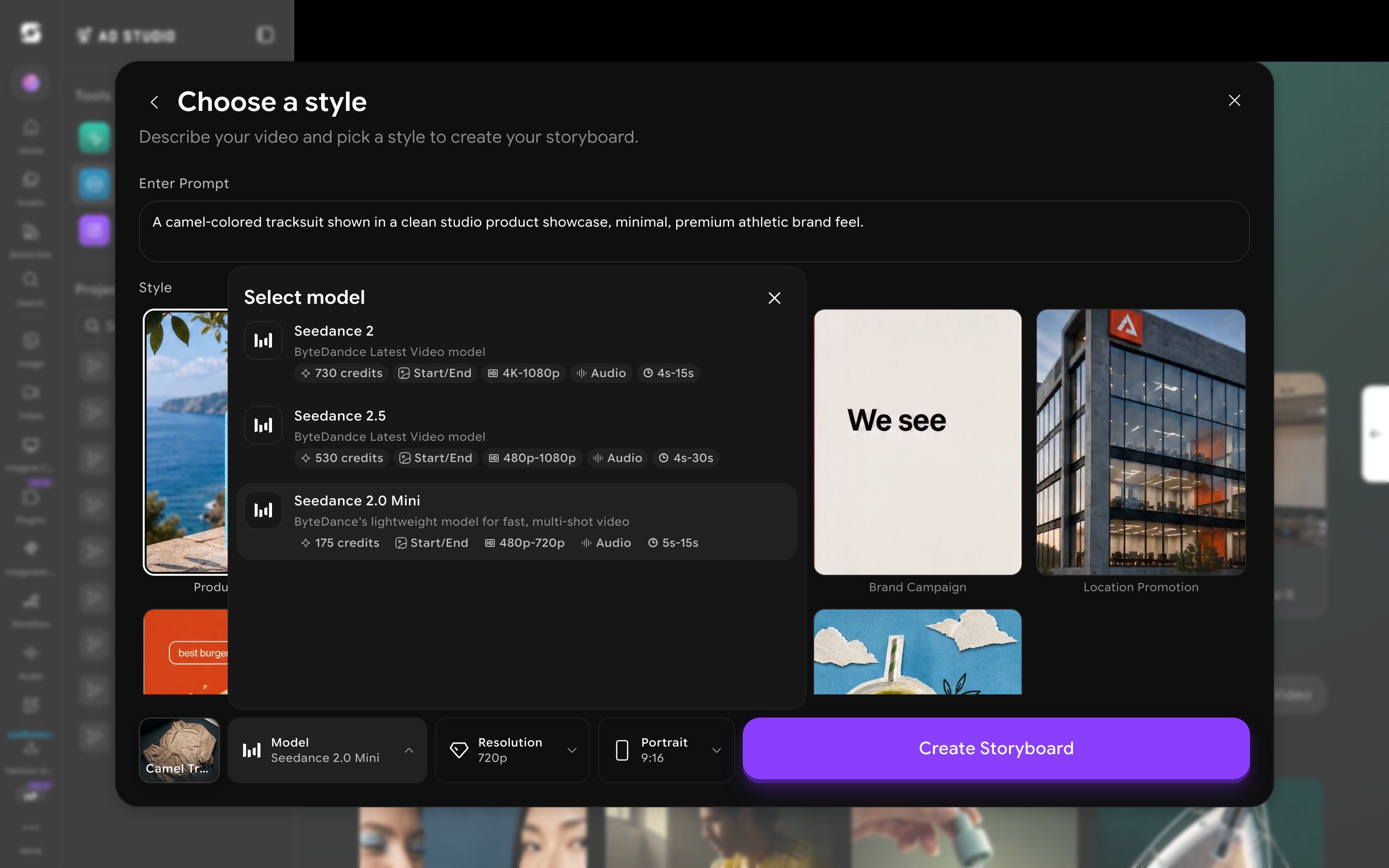 | Model | Credits | Resolution | Duration | Notes |
| ----------------- | ------- | ---------- | -------- | ----------------------------------------------------------- |
| Seedance 2 | 730 | 4K–1080p | 4–15s | ByteDance's latest video model |
| Seedance 2.5 | 530 | 480p–1080p | 4–30s | ByteDance's latest video model, longest max duration |
| Seedance 2.0 Mini | 175 | 480p–720p | 5–15s | Lightweight, fast, built for multi-shot video — the default |
All three support Start/End frame control and audio.
Click **Create Storyboard**. This kicks off a multi-stage background job — computing grid geometry, assembling a "mega-prompt," generating the storyboard, then receiving split frames.
| Model | Credits | Resolution | Duration | Notes |
| ----------------- | ------- | ---------- | -------- | ----------------------------------------------------------- |
| Seedance 2 | 730 | 4K–1080p | 4–15s | ByteDance's latest video model |
| Seedance 2.5 | 530 | 480p–1080p | 4–30s | ByteDance's latest video model, longest max duration |
| Seedance 2.0 Mini | 175 | 480p–720p | 5–15s | Lightweight, fast, built for multi-shot video — the default |
All three support Start/End frame control and audio.
Click **Create Storyboard**. This kicks off a multi-stage background job — computing grid geometry, assembling a "mega-prompt," generating the storyboard, then receiving split frames.
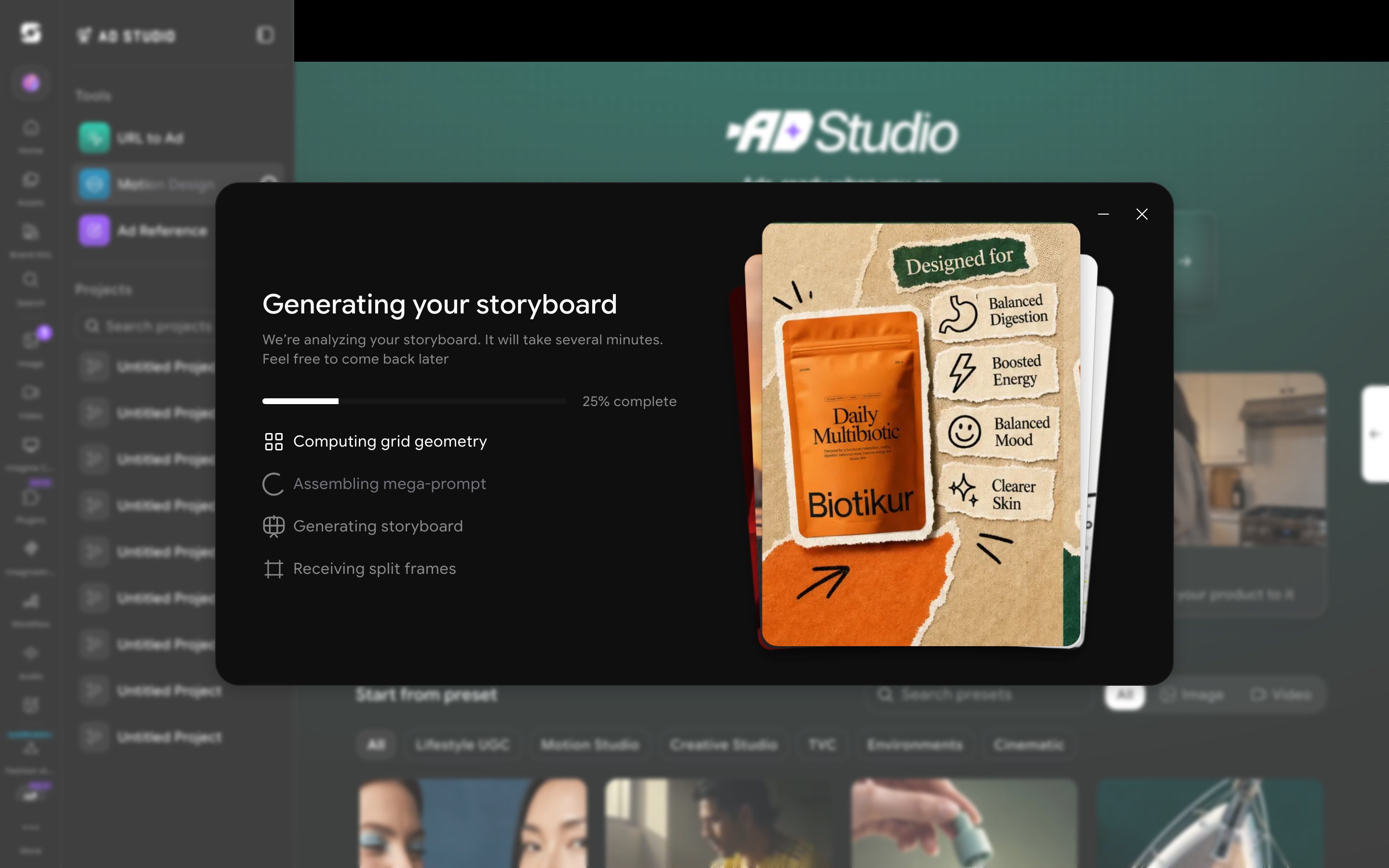 Generation is genuinely asynchronous, not just a progress bar. Click the minimize button on the generation screen and keep working anywhere else in Ad Studio — the **Motion Design** entry in the left sidebar shows a live spinner until the storyboard is ready, confirming it keeps running in the background rather than blocking the rest of the app.
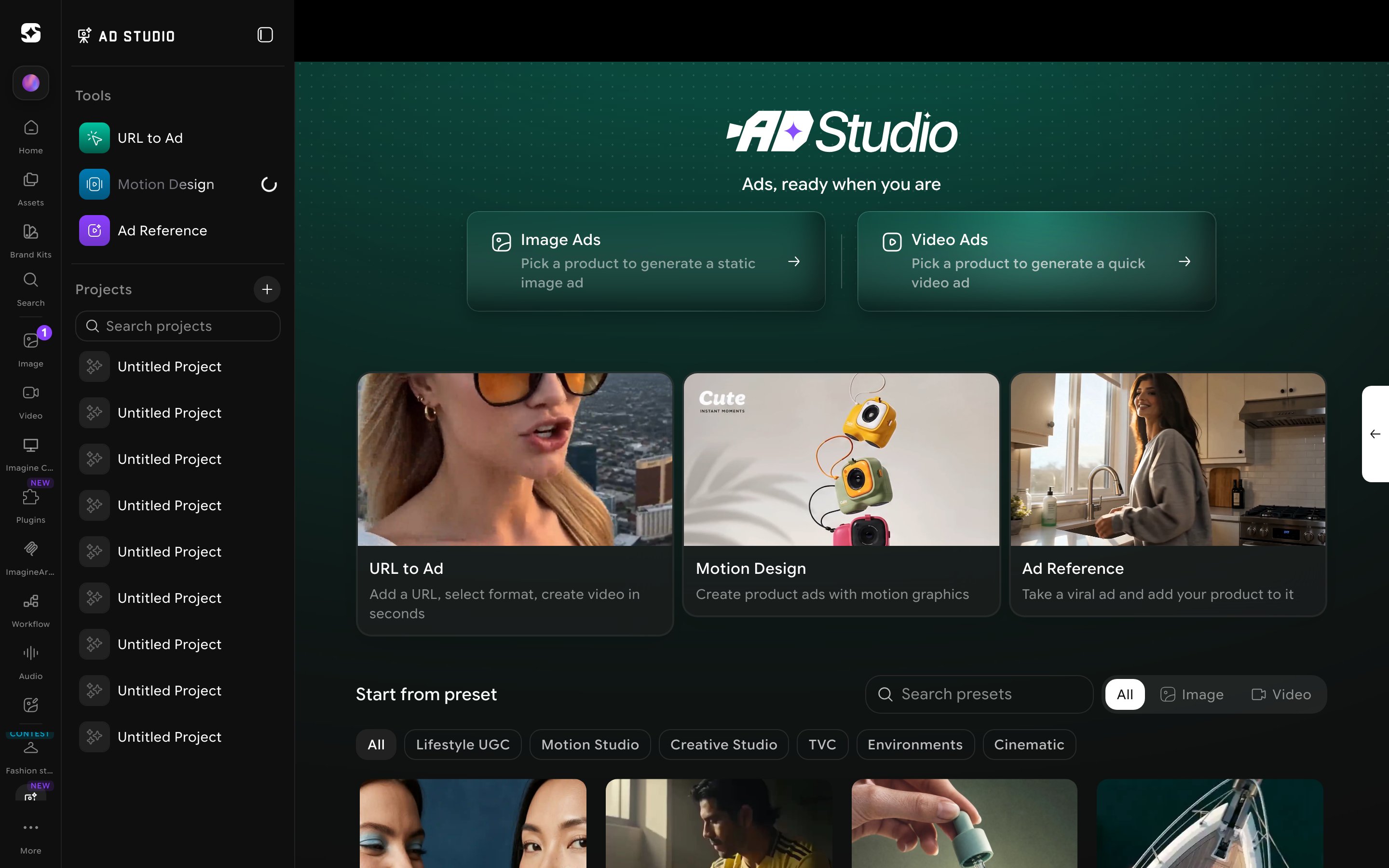 **This can genuinely take longer than "several minutes."** The generation screen itself says to expect several minutes, but in testing a single storyboard was still generating well past the 8-minute mark. Don't assume a stall — check back later rather than retrying.
## What you get back
Motion Design doesn't generate one clip — it produces a **storyboard of individual scenes**, based on real, first-hand tester feedback from the team (not yet independently re-verified end-to-end in this pass, since a real generation was still running past 8 minutes during this documentation session):
* **Per-scene editing.** Each scene in the storyboard can be regenerated on its own without affecting the others — useful for fixing one weak beat in an otherwise good sequence.
* **Working background generation.** The product photo carries through into a real generated background per scene, not a placeholder.
* **Premium output.** The finished export includes typography and transitions applied automatically, not just raw clips stitched together.
**Not the same as Film Studio's Storyboard mode.** Both features use the word "storyboard," but they're different mechanisms. [Film Studio's Storyboard mode](/film-studio/create-image#storyboard-mode) generates a single contact-sheet grid image that you manually split into frames. Motion Design's storyboard is an automated multi-scene pipeline purpose-built for ads — you don't do the splitting yourself.
## When to use Motion Design
* You want a polished, template-driven motion graphics ad rather than a single straight-through video generation.
* You're open to a longer, asynchronous generation in exchange for a multi-scene result with independently editable beats.
* You want typography and transitions applied automatically rather than adding them yourself afterward.
If you want the fastest possible single clip instead, use [URL to Ad](/ad-studio/url-to-ad) or the main workspace's video generation.
**This can genuinely take longer than "several minutes."** The generation screen itself says to expect several minutes, but in testing a single storyboard was still generating well past the 8-minute mark. Don't assume a stall — check back later rather than retrying.
## What you get back
Motion Design doesn't generate one clip — it produces a **storyboard of individual scenes**, based on real, first-hand tester feedback from the team (not yet independently re-verified end-to-end in this pass, since a real generation was still running past 8 minutes during this documentation session):
* **Per-scene editing.** Each scene in the storyboard can be regenerated on its own without affecting the others — useful for fixing one weak beat in an otherwise good sequence.
* **Working background generation.** The product photo carries through into a real generated background per scene, not a placeholder.
* **Premium output.** The finished export includes typography and transitions applied automatically, not just raw clips stitched together.
**Not the same as Film Studio's Storyboard mode.** Both features use the word "storyboard," but they're different mechanisms. [Film Studio's Storyboard mode](/film-studio/create-image#storyboard-mode) generates a single contact-sheet grid image that you manually split into frames. Motion Design's storyboard is an automated multi-scene pipeline purpose-built for ads — you don't do the splitting yourself.
## When to use Motion Design
* You want a polished, template-driven motion graphics ad rather than a single straight-through video generation.
* You're open to a longer, asynchronous generation in exchange for a multi-scene result with independently editable beats.
* You want typography and transitions applied automatically rather than adding them yourself afterward.
If you want the fastest possible single clip instead, use [URL to Ad](/ad-studio/url-to-ad) or the main workspace's video generation.