> ## Documentation Index
> Fetch the complete documentation index at: https://docs.imagine.art/llms.txt
> Use this file to discover all available pages before exploring further.

> Black Forest Labs' Flux Kontext Max Multi, an editing-only model in ImagineArt's Edit tab.

# Flux kontext max multi

<div style={{background: "linear-gradient(135deg, #0d0016 0%, #18003a 55%, #08000f 100%)", borderRadius: "20px", padding: "3.5rem 3rem 3rem", marginBottom: "2.5rem", overflow: "hidden", position: "relative"}}>
  <div style={{position: "absolute", inset: "0", background: "radial-gradient(ellipse at 30% 60%, rgba(124,0,251,0.22) 0%, transparent 55%), radial-gradient(ellipse at 85% 15%, rgba(146,73,255,0.14) 0%, transparent 50%)", pointerEvents: "none"}} />

  <div style={{position: "relative"}}>
    <div style={{display: "flex", gap: "0.5rem", marginBottom: "1.5rem", flexWrap: "wrap"}}>
      <span style={{background: "rgba(124,0,251,0.25)", border: "1px solid rgba(124,0,251,0.5)", borderRadius: "100px", padding: "0.3rem 1rem", fontSize: "0.72rem", color: "#c084fc", fontWeight: "500", letterSpacing: "0.06em"}}>IMAGE MODEL</span>
      <span style={{background: "rgba(255,255,255,0.06)", border: "1px solid rgba(255,255,255,0.12)", borderRadius: "100px", padding: "0.3rem 1rem", fontSize: "0.72rem", color: "rgba(255,255,255,0.45)", fontWeight: "400"}}>by Black Forest Labs</span>
    </div>

    <h1 style={{fontSize: "clamp(2.5rem, 5vw, 3.75rem)", fontWeight: "700", color: "#ffffff", lineHeight: "1.1", letterSpacing: "-0.025em", margin: "0 0 1.1rem 0"}}>Flux Kontext Max Multi</h1>
    <p style={{fontSize: "1.1rem", color: "rgba(255,255,255,0.52)", maxWidth: "580px", lineHeight: "1.7", marginBottom: "2.25rem"}}>An editing model from Black Forest Labs' FLUX.1 Kontext family. In-app it's described as a "Frontier model designed for image editing," and it's only available in **Edit**.</p>

    <div style={{display: "flex", gap: "0.75rem", flexWrap: "wrap"}}>
      <div style={{background: "rgba(255,255,255,0.06)", borderRadius: "14px", padding: "0.875rem 1.5rem", border: "1px solid rgba(255,255,255,0.1)"}}>
        <div style={{fontSize: "0.62rem", color: "rgba(255,255,255,0.32)", textTransform: "uppercase", letterSpacing: "0.1em", marginBottom: "0.3rem"}}>Aspect ratios</div>
        <div style={{fontSize: "1rem", color: "#ffffff", fontWeight: "600"}}>7</div>
      </div>

      <div style={{background: "rgba(255,255,255,0.06)", borderRadius: "14px", padding: "0.875rem 1.5rem", border: "1px solid rgba(255,255,255,0.1)"}}>
        <div style={{fontSize: "0.62rem", color: "rgba(255,255,255,0.32)", textTransform: "uppercase", letterSpacing: "0.1em", marginBottom: "0.3rem"}}>Credits</div>
        <div style={{fontSize: "1rem", color: "#ffffff", fontWeight: "600"}}>48 per image</div>
      </div>

      <div style={{background: "rgba(255,255,255,0.06)", borderRadius: "14px", padding: "0.875rem 1.5rem", border: "1px solid rgba(255,255,255,0.1)"}}>
        <div style={{fontSize: "0.62rem", color: "rgba(255,255,255,0.32)", textTransform: "uppercase", letterSpacing: "0.1em", marginBottom: "0.3rem"}}>Available in</div>
        <div style={{fontSize: "1rem", color: "#ffffff", fontWeight: "600"}}>Edit only</div>
      </div>
    </div>
  </div>
</div>

## Built for editing

Flux Kontext Max Multi doesn't appear in the **Create** picker — you'll find it in the **Edit** tab, alongside other editing models such as [Flux.2 Max](/ai-models/image/flux-2-max) and [Flux.2 Pro](/ai-models/image/flux-2-pro). It's part of Black Forest Labs' FLUX.1 Kontext family of in-context image generation and editing models.

## Capabilities

<CardGroup cols={3}>
  <Card title="Editing-first">
    Designed to change an existing image based on your instructions.
  </Card>

  <Card title="Kontext family">
    Part of Black Forest Labs' FLUX.1 Kontext models for in-context editing.
  </Card>

  <Card title="Seven aspect ratios">
    9:16, 2:3, 3:4, 1:1, 5:4, 3:2, and 16:9.
  </Card>
</CardGroup>

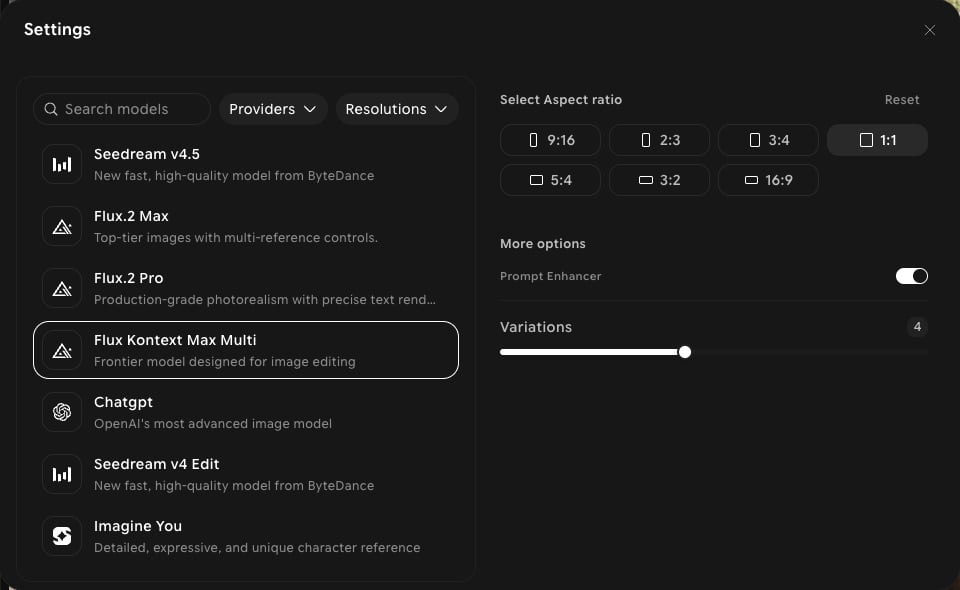
## Settings in ImagineArt

| Setting | Options |
| - | - |
| **Aspect ratios** | 9:16, 2:3, 3:4, 1:1, 5:4, 3:2, 16:9 |
| **Resolution** | No resolution setting shown |
| **More options** | **Prompt Enhancer**, **Variations** (up to 4) |
| **Credits** | 48 per image, shown in the model tooltip |

<Frame>
  <img src="https://mintcdn.com/imagineart/iwPYCmLZyCePtcU9/images/ai-models/flux-kontext-max-multi-step-01.png?fit=max&auto=format&n=iwPYCmLZyCePtcU9&q=85&s=20e546198178cacfab21468608c9d3ea" alt="Edit settings panel with Flux Kontext Max Multi selected, showing seven aspect ratios, Prompt Enhancer, and Variations" width="960" height="590" data-path="images/ai-models/flux-kontext-max-multi-step-01.png" />
</Frame>

## How to use

<Steps>
  <Step title="Open Edit">
    In the sidebar, click **Image**, then switch to the **Edit** tab in the prompt bar.
  </Step>

  <Step title="Select the model">
    Click the model button in the prompt bar (it shows the current model and aspect ratio) to open **Settings**, then choose **Flux Kontext Max Multi**.
  </Step>

  <Step title="Add your image">
    Click **Add references** to add the image you want to edit.
  </Step>

  <Step title="Describe the edit">
    Write what you want to change, for example "replace the background with a sunset beach."
  </Step>

  <Step title="Generate">
    Click **Generate** and review the output.
  </Step>
</Steps>

<Tip>
  Hover a model in the picker to see its current credit cost and supported aspect ratios before you generate.
</Tip>

## Compare models

| Model | Available in | Aspect ratios | Credits (per image) |
| - | - | - | - |
| **Flux Kontext Max Multi** | Edit | 7 | 48 |
| [Flux 3](/ai-models/image/flux-3) | Create, Edit | 14 | 28 |
| [Flux.2 Max](/ai-models/image/flux-2-max) | Create, Edit | 5 | 50 |
| [Flux.2 Pro](/ai-models/image/flux-2-pro) | Create, Edit | 7 | 28 |


This documentation is built and hosted on [Mintlify](https://mintlify.com), a developer documentation platform.