> ## Documentation Index
> Fetch the complete documentation index at: https://docs.imagine.art/llms.txt
> Use this file to discover all available pages before exploring further.

# Nano banana

<div style={{background: "linear-gradient(135deg, #0d0016 0%, #18003a 55%, #08000f 100%)", borderRadius: "20px", padding: "3.5rem 3rem 3rem", marginBottom: "2.5rem", overflow: "hidden", position: "relative"}}>
  <div style={{position: "absolute", inset: "0", background: "radial-gradient(ellipse at 80% 20%, rgba(124,0,251,0.2) 0%, transparent 55%), radial-gradient(ellipse at 10% 70%, rgba(146,73,255,0.12) 0%, transparent 50%)", pointerEvents: "none"}} />

  <div style={{position: "relative"}}>
    <div style={{display: "flex", gap: "0.5rem", marginBottom: "1.5rem", flexWrap: "wrap"}}>
      <span style={{background: "rgba(124,0,251,0.25)", border: "1px solid rgba(124,0,251,0.5)", borderRadius: "100px", padding: "0.3rem 1rem", fontSize: "0.72rem", color: "#c084fc", fontWeight: "500", letterSpacing: "0.06em"}}>IMAGE MODEL</span>
      <span style={{background: "rgba(255,255,255,0.06)", border: "1px solid rgba(255,255,255,0.12)", borderRadius: "100px", padding: "0.3rem 1rem", fontSize: "0.72rem", color: "rgba(255,255,255,0.45)", fontWeight: "400"}}>by Google DeepMind</span>
      <span style={{background: "rgba(255,255,255,0.06)", border: "1px solid rgba(255,255,255,0.12)", borderRadius: "100px", padding: "0.3rem 1rem", fontSize: "0.72rem", color: "rgba(255,255,255,0.45)", fontWeight: "400"}}>Gemini 2.5 Flash Image</span>
    </div>

    <h1 style={{fontSize: "clamp(2.5rem, 5vw, 3.75rem)", fontWeight: "700", color: "#ffffff", lineHeight: "1.1", letterSpacing: "-0.025em", margin: "0 0 1.1rem 0"}}>Nano Banana</h1>
    <p style={{fontSize: "1.1rem", color: "rgba(255,255,255,0.52)", maxWidth: "580px", lineHeight: "1.7", marginBottom: "2.25rem"}}>Google's precision image model — known for one-shot accuracy, multi-image editing up to 4 references, and near real-time speed. Built for branding, e-commerce, and campaign workflows.</p>

    <div style={{display: "flex", gap: "0.75rem", flexWrap: "wrap"}}>
      <div style={{background: "rgba(255,255,255,0.06)", borderRadius: "14px", padding: "0.875rem 1.5rem", border: "1px solid rgba(255,255,255,0.1)"}}>
        <div style={{fontSize: "0.62rem", color: "rgba(255,255,255,0.32)", textTransform: "uppercase", letterSpacing: "0.1em", marginBottom: "0.3rem"}}>References</div>
        <div style={{fontSize: "1rem", color: "#ffffff", fontWeight: "600"}}>Up to 4</div>
      </div>

      <div style={{background: "rgba(255,255,255,0.06)", borderRadius: "14px", padding: "0.875rem 1.5rem", border: "1px solid rgba(255,255,255,0.1)"}}>
        <div style={{fontSize: "0.62rem", color: "rgba(255,255,255,0.32)", textTransform: "uppercase", letterSpacing: "0.1em", marginBottom: "0.3rem"}}>Speed</div>
        <div style={{fontSize: "1rem", color: "#ffffff", fontWeight: "600"}}>Near real-time</div>
      </div>

      <div style={{background: "rgba(255,255,255,0.06)", borderRadius: "14px", padding: "0.875rem 1.5rem", border: "1px solid rgba(255,255,255,0.1)"}}>
        <div style={{fontSize: "0.62rem", color: "rgba(255,255,255,0.32)", textTransform: "uppercase", letterSpacing: "0.1em", marginBottom: "0.3rem"}}>Accuracy</div>
        <div style={{fontSize: "1rem", color: "#ffffff", fontWeight: "600"}}>One-shot</div>
      </div>

      <div style={{background: "rgba(255,255,255,0.06)", borderRadius: "14px", padding: "0.875rem 1.5rem", border: "1px solid rgba(255,255,255,0.1)"}}>
        <div style={{fontSize: "0.62rem", color: "rgba(255,255,255,0.32)", textTransform: "uppercase", letterSpacing: "0.1em", marginBottom: "0.3rem"}}>By</div>
        <div style={{fontSize: "1rem", color: "#ffffff", fontWeight: "600"}}>Google</div>
      </div>
    </div>
  </div>
</div>

<Frame>
  <img src="https://mintcdn.com/imagineart/pNSYSV0v2Ld0PZ4m/images/11_q9Kj7Vv.max-1200x1200.jpg?fit=max&auto=format&n=pNSYSV0v2Ld0PZ4m&q=85&s=fe4db6b9a092ab332405ca42ff887199" alt="11 Q9kj7vv Max 1200x1200" width="1200" height="384" data-path="images/11_q9Kj7Vv.max-1200x1200.jpg" />
</Frame>

<Info>
  Nano Banana is available exclusively through ImagineArt, integrated into both the AI Image Generator and the Image Editor.
</Info>

## Capabilities

<CardGroup cols={3}>
  <Card title="Cross-edit consistency">
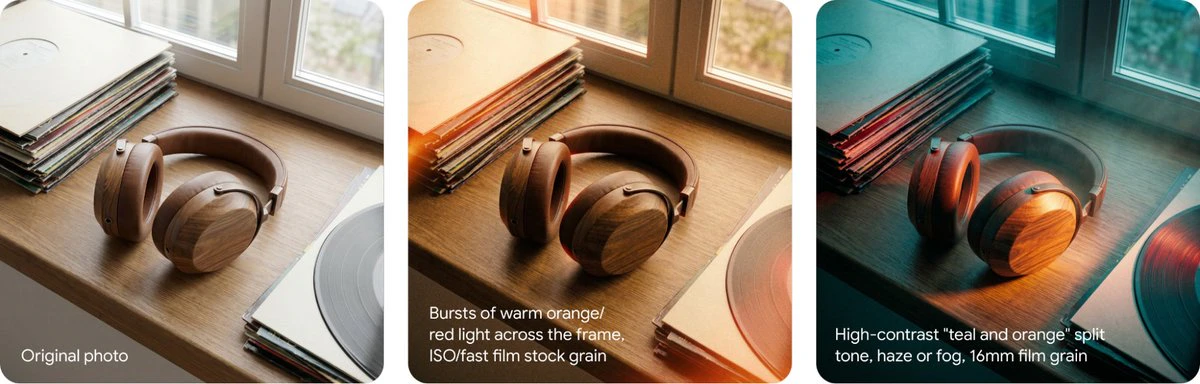
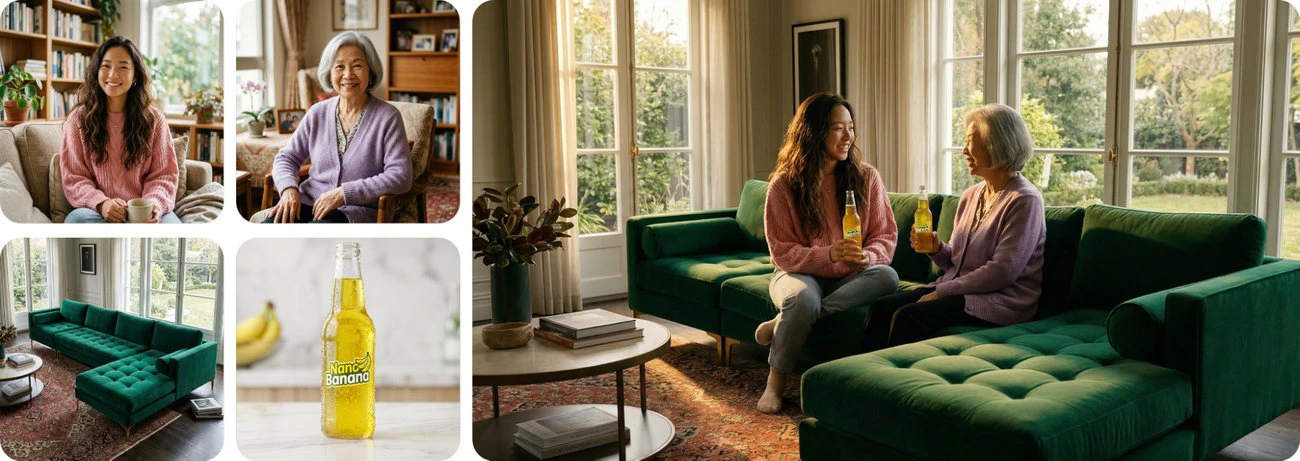
    Maintains subject identity, lighting, and style coherence across multiple outputs — ideal for brand campaigns and product series.
  </Card>

  <Card title="Near real-time generation">
    Delivers high-quality results at near real-time speeds — efficient for quick iteration and large-scale projects alike.
  </Card>

  <Card title="Creative versatility">
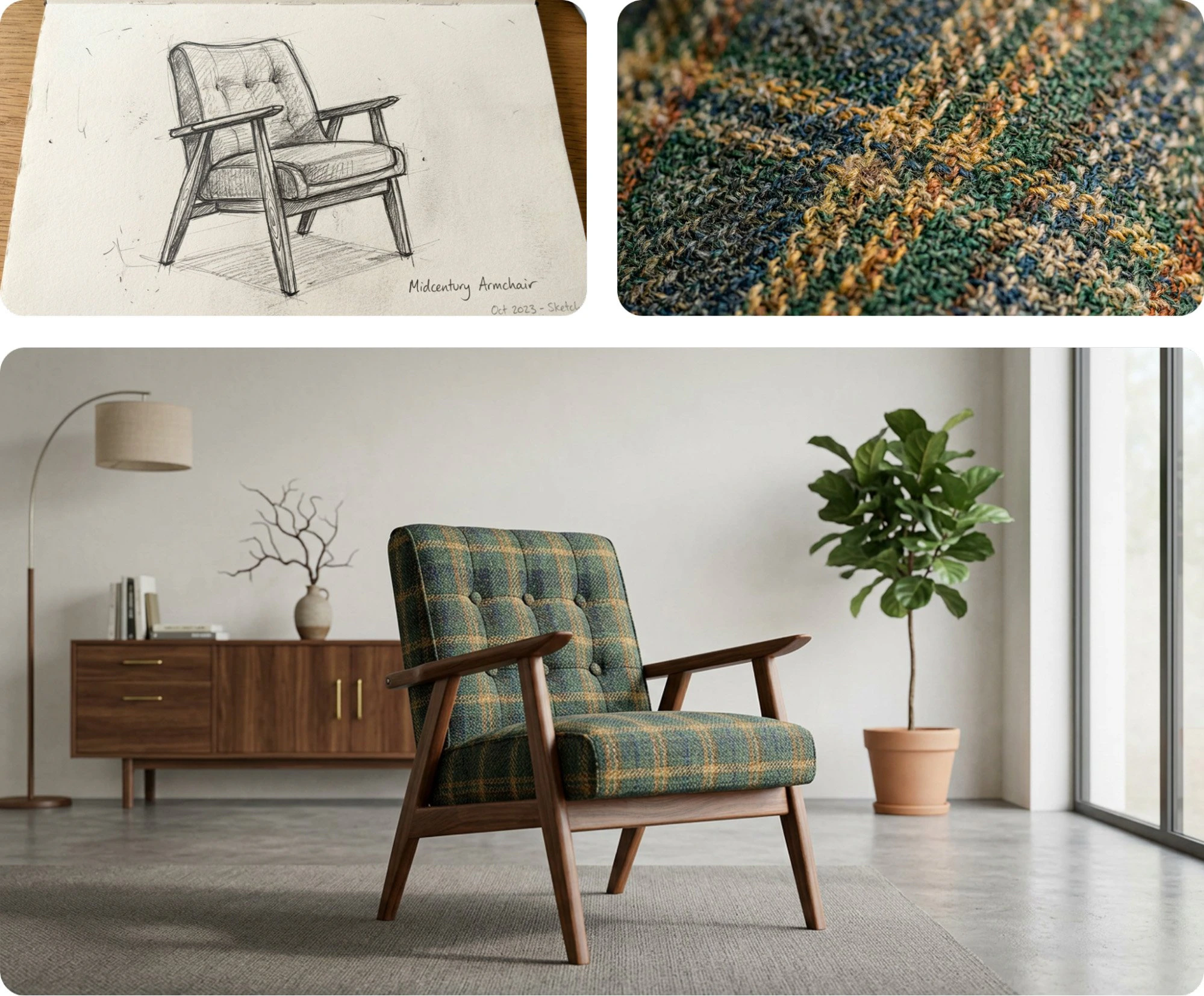
    Adapts to text-to-image generation, guided image editing, and multi-reference design creation across different workflows.
  </Card>
</CardGroup>

<Frame>
  <img src="https://mintcdn.com/imagineart/pNSYSV0v2Ld0PZ4m/images/4_IiVo3T0.max-1300x1300.jpg?fit=max&auto=format&n=pNSYSV0v2Ld0PZ4m&q=85&s=dfff8e49baf4a3c1f5c5fc843faa2f33" alt="4 Ii Vo3t0 Max 1300x1300" width="1300" height="461" data-path="images/4_IiVo3T0.max-1300x1300.jpg" />
</Frame>

## How to use

<Tabs>
  <Tab title="AI Image Generator">
    <Steps>
      <Step title="Open the generator">
        Go to the **ImagineArt AI Image Generator**.
      </Step>

      <Step title="Select the model">
        From the model dropdown, choose **Google Nano Banana**.
      </Step>

      <Step title="Enter your prompt and references">
        Write your text prompt and upload up to 4 reference images for richer guidance.
      </Step>

      <Step title="Generate">
        Click **Generate** and wait for the model to process your request.
      </Step>
    </Steps>

    <Frame>
      <img src="https://mintcdn.com/imagineart/pNSYSV0v2Ld0PZ4m/images/2_hJWjDOO.max-2000x2000.jpg?fit=max&auto=format&n=pNSYSV0v2Ld0PZ4m&q=85&s=c83f273d5bec061a6ad72db7d66893c7" alt="2 H J Wj DOO Max 2000x2000" width="1999" height="1653" data-path="images/2_hJWjDOO.max-2000x2000.jpg" />
    </Frame>
  </Tab>

  <Tab title="Image Editor">
    <Steps>
      <Step title="Open the editor">
        Go to the **ImagineArt Image Editor**.
      </Step>

      <Step title="Select the model">
        Click **Settings** and select **Google Nano Banana** from the model dropdown.
      </Step>

      <Step title="Apply edits">
        Apply edits or transformations directly to your uploaded visuals.
      </Step>

      <Step title="Use visual prompts">
        Use **Visual Prompts** to make further adjustments, add annotations, or overlay images on your base image.
      </Step>
    </Steps>
  </Tab>

  <Tab title="AI Video (start/end frames)">
    <Steps>
      <Step title="Open the video generator">
        Go to the **ImagineArt AI Video Generator**.
      </Step>

      <Step title="Select a video model">
        Choose **Kling 2.1** or your desired video model from the dropdown.
      </Step>

      <Step title="Set resolution">
        Set the resolution to **1080p**.
      </Step>

      <Step title="Edit start and end frames">
        Use **Google Nano Banana** to edit and refine the start and end images before generating the video.
      </Step>
    </Steps>
  </Tab>
</Tabs>

## Prompting tips

Nano Banana is optimized for one-shot accuracy — precise, structured prompts produce the best results.

1. **Be specific** — Define the subject, background, product, and style in one prompt. Example: *"A man in a modern kitchen holding a coffee mug, styled like a product ad."*
2. **Use multiple references** — Upload images of the subject, product, and setting together to maintain consistency across outputs.
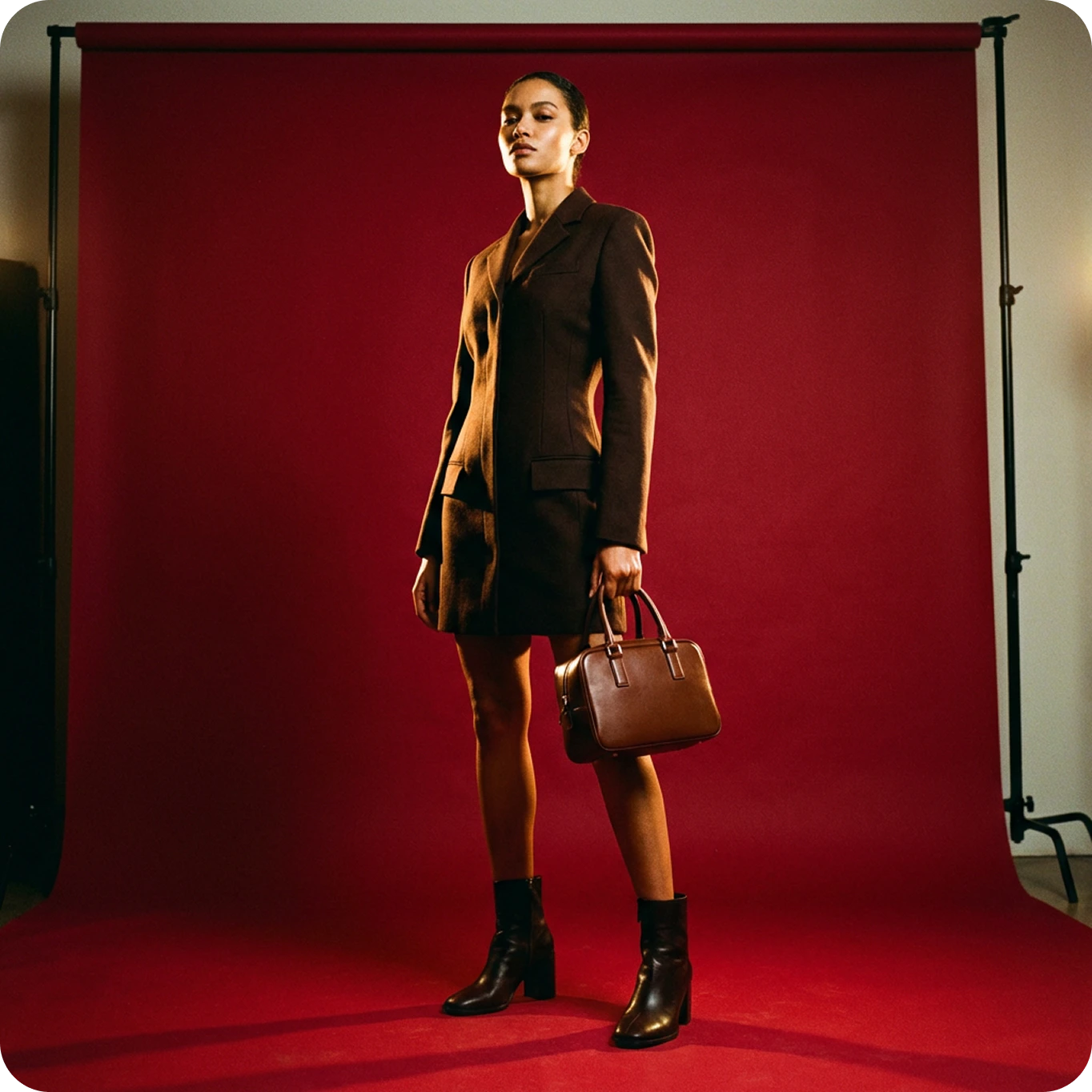
3. **Guide the mood** — Include terms like *"cinematic"*, *"flat lay"*, or *"studio lighting"* to shape composition and tone.

<Frame>
  <img src="https://mintcdn.com/imagineart/pNSYSV0v2Ld0PZ4m/images/1_u1Xks1L.max-1400x1400.png?fit=max&auto=format&n=pNSYSV0v2Ld0PZ4m&q=85&s=9df1e07a7225e867db781fd62fe5ad8b" alt="1 U1xks1l Max 1400x1400" width="1364" height="1364" data-path="images/1_u1Xks1L.max-1400x1400.png" />
</Frame>

### Example prompts

> A fluid gender albino person inside a vintage car with bright yellow chrysanthemums spilling out through the windows, holding a baby blue handbag. The scene blends nature and fashion with a dreamlike atmosphere, shot in a cinematic and analog photo style.

> A sleek modern kitchen with stainless steel appliances and a marble countertop, featuring a woman in a red dress holding a glass of wine. The scene should reflect contemporary elegance, with soft lighting highlighting the product and surroundings.

## Compare models

| Model                  | Visual style               | Strengths                              | Best for                            |
| ---------------------- | -------------------------- | -------------------------------------- | ----------------------------------- |
| **Nano Banana**        | Photorealistic, adaptive   | One-shot accuracy, multi-image editing | Image editing, branding, e-commerce |
| **Flux Kontext**       | Artistic, flexible         | Strong stylization, precision control  | Creative edits, experimental work   |
| **Seedream 4.0**       | Photorealistic, consistent | Up to 6 references, native 4K          | Complex campaigns, high-res assets  |
| **ImagineArt 1.5 Pro** | Realistic, cinematic       | Native 4K, composition control         | Posters, typography-based designs   |