> ## Documentation Index
> Fetch the complete documentation index at: https://docs.imagine.art/llms.txt
> Use this file to discover all available pages before exploring further.
# Compositor
> Combine and layer multiple inputs directly on the Workflows canvas.
The **Compositor** node lets you merge and layer multiple inputs — images, videos, or both — into a single composited output, directly inside the Workflows canvas. No external tools needed.
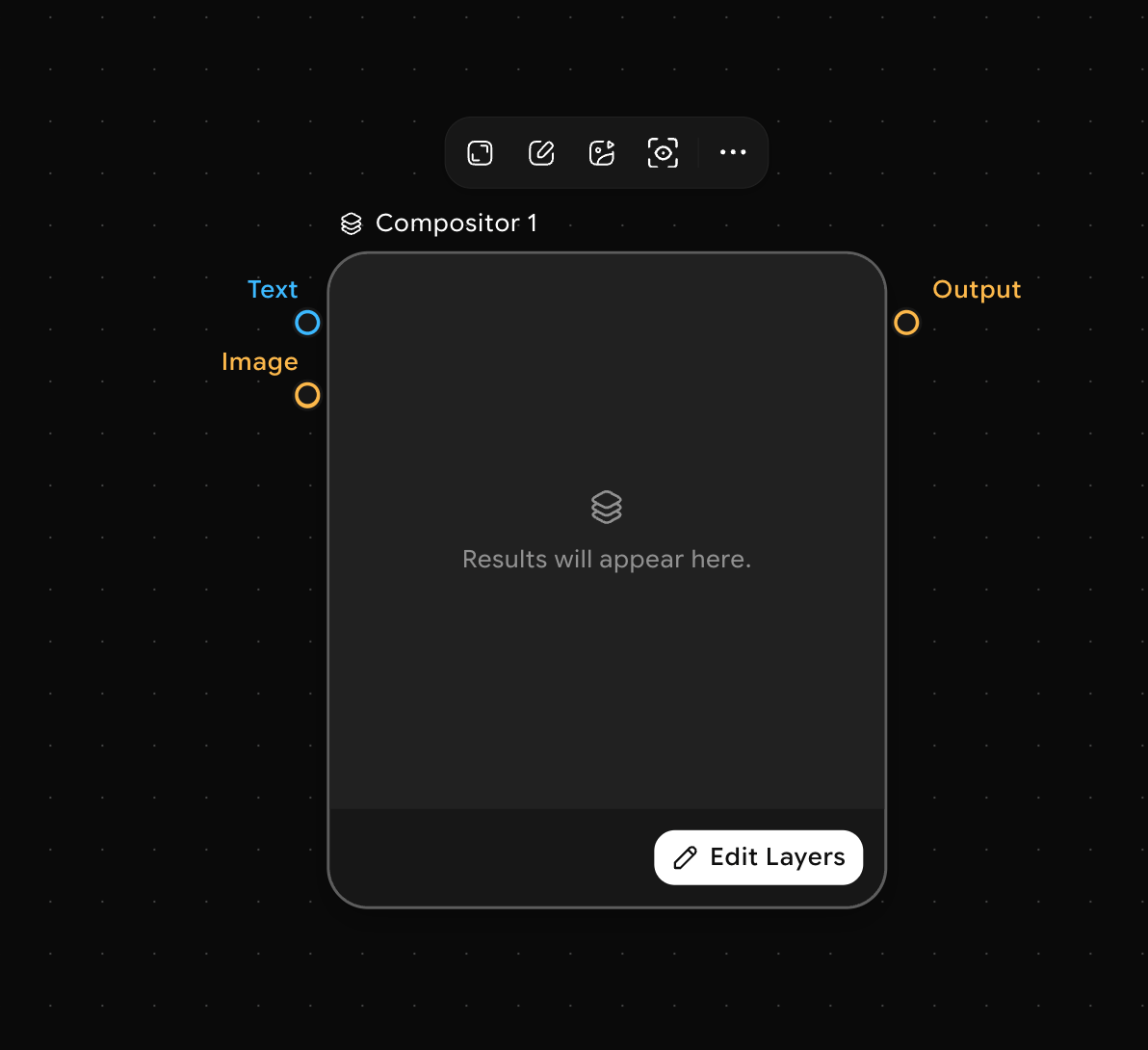 ## How to use the Compositor node
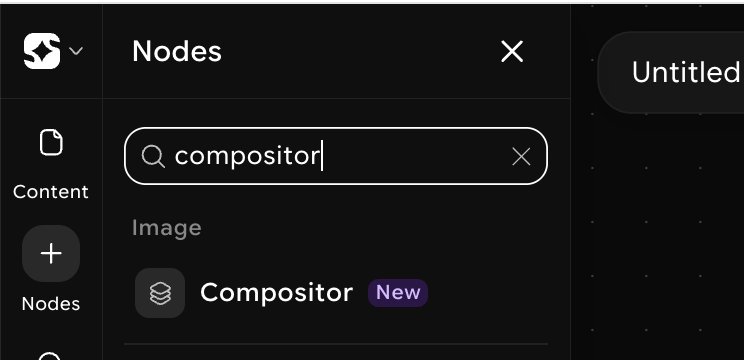
Open the node picker (`Space` or right-click on the canvas) and search for **Compositor**. Click to place it.
## How to use the Compositor node
Open the node picker (`Space` or right-click on the canvas) and search for **Compositor**. Click to place it.
 Connect the output handles of any Image or Video nodes to the input slots on the Compositor. You can connect multiple inputs — each one becomes a separate layer.
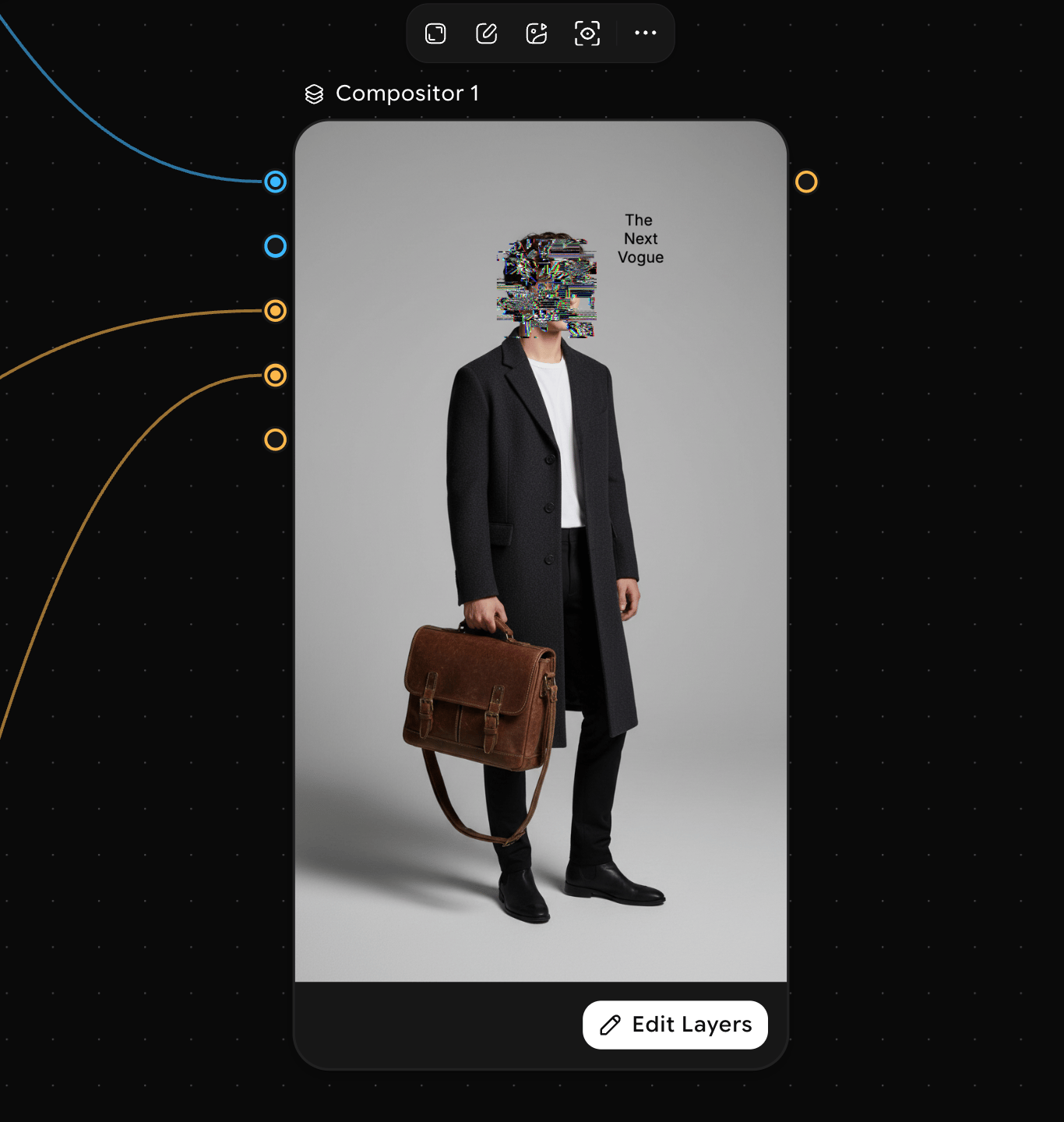 In the Eedit layers mode, reorder layers by dragging them up or down. Set blend mode, opacity, position, and scale for each layer independently.
 Connect the Compositor's output handle to any downstream node — a Generate Video node, an Export node, or another Compositor for more complex compositions.
Click **Run** on the Compositor node or run the full workflow. The node merges all connected layers and produces a single composited output.
Connect the Compositor's output handle to any downstream node — a Generate Video node, an Export node, or another Compositor for more complex compositions.
Click **Run** on the Compositor node or run the full workflow. The node merges all connected layers and produces a single composited output.
 ## Supported inputs
| Input type | Notes |
| ---------- | ------------------------------------------------------------- |
| **Image** | Static frames from any image node |
| **Video** | Clips from any video generation or edit node |
| **Mixed** | Image and video inputs can be combined in the same Compositor |
Use the Compositor to stitch together outputs from separate generation pipelines before passing them to a final export or post-processing node.
## Supported inputs
| Input type | Notes |
| ---------- | ------------------------------------------------------------- |
| **Image** | Static frames from any image node |
| **Video** | Clips from any video generation or edit node |
| **Mixed** | Image and video inputs can be combined in the same Compositor |
Use the Compositor to stitch together outputs from separate generation pipelines before passing them to a final export or post-processing node.