> ## Documentation Index
> Fetch the complete documentation index at: https://docs.imagine.art/llms.txt
> Use this file to discover all available pages before exploring further.
# Account Deletion Request
> How to permanently delete your personal ImagineArt account or a team workspace, and what data is removed.
Once permanent deletion is complete, your data cannot be recovered. Personal accounts have a 7-day cooling-off window — team workspace deletion is immediate and cannot be undone.
## What gets deleted
Deleting your personal account removes:
* Personal account details
* Generated images
* Collections
* All other data linked to your user account
Any active subscriptions are cancelled automatically. You have a **7-day cooling-off period** after initiating deletion during which you can reverse the process.
Deleting a team workspace removes:
* Team information
* Shared assets and directories
* Workspace access for all members
* All references tied to that workspace
**Team workspace deletion is immediate and cannot be undone.** Only the team owner can delete a team or transfer ownership. The default personal team cannot be deleted.
## Delete your personal account
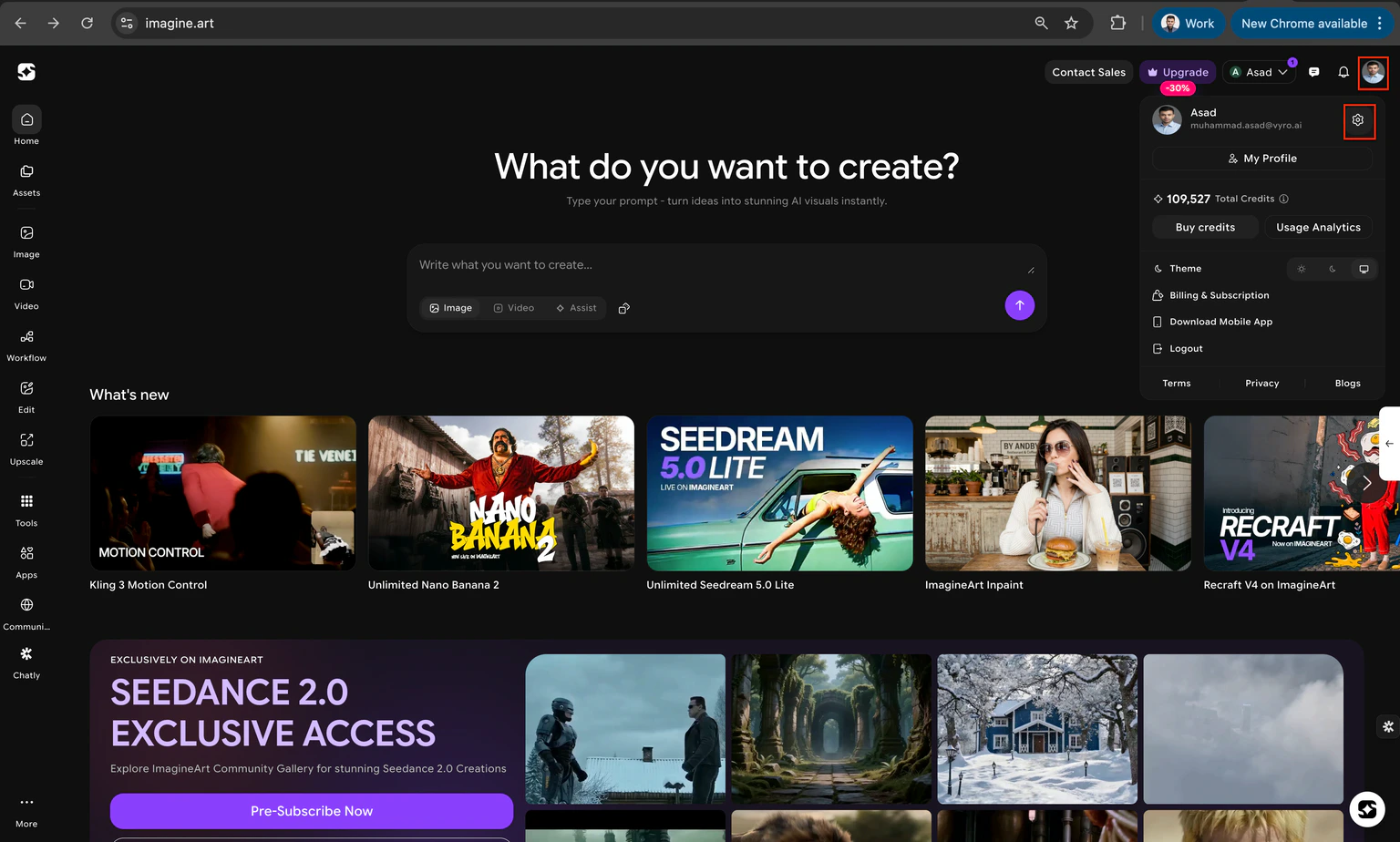
Click your profile picture in the top-right corner and navigate to account settings.
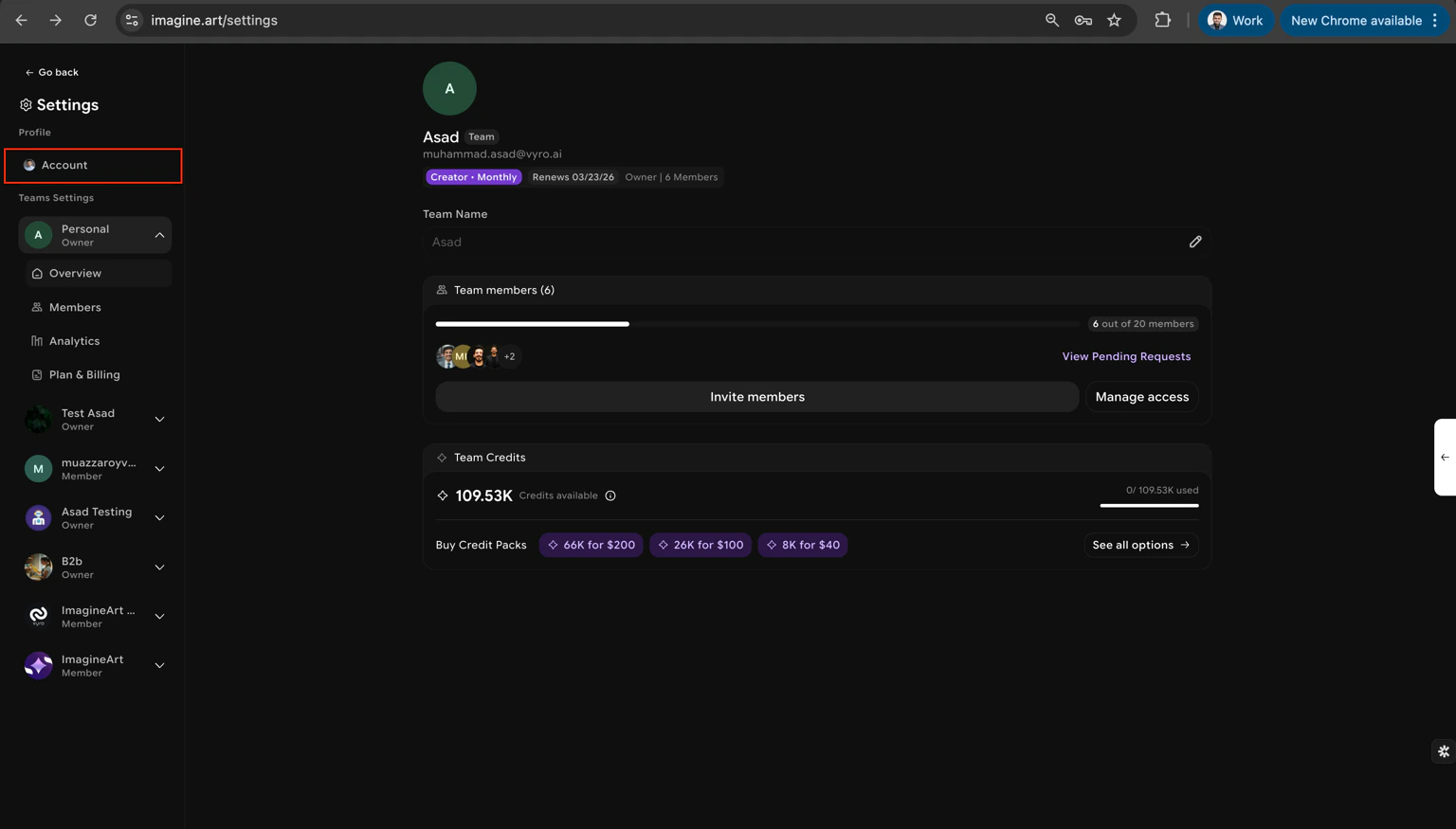
 From the sidebar, select the **Account** section.
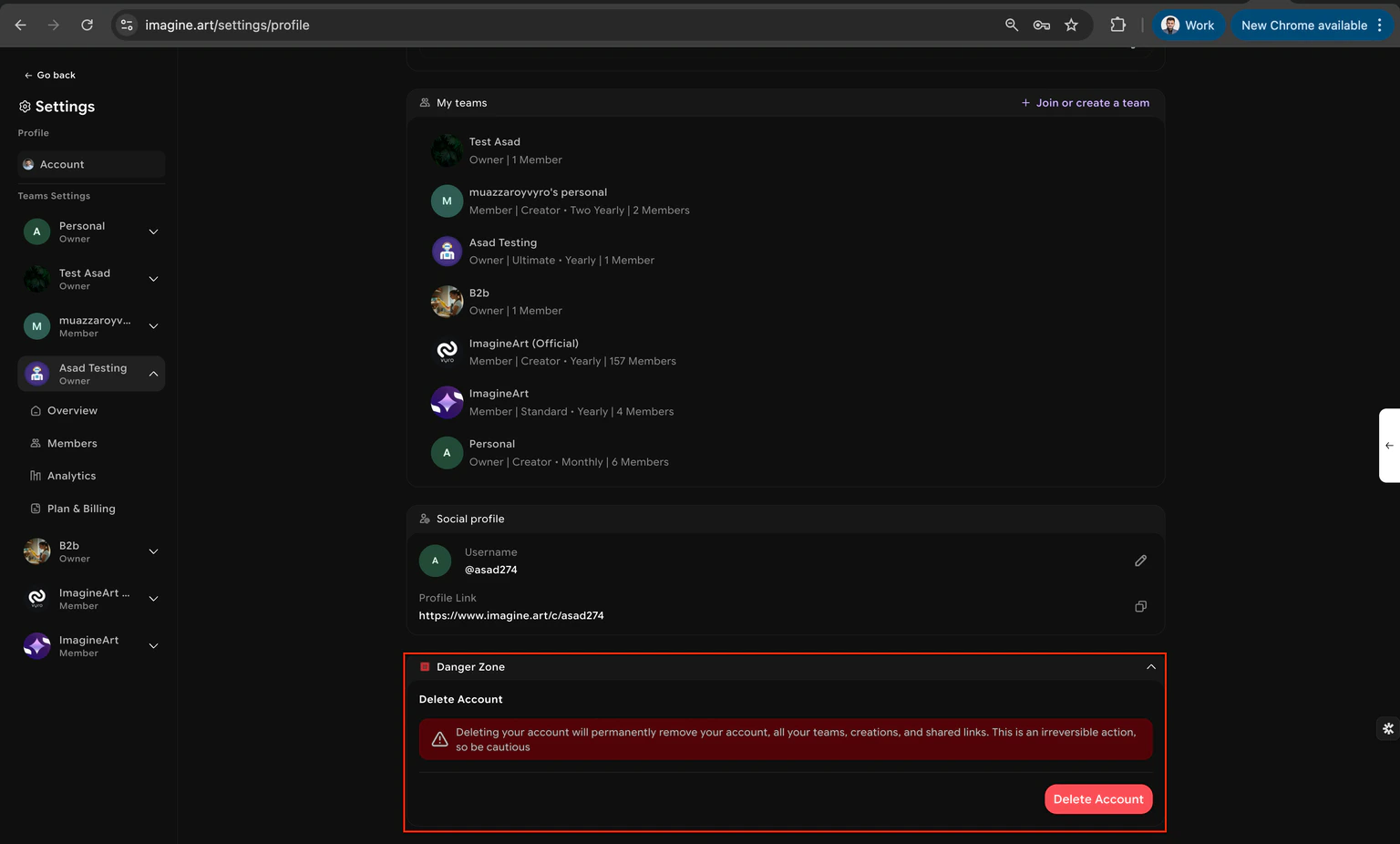
 Scroll down and expand the **Danger Zone** section.
Click **Delete Account** and confirm via the popup that appears.
Scroll down and expand the **Danger Zone** section.
Click **Delete Account** and confirm via the popup that appears.
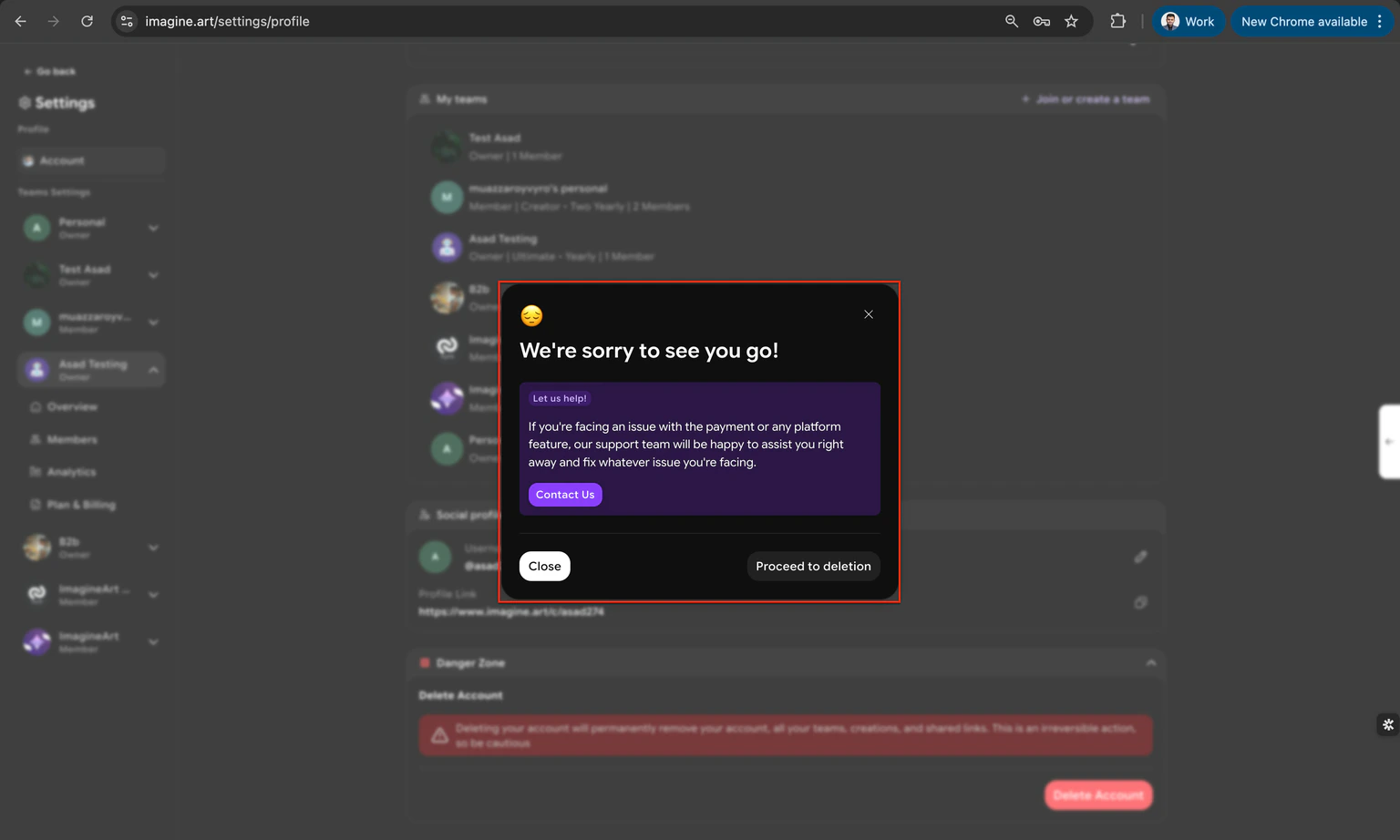
 Approve the deletion. This activates the 7-day cooling-off period. If you do not reverse the request within 7 days, your account is permanently deleted.
 ## Delete a team workspace
This action is immediate and irreversible. Only the team owner can perform this action.
Click the team selector at the top of your dashboard.
## Delete a team workspace
This action is immediate and irreversible. Only the team owner can perform this action.
Click the team selector at the top of your dashboard.
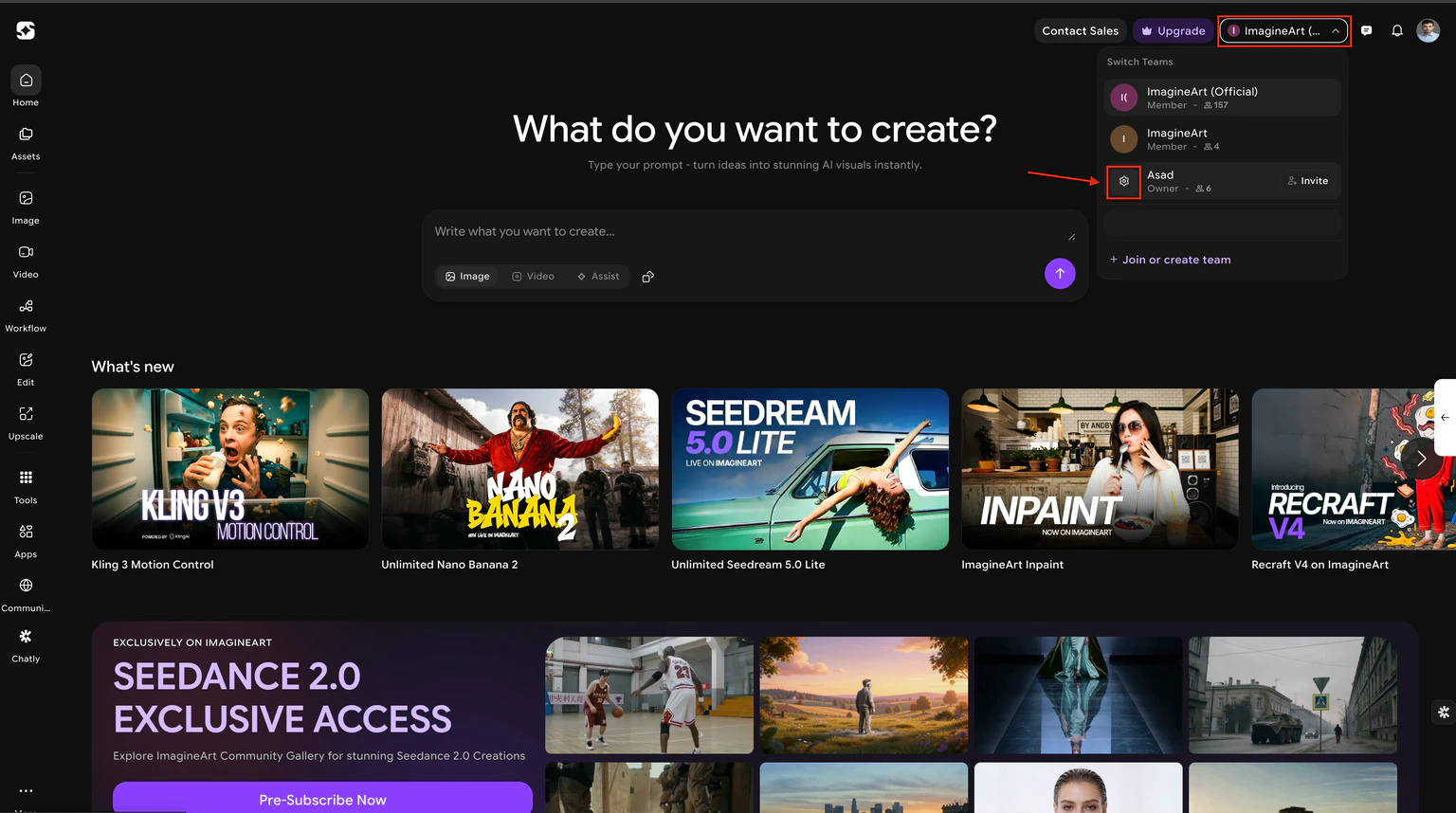 Select the specific team you want to delete.
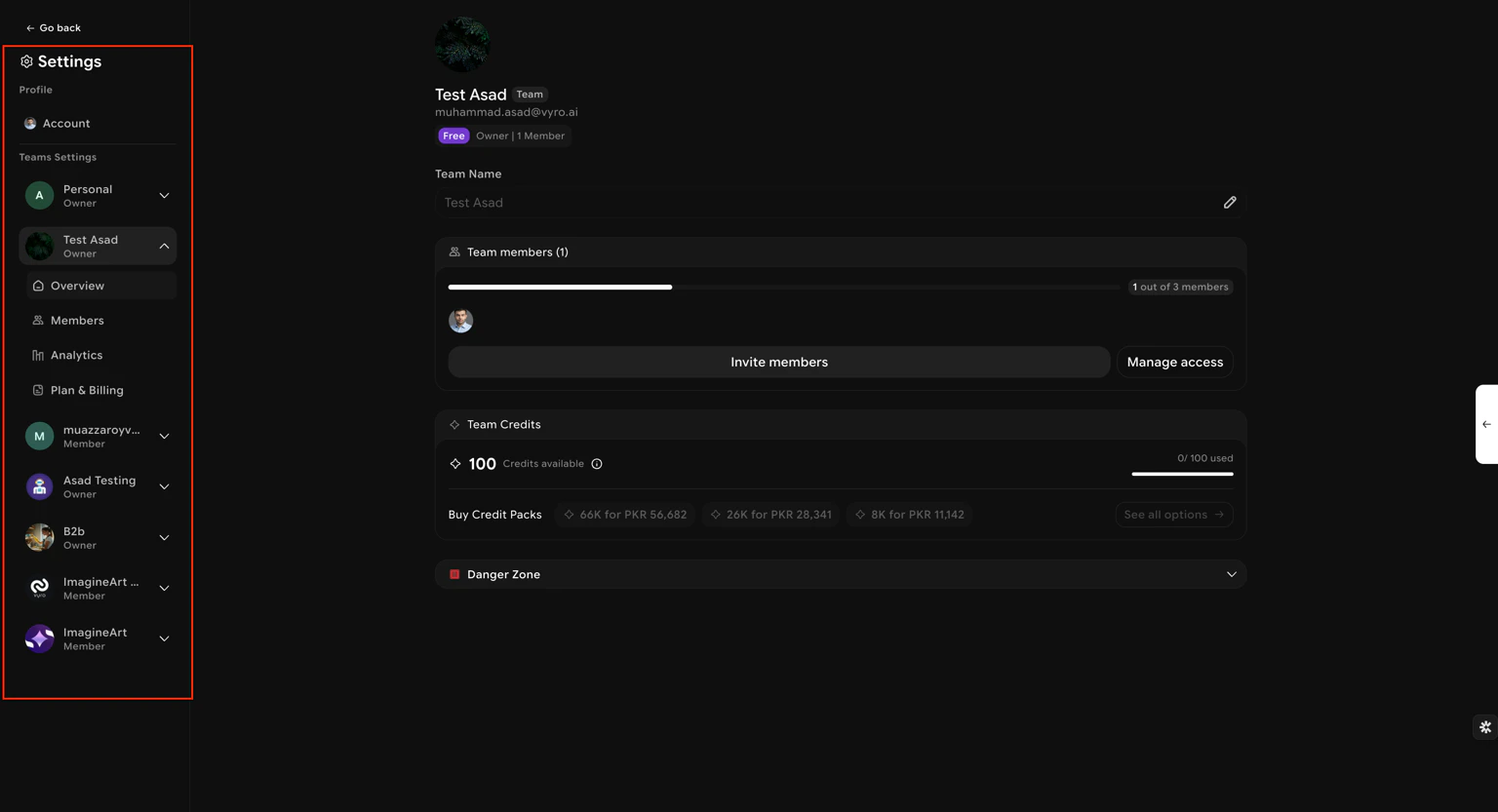 Go to the **Team Overview** section in settings.
 Scroll down and expand the **Danger Zone** section.
 Click the **Delete Team** button.
 Select either permanent deletion or transfer ownership to another member.
 Confirm your selection. If transferring ownership, approve the transfer to complete the process.
## Need help?
For assistance with account access or deletion, contact [support@imagine.art](mailto:support@imagine.art).
Confirm your selection. If transferring ownership, approve the transfer to complete the process.
## Need help?
For assistance with account access or deletion, contact [support@imagine.art](mailto:support@imagine.art).