> ## Documentation Index
> Fetch the complete documentation index at: https://docs.imagine.art/llms.txt
> Use this file to discover all available pages before exploring further.
# Password Recovery and Sign-in
> How to recover your password, set up email login from a social account, and sign in using any of ImagineArt's four authentication methods.
## Sign-in methods
ImagineArt supports four ways to sign in:
* **Google** authentication
* **Facebook** authentication
* **Discord** authentication
* **Email and password**
You can sign in with a different method than the one you originally used to sign up. For example, if you registered with Google, you can also log in using Facebook, Discord, or your email address.
## Recover your password
Navigate to [imagine.art](https://www.imagine.art) and click **Log In**.
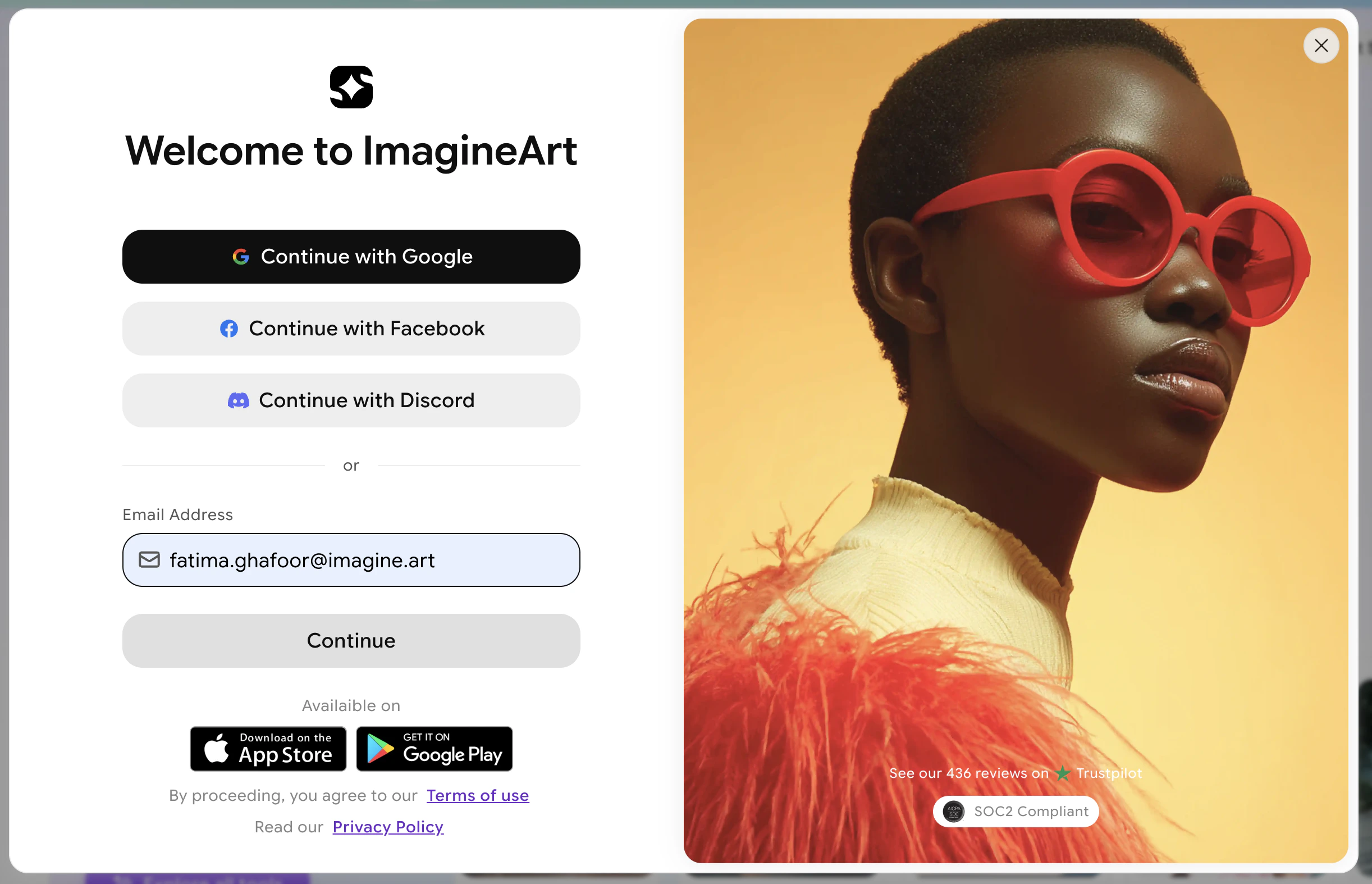
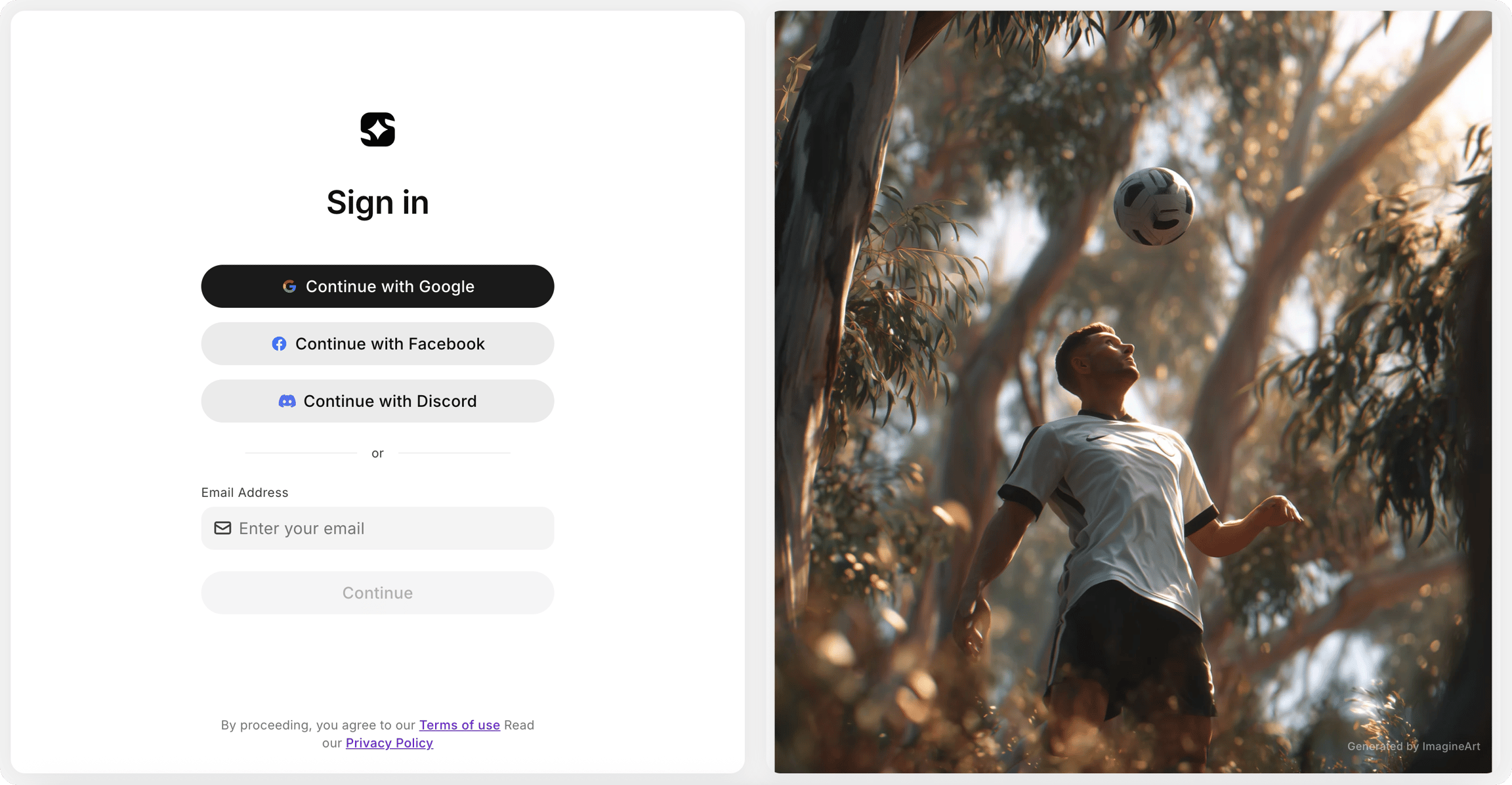 Enter the email address associated with your account and click **Continue**.
On the next screen, select the **Forgot Password** option.
Enter the email address associated with your account and click **Continue**.
On the next screen, select the **Forgot Password** option.
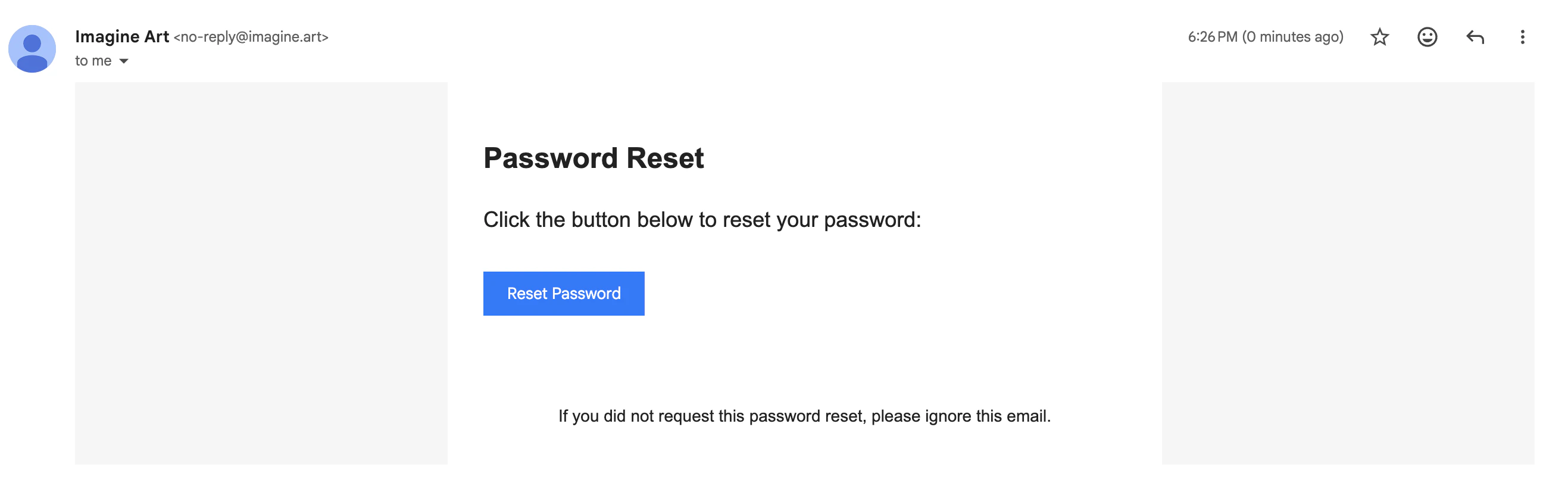
 Open the password reset email sent to your inbox and click the reset link.
 Follow the link to create and confirm your new password.
## Set up email login from a social account
If you originally registered with Google, Facebook, or Discord but want to add email-and-password access to your account:
On the sign-in page, enter the email address associated with your social account and click **Continue**.
A password reset email will be sent to your inbox automatically.
Open the email, click the link, and create a password. You can now sign in with email and password in addition to your social login.
## Still having trouble?
Contact [support@imagine.art](mailto:support@imagine.art) for help with account access.
Follow the link to create and confirm your new password.
## Set up email login from a social account
If you originally registered with Google, Facebook, or Discord but want to add email-and-password access to your account:
On the sign-in page, enter the email address associated with your social account and click **Continue**.
A password reset email will be sent to your inbox automatically.
Open the email, click the link, and create a password. You can now sign in with email and password in addition to your social login.
## Still having trouble?
Contact [support@imagine.art](mailto:support@imagine.art) for help with account access.