> ## Documentation Index
> Fetch the complete documentation index at: https://docs.imagine.art/llms.txt
> Use this file to discover all available pages before exploring further.
# Catalog shoots
> Generate clean, consistent studio shots for product listings.
A Catalog shoot is for clean, consistent studio shots for product listings — the mode to reach for when you need product-page-ready images or clips without an editorial "look."
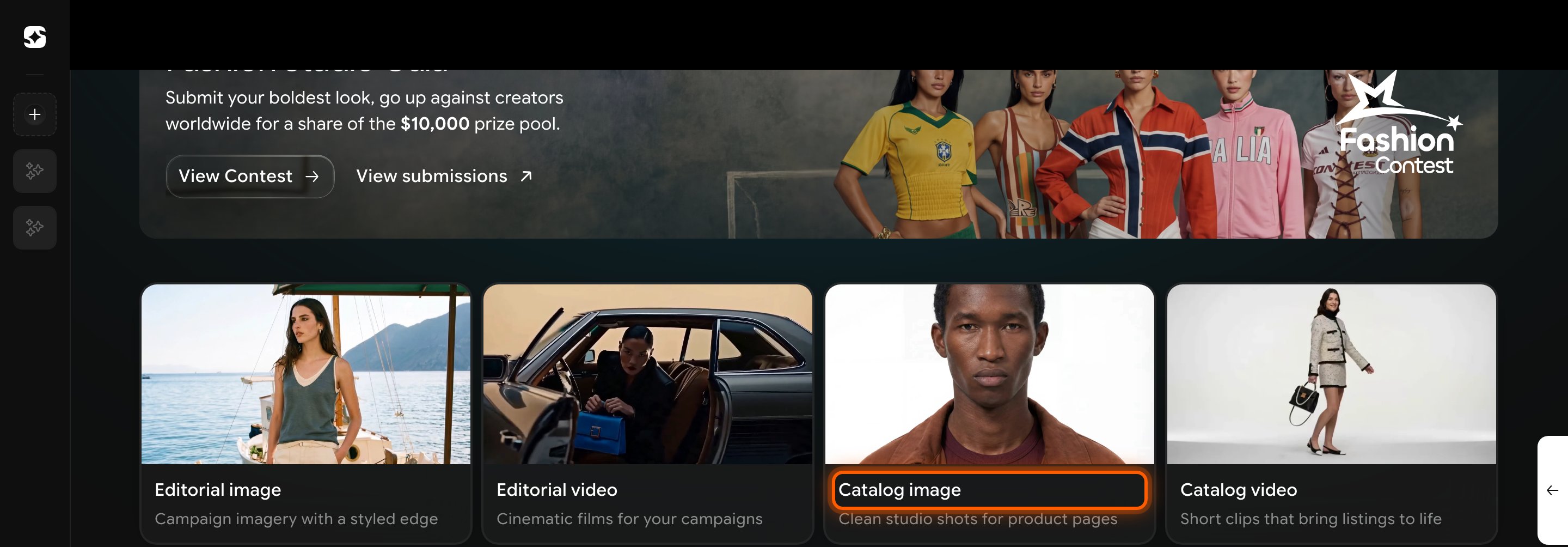
Go to [imagine.art/fashion-studio](https://imagine.art/fashion-studio) and click **Catalog image** (or **Catalog video**). This opens the Catalogue Shoot editor — the same editor as an [Editorial shoot](/fashion-studio/editorial-shoot), with the same **[Model](/fashion-studio/models)**, **[Choose outfit](/fashion-studio/choosing-an-outfit)**, **Model styling**, and **[Shot settings](/fashion-studio/scenes-and-poses)** panels.
 Pick a model, add your **Top** and **Bottom** images, and set a scene and pose — the same controls as Editorial. **Mode** also has **[Video](/fashion-studio/video-shoot)** and **[Edit](/fashion-studio/editing-a-creation)** options alongside Image. Click **Shoot** to generate.
Looking for the more styled, campaign-oriented mode instead? See [Editorial shoots](/fashion-studio/editorial-shoot).
Pick a model, add your **Top** and **Bottom** images, and set a scene and pose — the same controls as Editorial. **Mode** also has **[Video](/fashion-studio/video-shoot)** and **[Edit](/fashion-studio/editing-a-creation)** options alongside Image. Click **Shoot** to generate.
Looking for the more styled, campaign-oriented mode instead? See [Editorial shoots](/fashion-studio/editorial-shoot).