> ## Documentation Index
> Fetch the complete documentation index at: https://docs.imagine.art/llms.txt
> Use this file to discover all available pages before exploring further.
# Editing a creation
> Regenerate an existing image with a new scene, angle, or description — a reference-driven workflow, not a brush or mask tool.
**Edit** is the third mode under **Mode**, alongside Image and Video. It's for reworking an image you already have rather than building a shot from scratch — but it works by regenerating from a reference image and a text description, not by painting masks or swapping specific regions by hand.
Click **Edit** under **Mode**. Like Video mode, this replaces the entire left panel — Model, Choose outfit, Model styling, and Shot settings from Image mode aren't part of it. You need a reference image before anything else appears.
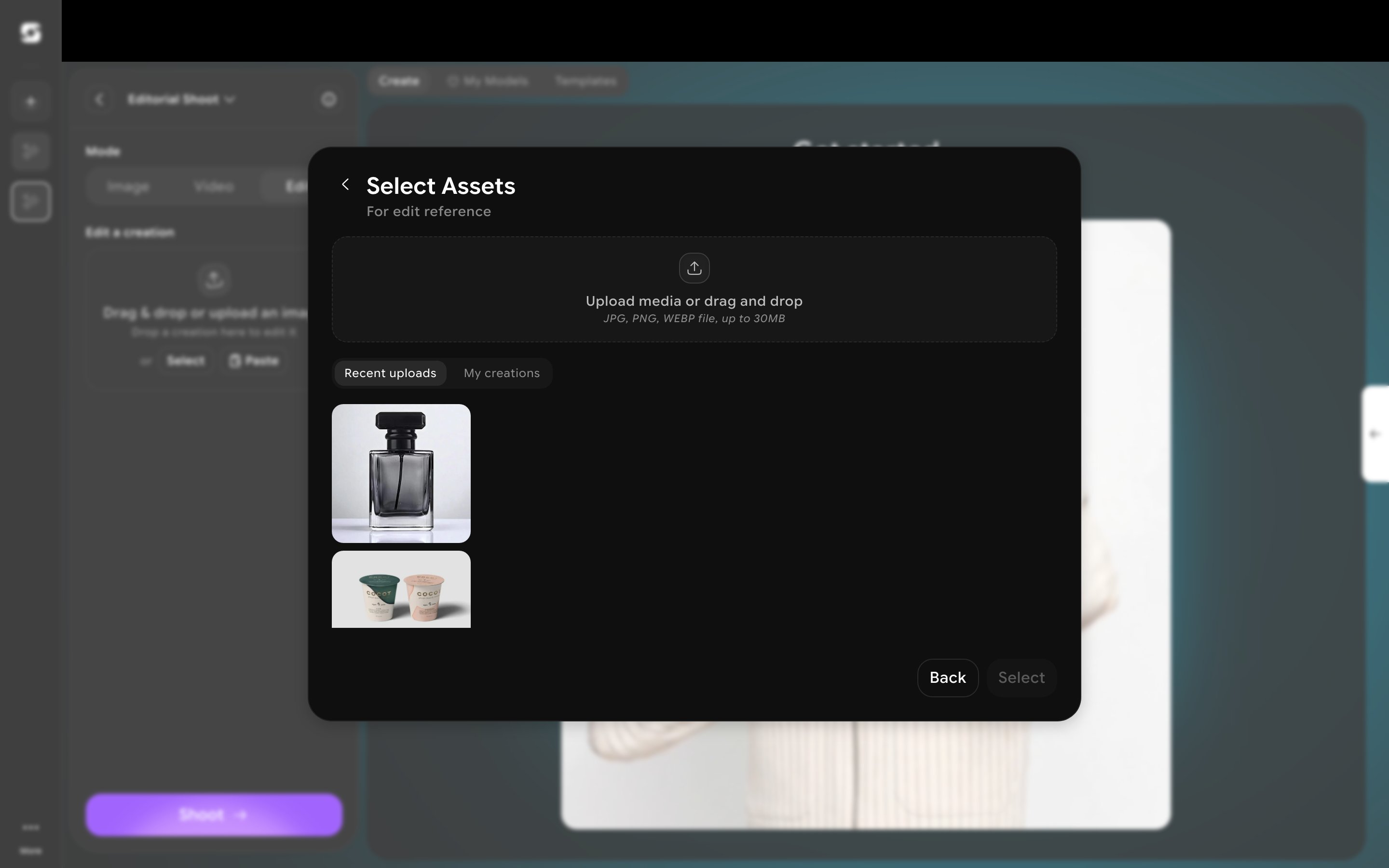
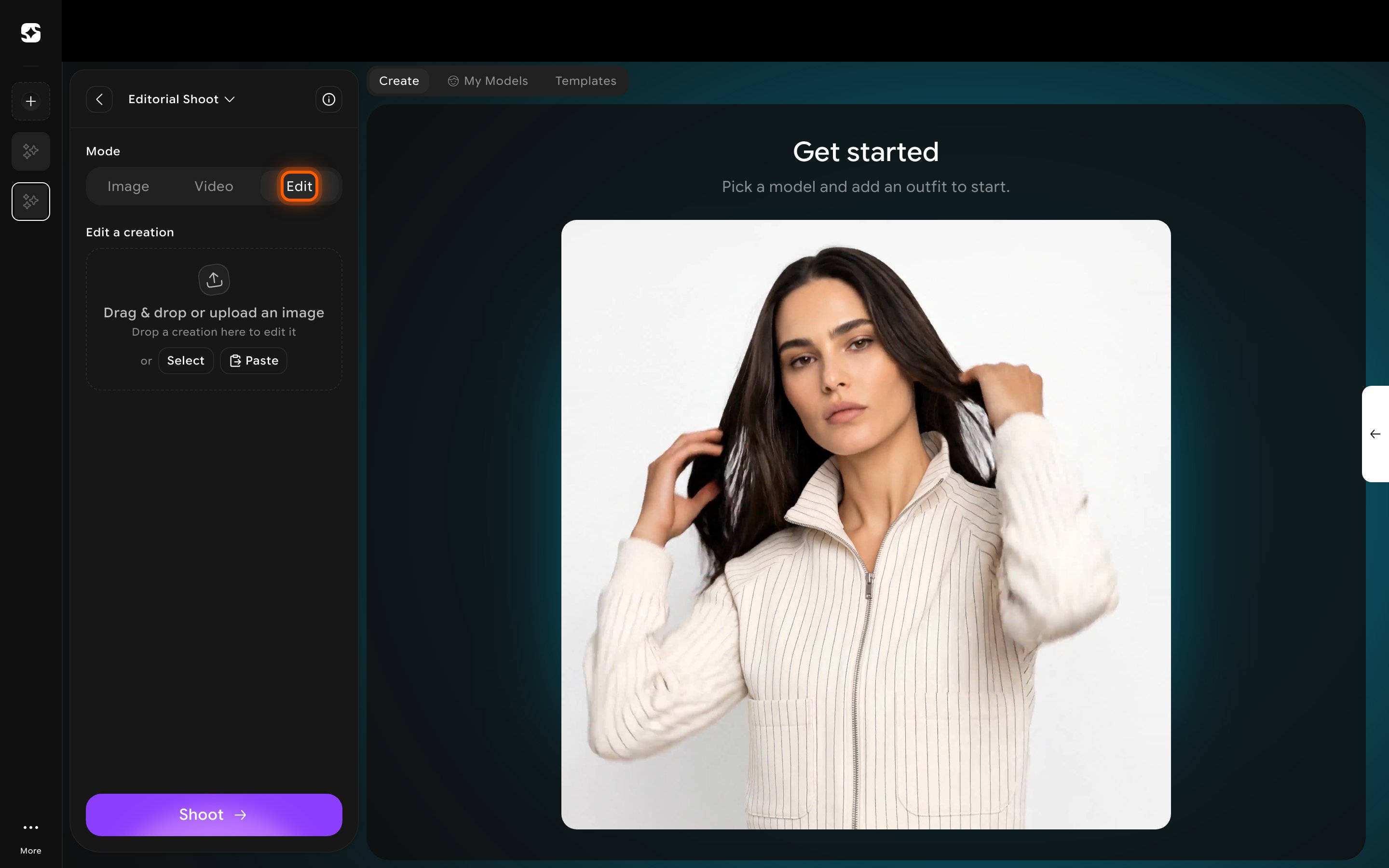 Click **Select** to open **Select Assets**, and choose an image from **Recent uploads** or **My creations** — or upload a new one directly. You can add a second reference image afterward (for example, a model shot plus a separate garment photo) using the **+** tile next to it.
 With a reference image in place, the panel adds **Shot settings** (**Set scene**, **Camera angle**), **Number of variations**, aspect ratio, and an optional **Describe your shot** field — this is where you say what should change (e.g. "outdoor afternoon light, model looking away, editorial style"). Click **Shoot** to generate.
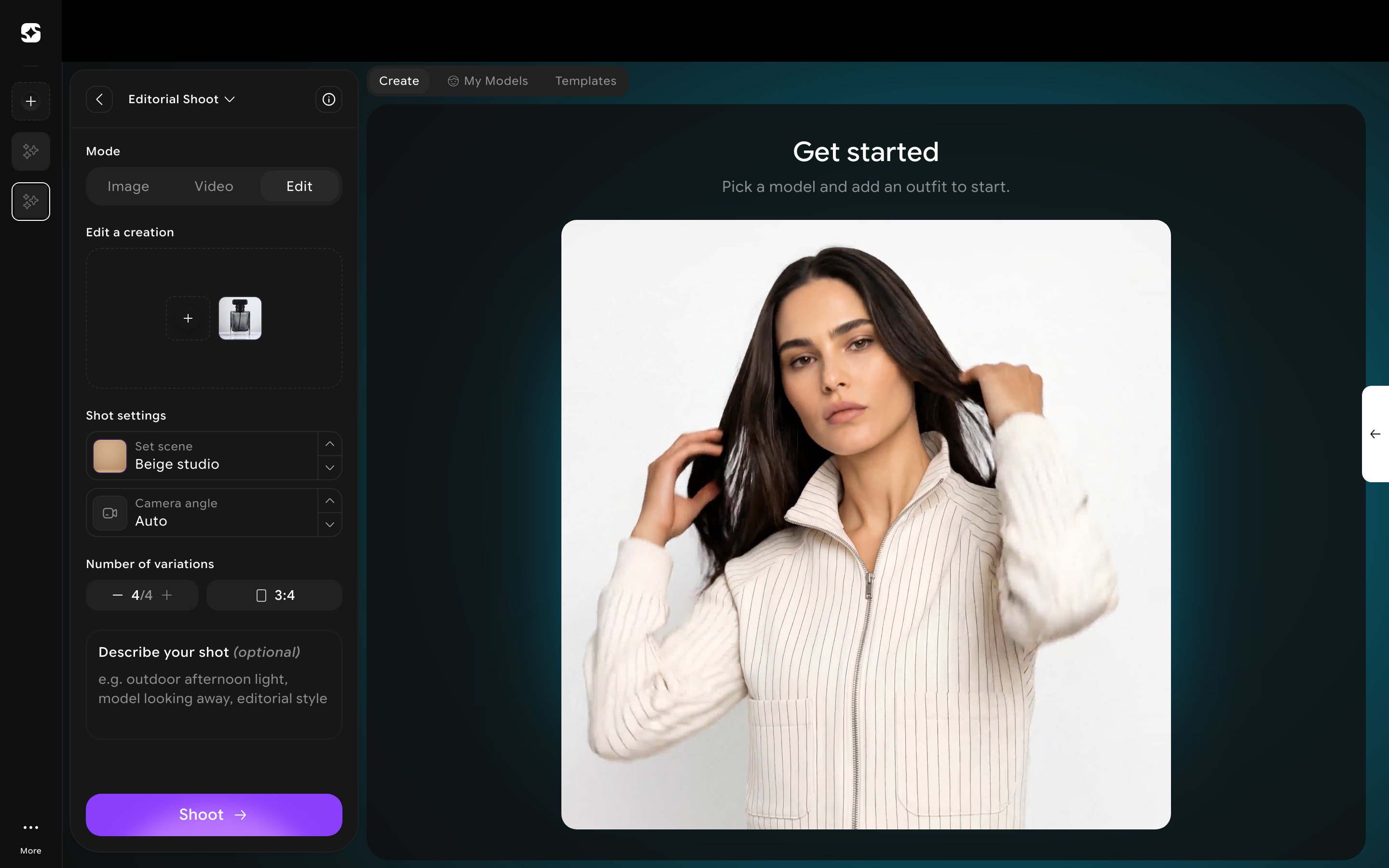 There's no brush, mask, or region-select tool. If you want a specific change (a different background, a swapped garment), describe it in **Describe your shot** rather than looking for a dedicated tool icon.