> ## Documentation Index
> Fetch the complete documentation index at: https://docs.imagine.art/llms.txt
> Use this file to discover all available pages before exploring further.
# Editorial shoots
> Generate campaign-style fashion imagery and video with a styled, editorial edge.
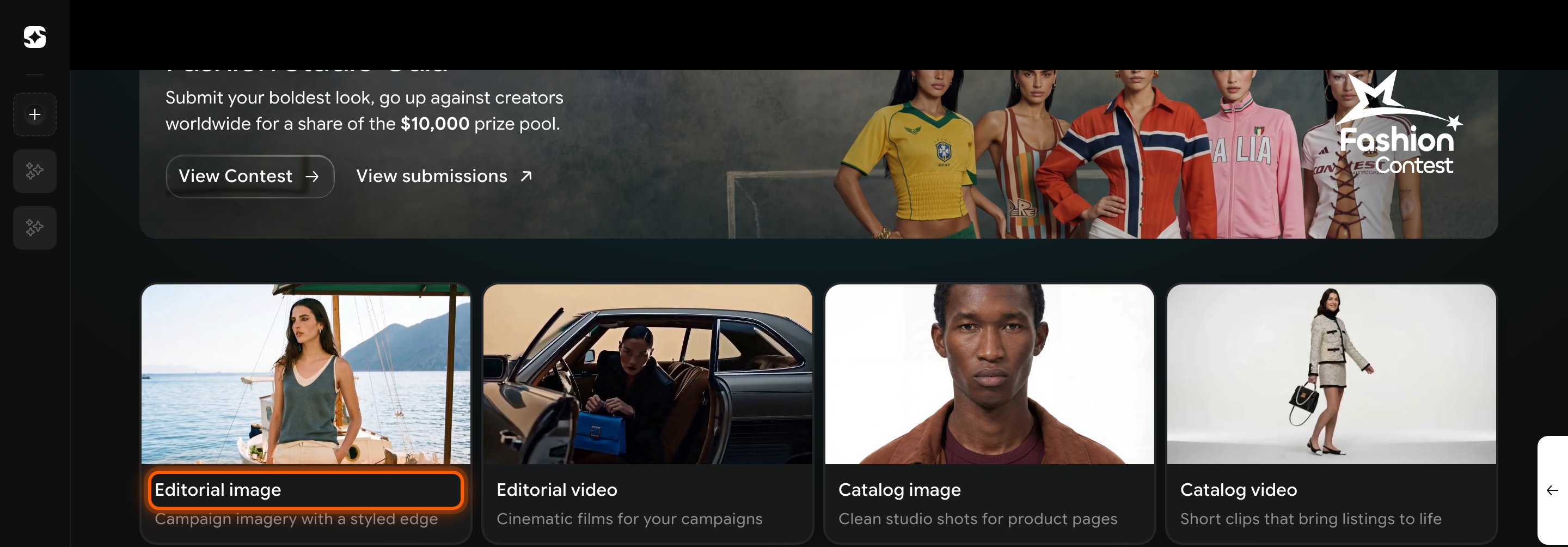
An Editorial shoot is for campaign imagery and video with a styled, editorial edge — the mode to reach for when mood and styling matter as much as the product itself: brand campaigns, lookbooks, and social content.
Go to [imagine.art/fashion-studio](https://imagine.art/fashion-studio) and click **Editorial image** (or **Editorial video**). This opens the Editorial Shoot editor.
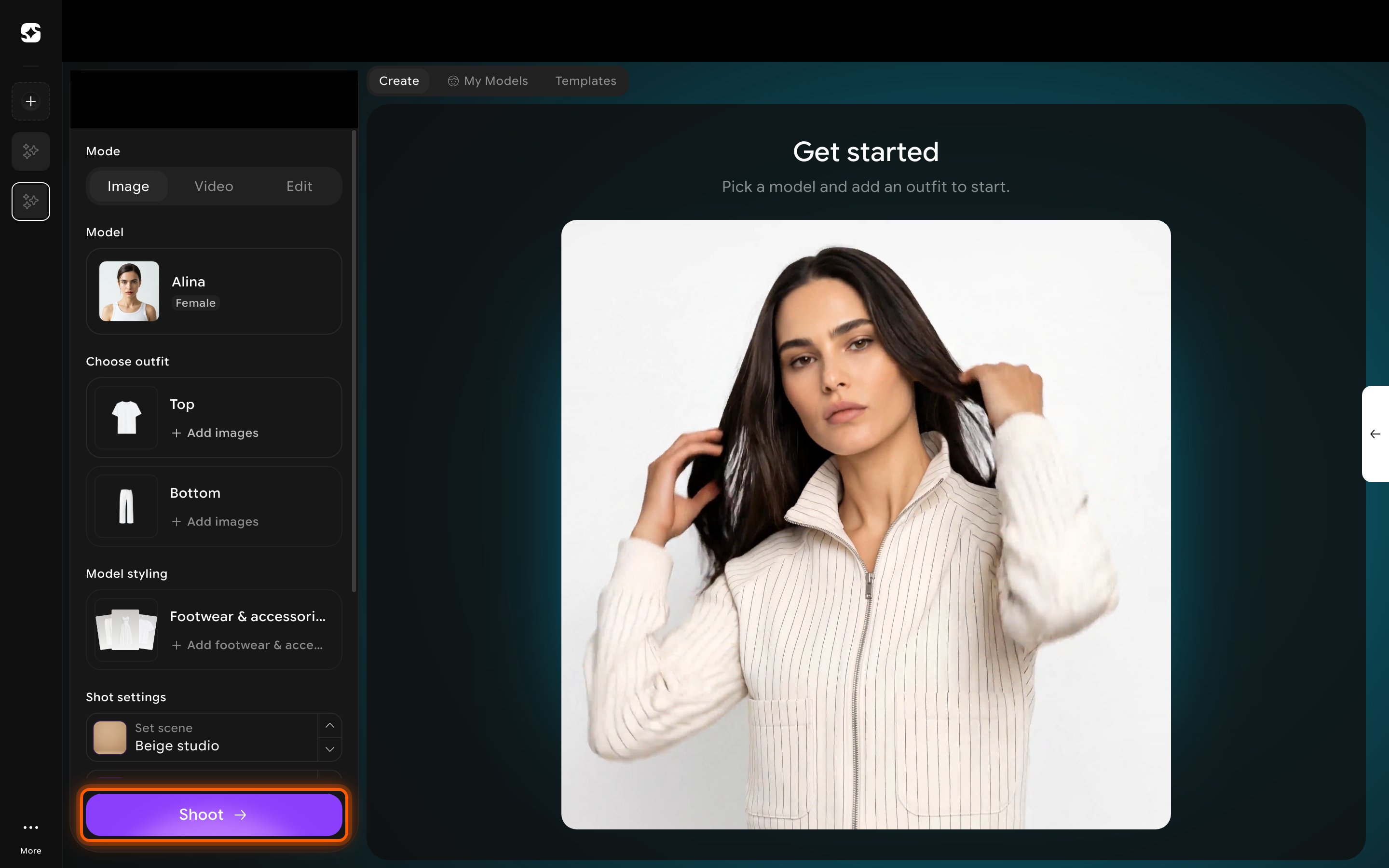
 Configure the shot from the left panel:
* **Mode** — choose **Image**, **[Video](/fashion-studio/video-shoot)**, or **[Edit](/fashion-studio/editing-a-creation)**.
* **[Model](/fashion-studio/models)** — pick a preset AI model, or one of your own saved models.
* **[Choose outfit](/fashion-studio/choosing-an-outfit)** — add images for the **Top** and **Bottom**.
* **Model styling** — add footwear and accessories (see [Choosing an outfit](/fashion-studio/choosing-an-outfit)).
* **[Shot settings](/fashion-studio/scenes-and-poses)** — pick a **Set scene** and **Pose** from the built-in libraries, or describe the shot yourself in the optional text field.
Set the number of variations and aspect ratio, then click **Shoot** to generate.
Prefer to start from an existing look? Switch to the **Templates** tab to browse a gallery of ready-made looks, filterable by **All**, **Female**, or **Male**. Pick one to generate from directly instead of building a shot from scratch — see [Templates](/fashion-studio/templates) for the difference between this gallery and the one on the landing page.
Configure the shot from the left panel:
* **Mode** — choose **Image**, **[Video](/fashion-studio/video-shoot)**, or **[Edit](/fashion-studio/editing-a-creation)**.
* **[Model](/fashion-studio/models)** — pick a preset AI model, or one of your own saved models.
* **[Choose outfit](/fashion-studio/choosing-an-outfit)** — add images for the **Top** and **Bottom**.
* **Model styling** — add footwear and accessories (see [Choosing an outfit](/fashion-studio/choosing-an-outfit)).
* **[Shot settings](/fashion-studio/scenes-and-poses)** — pick a **Set scene** and **Pose** from the built-in libraries, or describe the shot yourself in the optional text field.
Set the number of variations and aspect ratio, then click **Shoot** to generate.
Prefer to start from an existing look? Switch to the **Templates** tab to browse a gallery of ready-made looks, filterable by **All**, **Female**, or **Male**. Pick one to generate from directly instead of building a shot from scratch — see [Templates](/fashion-studio/templates) for the difference between this gallery and the one on the landing page.
 Editorial and Catalog shoots share the same editor and the same scene/pose libraries — see [What is Fashion Studio?](/fashion-studio/what-is-fashion-studio) for how the two modes differ.