> ## Documentation Index
> Fetch the complete documentation index at: https://docs.imagine.art/llms.txt
> Use this file to discover all available pages before exploring further.
# Adding Audio
> Generate a soundtrack or narration directly on your timeline — no separate audio tool required.
A film isn't just picture. The **Add Audio** button on the Create Video timeline gives you two real generation tools — an AI music composer and a text-to-speech narrator — plus the option to reuse existing audio.
## Four ways to add audio
In the **Create Video** tab, click **Add Audio** on the timeline (next to your scenes). This opens a menu with four options: **AI Music**, **Text to Speech**, **Select from Library**, and **Upload**.
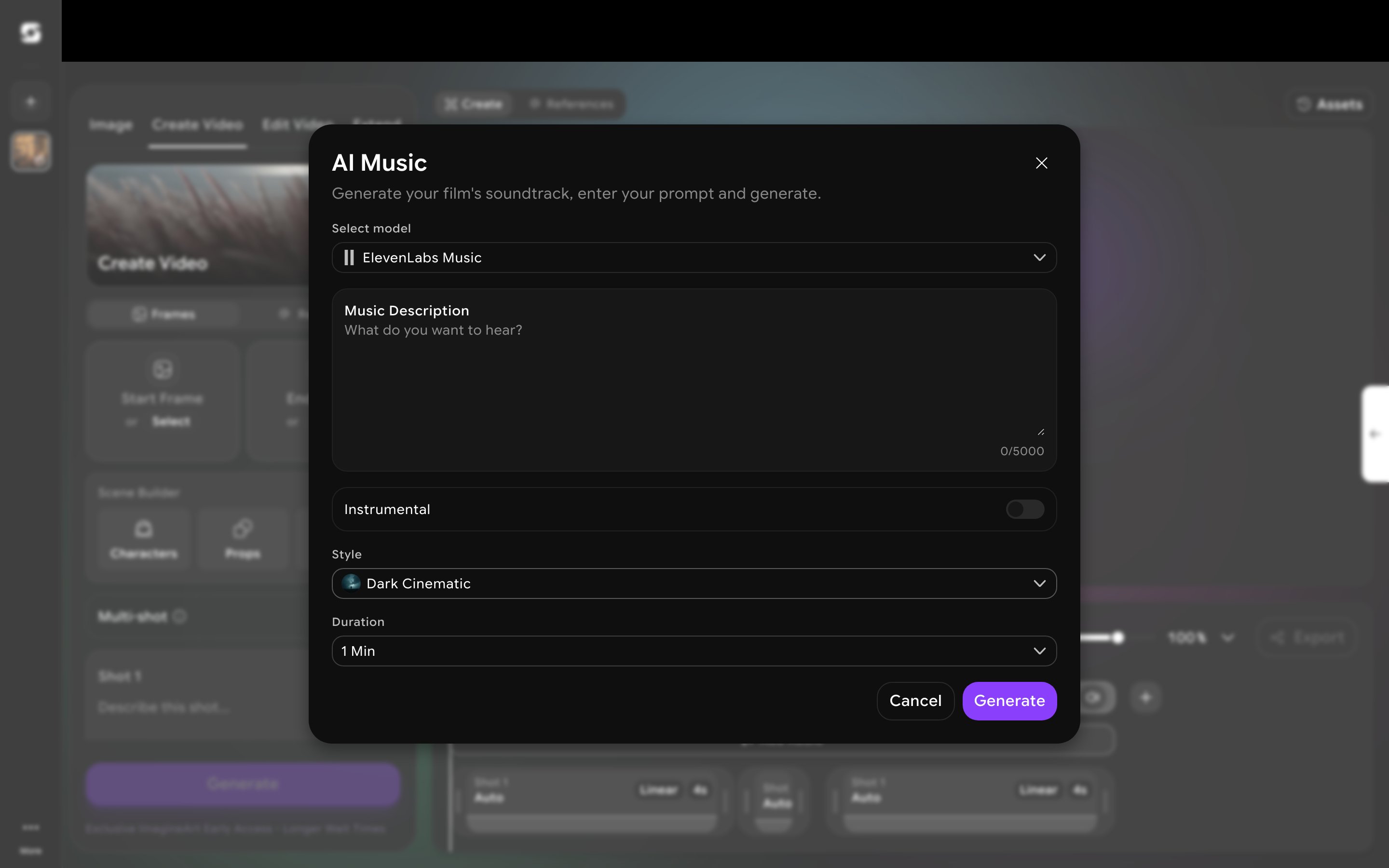
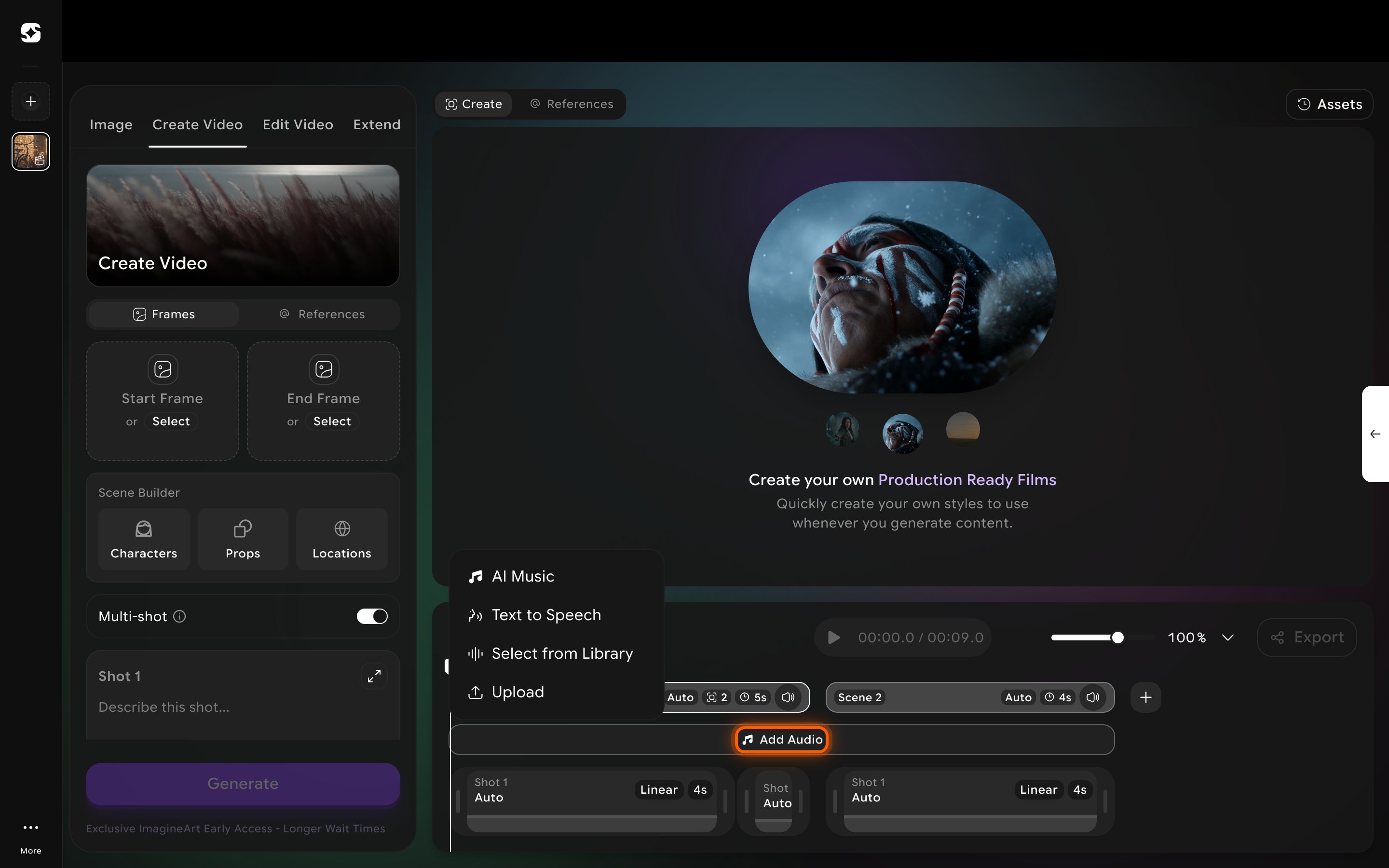 Choose **AI Music** to open a dialog powered by **ElevenLabs Music**. Describe what you want to hear in **Music Description**, optionally turn on **Instrumental** to skip vocals, pick a **Style** preset (e.g. "Dark Cinematic"), and set a **Duration**. Click **Generate** to add the track to your timeline.
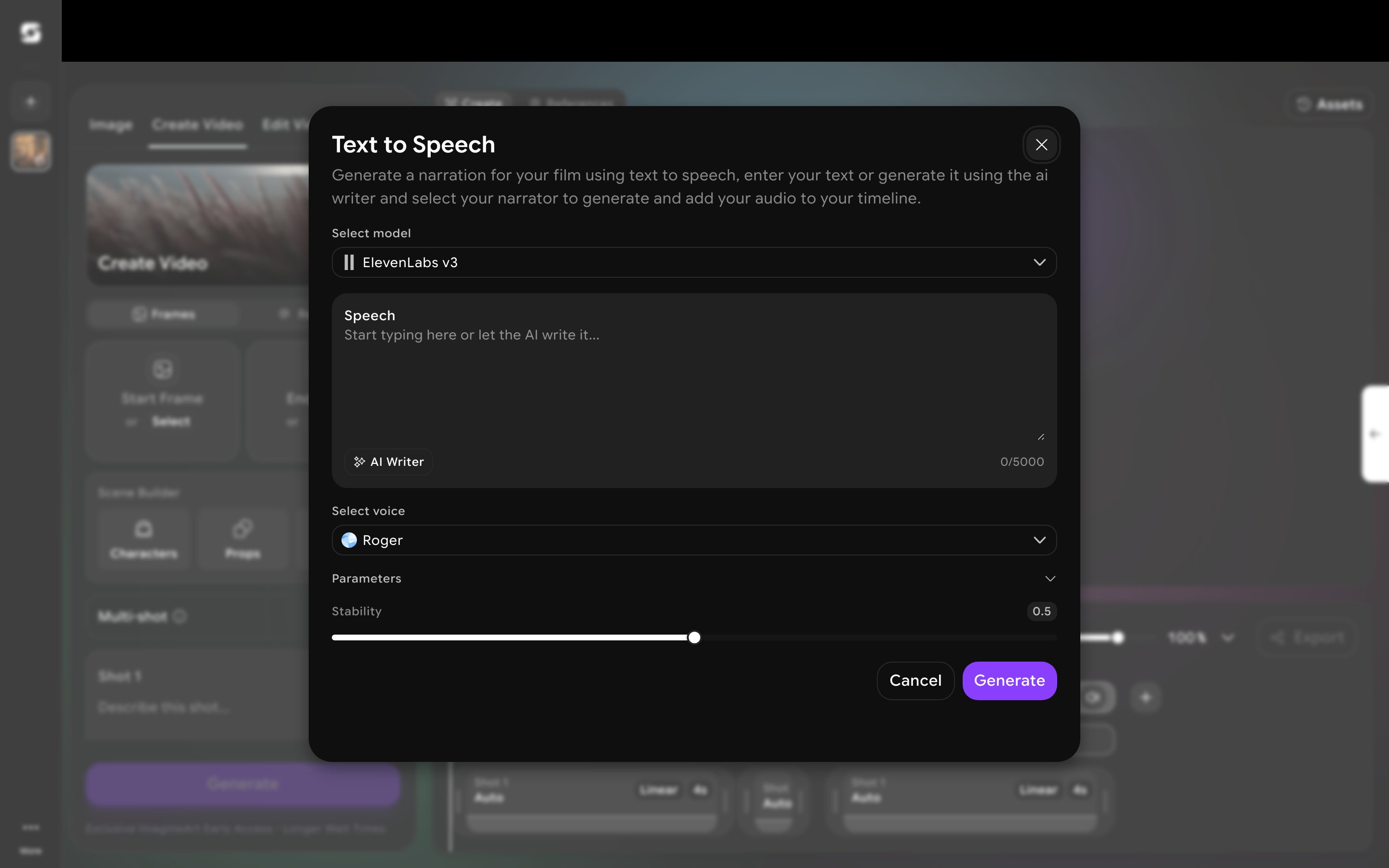
 Choose **Text to Speech** to open a dialog powered by **ElevenLabs v3**. Type your narration into **Speech**, or click **AI Writer** to have it drafted for you. Pick a voice from **Select voice**, and optionally expand **Parameters** to adjust **Stability** (how consistent the voice sounds versus more expressive and variable). Click **Generate** to add the narration to your timeline.
 **Select from Library** pulls in an audio reference you've already added to the project's References library. **Upload** lets you bring in your own audio file directly.
Audio you generate or add here sits on the timeline alongside your video scenes — it isn't the same as attaching an **Audio** reference in the [References](/film-studio/references) library, which is for reusing a voice, track, or sound effect as an influence across multiple scenes rather than placing actual audio on the timeline.
**Select from Library** pulls in an audio reference you've already added to the project's References library. **Upload** lets you bring in your own audio file directly.
Audio you generate or add here sits on the timeline alongside your video scenes — it isn't the same as attaching an **Audio** reference in the [References](/film-studio/references) library, which is for reusing a voice, track, or sound effect as an influence across multiple scenes rather than placing actual audio on the timeline.