> ## Documentation Index
> Fetch the complete documentation index at: https://docs.imagine.art/llms.txt
> Use this file to discover all available pages before exploring further.
# The Assets Library
> Every image and video you've generated in a project, with its exact prompt, one-click regeneration tools, and comments — all behind one button.
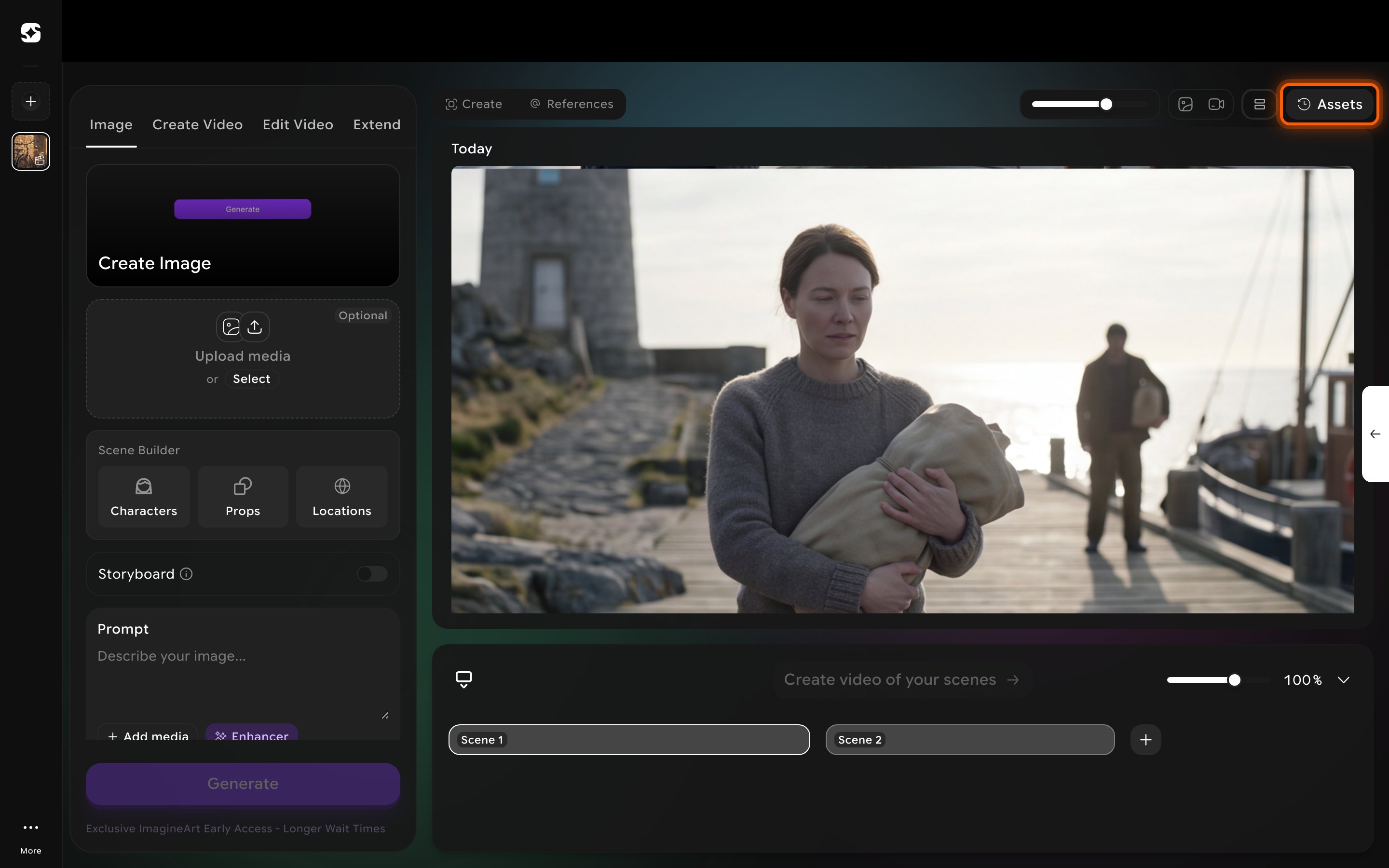
The **Assets** button (top right of the workspace) is more than a media browser. Every result you've generated in a project lives here, grouped by date, each with its full generation history and a set of one-click tools for reworking it.
Click **Assets** to switch the canvas into a reverse-chronological feed of every image and video generated in this project, grouped under date headers like "Today."
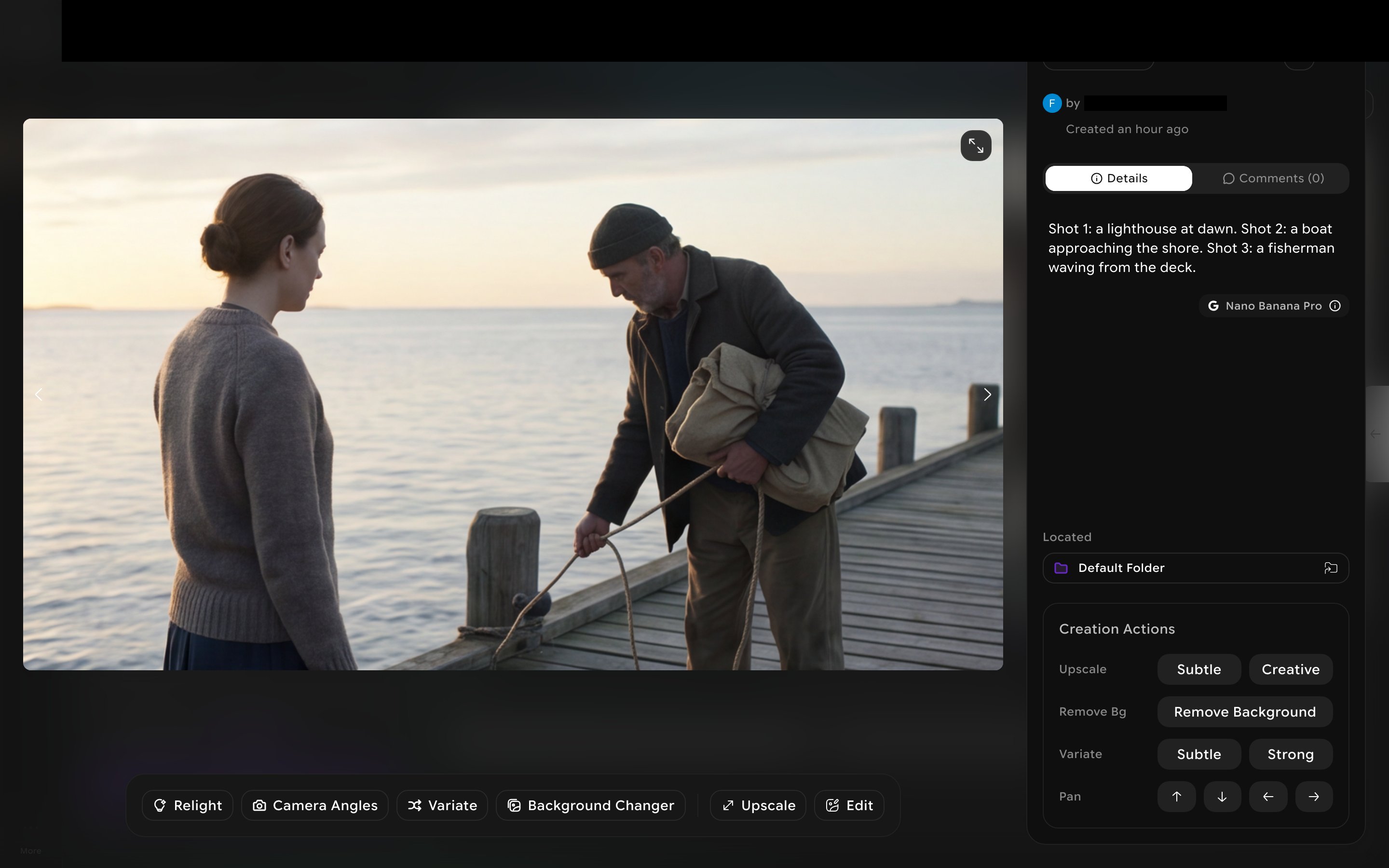
 Click any asset to open its detail view. The **Details** tab shows the exact prompt that produced it and the model used (e.g. "Nano Banana Pro") — useful for understanding why a result looks the way it does, or for recreating a similar look later. A **Comments** tab sits alongside it for per-asset feedback and discussion, and a **Located** chip shows which folder the asset belongs to.
 ## Creation Actions
Every asset's detail view has a **Creation Actions** panel for regenerating or refining it without starting over:
| Action | What it does |
| ------------- | ------------------------------------------------------------------------------------------------- |
| **Upscale** | Increase resolution — **Subtle** or **Creative** (Creative adds more reinterpreted detail). |
| **Remove Bg** | Cut the subject out from its background. |
| **Variate** | Generate variations — **Subtle** (close to the original) or **Strong** (looser reinterpretation). |
| **Pan** | Extend the image outward in any of the four directions. |
A matching toolbar at the bottom of the viewer (**Relight**, **Camera Angles**, **Variate**, **Background Changer**, **Upscale**, **Edit**) offers the same kind of one-click regeneration for images already in the canvas view, not just from the Assets feed.
## Organization
Assets aren't a flat list — each one belongs to a folder (a project's **Default Folder** unless you've organized further). Use the folder icon next to **Located** to move an asset elsewhere.
Before you regenerate something from scratch, check its **Details** tab first — reusing the exact prompt (with one change) is often faster than reconstructing what worked.
## Creation Actions
Every asset's detail view has a **Creation Actions** panel for regenerating or refining it without starting over:
| Action | What it does |
| ------------- | ------------------------------------------------------------------------------------------------- |
| **Upscale** | Increase resolution — **Subtle** or **Creative** (Creative adds more reinterpreted detail). |
| **Remove Bg** | Cut the subject out from its background. |
| **Variate** | Generate variations — **Subtle** (close to the original) or **Strong** (looser reinterpretation). |
| **Pan** | Extend the image outward in any of the four directions. |
A matching toolbar at the bottom of the viewer (**Relight**, **Camera Angles**, **Variate**, **Background Changer**, **Upscale**, **Edit**) offers the same kind of one-click regeneration for images already in the canvas view, not just from the Assets feed.
## Organization
Assets aren't a flat list — each one belongs to a folder (a project's **Default Folder** unless you've organized further). Use the folder icon next to **Located** to move an asset elsewhere.
Before you regenerate something from scratch, check its **Details** tab first — reusing the exact prompt (with one change) is often faster than reconstructing what worked.