> ## Documentation Index
> Fetch the complete documentation index at: https://docs.imagine.art/llms.txt
> Use this file to discover all available pages before exploring further.
# Creating Images
> Images are the foundation of everything you will do in Film Studio.
Images are the foundation of everything you will do in Film Studio. Even when your goal is a video, you will often start by generating images for individual frames, then bring them into the video tab as references.
## Two ways to start: Upload or Generate
When you open the Image tab, you have two starting points:
* **Upload media.** Use this when you already have an image you want to work with — a photograph, concept art, a frame from another video. Click *Upload media* in the optional media box and pick the file. You can also click *Select* to pull from media you have generated earlier in this project.
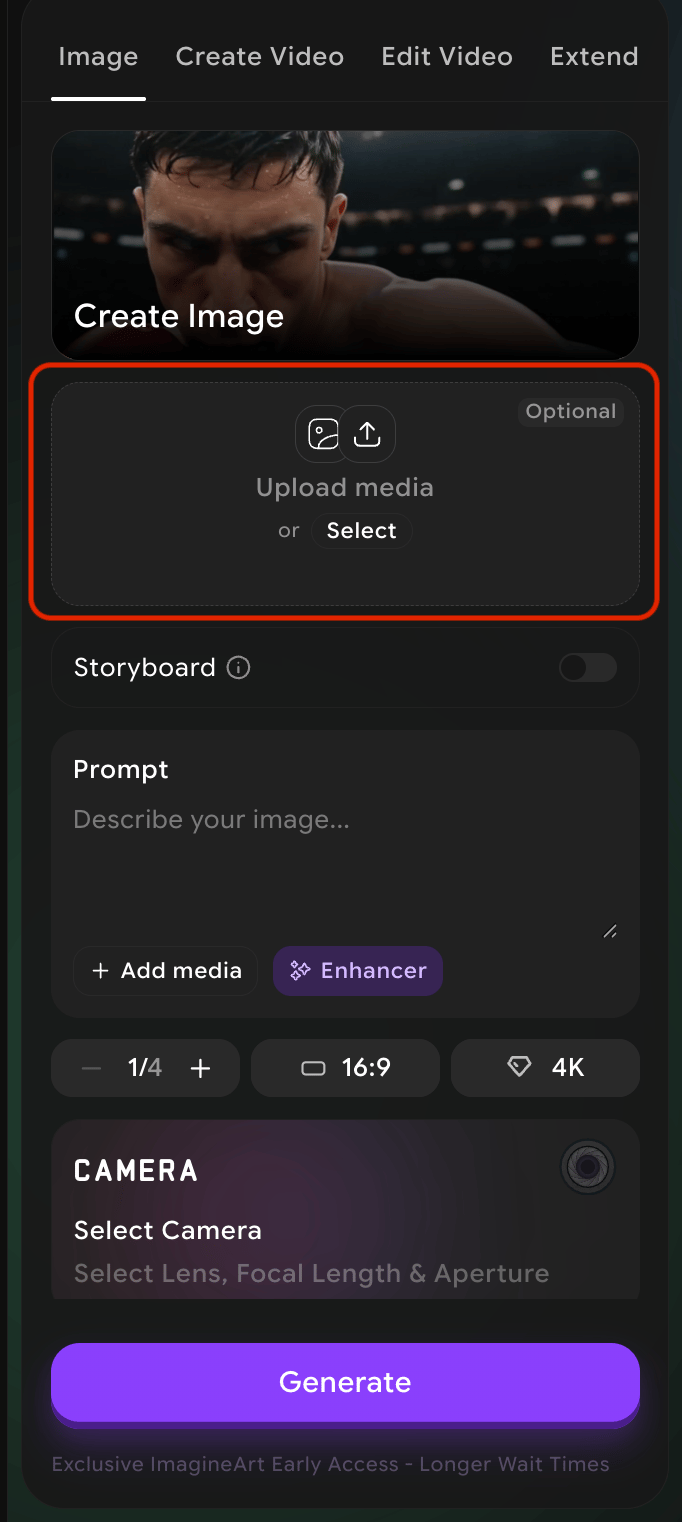 * **Generate from a prompt.** Skip the upload box and just write a description in the Prompt field. The system will create the image for you. Add reference media via *Add media* inside the prompt area if you want to influence style or composition.
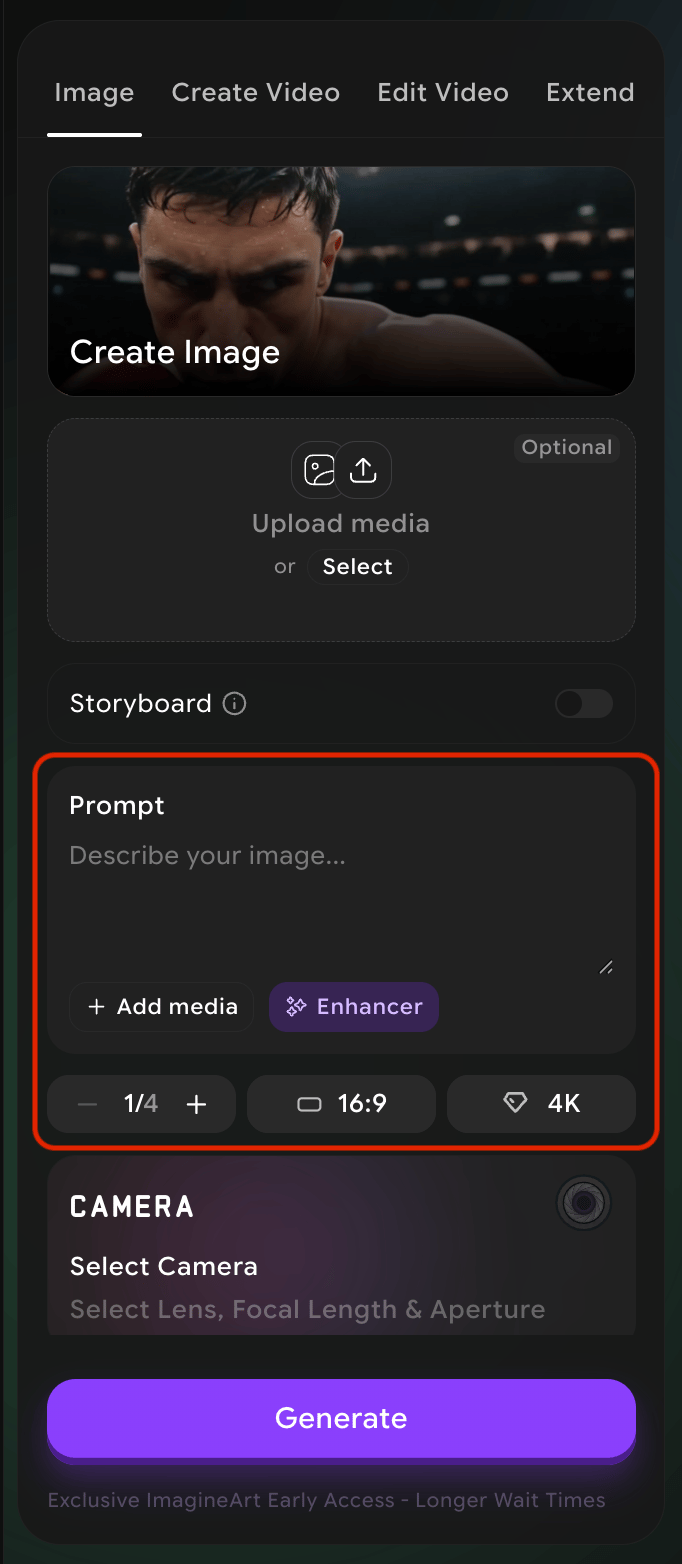 These two are not mutually exclusive. The most common workflow is to **upload a reference image and then write a prompt** that tells the system what to change or what to use the reference for.
## Output controls — the three chips below the prompt
| Chip | What it controls | When to change it |
| -------- | ------------------------------------------------------------------------------------------------ | -------------------------------------------------------------------------------------------------- |
| **1/4** | Number of variations generated per click. Increase to compare options; decrease to save credits. | Increase when exploring; decrease when iterating on something you already like. |
| **16:9** | Aspect ratio. 16:9 is cinematic widescreen; portrait and square ratios also available. | Pick the ratio that matches the final delivery — social vertical, web horizontal, or print square. |
| **4K** | Output resolution. Higher means more detail and a larger file. | Use 4K for final deliverables. Drop it lower for fast iteration. |
## Storyboard mode
A storyboard is a sequence of frames that map out a film before you shoot it. Film Studio gives you a **Storyboard toggle** (just below the upload area on the Image tab) that lets you generate a full sequence of frames in one go, instead of generating each frame separately. When Storyboard is on, the system reads your prompt as a sequence of shots rather than a single frame, and produces a series of images that share a consistent style.
These two are not mutually exclusive. The most common workflow is to **upload a reference image and then write a prompt** that tells the system what to change or what to use the reference for.
## Output controls — the three chips below the prompt
| Chip | What it controls | When to change it |
| -------- | ------------------------------------------------------------------------------------------------ | -------------------------------------------------------------------------------------------------- |
| **1/4** | Number of variations generated per click. Increase to compare options; decrease to save credits. | Increase when exploring; decrease when iterating on something you already like. |
| **16:9** | Aspect ratio. 16:9 is cinematic widescreen; portrait and square ratios also available. | Pick the ratio that matches the final delivery — social vertical, web horizontal, or print square. |
| **4K** | Output resolution. Higher means more detail and a larger file. | Use 4K for final deliverables. Drop it lower for fast iteration. |
## Storyboard mode
A storyboard is a sequence of frames that map out a film before you shoot it. Film Studio gives you a **Storyboard toggle** (just below the upload area on the Image tab) that lets you generate a full sequence of frames in one go, instead of generating each frame separately. When Storyboard is on, the system reads your prompt as a sequence of shots rather than a single frame, and produces a series of images that share a consistent style.
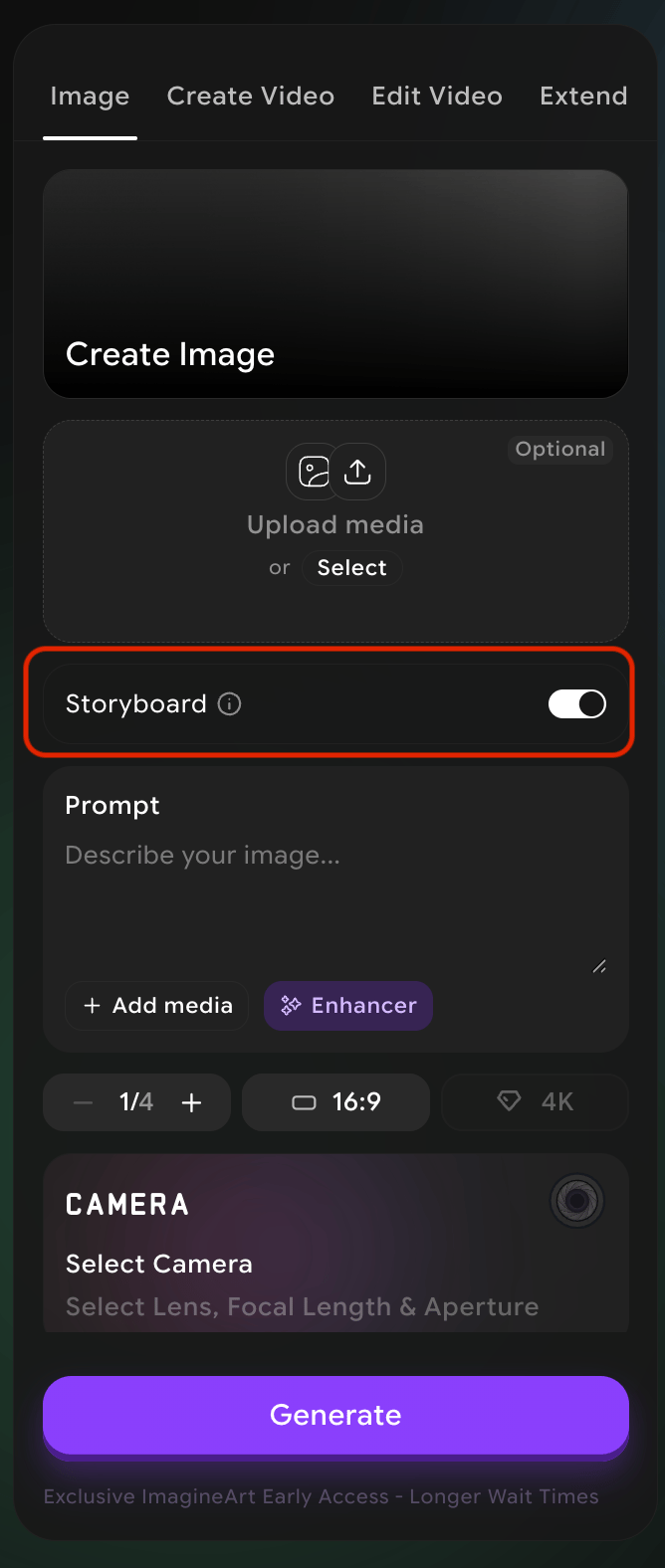 Use Storyboard mode **early.** Even if you only plan to deliver a single hero image at the end, generating a storyboard first helps you decide on framing, color palette, and pacing before you commit to a final look.
## Saving & reusing presets
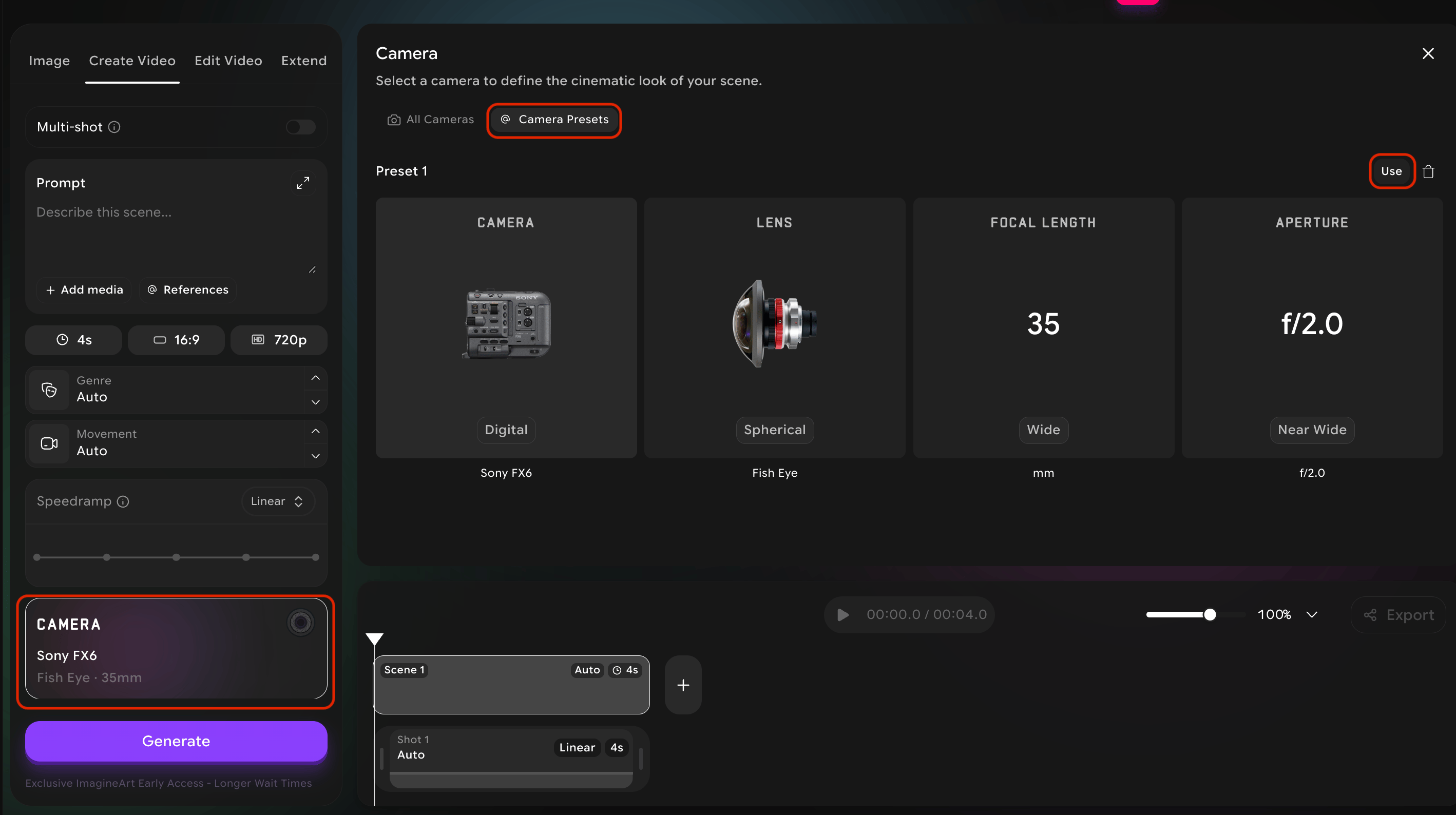
Consistency is the difference between a collection of nice images and a film. A preset captures camera, lens, focal length, and aperture under one name — apply it with a single click.
Once you find a camera/lens/focal/aperture combination that works for your project, **save it as a preset.** A preset captures all four settings under a name you choose, so you can apply it again with one click on a future image or video — without having to remember what you picked.
Saving presets matters because **consistency is what makes a series of images feel like a film.** If every frame of your project uses the same preset, your work will feel like it came from the same hand. Without that, even strong individual images can feel disconnected.
### How to save a preset
In the Camera panel, set the four values (camera, lens, focal length, aperture) the way you want them.
Use Storyboard mode **early.** Even if you only plan to deliver a single hero image at the end, generating a storyboard first helps you decide on framing, color palette, and pacing before you commit to a final look.
## Saving & reusing presets
Consistency is the difference between a collection of nice images and a film. A preset captures camera, lens, focal length, and aperture under one name — apply it with a single click.
Once you find a camera/lens/focal/aperture combination that works for your project, **save it as a preset.** A preset captures all four settings under a name you choose, so you can apply it again with one click on a future image or video — without having to remember what you picked.
Saving presets matters because **consistency is what makes a series of images feel like a film.** If every frame of your project uses the same preset, your work will feel like it came from the same hand. Without that, even strong individual images can feel disconnected.
### How to save a preset
In the Camera panel, set the four values (camera, lens, focal length, aperture) the way you want them.
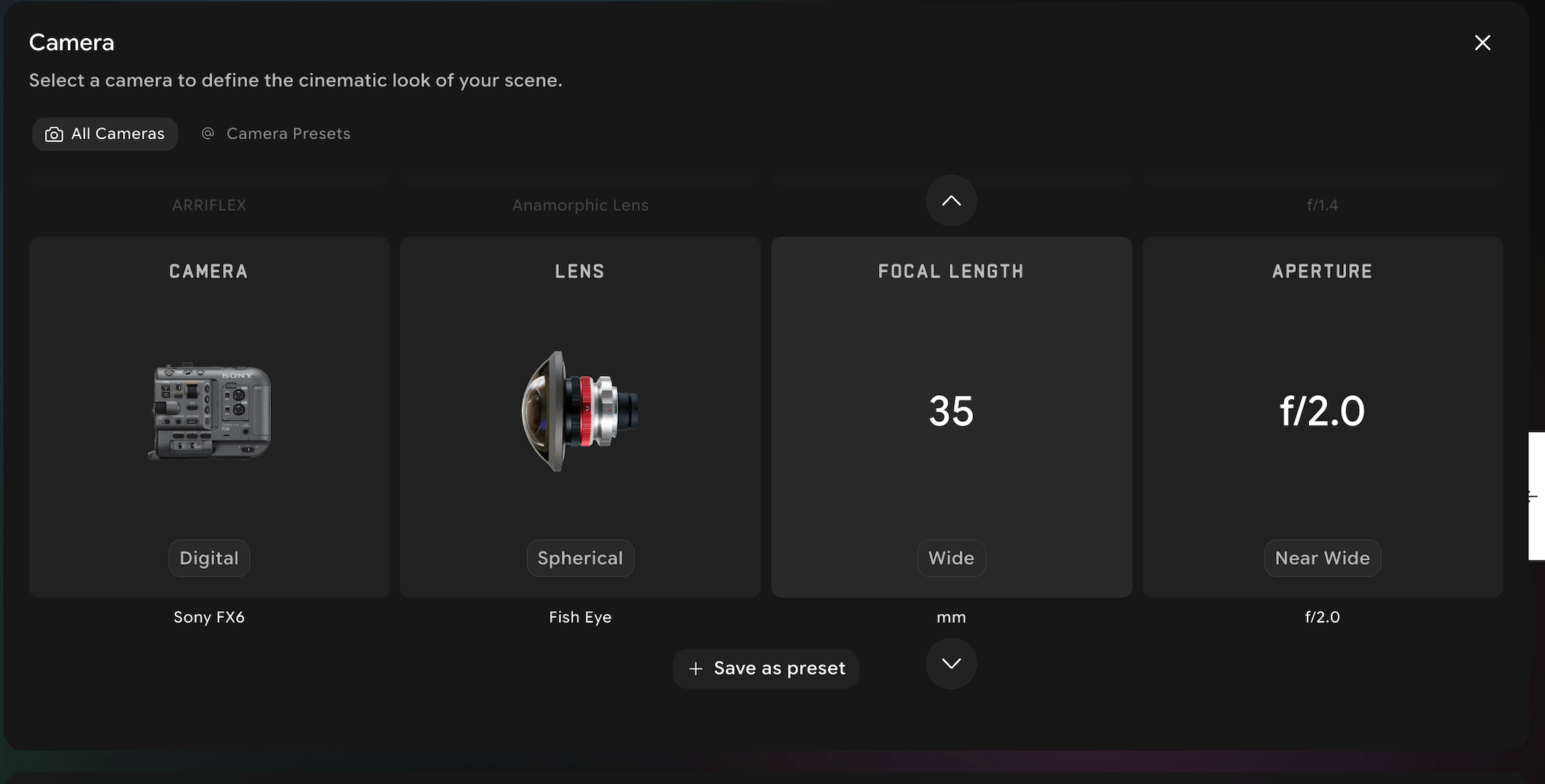 Click the **save preset button** under the camera values selection area
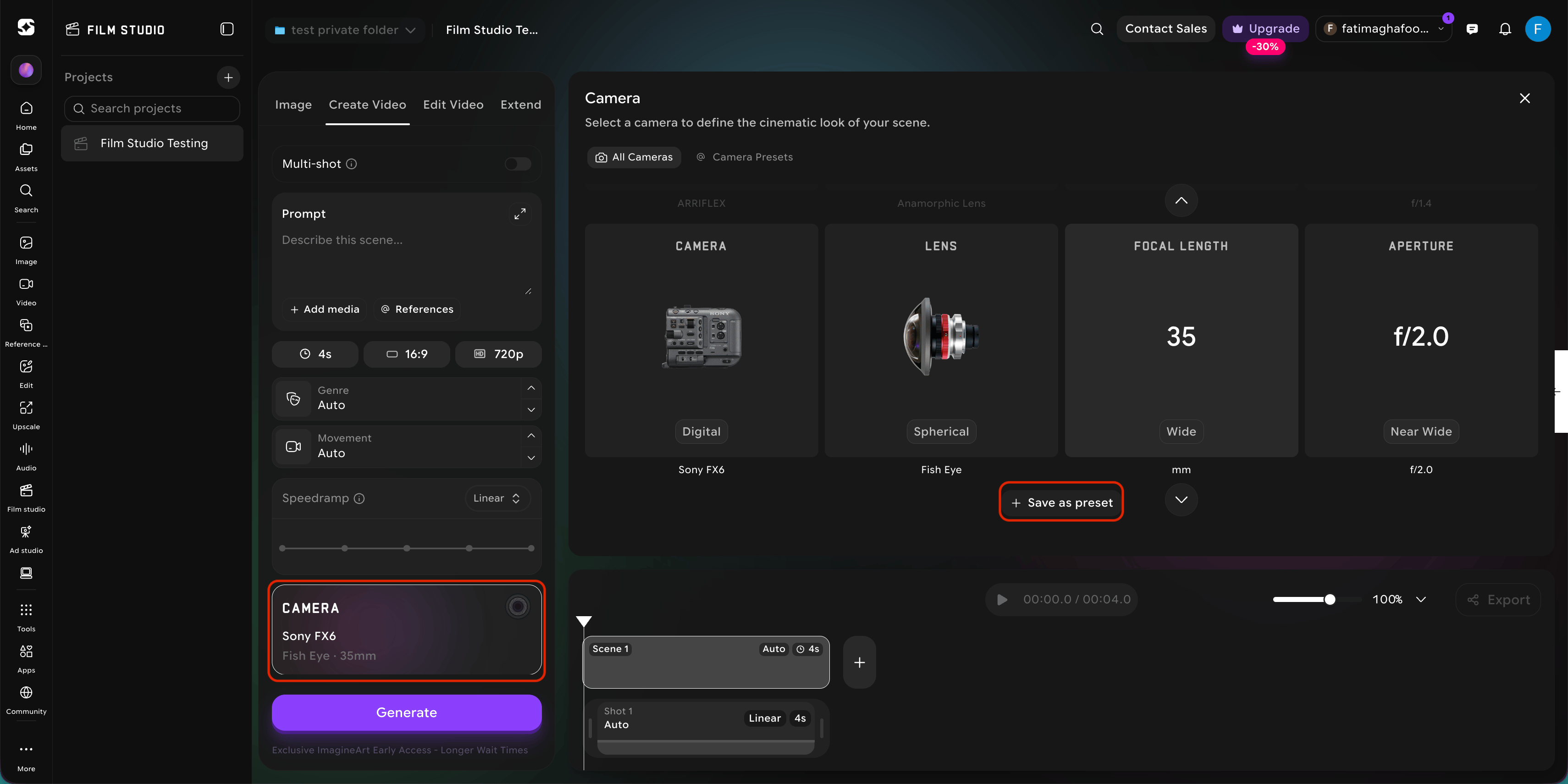 Apply it later from the same panel by selecting it from your saved presets list.
 **Try this** — For your first project, build **exactly one preset** and use it for every image and every video. This single discipline will do more for the consistency of your work than any other technique in this guide.