> ## Documentation Index
> Fetch the complete documentation index at: https://docs.imagine.art/llms.txt
> Use this file to discover all available pages before exploring further.
# Creating Videos
> From frames to motion. Single-shot and multi-shot, up to 15 seconds.
From frames to motion. Same cameras, same lenses — plus how the camera moves, how time bends, which genre the result feels like, and how long each piece of the shot lasts. Two flavors: single-shot and multi-shot, up to 15 seconds.
## Single-shot videos
A single-shot video is **one continuous clip generated from one prompt.** This is the right starting point when you want a quick result, when your idea is one moment rather than a sequence, or when you are testing how a particular look behaves in motion.
### How to make a single-shot video
Open the **Create Video** tab in your project.
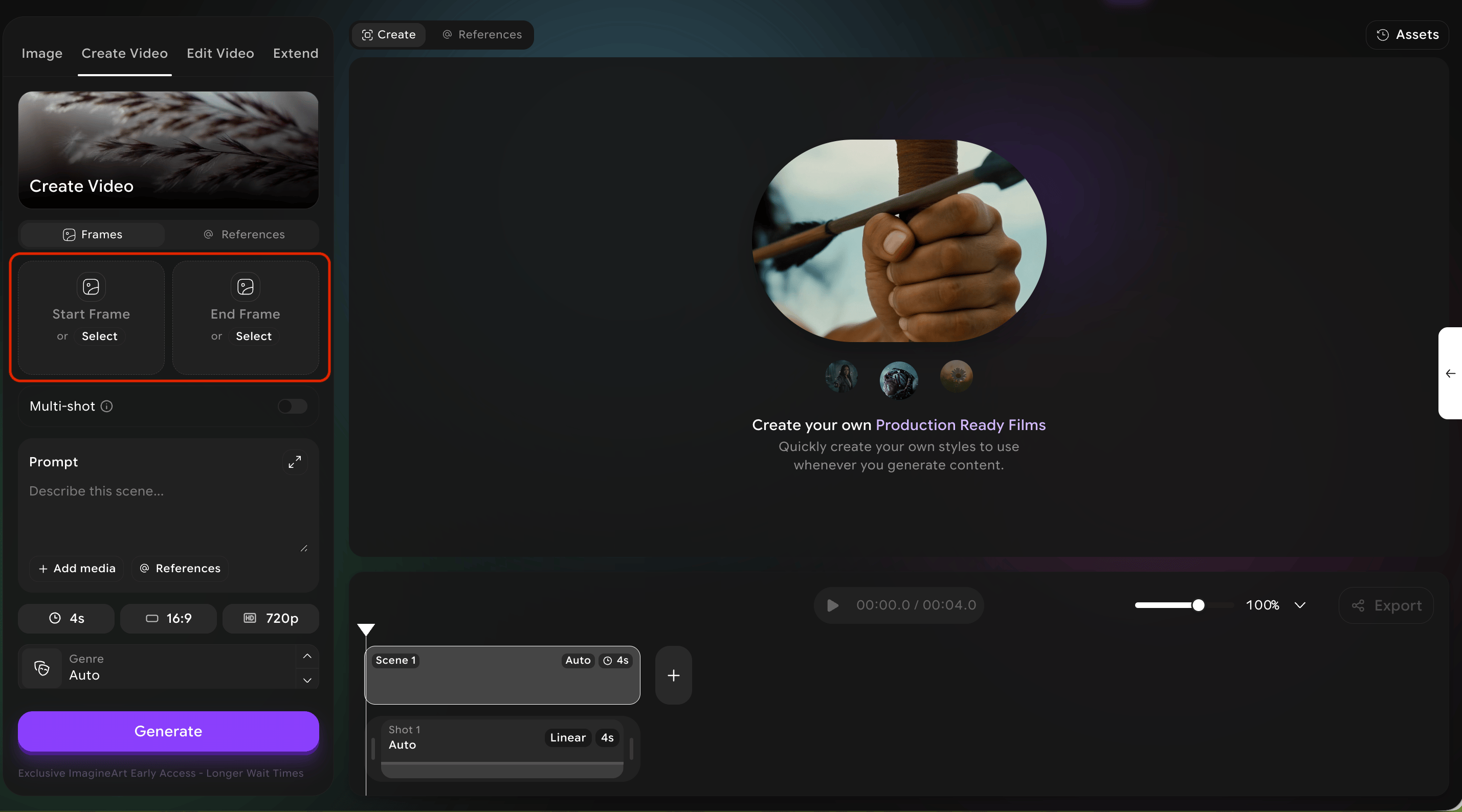
Optionally upload a **start frame** and an **end frame**. The system will treat these as the bookends of your shot.
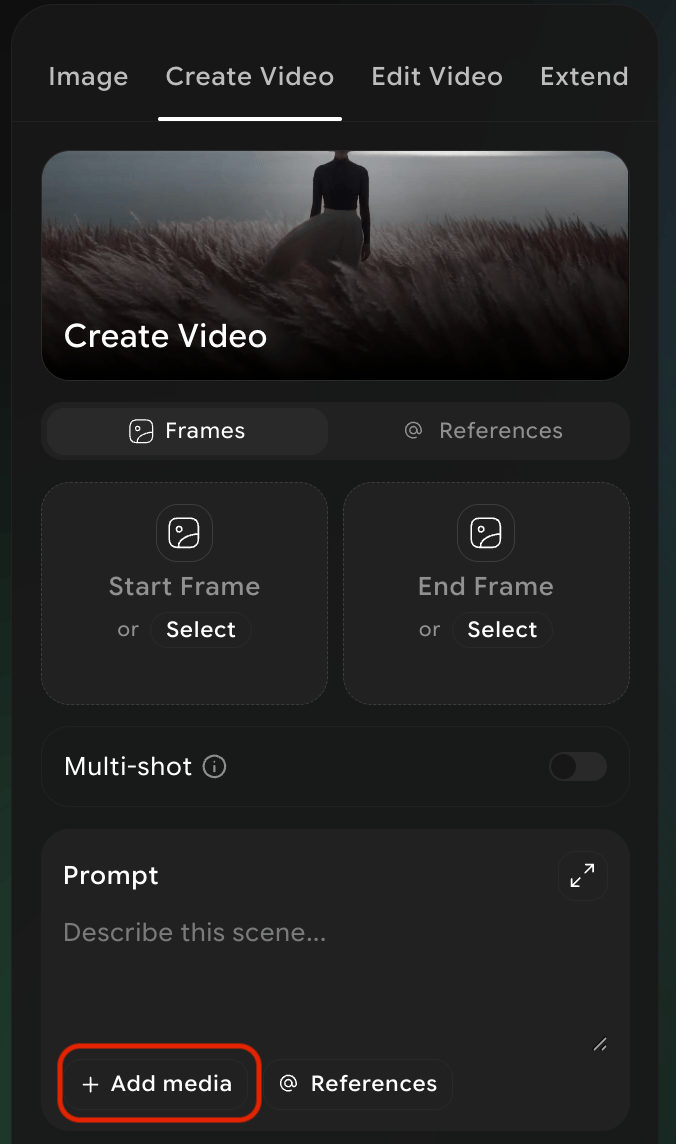
 Optionally add reference images using the *Add media* button. References influence style without dictating exact content.
 Write your prompt. Describe subject, action, setting, and mood.
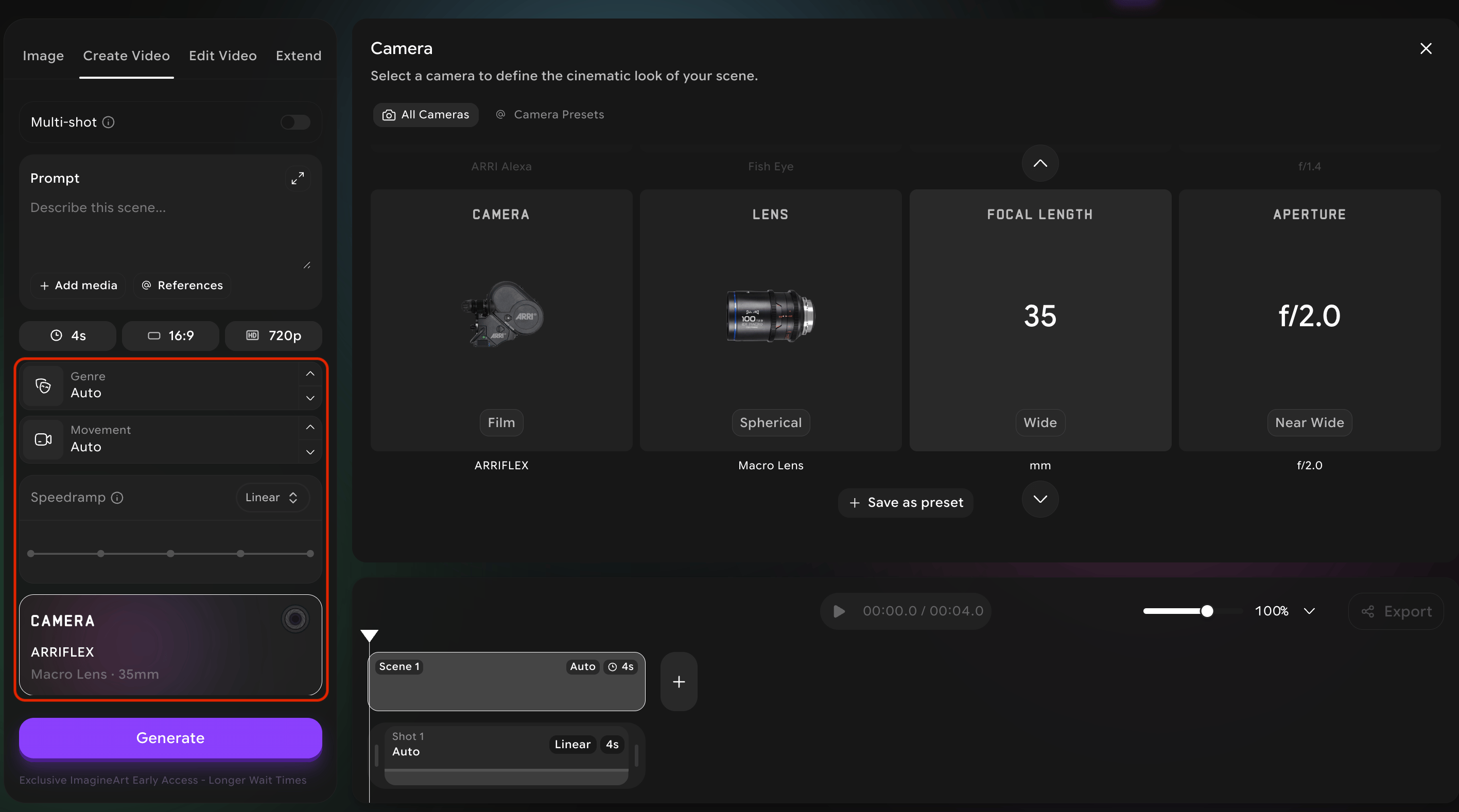
Set the cinematic controls (genre, camera movement, speed ramp, camera/lens/focal/aperture).
Write your prompt. Describe subject, action, setting, and mood.
Set the cinematic controls (genre, camera movement, speed ramp, camera/lens/focal/aperture).
 Hit **Generate.**
Start and end frames are powerful, but they constrain the result. Use them when you specifically want to control where the shot begins or ends. **If you just want the system to be creative, leave them empty.**
## Multi-shot videos
A multi-shot video is a **single piece of footage made up of several distinct shots** that the system will stitch together into one continuous film. This is how you build a sequence — a scene followed by a closeup followed by a wide reveal — without combining clips manually.
**5** shots per video
**15 seconds** total
If you use all 5 shots, each averages 3 seconds. If your story needs a long establishing shot, you might use 1 shot for 8 seconds and 3 short shots of 2–3 seconds each. The choice is yours — but the total never exceeds 15 seconds and you never have more than 5 shots.
### How to build a multi-shot video
Open the **Create Video** tab and switch to multi-shot mode.
Hit **Generate.**
Start and end frames are powerful, but they constrain the result. Use them when you specifically want to control where the shot begins or ends. **If you just want the system to be creative, leave them empty.**
## Multi-shot videos
A multi-shot video is a **single piece of footage made up of several distinct shots** that the system will stitch together into one continuous film. This is how you build a sequence — a scene followed by a closeup followed by a wide reveal — without combining clips manually.
**5** shots per video
**15 seconds** total
If you use all 5 shots, each averages 3 seconds. If your story needs a long establishing shot, you might use 1 shot for 8 seconds and 3 short shots of 2–3 seconds each. The choice is yours — but the total never exceeds 15 seconds and you never have more than 5 shots.
### How to build a multi-shot video
Open the **Create Video** tab and switch to multi-shot mode.
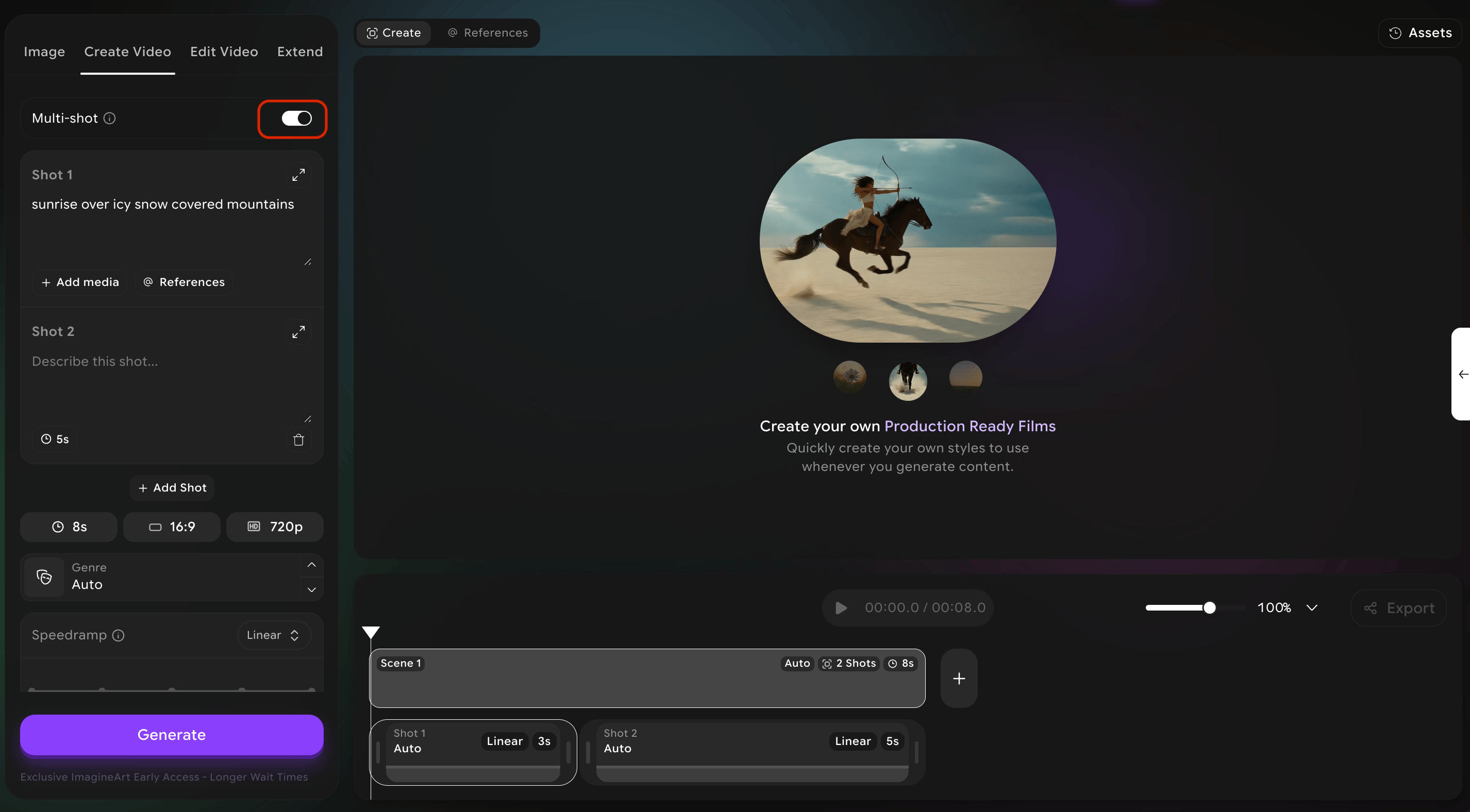 For each shot, write its own **prompt**. Treat each as a complete brief for that moment.
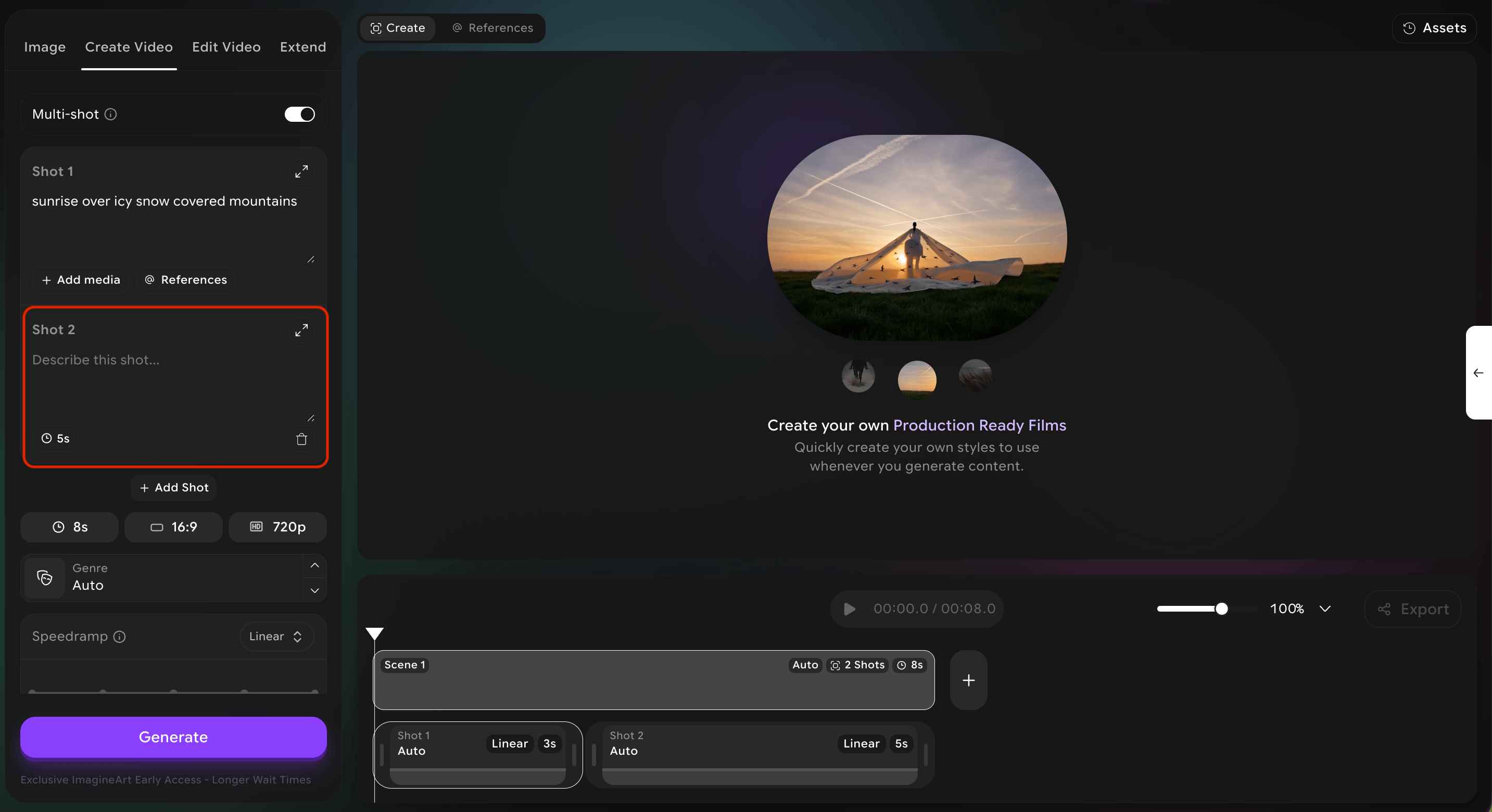 For each shot, set the **duration**. The interface will show how many seconds are left in your 15-second budget.
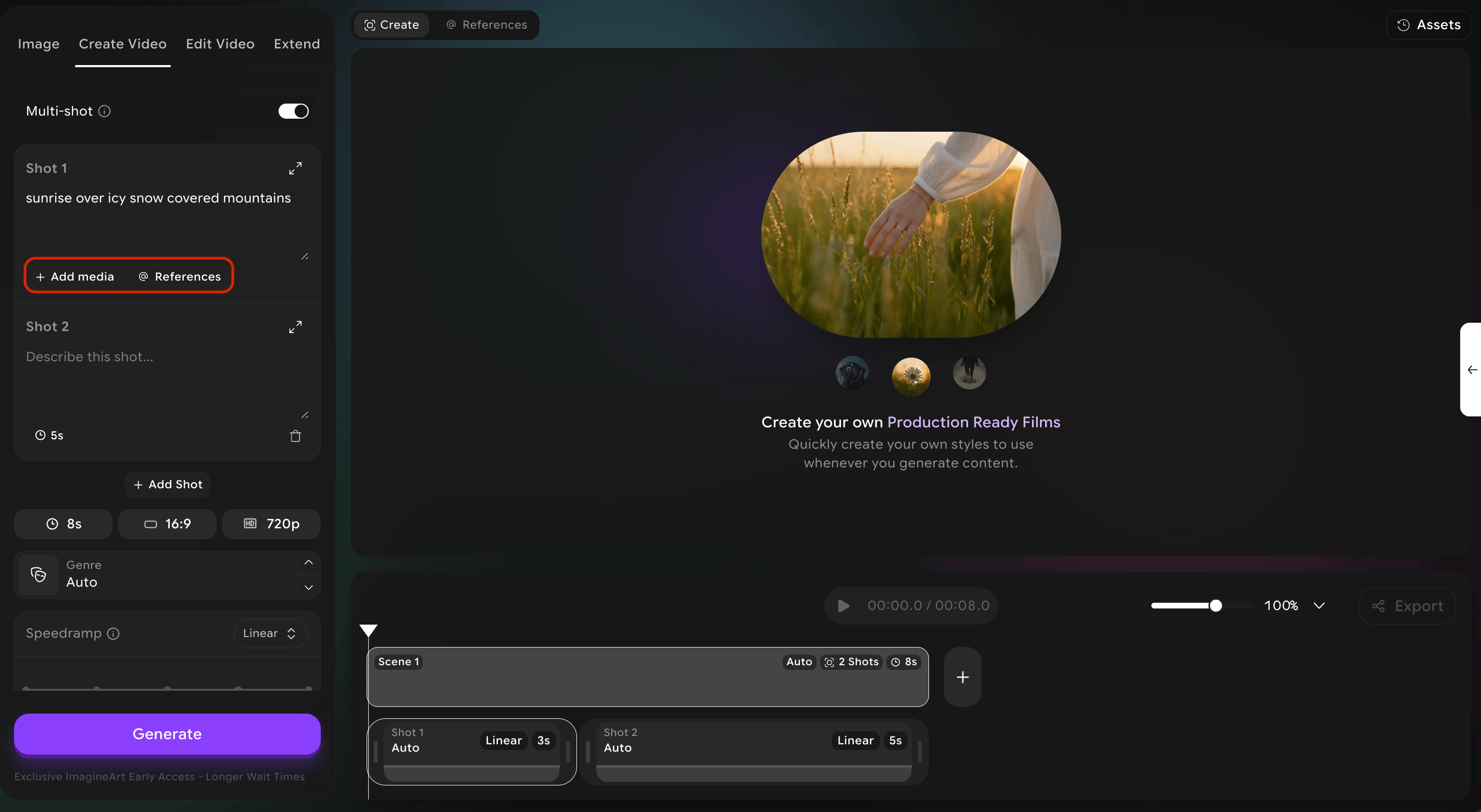
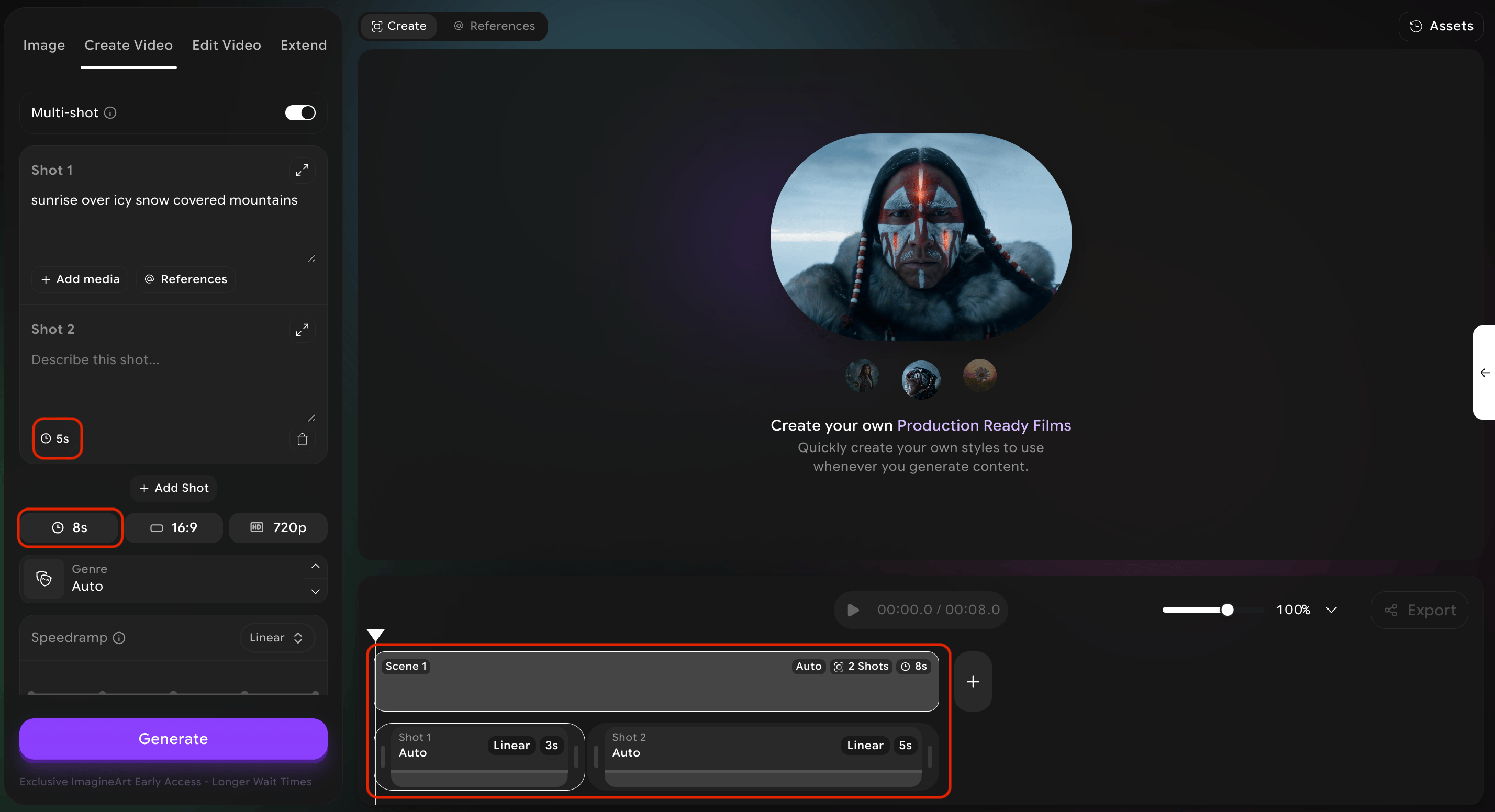 For each shot, you can also add reference media and adjust cinematic controls (camera movement, speed ramp, etc.).
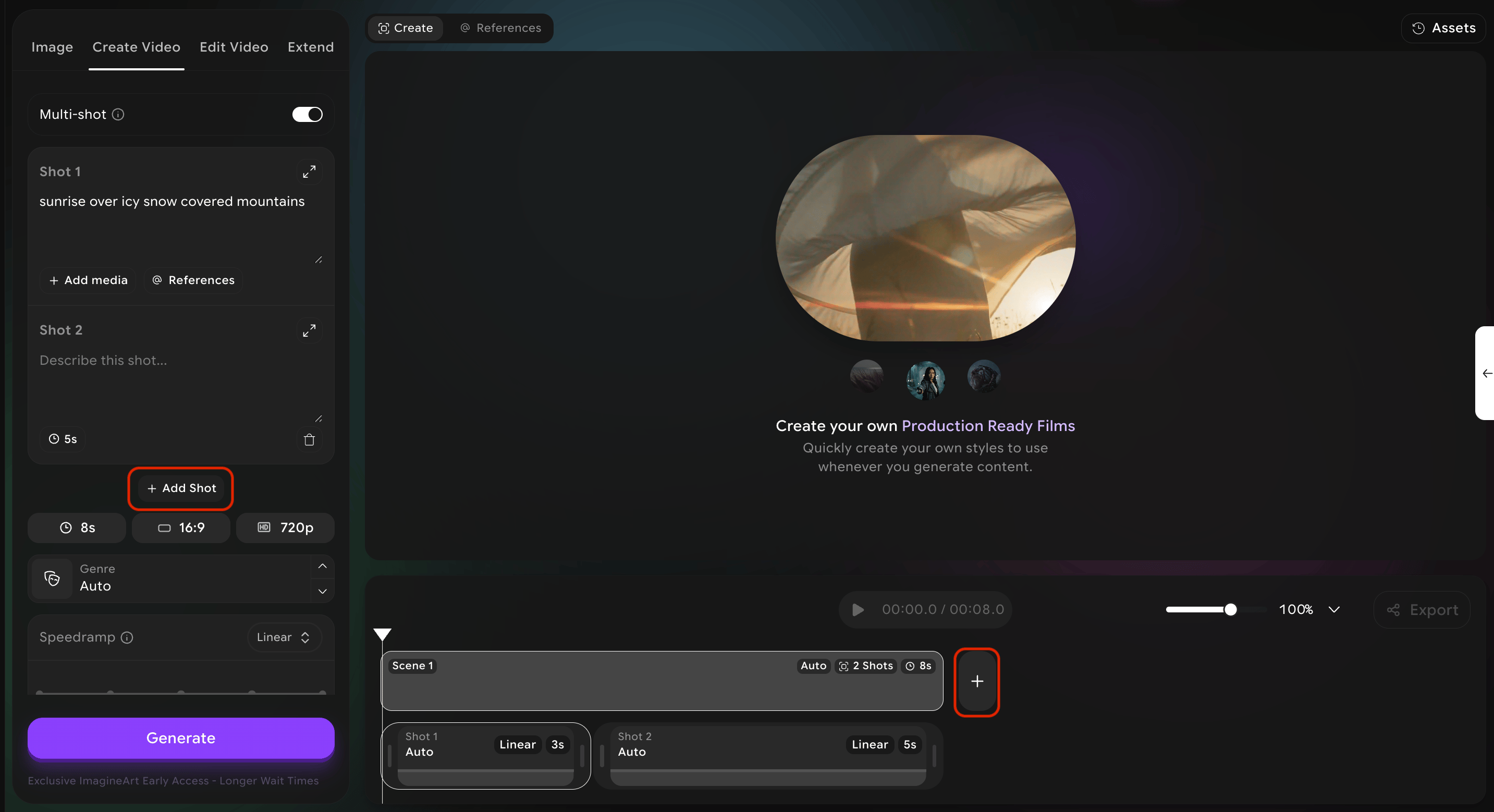
 Click the **"+"** icon in the scene timeline to add another shot. Drag shots to reorder.
 When all shots are configured, hit **Generate.**
Write each prompt as if briefing a film crew on each scene of a one-page script. Keep your **subject and style consistent** across shots, but vary the framing and the action. **Wide → medium → close-up** is a classic three-shot rhythm that almost always works.
## Genres
Selecting a genre tells the system what **emotional and visual vocabulary** to draw from. Genres are stylistic shortcuts — they change lighting, color palette, pacing cues, and reference material the system uses. Pick one that matches the story you are telling.
When all shots are configured, hit **Generate.**
Write each prompt as if briefing a film crew on each scene of a one-page script. Keep your **subject and style consistent** across shots, but vary the framing and the action. **Wide → medium → close-up** is a classic three-shot rhythm that almost always works.
## Genres
Selecting a genre tells the system what **emotional and visual vocabulary** to draw from. Genres are stylistic shortcuts — they change lighting, color palette, pacing cues, and reference material the system uses. Pick one that matches the story you are telling.
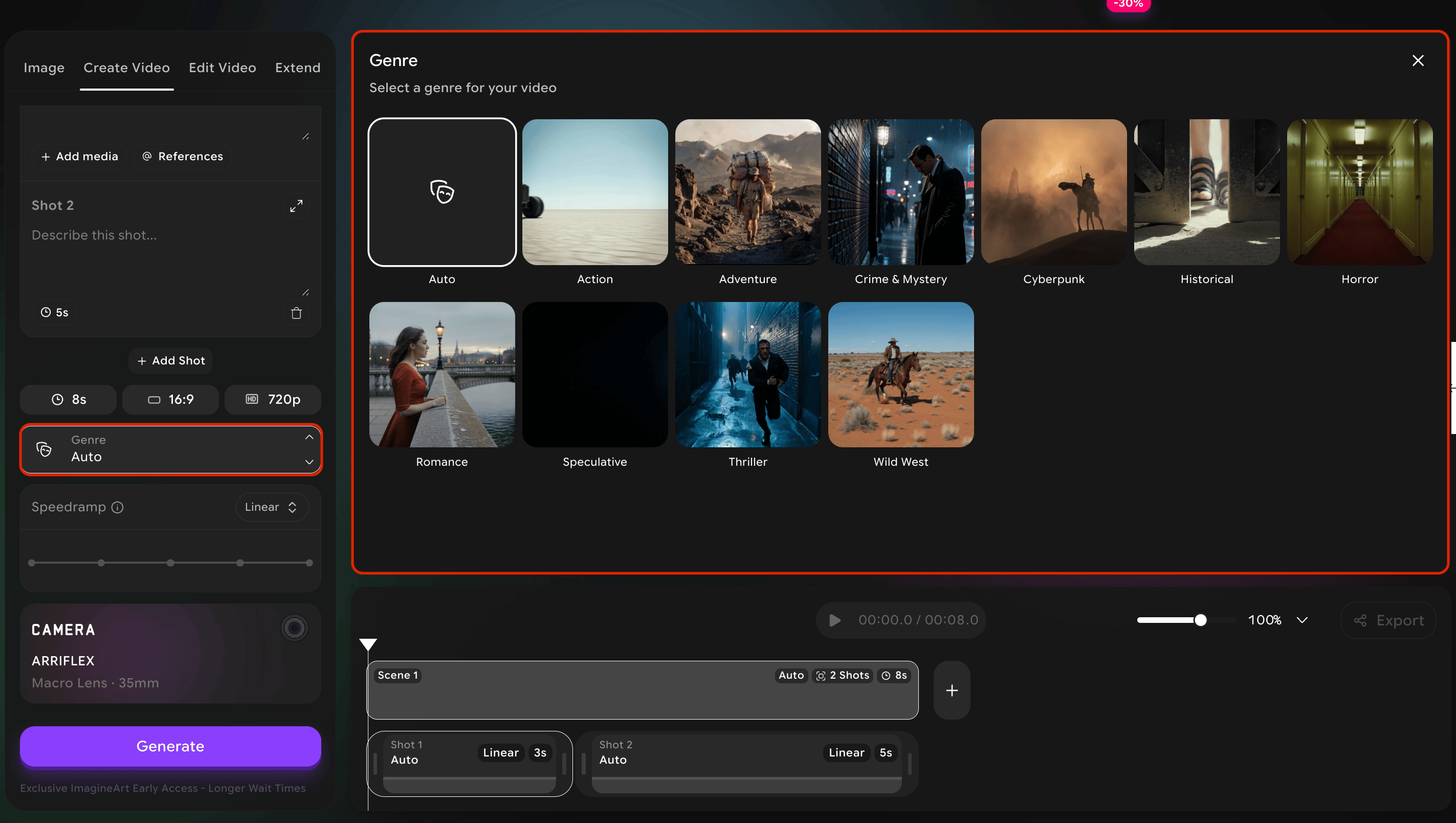 *Fast, kinetic, high-energy.*
**Visuals:** Sharp contrast, bold color, hard light, motion blur. **Use for:** chases, fights, sports.
*Larger than life, journey-driven.*
**Visuals:** Wide vistas, golden hour, rich earthy palette. **Use for:** exploration, hero's journey moments.
*Tense, investigative, shadowed.*
**Visuals:** Low-key lighting, muted colors, hard edges. **Use for:** detective scenes, noir.
*Neon-soaked, urban dystopian future.*
**Visuals:** Magenta & cyan, rain, holograms, dense cities. **Use for:** sci-fi cities, hacker scenes.
*Grounded, period-accurate, classical.*
**Visuals:** Restrained color, soft natural light, era-correct detail. **Use for:** period pieces, biographical drama.
*Dread, unease, claustrophobic.*
**Visuals:** Deep shadows, desaturated palette, off-balance framing. **Use for:** scary scenes, suspense.
*Warm, intimate, soft.*
**Visuals:** Warm light, soft focus, pastel and golden palette. **Use for:** love scenes, tender moments, dreamy memories.
*Imaginative, otherworldly, "what if."*
**Visuals:** Surreal color, unusual physics, dreamlike composition. **Use for:** fantasy, sci-fi, magical realism.
*Psychological tension, simmering dread.*
**Visuals:** Cool tones, tight framing, restrained motion. **Use for:** suspense, slow-burn dread, paranoia.
*Dusty, sun-baked, mythic.*
**Visuals:** Warm yellows and oranges, harsh sun, wide vistas. **Use for:** westerns, frontier scenes, desert showdowns.
## Camera movements
How the camera moves is part of how your scene speaks. A pan reveals. A dolly emphasizes. A handheld engages. A static shot pauses. **Pick the movement that matches the feeling of the moment, not just the geography of it.**
*Fast, kinetic, high-energy.*
**Visuals:** Sharp contrast, bold color, hard light, motion blur. **Use for:** chases, fights, sports.
*Larger than life, journey-driven.*
**Visuals:** Wide vistas, golden hour, rich earthy palette. **Use for:** exploration, hero's journey moments.
*Tense, investigative, shadowed.*
**Visuals:** Low-key lighting, muted colors, hard edges. **Use for:** detective scenes, noir.
*Neon-soaked, urban dystopian future.*
**Visuals:** Magenta & cyan, rain, holograms, dense cities. **Use for:** sci-fi cities, hacker scenes.
*Grounded, period-accurate, classical.*
**Visuals:** Restrained color, soft natural light, era-correct detail. **Use for:** period pieces, biographical drama.
*Dread, unease, claustrophobic.*
**Visuals:** Deep shadows, desaturated palette, off-balance framing. **Use for:** scary scenes, suspense.
*Warm, intimate, soft.*
**Visuals:** Warm light, soft focus, pastel and golden palette. **Use for:** love scenes, tender moments, dreamy memories.
*Imaginative, otherworldly, "what if."*
**Visuals:** Surreal color, unusual physics, dreamlike composition. **Use for:** fantasy, sci-fi, magical realism.
*Psychological tension, simmering dread.*
**Visuals:** Cool tones, tight framing, restrained motion. **Use for:** suspense, slow-burn dread, paranoia.
*Dusty, sun-baked, mythic.*
**Visuals:** Warm yellows and oranges, harsh sun, wide vistas. **Use for:** westerns, frontier scenes, desert showdowns.
## Camera movements
How the camera moves is part of how your scene speaks. A pan reveals. A dolly emphasizes. A handheld engages. A static shot pauses. **Pick the movement that matches the feeling of the moment, not just the geography of it.**
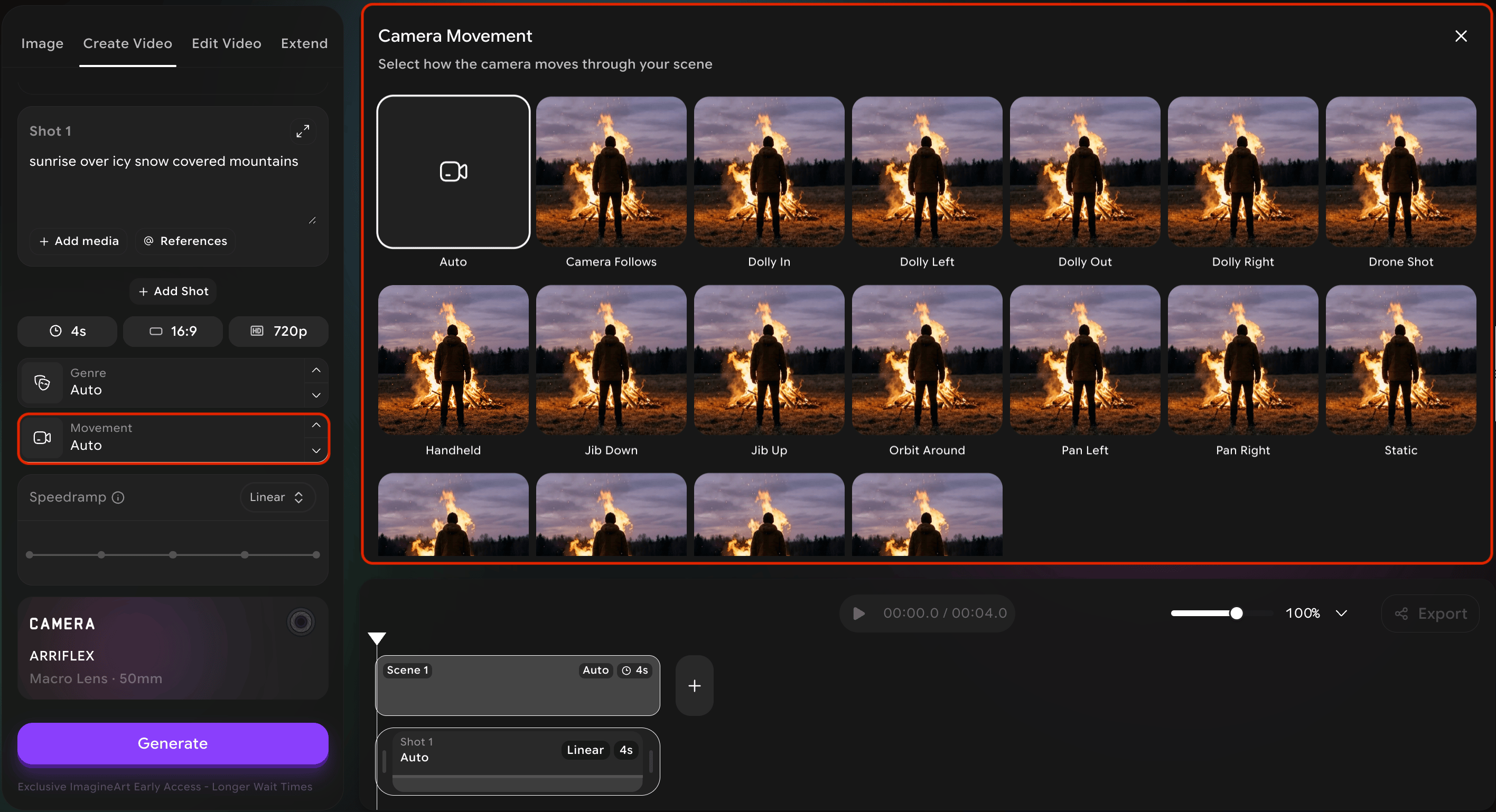 | Movement | What it does | Use it when you want to… |
| ---------------------- | ----------------------------------------------------------------- | --------------------------------------------------------------------------------------------- |
| **Static** | No camera movement at all. | Hold a quiet moment, signal control or stillness, let action move within the frame. |
| **Camera follows** | The camera tracks alongside a moving subject. | Show someone moving through space — running, walking, driving — and stay with them. |
| **Dolly in** | The camera moves forward toward the subject. | Build tension, focus the audience, signal that something important is happening. |
| **Dolly out** | The camera moves backward, away from the subject. | Reveal context, signal isolation, end a scene or a thought. |
| **Dolly left / right** | The camera slides sideways while staying parallel to the subject. | Show parallel motion, reveal something hidden offscreen, add gentle motion to a static scene. |
| **Drone shot** | A high aerial view from above, often moving. | Establish scale, open a film, geographic reveal. |
| **Handheld** | Camera operated by hand — slightly shaky, organic. | Add intimacy, urgency, or chaos. Documentary and action. |
| **Jib up** | The camera rises smoothly on a crane. | Build hope, reveal what is above, end on a sweeping note. |
| **Jib down** | The camera descends smoothly on a crane. | Reveal what is below, descend into a scene, ground the audience. |
| **Orbit around** | The camera circles the subject. | Examine a subject from all sides, emphasize importance, add motion to a static figure. |
| **Pan left / right** | The camera rotates horizontally on a fixed axis. | Follow action across a space, reveal something to the side, scan an environment. |
| **Tilt up** | The camera angles upward. | Convey grandeur, scale, intimidation, or hope. |
| **Tilt down** | The camera angles downward. | Convey power dynamics, reveal something below, end on a grounded note. |
| **Zoom in** | The lens zooms in toward the subject. | Snap audience attention, mark an emotional beat, hint at obsession. |
| **Zoom out** | The lens zooms out away from the subject. | Provide context, reveal scale, isolate a subject within a larger world. |
## Speed ramps
A speed ramp is a **controlled change in playback speed** over the course of a shot. Speed ramps are a hallmark of modern cinema — used to emphasize an impact, stretch out a beautiful moment, or accelerate through a transition.
| Movement | What it does | Use it when you want to… |
| ---------------------- | ----------------------------------------------------------------- | --------------------------------------------------------------------------------------------- |
| **Static** | No camera movement at all. | Hold a quiet moment, signal control or stillness, let action move within the frame. |
| **Camera follows** | The camera tracks alongside a moving subject. | Show someone moving through space — running, walking, driving — and stay with them. |
| **Dolly in** | The camera moves forward toward the subject. | Build tension, focus the audience, signal that something important is happening. |
| **Dolly out** | The camera moves backward, away from the subject. | Reveal context, signal isolation, end a scene or a thought. |
| **Dolly left / right** | The camera slides sideways while staying parallel to the subject. | Show parallel motion, reveal something hidden offscreen, add gentle motion to a static scene. |
| **Drone shot** | A high aerial view from above, often moving. | Establish scale, open a film, geographic reveal. |
| **Handheld** | Camera operated by hand — slightly shaky, organic. | Add intimacy, urgency, or chaos. Documentary and action. |
| **Jib up** | The camera rises smoothly on a crane. | Build hope, reveal what is above, end on a sweeping note. |
| **Jib down** | The camera descends smoothly on a crane. | Reveal what is below, descend into a scene, ground the audience. |
| **Orbit around** | The camera circles the subject. | Examine a subject from all sides, emphasize importance, add motion to a static figure. |
| **Pan left / right** | The camera rotates horizontally on a fixed axis. | Follow action across a space, reveal something to the side, scan an environment. |
| **Tilt up** | The camera angles upward. | Convey grandeur, scale, intimidation, or hope. |
| **Tilt down** | The camera angles downward. | Convey power dynamics, reveal something below, end on a grounded note. |
| **Zoom in** | The lens zooms in toward the subject. | Snap audience attention, mark an emotional beat, hint at obsession. |
| **Zoom out** | The lens zooms out away from the subject. | Provide context, reveal scale, isolate a subject within a larger world. |
## Speed ramps
A speed ramp is a **controlled change in playback speed** over the course of a shot. Speed ramps are a hallmark of modern cinema — used to emphasize an impact, stretch out a beautiful moment, or accelerate through a transition.
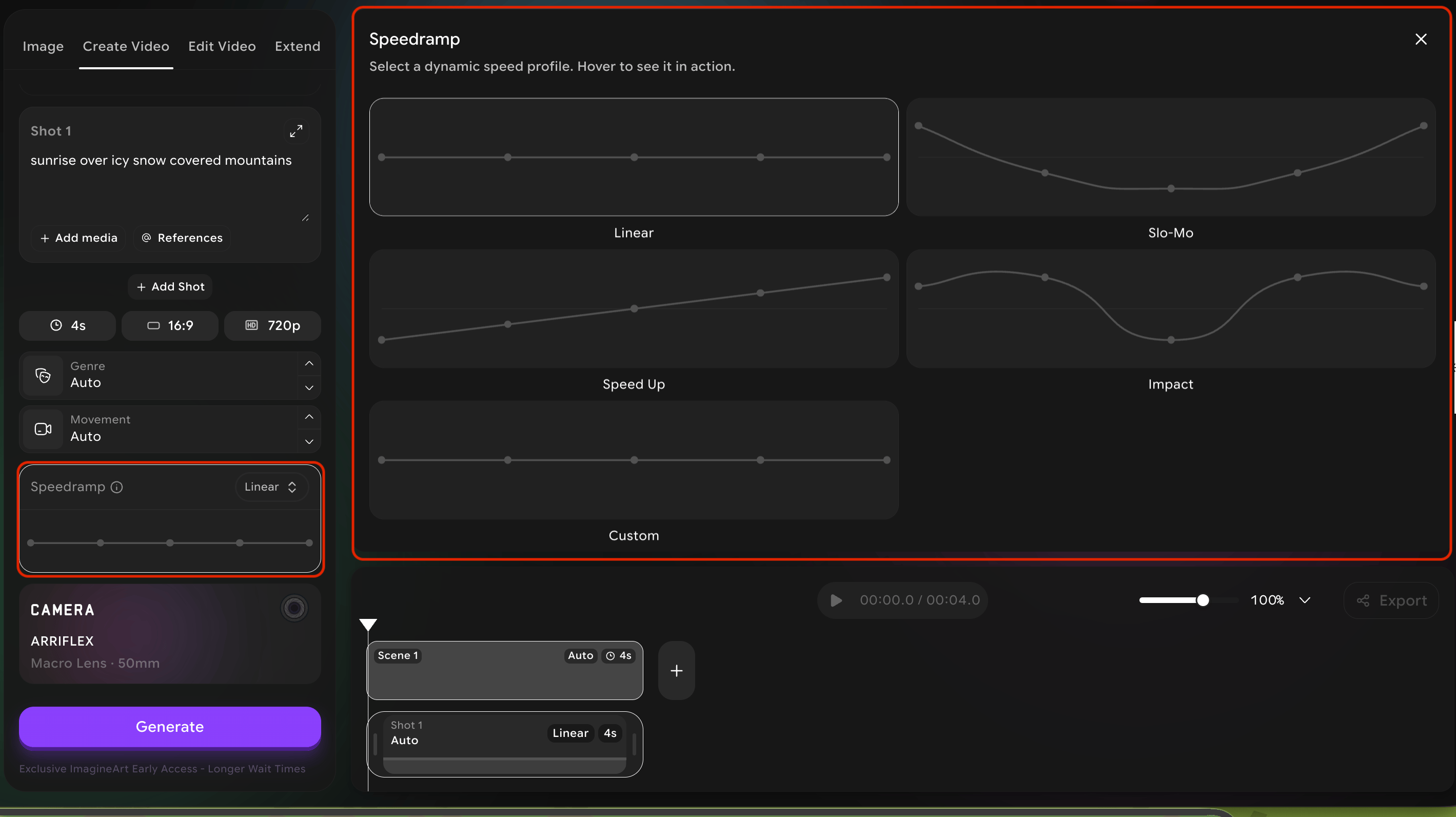 | Speed ramp | What it does | Use it when… |
| ------------ | --------------------------------------------------------------------------------------- | -------------------------------------------------------------------------------------------- |
| **Linear** | Constant speed for the entire shot. No ramping. | You want a natural, even pace — the default for most scenes. |
| **Slo Mo** | The whole shot plays in slow motion. | You want a beautiful, dramatic moment — the lead-up, the reveal, the kiss, the punch. |
| **Speed Up** | The whole shot plays faster than real time. | You want energy, urgency, compressed time — montages, transitions, action. |
| **Impact** | The shot ramps sharply at a key moment — typically slow on either side of a fast burst. | You want to emphasize one specific frame inside the shot — the hit, the explosion, the snap. |
| **Custom** | You define your own speed curve across the shot. | You have a specific rhythm in mind that the presets do not match. |
Speed ramps are best used **sparingly.** If every shot uses Slo Mo or Impact, none of them will feel special. Use Linear as your default, and bring in a ramp on the one or two shots where you really want to draw attention.
## Scene & shot timing
At the bottom of the workspace you will see your timeline — one card per scene, with each shot laid out inside the scene. The timeline is where you control pacing.
From the timeline you can:
* **Adjust the duration** of any individual shot by dragging its edges.
* **Reorder shots** by dragging the cards.
* **Add new shots** with the "+" button.
* **Delete** shots you no longer want.
* **Rename scenes** for your own organization.
Remember the **15-second total ceiling.** The timeline shows how much of your budget each shot is consuming. If you try to extend a shot past your remaining budget, you will need to shorten another shot first.
| Speed ramp | What it does | Use it when… |
| ------------ | --------------------------------------------------------------------------------------- | -------------------------------------------------------------------------------------------- |
| **Linear** | Constant speed for the entire shot. No ramping. | You want a natural, even pace — the default for most scenes. |
| **Slo Mo** | The whole shot plays in slow motion. | You want a beautiful, dramatic moment — the lead-up, the reveal, the kiss, the punch. |
| **Speed Up** | The whole shot plays faster than real time. | You want energy, urgency, compressed time — montages, transitions, action. |
| **Impact** | The shot ramps sharply at a key moment — typically slow on either side of a fast burst. | You want to emphasize one specific frame inside the shot — the hit, the explosion, the snap. |
| **Custom** | You define your own speed curve across the shot. | You have a specific rhythm in mind that the presets do not match. |
Speed ramps are best used **sparingly.** If every shot uses Slo Mo or Impact, none of them will feel special. Use Linear as your default, and bring in a ramp on the one or two shots where you really want to draw attention.
## Scene & shot timing
At the bottom of the workspace you will see your timeline — one card per scene, with each shot laid out inside the scene. The timeline is where you control pacing.
From the timeline you can:
* **Adjust the duration** of any individual shot by dragging its edges.
* **Reorder shots** by dragging the cards.
* **Add new shots** with the "+" button.
* **Delete** shots you no longer want.
* **Rename scenes** for your own organization.
Remember the **15-second total ceiling.** The timeline shows how much of your budget each shot is consuming. If you try to extend a shot past your remaining budget, you will need to shorten another shot first.