> ## Documentation Index
> Fetch the complete documentation index at: https://docs.imagine.art/llms.txt
> Use this file to discover all available pages before exploring further.
# Drama Studio
> A second project type inside Film Studio, built for vertical, multi-episode series — persistent characters, episode structure, platform-ready output.
**Drama Studio** is a distinct project type inside Film Studio, purpose-built for short-form vertical drama series — the kind of content that runs on ReelShort, TikTok, and DramaBox. It shares Film Studio's editor shell, but the project structure underneath is genuinely different: persistent characters that carry across episodes, an episode/scene hierarchy, and a fixed vertical format.
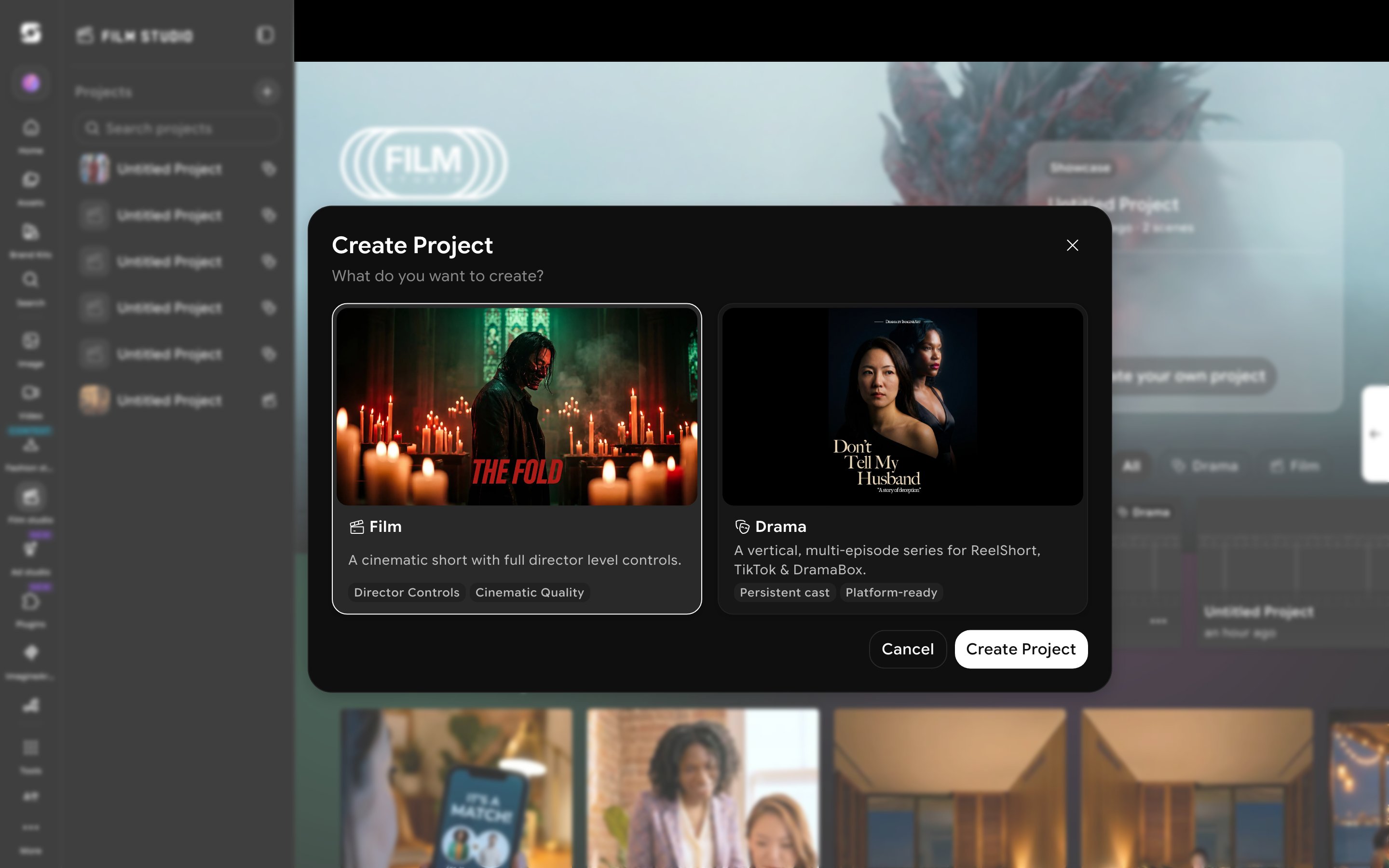
Click **Create Project** from the Film Studio home page. The **Create Project** dialog asks what you want to create:
* **Film** — a cinematic short with full director-level controls.
* **Drama** — a vertical, multi-episode series for ReelShort, TikTok & DramaBox, with **persistent cast** and **platform-ready** output.
 Selecting Drama opens an editor with **Create Image**, **Create Video**, and **Edit Video** tabs — the same shell as a Film project, but everything inside is oriented around building a series: an **Episodes** panel on the right (starting with Episode 1), and a **Scene Builder** built around **Characters**, **Props**, and **Locations**.
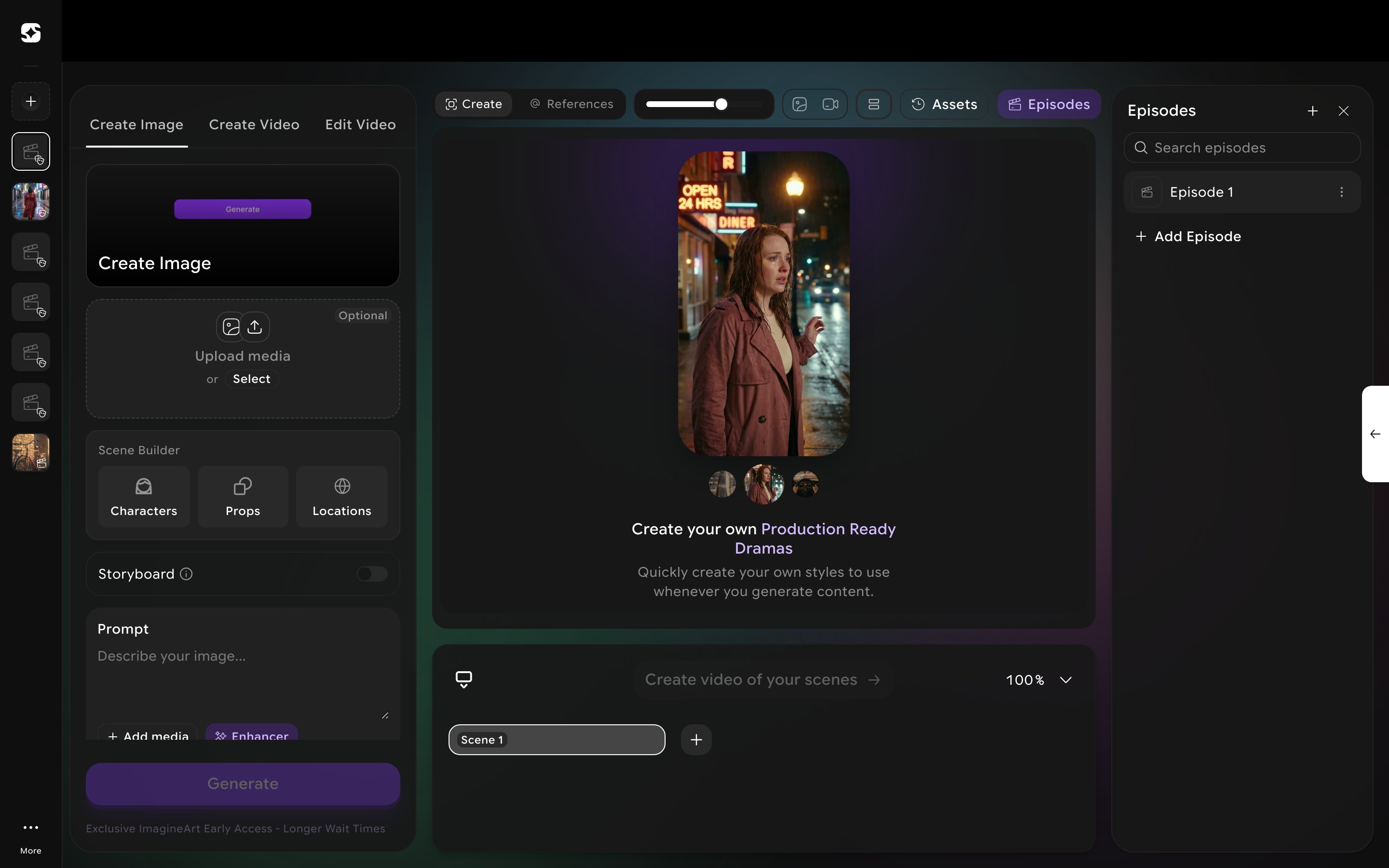 The **Episodes** panel lists your episodes and an **Add Episode** row. Adding one simply appends the next sequentially-numbered episode — there's no separate naming or synopsis prompt at creation time. Each episode has its own **Scene 1 / Shot** timeline underneath, but the character/prop/location library itself is shared across every episode (and every project), not scoped per-episode.
Click **Characters** (in Scene Builder or the References panel) to see your character library — a real preset roster (Nova, Atlas, Pixel, Luna, and more) alongside **All / Saved / My Characters** filters. Click the **+** tile to create your own: upload reference photos (up to 10 images), give it a **Name**, pick **Male / Female / Neutral**, and optionally add instructions describing the character further.
The **Episodes** panel lists your episodes and an **Add Episode** row. Adding one simply appends the next sequentially-numbered episode — there's no separate naming or synopsis prompt at creation time. Each episode has its own **Scene 1 / Shot** timeline underneath, but the character/prop/location library itself is shared across every episode (and every project), not scoped per-episode.
Click **Characters** (in Scene Builder or the References panel) to see your character library — a real preset roster (Nova, Atlas, Pixel, Luna, and more) alongside **All / Saved / My Characters** filters. Click the **+** tile to create your own: upload reference photos (up to 10 images), give it a **Name**, pick **Male / Female / Neutral**, and optionally add instructions describing the character further.
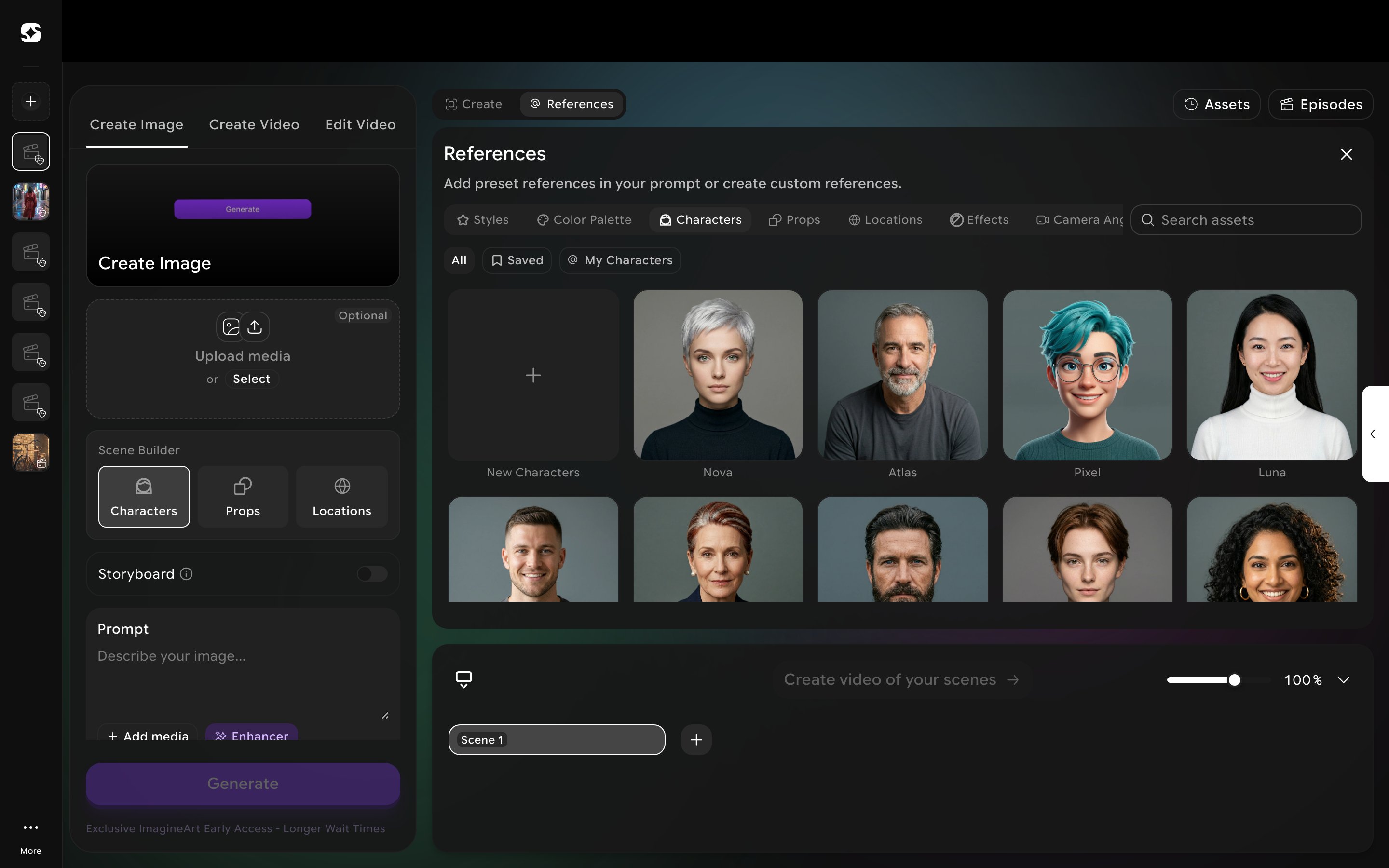 A character created this way is reusable by name across every episode and scene — this is the "persistent cast" the project type is built around. **Props** and **Locations** work the same way (reference photo + name + optional description), just without the gender field.
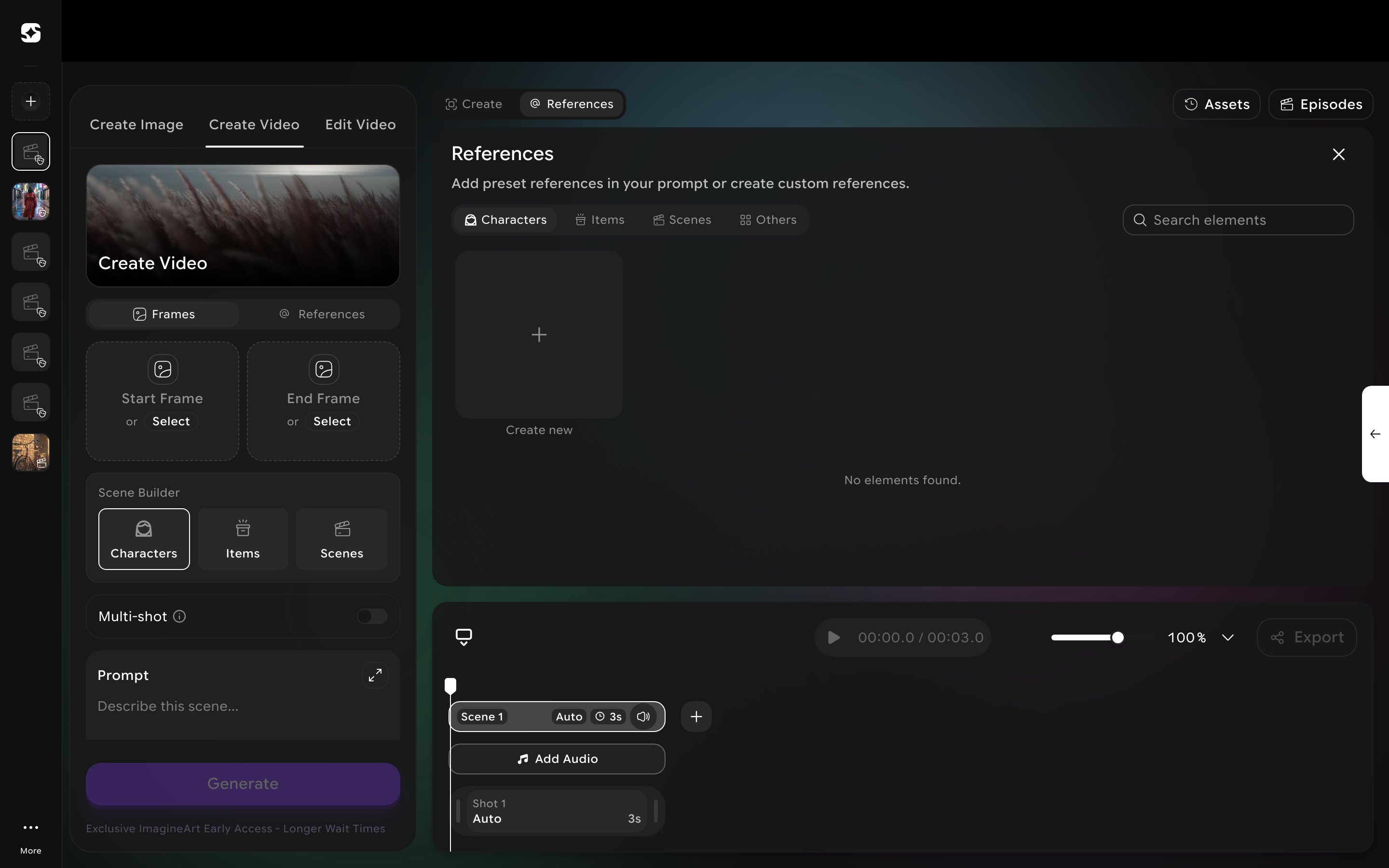
**Create Video** inside Drama Studio looks like Film Studio's, with real differences: aspect ratio is fixed **vertical (9:16)** with no ratio picker, duration defaults to **3s** per shot, resolution defaults to **720p**, and **Style / Genre / Movement all default to Auto** rather than exposing Film Studio's full genre/movement library. Camera controls (camera body, lens, focal length, aperture) are still present underneath, so you aren't fully locked out of cinematographic control. **Add Audio** works the same way as regular Film Studio, directly on the scene timeline.
A character created this way is reusable by name across every episode and scene — this is the "persistent cast" the project type is built around. **Props** and **Locations** work the same way (reference photo + name + optional description), just without the gender field.
**Create Video** inside Drama Studio looks like Film Studio's, with real differences: aspect ratio is fixed **vertical (9:16)** with no ratio picker, duration defaults to **3s** per shot, resolution defaults to **720p**, and **Style / Genre / Movement all default to Auto** rather than exposing Film Studio's full genre/movement library. Camera controls (camera body, lens, focal length, aperture) are still present underneath, so you aren't fully locked out of cinematographic control. **Add Audio** works the same way as regular Film Studio, directly on the scene timeline.
 The video model Drama Studio generates with isn't shown anywhere in the interface — Style, Genre, and Movement all default to Auto, and the model is selected automatically behind the scenes.
## Browsing a real example
The Film Studio home page's project list has **All / Drama / Film** filter tabs. The **Drama** filter surfaces example series like "Don't Tell My Husband" — a set of individually playable episode clips (S01E01, S01E02...), each with its own synopsis, forming a continuing storyline. These are playable showcase examples, not projects you can open and inspect scene-by-scene.
Watch a couple of episodes from the showcase examples before building your own series — the pacing (roughly 1-1.5 minutes per episode) and per-episode cliffhanger structure are the pattern platforms like ReelShort and DramaBox actually expect.
The video model Drama Studio generates with isn't shown anywhere in the interface — Style, Genre, and Movement all default to Auto, and the model is selected automatically behind the scenes.
## Browsing a real example
The Film Studio home page's project list has **All / Drama / Film** filter tabs. The **Drama** filter surfaces example series like "Don't Tell My Husband" — a set of individually playable episode clips (S01E01, S01E02...), each with its own synopsis, forming a continuing storyline. These are playable showcase examples, not projects you can open and inspect scene-by-scene.
Watch a couple of episodes from the showcase examples before building your own series — the pacing (roughly 1-1.5 minutes per episode) and per-episode cliffhanger structure are the pattern platforms like ReelShort and DramaBox actually expect.