> ## Documentation Index
> Fetch the complete documentation index at: https://docs.imagine.art/llms.txt
> Use this file to discover all available pages before exploring further.
# Editing an Existing Video
For when you already have footage and want to redirect it. Provide the video, write a prompt describing what should change — the system produces a new version of the clip that follows your instruction. The original footage shapes the result.
## When to use Edit Video
* You have a generated clip that is close but not quite right (wrong color, wrong mood, wrong genre).
* You have a real video and want to apply a stylized look to it.
* You want to keep the composition and motion of an existing shot but change its subject or setting.
## How to edit a video
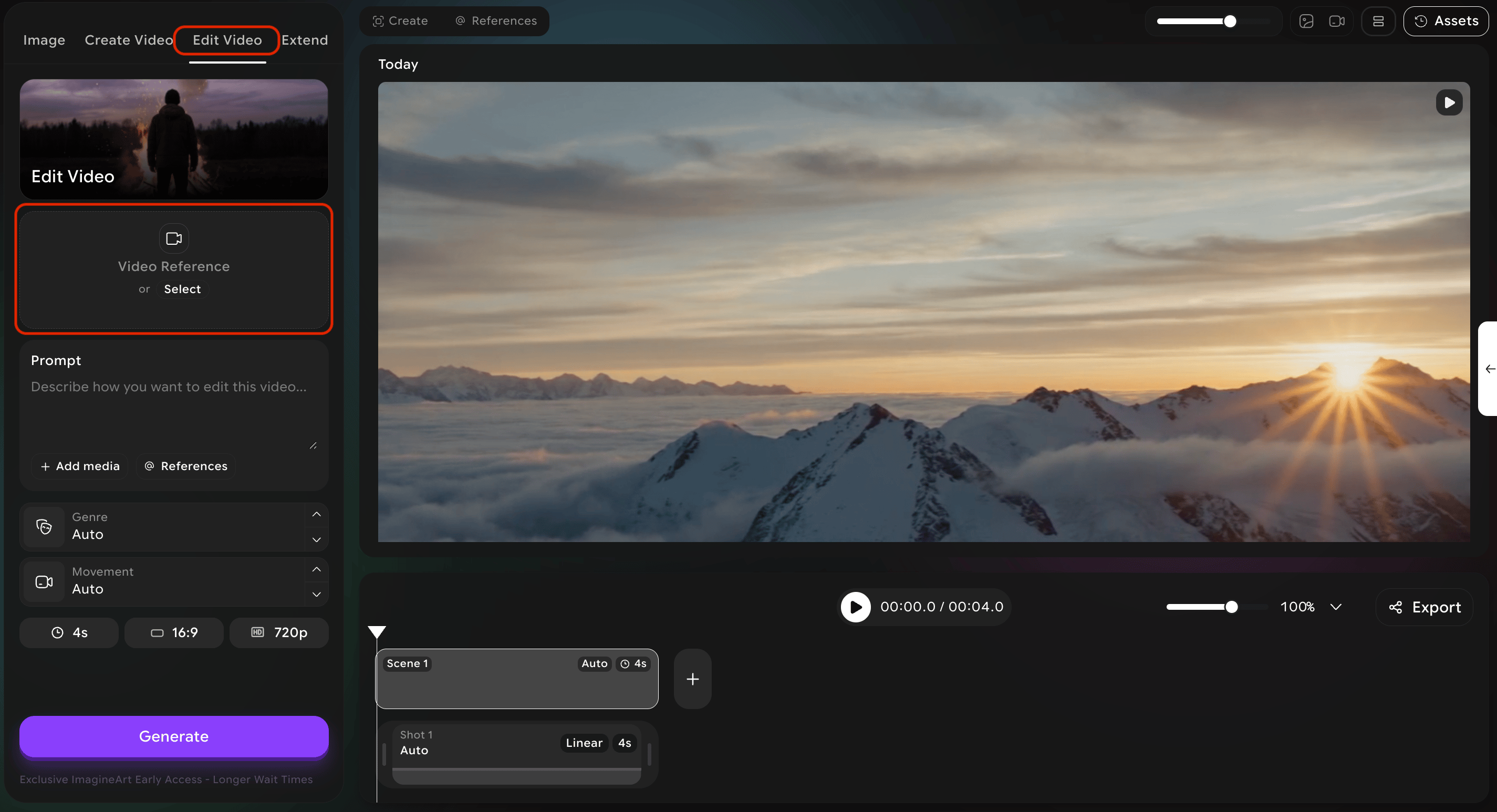
Open the **Edit Video** tab.
Provide the source video. Upload a file or pick one of your existing generations from the project library.
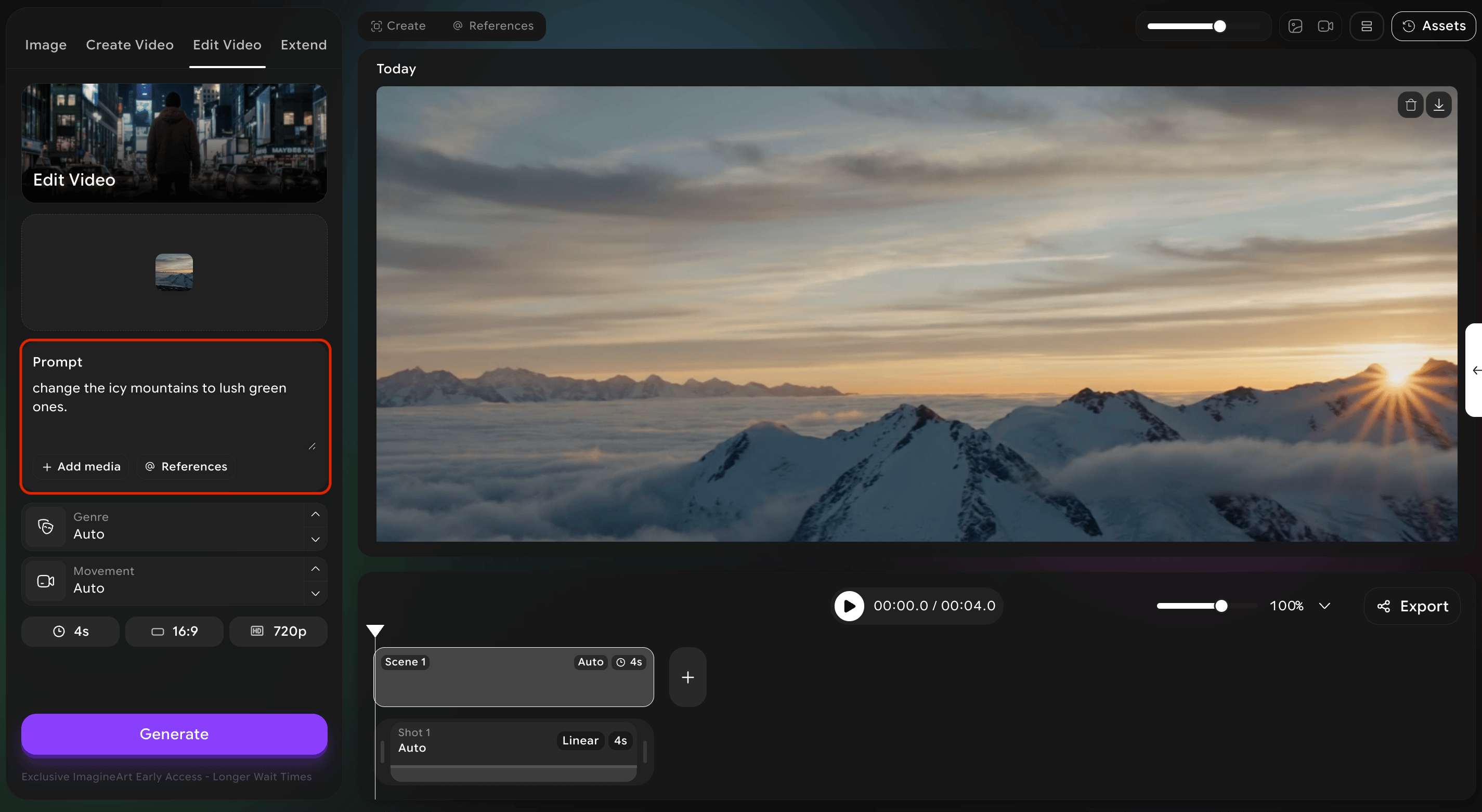
 Write a prompt that describes what you want to change. **Be specific about what should stay the same and what should change.**
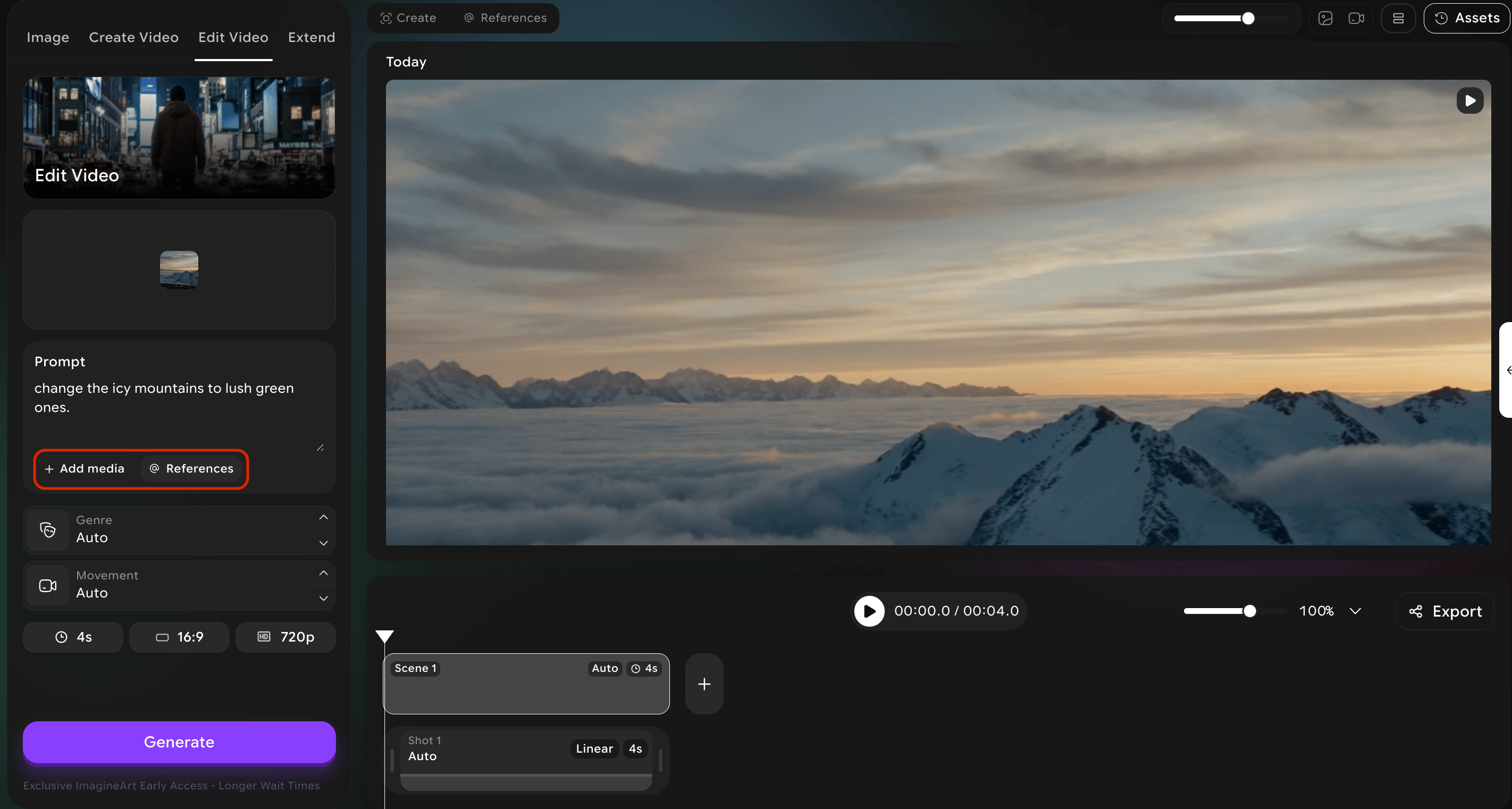
 Optionally add reference media to influence the new style.
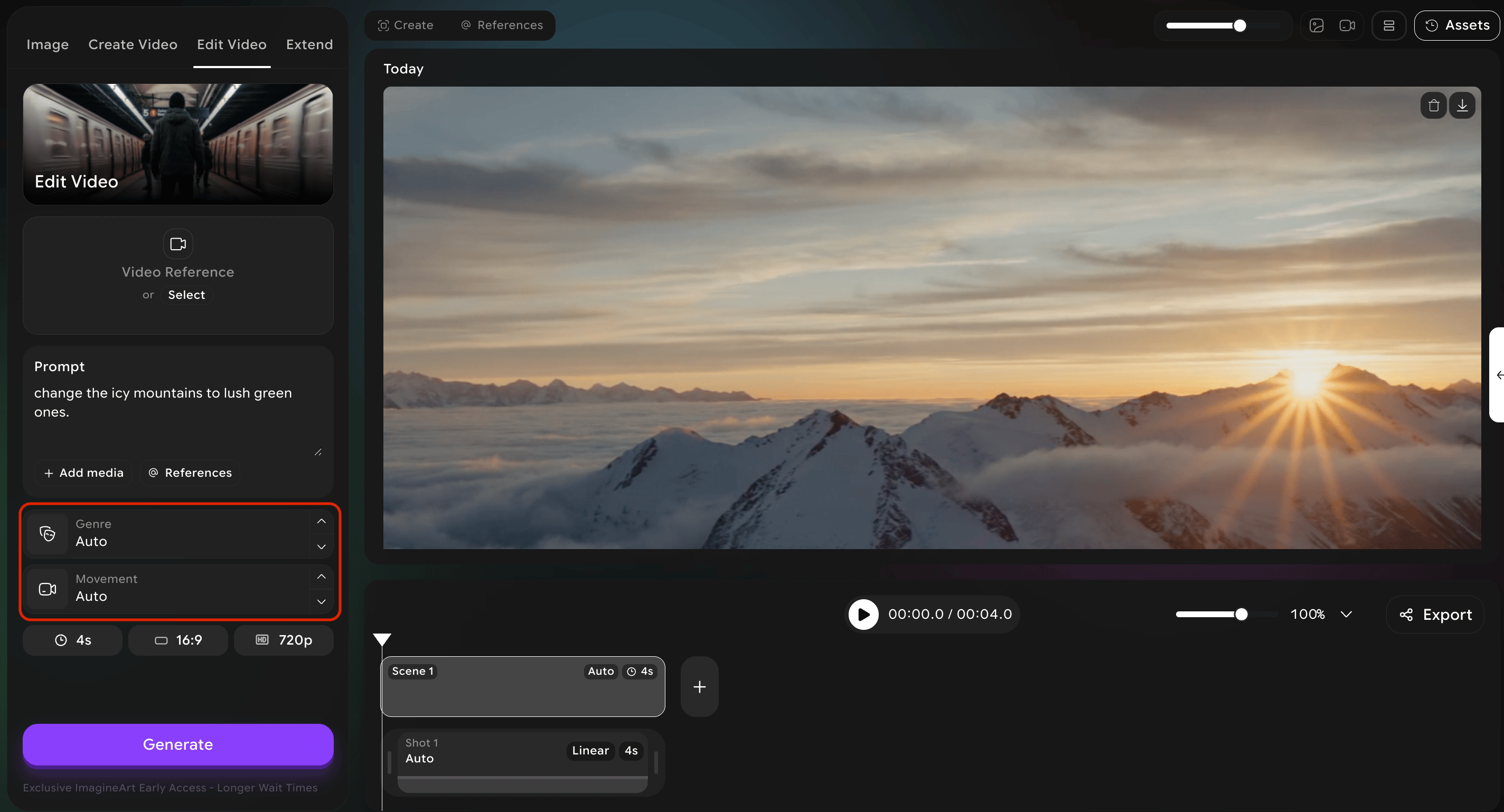
 Set the cinematic controls — apply a new genre and new camera movements just as you would for a brand-new video.
 Hit **Generate.** You will get back an edited version of your clip.
Edit Video works best when you give it **one clear instruction at a time.** *"Change the time of day to sunset"* produces a cleaner result than *"Change the time of day to sunset, add a horse, make it look like a Western, and slow it down."* If you have multiple changes to make — edit, review, then edit again.
## Tips for consistent results
* Use the **same camera preset** you used for the original — this keeps the visual style consistent across the edit.
* Keep your prompts focused on **the change**, not on re-describing the entire scene.
* Use **reference images** when language alone isn't enough — a mood board is faster than a long description.
Hit **Generate.** You will get back an edited version of your clip.
Edit Video works best when you give it **one clear instruction at a time.** *"Change the time of day to sunset"* produces a cleaner result than *"Change the time of day to sunset, add a horse, make it look like a Western, and slow it down."* If you have multiple changes to make — edit, review, then edit again.
## Tips for consistent results
* Use the **same camera preset** you used for the original — this keeps the visual style consistent across the edit.
* Keep your prompts focused on **the change**, not on re-describing the entire scene.
* Use **reference images** when language alone isn't enough — a mood board is faster than a long description.