> ## Documentation Index
> Fetch the complete documentation index at: https://docs.imagine.art/llms.txt
> Use this file to discover all available pages before exploring further.
# Extending a Video
For when you have a video you love and want more of it. Provide the source clip, write a prompt describing what should happen next — the system generates new frames that continue naturally from where the original left off.
## When to use Extend
* You generated a clip that ends too soon and you want to see more of the same.
* You have a 5-second moment and want it to play out for 10 seconds.
* You want a sequel-style continuation — **same subject, same world, what happens next.**
## How to extend a video
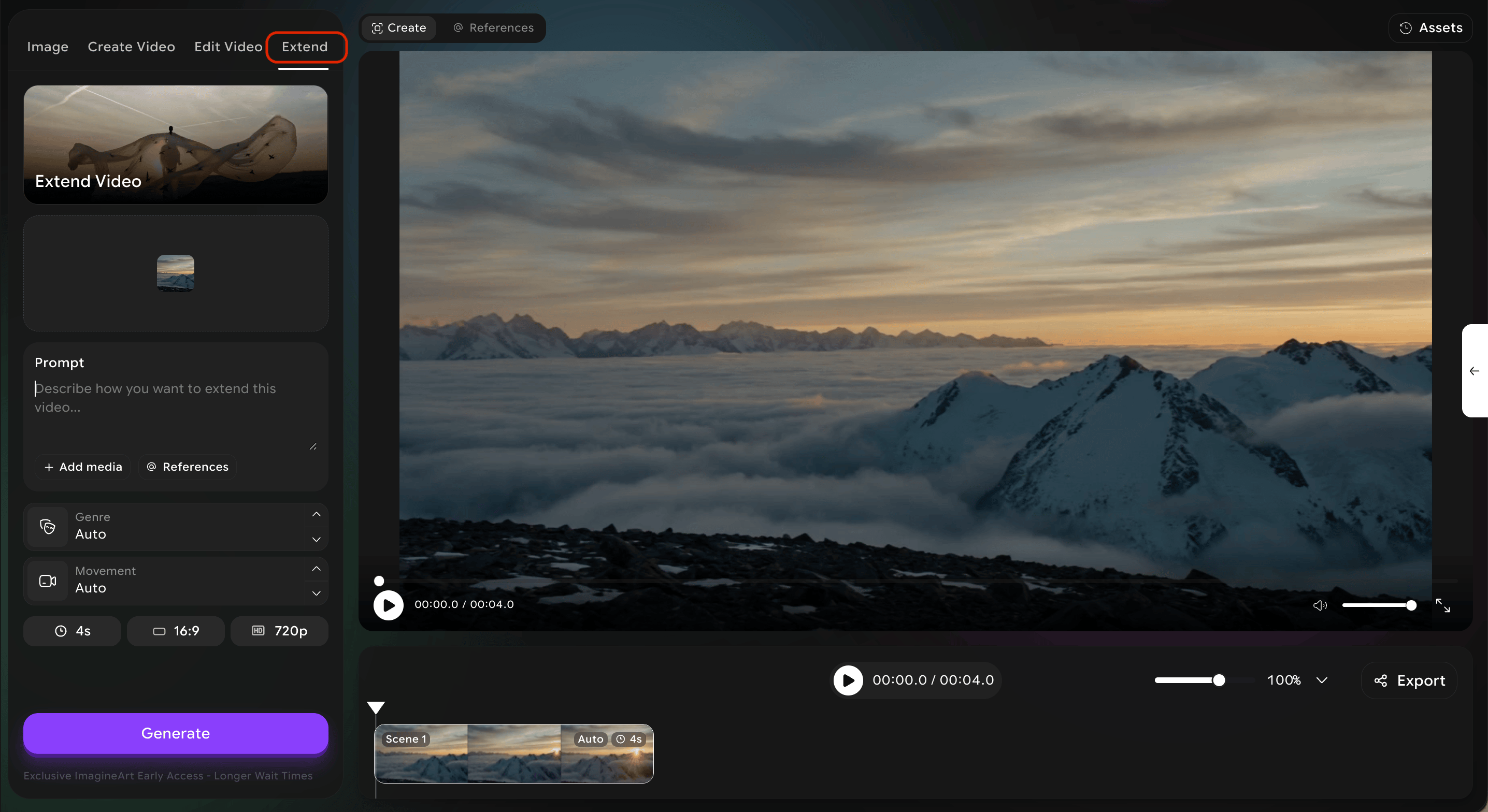
Open the **Extend** tab.
 Provide the source video — upload a file or pick from your project library.
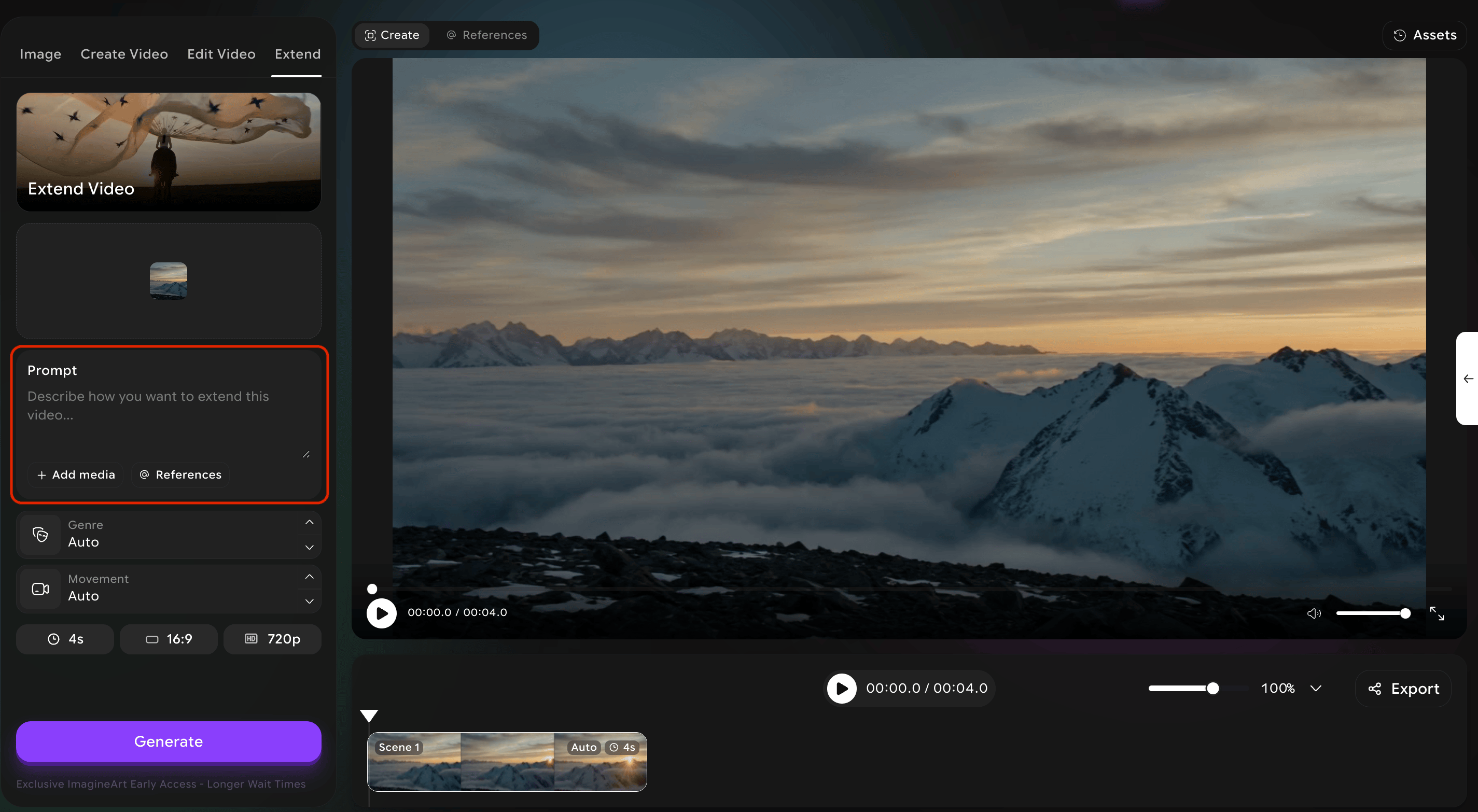
Write a prompt that describes what should happen in the extension. The system will use the end of your original clip as the starting point, and your prompt as the direction forward.
Provide the source video — upload a file or pick from your project library.
Write a prompt that describes what should happen in the extension. The system will use the end of your original clip as the starting point, and your prompt as the direction forward.
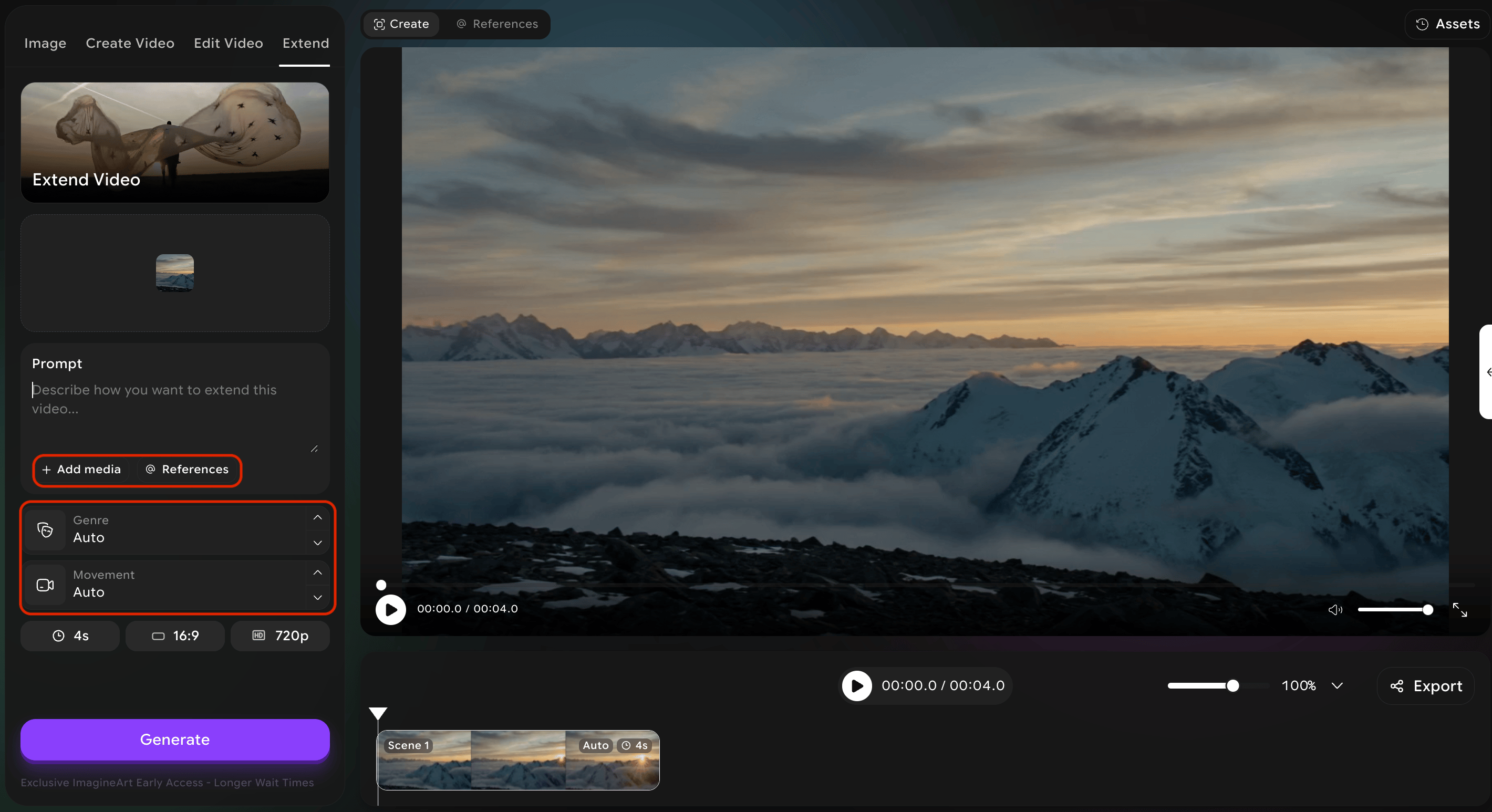
 Optionally add reference media and tune cinematic controls (genre, movements) for the extended portion.
 Hit **Generate.** You will receive a new clip that continues from the original.
Extend is **forward-only.** It continues from the end of your source, not before the start. If you want a lead-in to a clip, generate that as a separate shot and assemble the two in a multi-shot video.
## Tips for natural-feeling extensions
* Describe an action that naturally follows the end of your source. *"She turns and walks away"* is easier to extend from a clip of someone standing than *"she suddenly flies into space."*
* **Reuse your camera preset** so the optical character matches across the seam.
* Keep the lighting consistent in your prompt — sudden changes in lighting are the most common reason extensions feel disjointed.
Hit **Generate.** You will receive a new clip that continues from the original.
Extend is **forward-only.** It continues from the end of your source, not before the start. If you want a lead-in to a clip, generate that as a separate shot and assemble the two in a multi-shot video.
## Tips for natural-feeling extensions
* Describe an action that naturally follows the end of your source. *"She turns and walks away"* is easier to extend from a clip of someone standing than *"she suddenly flies into space."*
* **Reuse your camera preset** so the optical character matches across the seam.
* Keep the lighting consistent in your prompt — sudden changes in lighting are the most common reason extensions feel disjointed.