> ## Documentation Index
> Fetch the complete documentation index at: https://docs.imagine.art/llms.txt
> Use this file to discover all available pages before exploring further.
# Your First Project
> Follow this section once and the rest of the guide will make a lot more sense.
Follow this section once and the rest of the guide will make a lot more sense.
## Step 1 — Open Film Studio
Open your browser and go to **imagine.art / film-studio**.
Sign in if you are not already logged in.
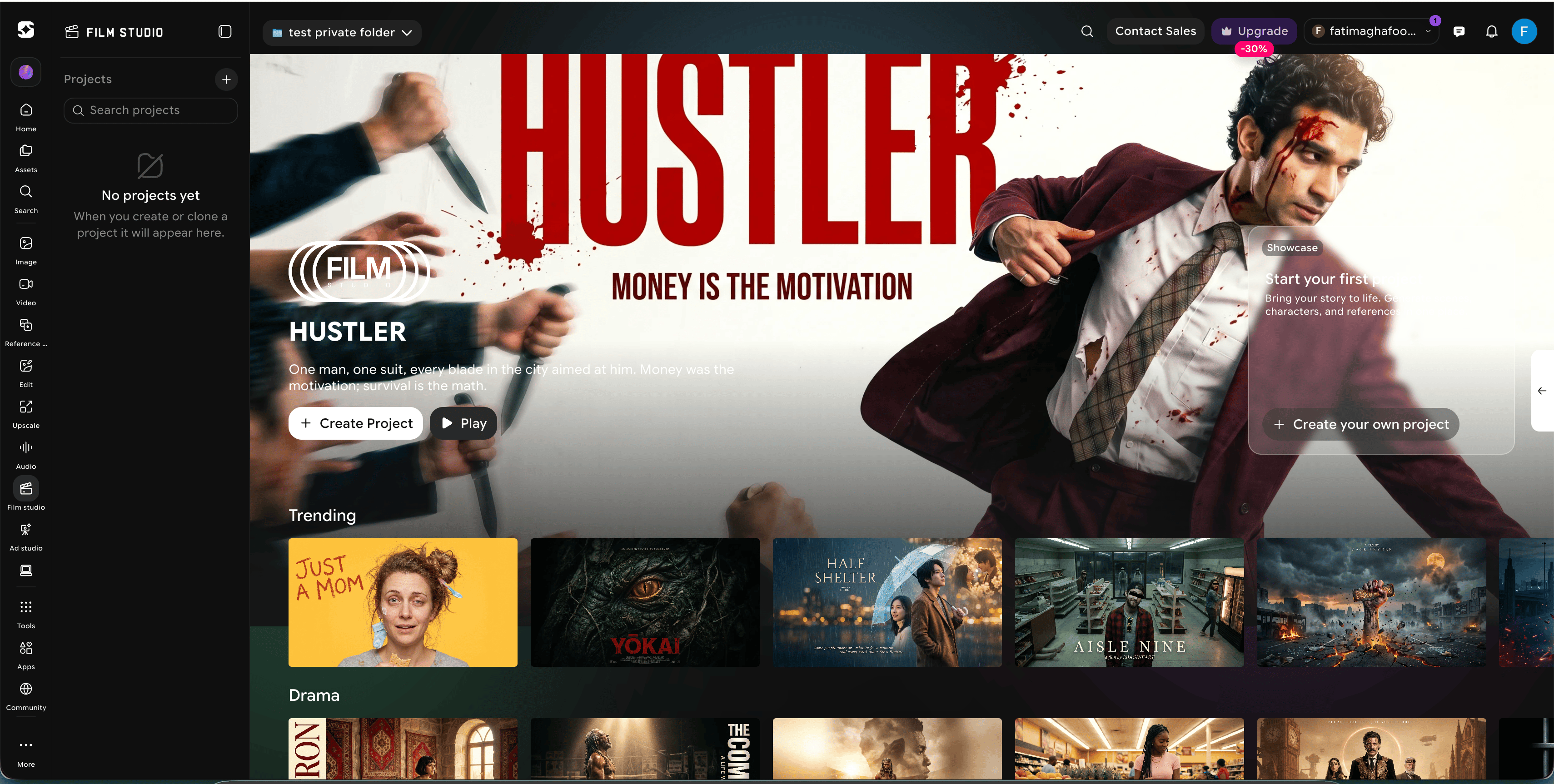
You will land on the Film Studio home view, which lists your existing projects on the left side.
 ## Step 2 — Start a new project
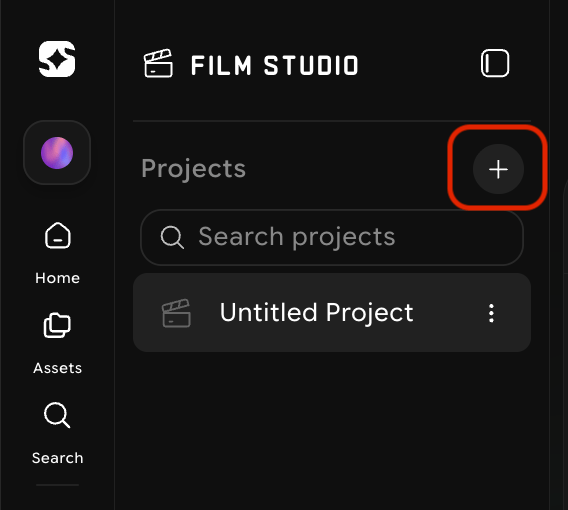
Click the **"+"** button next to *Projects* in the top-left corner.
## Step 2 — Start a new project
Click the **"+"** button next to *Projects* in the top-left corner.
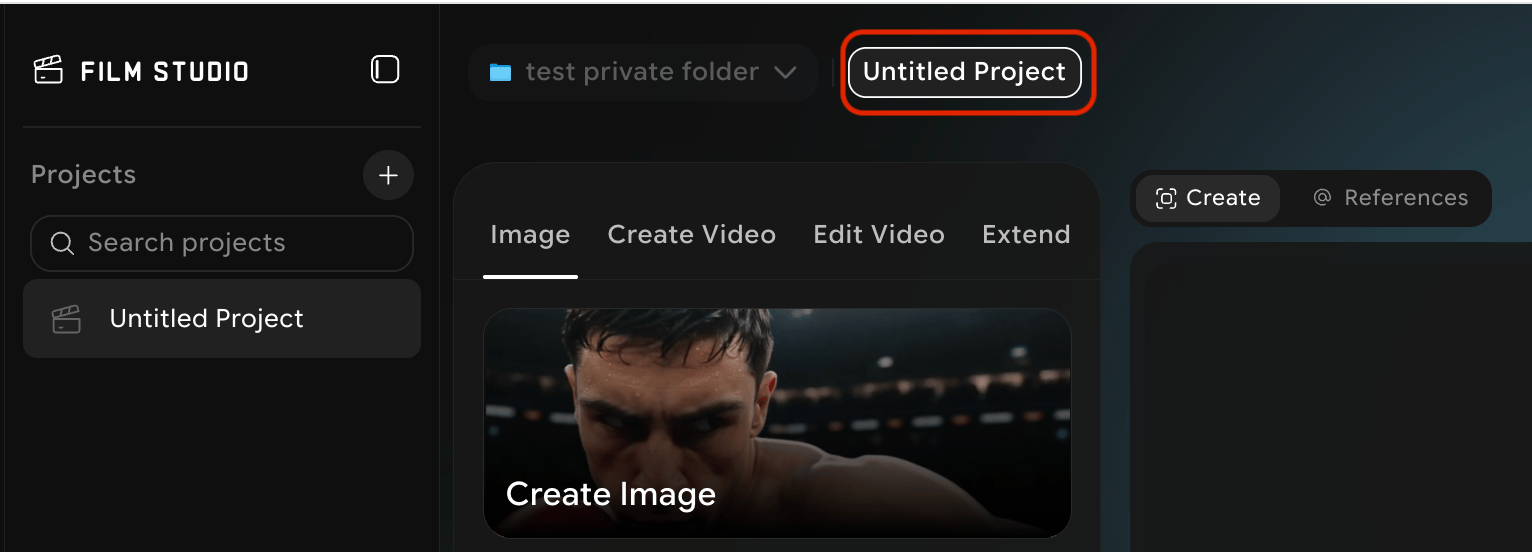
 Give your project a name. A descriptive name (e.g. *"Cyberpunk Trailer V1"*) is easier to find later than the default *"Untitled Project"*.
 Press **Enter** or click outside the field to save.
Every piece of work you create — images, videos, storyboards, presets — lives inside a project. **Make a habit of starting a new project for each idea**, the same way a film team would treat each production as its own folder.
## Step 3 — Open the project
Click the project name in the left sidebar. The main workspace opens. You are now ready to create — the next section walks through what each part of the workspace does.
Press **Enter** or click outside the field to save.
Every piece of work you create — images, videos, storyboards, presets — lives inside a project. **Make a habit of starting a new project for each idea**, the same way a film team would treat each production as its own folder.
## Step 3 — Open the project
Click the project name in the left sidebar. The main workspace opens. You are now ready to create — the next section walks through what each part of the workspace does.