> ## Documentation Index
> Fetch the complete documentation index at: https://docs.imagine.art/llms.txt
> Use this file to discover all available pages before exploring further.
# Edit Image
> With ImagineArt’s Image Edit feature, you can guide the AI to make specific changes to your images using text-based prompts. Powered by the latest AI models.
## What is Image Edit?
**Image Edit** is an AI-powered tool designed to help you make detailed edits to your images through simple text descriptions. Whether you need to change lighting, adjust colors, remove unwanted objects, or even add new elements, Image Edit allows you to give specific instructions to the AI, which then generates high-quality results based on your prompts.
## How to use Image Edit
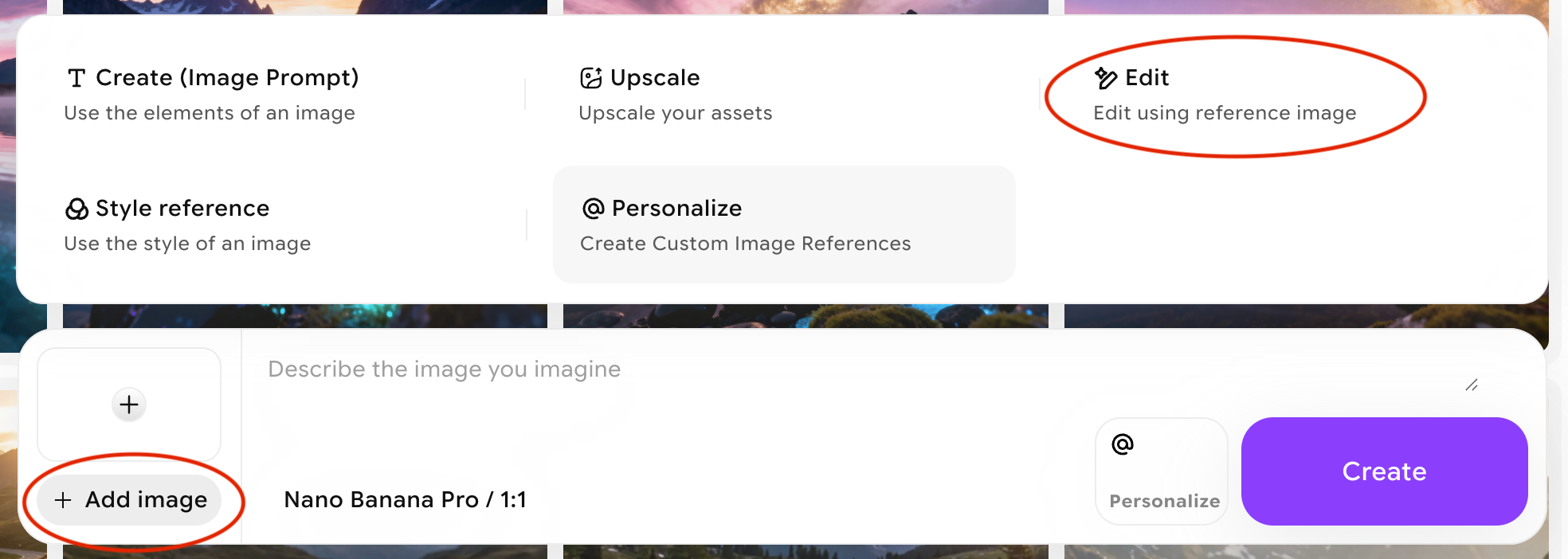
1. Open [ImagineArt](https://www.imagine.art/image) and select **Edit Mode**.
2. \*\*Add an image to be used as a reference: \*\*Upload the image you want to edit or simply drag it into the "+" box. This will serve as the reference for the AI to make edits based on your description.Choose an editing model from the options below.
3. \*\*Choose an image editing model: \*\*Select from various available models (e.g., **Nano Banana**, **Seedream v4**, **ChatGPT Edit**) depending on the level of detail and style you need.
4. \*\*Write the editing prompt: \*\*Now, write a detailed description of the changes you want to make. Be specific about what you want altered—whether it’s adjusting brightness, adding objects, or changing the composition.
5. \*\*Choose aspect ratio and generation settings: \*\*Select the aspect ratio (e.g., square, landscape, portrait) and any other settings that match your project’s needs.
6. \*\*Click Create: \*\*Once everything is set, click **Generate** to let the AI process your image and apply the changes based on your prompt.
Be specific in your edit prompt. Instead of "change the background," try "replace the background with a sun-drenched Tuscan vineyard at golden hour." Precision helps the AI understand exactly what you want.
## Editing models
**Best for:** Complex natural language instructions, scene adjustments, and perspective changes.
**Nano Banana**, developed by Google, understands complex editing instructions similar to how a conversational AI processes language. It excels at interpreting multi-part instructions and making nuanced adjustments to scenes, angles, and object placement.
**Key capabilities:**
* Understands complex, multi-step editing instructions in plain language
* Adjusts scene angles, perspectives, and spatial relationships
* Adds, removes, or repositions objects based on descriptions
* Produces high-fidelity textures and stylized outputs
**How to use Nano Banana:**
1. Select **Edit Mode** and choose **Nano Banana** as your model.
2. Upload **reference images**.
3. Write your editing prompt, describing what you want to change or add.
4. Click **Create**.
**Example prompt:** `"Shift the camera angle to a low-angle shot looking up at the subject. Add dramatic storm clouds to the sky."`
**Best for:** Multi-element compositions, detailed scene generation, and images with embedded text.
**ChatGPT Image** by OpenAI excels at prompt accuracy and complex scene construction. It is particularly strong when you need multiple distinct elements to coexist in a single image or when your image needs to include readable, correctly spelled text.
**Key capabilities:**
* Highly prompt-accurate: follows detailed, multi-part instructions closely
* Strong at generating complex scenes with many interacting elements
* Best-in-class text rendering inside images
* Character and object design from detailed descriptions
**How to use ChatGPT Image:**
1. Select **Edit Mode** and choose **ChatGPT** as your model.
2. Upload **reference images**.
3. Write your detailed editing or generation prompt.
4. Click **Create**.
**Example prompt:** `"Add a chalk-board sign in the background that reads 'Grand Opening' in bold script. Keep the storefront and lighting unchanged."`
**Best for:** Character consistency across multiple scenes, poses, and styles.
**Imagine You** is a specialized character consistency model. Upload a single reference photo of a person or character, and it generates variations of that same character in different poses, outfits, environments, and artistic styles—while preserving their core visual identity.
**Key capabilities:**
* One-shot character consistency from a single reference photo
* Generates variations across styles (photorealistic, cartoon, fantasy, etc.)
* Explore different poses, clothing, and settings while maintaining likeness
* Select presets or guide output through the prompt box
**How to use Imagine You:**
1. Select **Edit Mode** and choose **Imagine You** as your model.
2. Upload a clear reference photo of your character.
3. Select a style preset or write a custom prompt to describe the variation you want.
4. Set aspect ratio and image count, then click **Create**.
**Example prompt:** `"Same character, wearing a futuristic silver spacesuit, standing on a Martian landscape, dramatic cinematic lighting."`
**Best for:** High-accuracy editing with real-time knowledge, multi-character consistency, and sharp text rendering.
**Nano Banana 2**, powered by Google's Gemini 3.1 Flash Image model, is an upgraded successor to Nano Banana with significantly improved accuracy, richer visual quality, and real-time web search integration. It can handle up to 5 characters and 14 objects simultaneously while maintaining consistency, and supports resolutions from 512px up to 4K. Its real-time web grounding means it can generate visually accurate representations of real-world subjects, brands, and locations.
**Key capabilities:**
* **Real-time web search grounding** — Pulls live online information so generated visuals are factually and visually accurate (e.g., real product appearances, landmarks, logos).
* **Multi-character and multi-object consistency** — Maintain up to 5 characters and 14 objects consistently across a single image or across multiple outputs.
* **Precise text rendering** — Generate legible, accurate text within images for marketing mockups, greeting cards, posters, and product labels.
* **High-resolution output** — Supports resolutions up to 4K with vibrant lighting, richer textures, and sharper details.
* **Fast Flash-speed generation** — Delivers high quality at the speed expected from Gemini Flash architecture.
**How to use Nano Banana 2:**
1. Select **Edit Mode** and choose **Nano Banana 2** as your model.
2. Upload up to **14 reference images** (optional) or start with a text prompt.
3. Describe your desired output or edits with as much detail as needed.
4. Choose your resolution and aspect ratio.
5. Click **Create**.
**Example prompt:** `"Generate a product advertisement for a luxury watch on a marble surface. Include the text 'Timeless Precision' in elegant serif font at the bottom."`
**Best for:** Professional-grade, photorealistic image creation with maximum prompt fidelity and multilingual text support.
**Nano Banana Pro**, powered by Google's Gemini 3 Pro Image model, is Google's highest-quality image generation and editing model. Designed for creative professionals and advanced workflows, it produces ultra-high-resolution 4K images with industry-leading text rendering, localized editing, and search-grounded accuracy. It's the best choice when image quality, detail, and precision are non-negotiable.
**Key capabilities:**
* **Ultra-high-resolution 4K output** — Generates images at 3840×2160 or higher with exceptional sharpness and detail.
* **Industry-leading text rendering** — Create infographics, slides, diagrams, and layouts with multi-language text rendered clearly, from short taglines to full paragraphs.
* **Localized editing and inpainting** — Fine-tune specific areas of an image—adjusting focus, lighting, color grading, or camera angles—without affecting the rest.
* **Search-grounded generation** — Google Search grounding allows the model to research topics and generate factually accurate, context-aware visuals for maps, diagrams, or real-world subjects.
* **Multi-identity consistency** — Preserve facial features, clothing, and posture for up to 5 people across multi-image sequences.
* **Multilingual support** — Accurately render text across different writing systems and languages.
**How to use Nano Banana Pro:**
1. Select **Edit Mode** and choose **Nano Banana Pro** as your model.
2. Upload **reference images** or start from a detailed text prompt.
3. Describe your desired output, specifying style, lighting, text elements, and any localized edits.
4. Select your resolution (up to 4K) and aspect ratio.
5. Click **Create**.
**Example prompt:** `"Create a magazine cover layout featuring a woman in a tailored red suit against a white studio backdrop. Include the headline 'The Future of Design' in bold black font at the top, and a subheading in French below."`
**Best for:** 4K image generation with deep reasoning, real-time web search, and exceptional text accuracy.
**Seedream v5 Lite**, ByteDance's most advanced image generation model, combines chain-of-thought visual reasoning with real-time web search to produce native 4K images in 2–3 seconds. It's the first Seedream model with live internet connectivity, enabling it to retrieve up-to-date visual references during generation. With 99%+ text spelling accuracy in both English and Chinese, it excels at any content that requires precise typography — from product labels to marketing posters.
**Key capabilities:**
* **Real-time web search integration** — The first Seedream model to retrieve live information during generation, producing more accurate and up-to-date visuals.
* **Native 4K generation** — Produces high-resolution images natively, without upscaling artifacts.
* **Chain-of-thought visual reasoning** — The model thinks through complex prompts step by step, resulting in better-composed and more coherent images.
* **99%+ text accuracy** — Industry-leading spelling accuracy for rendered text in both English and Chinese across diverse font styles, rotations, and layouts.
* **Multi-reference compositing** — Combine elements from up to 14 reference images in a single generation.
**How to use Seedream v5 Lite:**
1. Select **Edit Mode** and choose **Seedream v5 Lite** as your model.
2. Upload **reference images** or start from a text prompt.
3. Write a detailed prompt describing the scene, style, and any text elements you need.
4. Set your resolution and aspect ratio.
5. Click **Create**.
**Example prompt:** `"A high-resolution product mockup of a skincare bottle on a pale pink marble surface, with soft natural lighting. Include the brand name 'Lumière' in elegant gold cursive on the label."`
**Best for:** Versatile, high-volume image generation across photorealistic, artistic, and illustrative styles.
Grok Imagine is xAI's dedicated image generation model, built for creative flexibility and production-scale output. It supports a wide range of visual styles — from photorealistic portraits to anime, oil painting, and pencil sketches — and accepts up to three reference images per prompt. With generation modes optimized for either quality or speed, and support for up to 300 requests per minute, it's well-suited for both individual creators and high-volume workflows.
**Key capabilities:**
* Multi-style generation — Produce images ranging from ultra-realistic photography to anime, watercolor, oil painting, digital illustration, and beyond.
* Image-to-image generation — Upload up to 3 reference images and describe the transformation you want.
* Quality and Speed modes — Choose between Speed Mode for fast output and Quality Mode for finer detail and higher fidelity.
* Precise text and logo rendering — Generate legible text, accurate logos, and detailed realistic elements within images.
* High-volume capability — Handles up to 300 API requests per minute for production use cases.
**How to use xAI Grok Imagine:**
1. Select Edit Mode and choose xAI Grok Imagine as your model.
2. Upload up to **reference images** to guide the visual style or subject.
3. Write a prompt describing the desired image, style, and any elements to change or preserve.
4. Select your generation mode (Quality or Speed) and aspect ratio.
5. Click Create.
**Example prompt:** `"A realistic portrait of a woman with curly red hair standing in a forest at golden hour. Painterly style, warm tones, soft background bokeh."`
**Best for:** Precise image editing, inpainting, transparent background generation, and real-time streaming previews.
ChatGPT 1.5 (GPT Image 1.5) is OpenAI's most advanced image generation and editing model, built as the successor to DALL-E 3. It delivers superior instruction-following accuracy with highly targeted edits that change only what you ask for, leaving the rest of the image intact. Key additions include streaming generation (see partial previews as the image builds), transparent background support, and prompt-guided inpainting — making it a powerful tool for production-ready image workflows.
**Key capabilities:**
* Precise targeted editing — Change specific elements (shirt color, background, object position) using natural language while keeping everything else consistent.
* Prompt-guided inpainting — Edit a defined region of an image using a mask, with the model blending changes naturally into the surrounding content.
* Transparent background generation — Produce images with no background, ready for compositing into designs or placing on custom surfaces.
* Consistent facial and detail fidelity — Maintains original composition, lighting, style, and fine-grained detail across edits and iterations.
**How to use ChatGPT 1.5:**
1. Select Edit Mode and choose ChatGPT 1.5 as your model.
2. Upload your image (required for editing workflows) or start from a text prompt.
3. For inpainting, indicate the region you want to edit; for full edits, describe the changes in natural language.
4. Enable streaming if you want partial preview images during generation.
5. Click Create.
**Example prompt:** `"Remove the background entirely and replace it with a transparent layer. Keep the product and all its shadows exactly as they are."`
**Best for:** Unified text-to-image generation and editing with exceptional typography and multi-image consistency.
Seedream v4.5 is ByteDance's professional-grade image model that unifies text-to-image generation and image editing in a single architecture. Released in December 2025, it delivers up to 4-megapixel (2048×2048) output with outstanding text rendering — supporting complex typography, multiple font styles, curved and rotated text, and multilingual content. Its multi-image support makes it especially effective for projects requiring consistent visual output across many assets.
**Key capabilities:**
* Unified generation and editing — Generate new images from text and edit existing images within the same model and workflow.
* Exceptional text rendering — Accurately renders complex words, multiple text elements, diverse font styles, rotated or curved text, and multilingual content.
* Multi-reference support — Process up to 4 reference images simultaneously, maintaining consistent subjects, lighting, and style across complex compositions.
* Multi-image consistency — Ideal for product catalogs, brand campaigns, and visual storytelling where multiple images must share the same character, style, or theme.
**How to use Seedream v4.5:**
1. Select Edit Mode and choose Seedream v4.5 as your model.
2. Upload up to 4 **reference images** for consistency or editing guidance.
3. Write a prompt describing your scene, style, and any text elements to include.
4. Choose your output resolution and aspect ratio.
5. Click Create.
**Example prompt:** `"A series of product packaging designs for a tea brand in a minimalist Japanese style. Each image should feature the same logo, clean typography with the flavor name, and a botanical illustration in muted earth tones."`
**Best for:** Top-tier photorealism, character consistency, and professional-grade image editing with maximum prompt fidelity.
FLUX.2 Max is Black Forest Labs' highest-quality image generation and editing model in the FLUX.2 family. Built on a hybrid Mistral-3 24B vision-language model with Rectified Flow Transformer architecture, it delivers unmatched photorealism, the strongest prompt following in its class, and real-time web grounding for factually accurate visuals. It's the premium choice for commercial campaigns, product imagery, and any creative work where quality is the top priority.
**Key capabilities:**
* Unmatched photorealism — Professional-grade output with exceptional sharpness, lighting, and material detail.
* Real-time web grounding — Performs live web searches to incorporate accurate, current information into generated images.
* Multi-reference editing — Supports up to 4 reference images with reliable character consistency, product styling, and brand identity preservation.
* Precise hex color control — Specify exact color values for pixel-perfect brand and design consistency.
* Strongest prompt adherence — Maximum faithfulness to complex, multi-element prompts across styles and subjects.
**How to use Flux.2 Max:**
1. Select Edit Mode and choose Flux.2 Max as your model.
2. Upload up to 4 reference images (optional) to guide character, style, or product consistency.
3. Write a detailed prompt specifying style, lighting, colors, and any elements to preserve or change.
4. Set your resolution (up to 4MP) and inference steps.
5. Click Create.
**Example prompt:** `"A luxury fashion editorial photograph of a model in a tailored ivory trench coat, standing on a rain-slicked Paris street at night. Cinematic lighting, reflections in puddles, sharp focus on the fabric texture."`
**Best for:** High-resolution generation and editing with reliable text rendering and consistent character identity across multiple outputs.
Released in November 2025, it delivers accurate text rendering, precise color matching, and consistent character identity across multiple generations — making it a strong choice for creators who need dependable, high-quality output at scale without the maximum compute of FLUX.2 Max.
**Key capabilities:**
* Accurate text rendering — Reliably places legible, well-styled text within images.
* Precise color matching — Consistent color reproduction for brand and product imagery.
* Character identity consistency — Maintain the same character's appearance across multiple generated outputs.
* Multi-reference editing — Combine reference images for compositing, style matching, and character-guided generation.
**How to use Flux.2 Pro:**
1. Select Edit Mode and choose Flux.2 Pro as your model.
2. Upload 4 reference images for style or character guidance.
3. Write a prompt describing the desired image, specifying details like lighting, composition, and text.
4. Set your resolution and aspect ratio.
5. Click Create.
**Example prompt:** `"A high-resolution product shot of a premium chocolate box on a dark wood surface, with soft studio lighting. Include 'Maison Noël' in gold serif text embossed on the lid."`
**Best for:** Multi-image compositing, precise character consistency across scenes, and context-aware editing using multiple source images.
Flux Kontext Max Multi is Black Forest Labs' highest-quality context-aware image editing model, optimized specifically for multi-image workflows. While the standard Flux Kontext Max excels at single-image editing, the Multi variant is designed to combine, blend, and maintain consistency across up to 3input images simultaneously — ideal for complex compositions, multi-scene campaigns, and character-driven visual storytelling where elements from different sources must seamlessly coexist.
**Key capabilities:**
* Multi-image input support — Accepts up to 3reference images, enabling compositing and element fusion from diverse sources.
* Strongest instruction following — Maximum accuracy in understanding and executing complex, multi-element editing instructions.
* Character and identity consistency — Preserves facial features, clothing, proportions, and visual identity across all inputs and outputs.
* Detail preservation — Fine-grained preservation of textures, lighting, and compositional elements from source images.
* Context-aware editing — Processes all input images in context to maintain coherent spatial relationships, lighting, and style.
* High-resolution output — Generates at up to 4MP across any aspect ratio.
**How to use Flux Kontext Max Multi:**
1. Select Edit Mode and choose Flux Kontext Max Multi as your model.
2. Upload up to 3 reference images from which you want to draw elements.
3. Write a prompt specifying what to combine, preserve, or change across the input images.
4. Set your aspect ratio and output resolution.
5. Click Create.
**Example prompt:** `"Combine the character from image 1 with the outdoor environment in image 2. Keep the character's clothing and facial features identical, and match the lighting to the scene in image 2."`
**Best for:** High-fidelity, subject-preserving image edits — outfit swaps, product restyling, and interior design changes.
Seedream v4 Edit is ByteDance's dedicated image-to-image editing model, optimized for making precise, targeted changes to existing images while maintaining subject identity, lighting, and overall composition. It's specifically tuned for tasks like swapping outfits, changing hair or makeup, restyling products, and transforming interior finishes — all without disrupting what you want to keep. Its context-aware approach handles depth, perspective, and lighting consistency automatically.
**Key capabilities:**
* Subject-preserving editing — Accurately identifies and preserves the main subject (person, product, or object) while applying targeted changes.
* High-fidelity output — Reliable skin tones, fabric and material detail, logo reproduction, and fine edge clarity on people and products.
* Natural language spatial instructions — Describe edits in plain language (e.g., "change the wall color to sage green") for intuitive control.
* Context-aware transformations — Automatically maintains depth, perspective, and lighting consistency when integrating new elements — no manual blending required.
* Multi-reference support — Use multiple reference images to guide editing style, subject identity, or material appearance.
**How to use Seedream v4 Edit:**
1. Select Edit Mode and choose Seedream v4 Edit as your model.
2. Upload the image you want to edit as your base image.
3. Upload 4 reference images to guide style or subject identity.
4. Write a prompt specifying what you want to change and what should stay the same.
5. Click Create.
**Example prompt:** `"Change the model's jacket to a cream-colored oversized blazer. Keep her face, hair, pose, and all background elements exactly as they are."`
## Supported models summary
| Model | Primary strength |
| ---------------- | --------------------------------------------------- |
| Flux Kontext Max | Precise local edits, character consistency |
| Nano Banana | Complex natural language instructions |
| ChatGPT Image | Multi-element scenes, embedded text |
| Imagine You | Character variations from a single photo |
| Runway Reference | Cross-image style and visual consistency |
| Seedream v4 Edit | Dream-like, artistic edits with creative flair |
| Qwen Edit | Intuitive edits with style transfer and fine-tuning |
 2. \*\*Add an image to be used as a reference: \*\*Upload the image you want to edit or simply drag it into the "+" box. This will serve as the reference for the AI to make edits based on your description.Choose an editing model from the options below.
3. \*\*Choose an image editing model: \*\*Select from various available models (e.g., **Nano Banana**, **Seedream v4**, **ChatGPT Edit**) depending on the level of detail and style you need.
4. \*\*Write the editing prompt: \*\*Now, write a detailed description of the changes you want to make. Be specific about what you want altered—whether it’s adjusting brightness, adding objects, or changing the composition.
2. \*\*Add an image to be used as a reference: \*\*Upload the image you want to edit or simply drag it into the "+" box. This will serve as the reference for the AI to make edits based on your description.Choose an editing model from the options below.
3. \*\*Choose an image editing model: \*\*Select from various available models (e.g., **Nano Banana**, **Seedream v4**, **ChatGPT Edit**) depending on the level of detail and style you need.
4. \*\*Write the editing prompt: \*\*Now, write a detailed description of the changes you want to make. Be specific about what you want altered—whether it’s adjusting brightness, adding objects, or changing the composition.
 5. \*\*Choose aspect ratio and generation settings: \*\*Select the aspect ratio (e.g., square, landscape, portrait) and any other settings that match your project’s needs.
6. \*\*Click Create: \*\*Once everything is set, click **Generate** to let the AI process your image and apply the changes based on your prompt.
5. \*\*Choose aspect ratio and generation settings: \*\*Select the aspect ratio (e.g., square, landscape, portrait) and any other settings that match your project’s needs.
6. \*\*Click Create: \*\*Once everything is set, click **Generate** to let the AI process your image and apply the changes based on your prompt.