> ## Documentation Index
> Fetch the complete documentation index at: https://docs.imagine.art/llms.txt
> Use this file to discover all available pages before exploring further.
# Getting Started
> The interface, the mode pills, and the two controls that shape every task: model tier and run mode.
## The sidebar
Go to **imagine.art/computer**. You'll land on the main chat view.
* **New Chat** — start a fresh conversation.
* **Sites** *(Beta)* — the separately-gated Imagine Build website tool.
* **Search Chats** — find a past conversation.
* **AI Tools** — shortcuts into ImagineArt's other generation tools.
* **[Customize](/imagine-computer/customize)** — Sources, Memory, and Personalization.
* **[Scheduled](/imagine-computer/scheduled-tasks)** *(Beta)* — recurring agent jobs.
* **Projects** and **Recents** — your saved work and chat history.
## Modes: presets on the same chat
The pills below the prompt box — **Chat, Sites, Images, AI Slides, AI Sheets**, and under **More**: **AI Videos, AI Docs, Graphs, AI Music, Deep Research, Plan Trips, Motion Design, AI Resumes, AI Contract** — mostly aren't separate tools. Each one (other than Sites) is the same chat framework on its own sub-route, with a mode-specific composer hint and starter prompts. **Deep Research**, for instance, adds its own quick-start chips and a Standard/Deep-research toggle; **AI Slides** adds a slide-count selector and a template gallery.
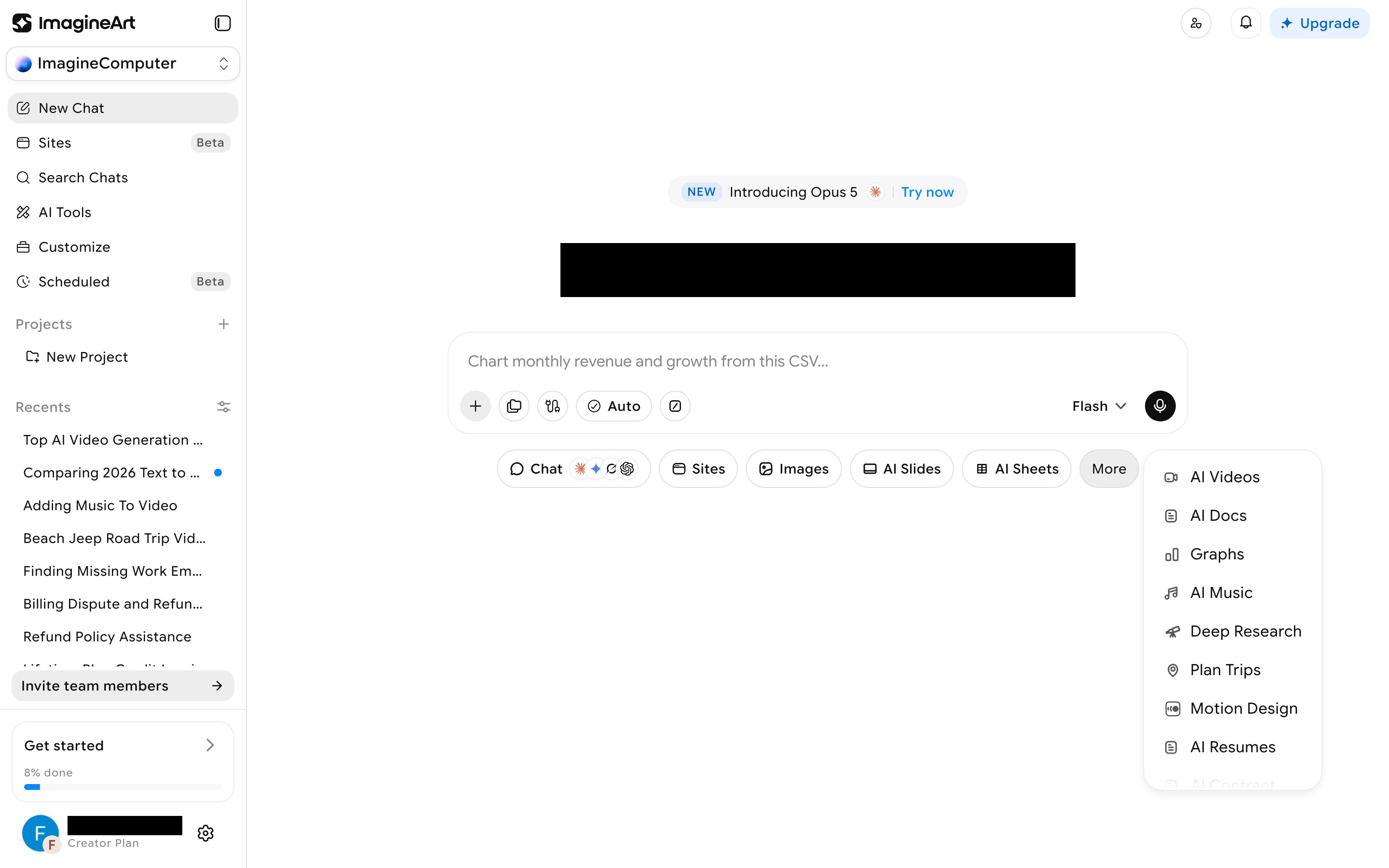 **Sites is the exception.** Clicking the Sites pill goes to the same invite-only Imagine Build gate mentioned in [What is Imagine Computer?](/imagine-computer/what-is-imagine-computer) — it isn't a more-open version of the sidebar's Sites item.
## Two controls that shape every task
Every prompt bar has two dropdowns worth understanding before you run anything.
### Model tier
**Sites is the exception.** Clicking the Sites pill goes to the same invite-only Imagine Build gate mentioned in [What is Imagine Computer?](/imagine-computer/what-is-imagine-computer) — it isn't a more-open version of the sidebar's Sites item.
## Two controls that shape every task
Every prompt bar has two dropdowns worth understanding before you run anything.
### Model tier
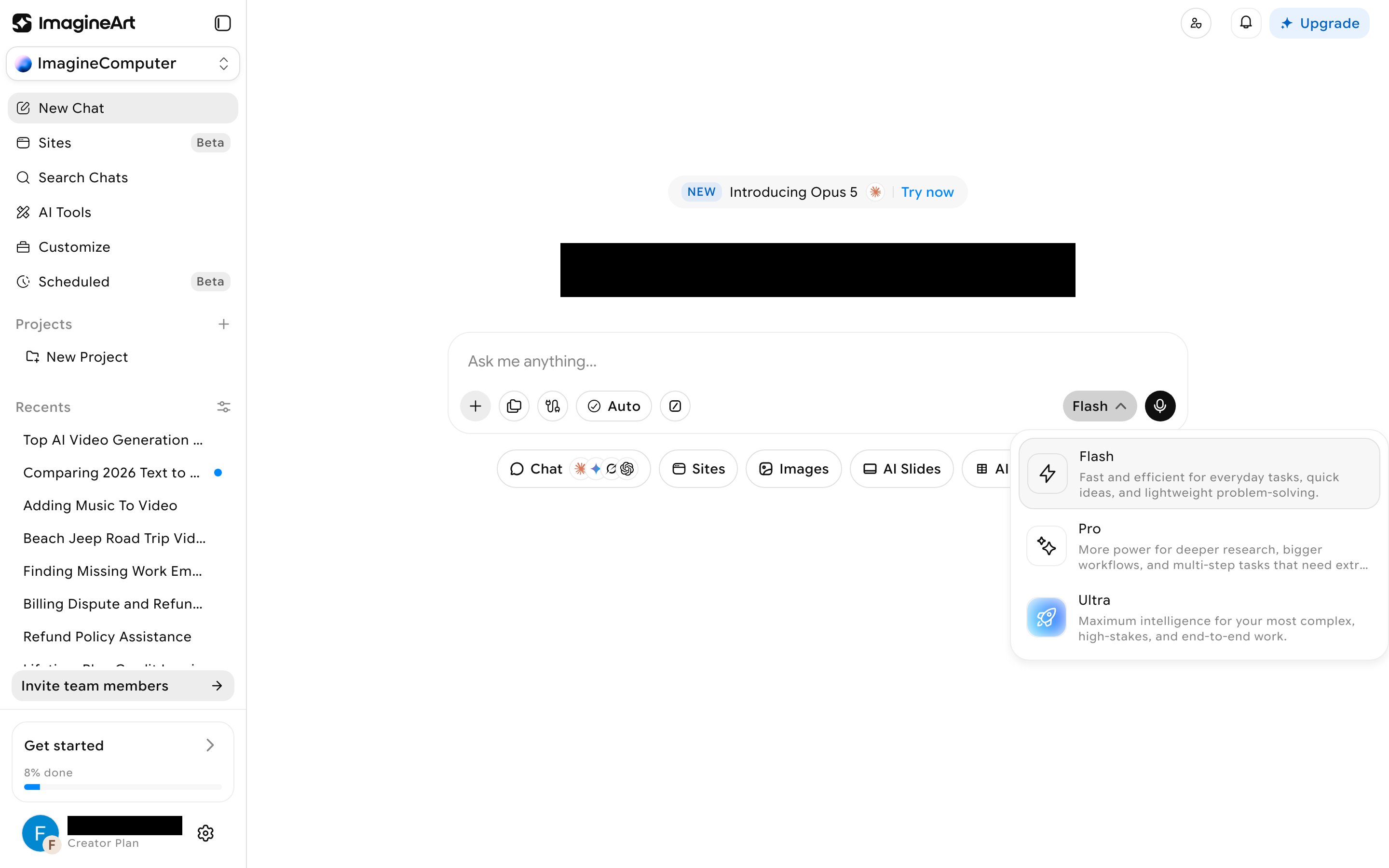 * **Flash** — fast and efficient for everyday tasks, quick ideas, and lightweight problem-solving.
* **Pro** — more power for deeper research, bigger workflows, and multi-step tasks that need extra capacity.
* **Ultra** — maximum intelligence for your most complex, high-stakes, end-to-end work.
A separately promoted **Opus 5** banner sits above the prompt box — it isn't part of this tier dropdown, implying it's a distinct offering rather than a fourth tier.
### Run mode
* **Flash** — fast and efficient for everyday tasks, quick ideas, and lightweight problem-solving.
* **Pro** — more power for deeper research, bigger workflows, and multi-step tasks that need extra capacity.
* **Ultra** — maximum intelligence for your most complex, high-stakes, end-to-end work.
A separately promoted **Opus 5** banner sits above the prompt box — it isn't part of this tier dropdown, implying it's a distinct offering rather than a fourth tier.
### Run mode
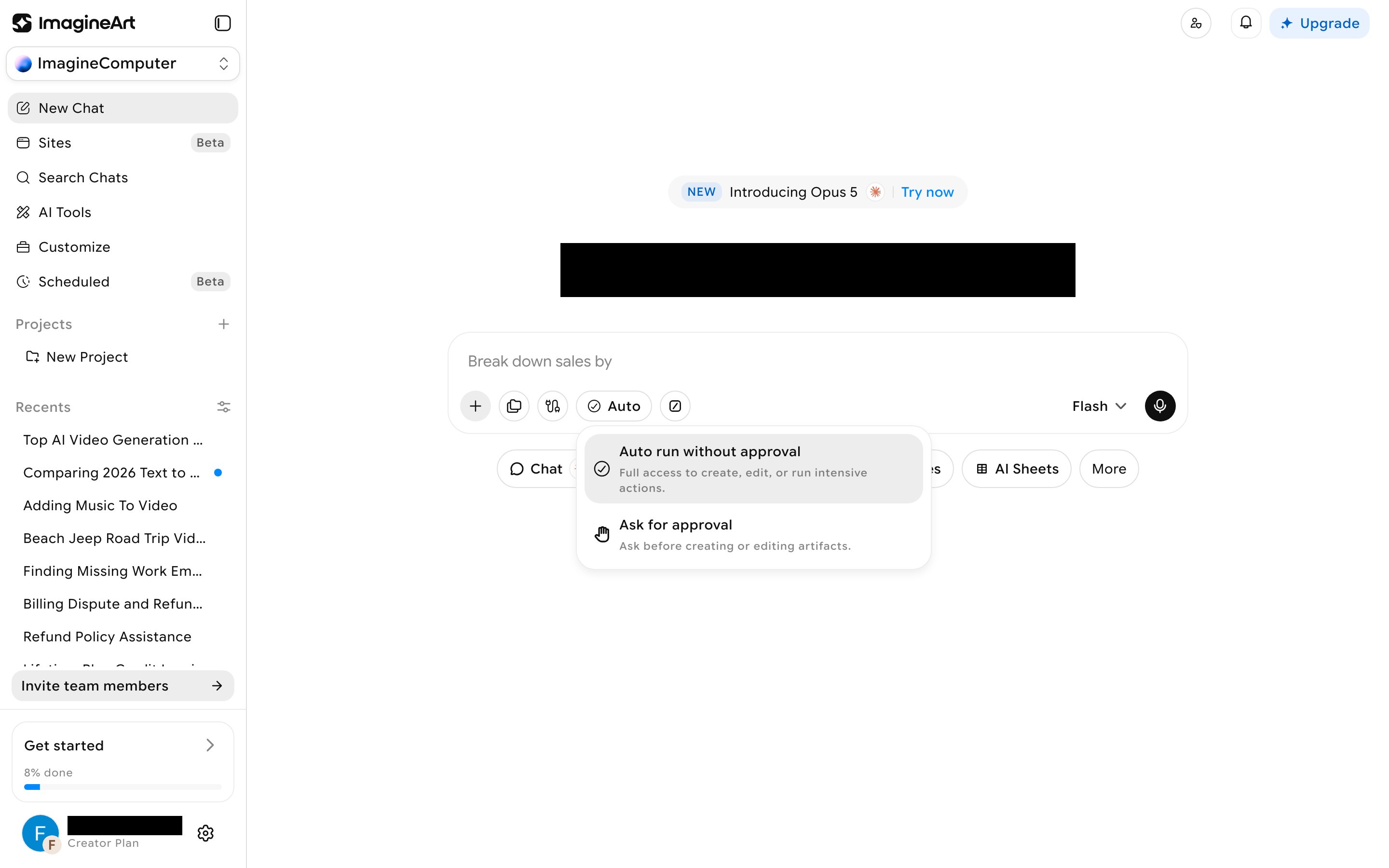 * **Auto run without approval** — full access to create, edit, or run intensive actions without stopping.
* **Ask for approval** — meant to ask before creating or editing artifacts.
In testing, setting **Ask for approval** and running a real research task end-to-end did not actually pause for approval at any point, including at the report-writing step. Don't rely on this setting as a safety gate yet — treat every run as if it were Auto.
* **Auto run without approval** — full access to create, edit, or run intensive actions without stopping.
* **Ask for approval** — meant to ask before creating or editing artifacts.
In testing, setting **Ask for approval** and running a real research task end-to-end did not actually pause for approval at any point, including at the report-writing step. Don't rely on this setting as a safety gate yet — treat every run as if it were Auto.