> ## Documentation Index
> Fetch the complete documentation index at: https://docs.imagine.art/llms.txt
> Use this file to discover all available pages before exploring further.
# Startup
> Build websites, web apps, games, and landing pages from a prompt with Startup, the website builder in Imagine Computer.
**Startup** is the website builder in Imagine Computer. Describe what you want, like a landing page, a web app, a game, or a 2D or 3D site, and Startup builds it for you.
Startup is separate from the chat tools in Imagine Computer. It has its own home, its own prompt box, and its own list of projects.
## Open Startup
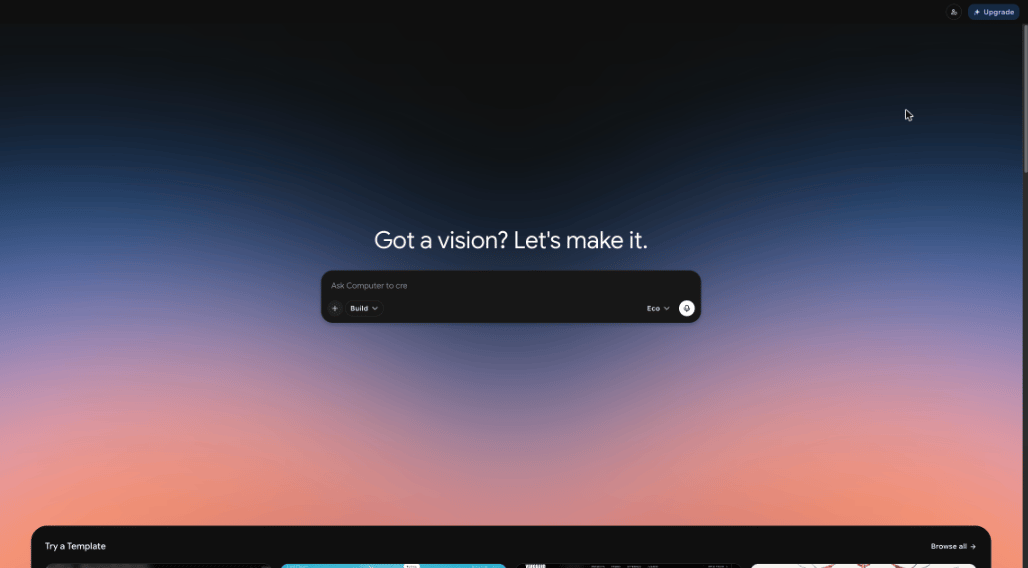
Go to [imagine.art/computer/startup](https://www.imagine.art/computer/startup), or click **Startup** in the Imagine Computer sidebar. You can also click the **Startup** card under **Get started with Tools** on the Imagine Computer home.
 ## Describe what to build
Type what you want in the prompt box, for example a landing page for your product, a survey app, or an internal tool. Be specific about the pages, sections, and style you want.
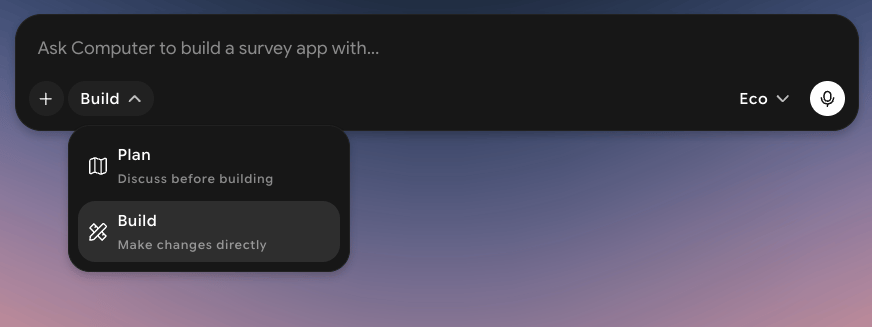
Click the mode dropdown next to **+** to pick how Startup starts:
* **Plan**: discuss the idea before building.
* **Build**: make changes directly.
## Describe what to build
Type what you want in the prompt box, for example a landing page for your product, a survey app, or an internal tool. Be specific about the pages, sections, and style you want.
Click the mode dropdown next to **+** to pick how Startup starts:
* **Plan**: discuss the idea before building.
* **Build**: make changes directly.
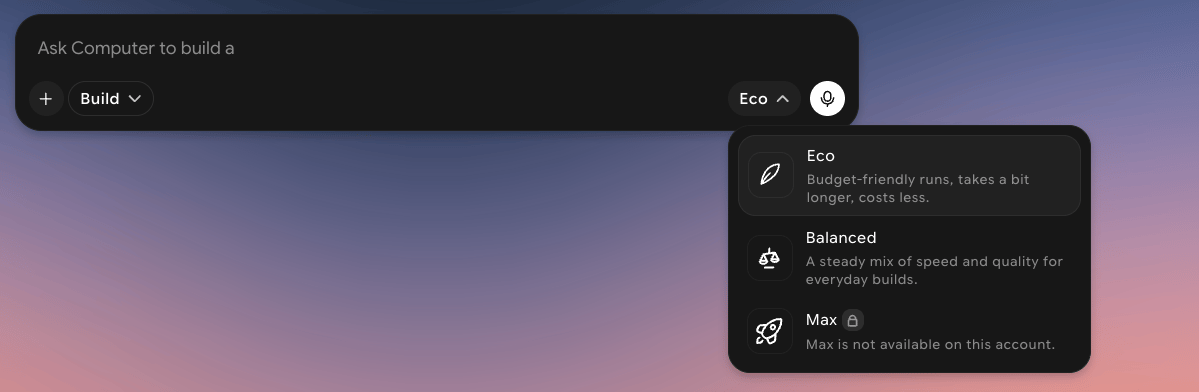
 Click the tier dropdown on the right of the prompt box:
| Tier | What it's for |
| - | - |
| **Eco** | Budget-friendly runs. Takes a bit longer and costs less |
| **Balanced** | A steady mix of speed and quality for everyday builds |
| **Max** | The top tier. It isn't available on every account, and shows a lock icon when it isn't |
Click the tier dropdown on the right of the prompt box:
| Tier | What it's for |
| - | - |
| **Eco** | Budget-friendly runs. Takes a bit longer and costs less |
| **Balanced** | A steady mix of speed and quality for everyday builds |
| **Max** | The top tier. It isn't available on every account, and shows a lock icon when it isn't |
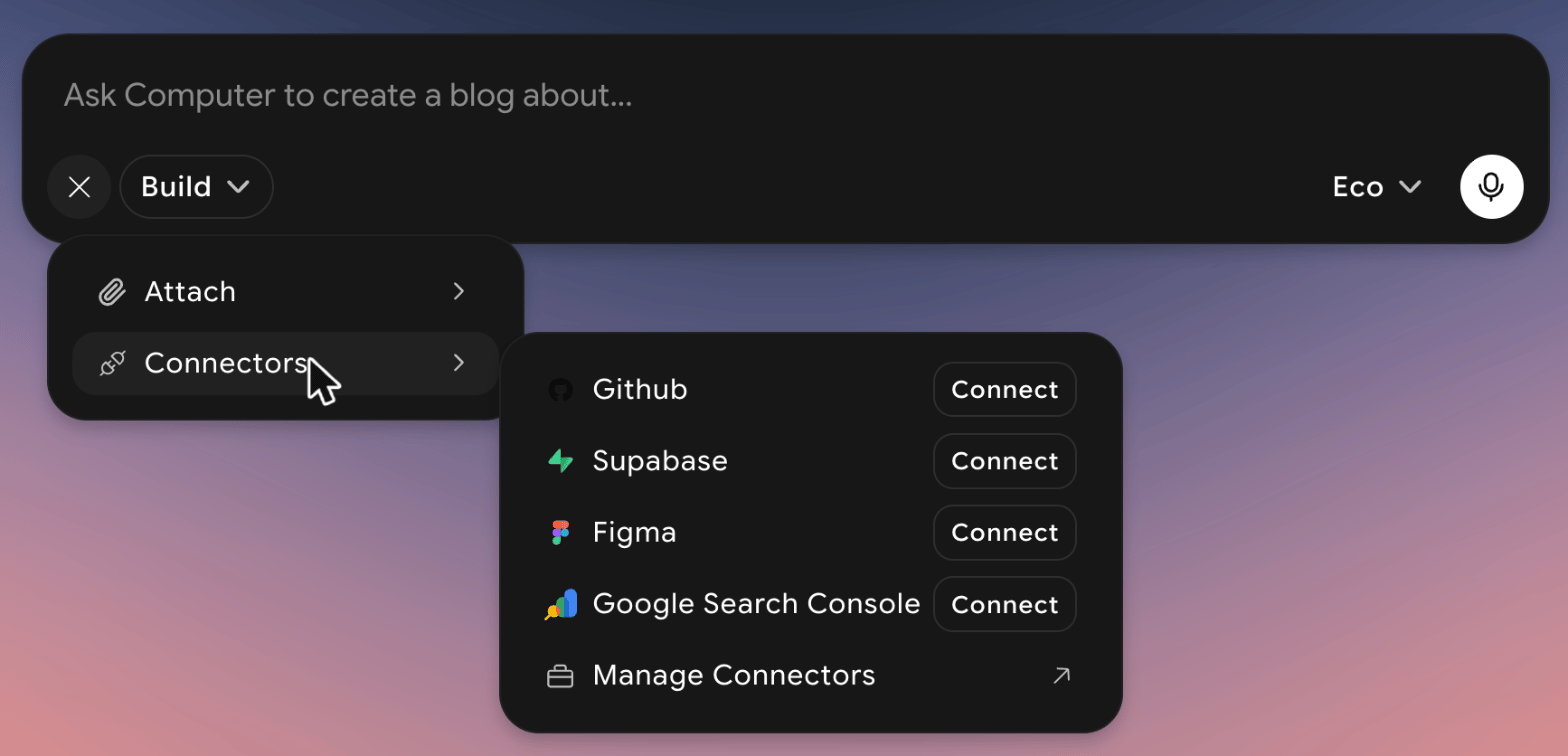
 Click **+** in the prompt box to add more context:
* **Attach**: add a **File**, or **Take a screenshot**.
* **Connectors**: connect **Github**, **Supabase**, **Figma**, or **Google Search Console**, or click **Manage Connectors**.
Click **+** in the prompt box to add more context:
* **Attach**: add a **File**, or **Take a screenshot**.
* **Connectors**: connect **Github**, **Supabase**, **Figma**, or **Google Search Console**, or click **Manage Connectors**.
 Send your prompt to start the project. You can also click the microphone button to speak your prompt instead.
## Watch the build
After you send your prompt, Startup opens the project. The chat shows each step as the agent works, and a **To-dos** list in the top right tracks progress, for example **1 / 3 Complete**.
Early in the build, Startup asks **Which visual direction should this app take?** and shows several design directions, each with a name, a preview board, and a short description. Click one and click **Next**. You can also click **See more** for more options, or **Skip** to let Startup choose.
Send your prompt to start the project. You can also click the microphone button to speak your prompt instead.
## Watch the build
After you send your prompt, Startup opens the project. The chat shows each step as the agent works, and a **To-dos** list in the top right tracks progress, for example **1 / 3 Complete**.
Early in the build, Startup asks **Which visual direction should this app take?** and shows several design directions, each with a name, a preview board, and a short description. Click one and click **Next**. You can also click **See more** for more options, or **Skip** to let Startup choose.
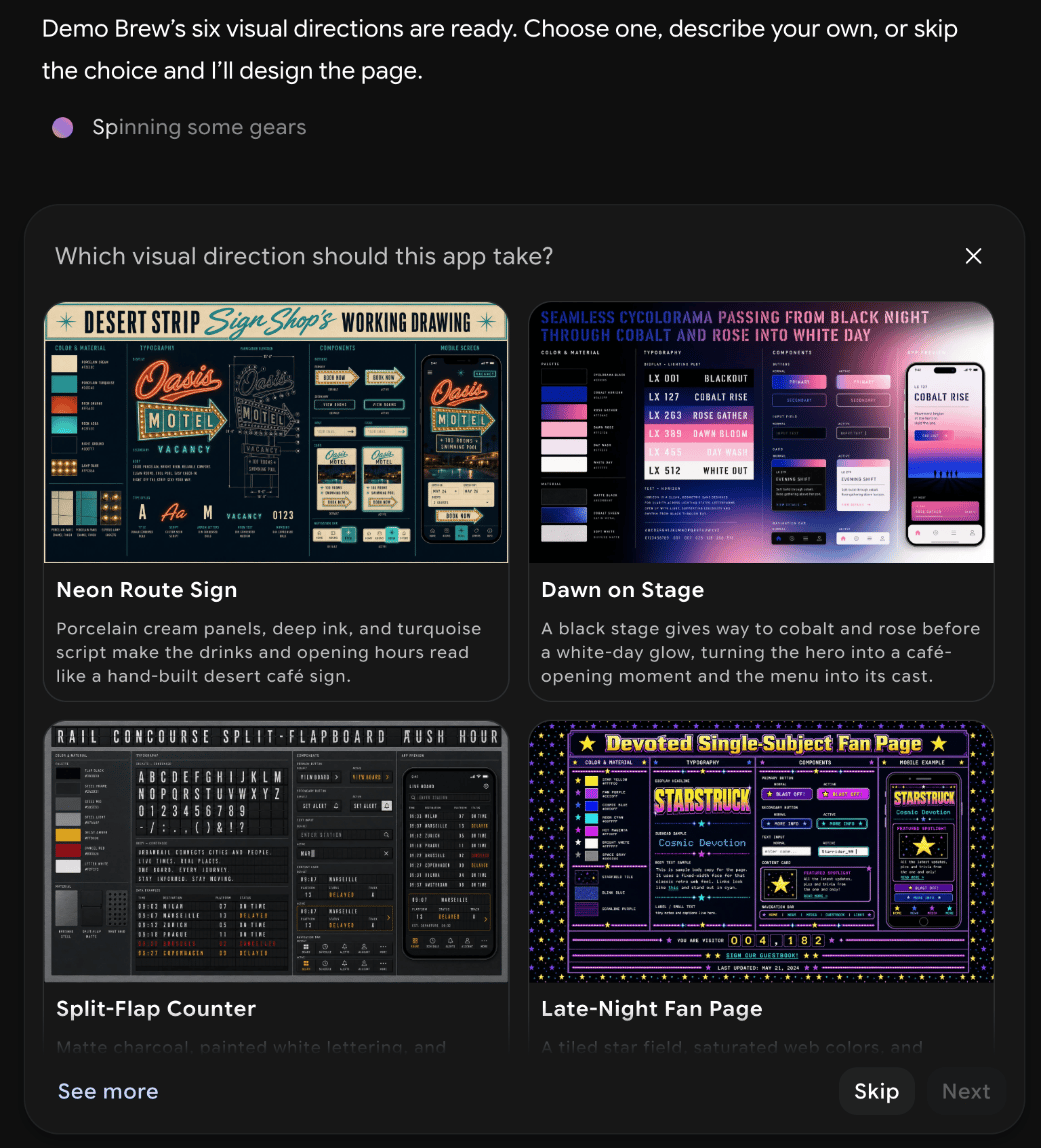 Startup sets up the project, writes the code, and checks it. You can type in the prompt box at any time to change direction. When it's done, it summarizes what it built and suggests **Follow up** prompts, such as adding a contact form.
## The project editor
When the build finishes, the project opens in a split view: the chat on the left and your site on the right.
Startup sets up the project, writes the code, and checks it. You can type in the prompt box at any time to change direction. When it's done, it summarizes what it built and suggests **Follow up** prompts, such as adding a contact form.
## The project editor
When the build finishes, the project opens in a split view: the chat on the left and your site on the right.
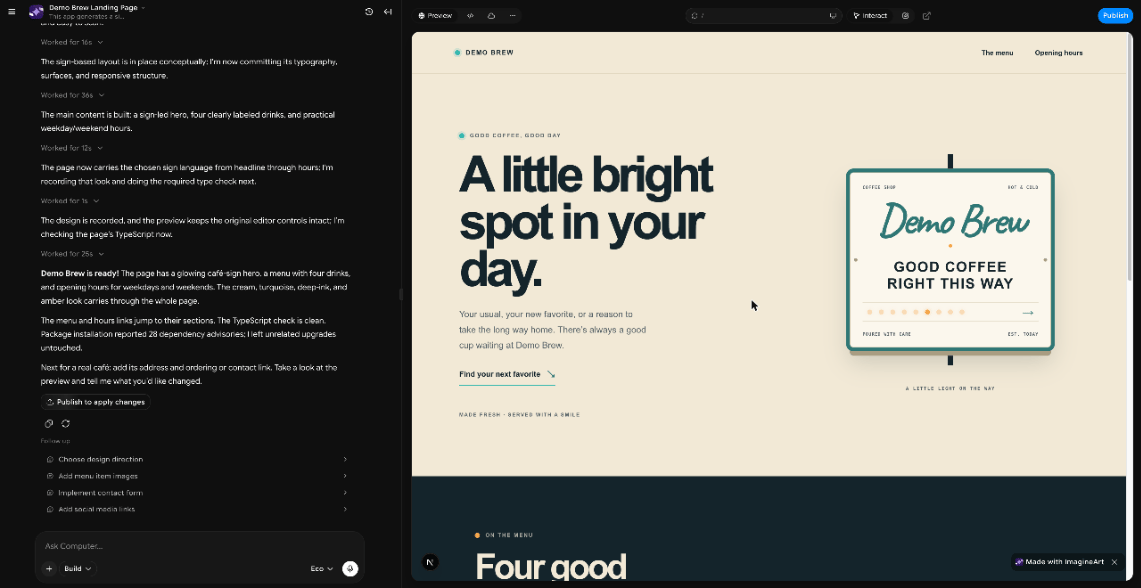 | Control | What it does |
| - | - |
| **Preview** | Shows your site. Use the address bar to move between pages, and **Interact** to click through it like a visitor |
| **Code** | Opens the project's files in a code view with a file search |
| **Cloud** | Sets up **Computer Cloud**, a built-in backend for your app. Click **Enable cloud** to turn it on |
| **More** | Opens **Payments** (Stripe-powered subscriptions and one-time products), **Ad Studio**, **SEO & AI Search**, **GitHub**, and **Settings** |
| **Version History** | The clock icon at the top of the chat. Browse earlier versions of your project |
| **Publish** | Publishes your app |
To change the site, describe what you want in the chat. After each build, the chat also shows a **Publish to apply changes** button that publishes the latest version.
Published projects appear under **Deployed** in the Startup sidebar.
## Start from a template
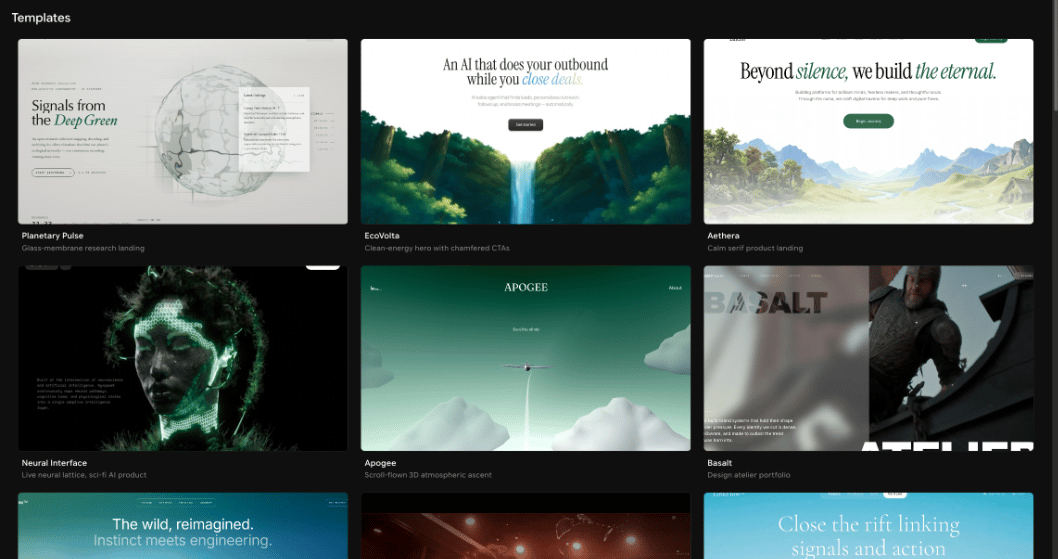
Below the prompt box, **Try a Template** shows a few ready-made site designs. Click **Browse all** to open the full **Templates** gallery. Each template has a name and a short description, for example **Planetary Pulse** (glass-membrane research landing), **EcoVolta** (clean-energy hero), or **LinkFlow** (serif-led SaaS with pricing tiers).
| Control | What it does |
| - | - |
| **Preview** | Shows your site. Use the address bar to move between pages, and **Interact** to click through it like a visitor |
| **Code** | Opens the project's files in a code view with a file search |
| **Cloud** | Sets up **Computer Cloud**, a built-in backend for your app. Click **Enable cloud** to turn it on |
| **More** | Opens **Payments** (Stripe-powered subscriptions and one-time products), **Ad Studio**, **SEO & AI Search**, **GitHub**, and **Settings** |
| **Version History** | The clock icon at the top of the chat. Browse earlier versions of your project |
| **Publish** | Publishes your app |
To change the site, describe what you want in the chat. After each build, the chat also shows a **Publish to apply changes** button that publishes the latest version.
Published projects appear under **Deployed** in the Startup sidebar.
## Start from a template
Below the prompt box, **Try a Template** shows a few ready-made site designs. Click **Browse all** to open the full **Templates** gallery. Each template has a name and a short description, for example **Planetary Pulse** (glass-membrane research landing), **EcoVolta** (clean-energy hero), or **LinkFlow** (serif-led SaaS with pricing tiers).
 ## Find your projects
When you open the **Templates** gallery, the sidebar switches to Startup's own navigation:
| Item | What it shows |
| - | - |
| **New Chat** | Start a new Imagine Computer chat |
| **Startup** | The Startup home and prompt box |
| **Search** | Search |
| **Integrations** | Your connected apps |
| **All Projects** | Every Startup project you've made |
| **Starred** | Projects you've starred |
| **Deployed** | Projects you've deployed |
| **Recents** | Your most recent projects |
## Related pages
* [What is Imagine Computer?](/imagine-computer/what-is-imagine-computer)
* [Getting Started](/imagine-computer/getting-started)
* [Connectors](/imagine-computer/connectors)
* [Glossary](/imagine-computer/glossary)
This documentation is built and hosted on [Mintlify](https://mintlify.com), a developer documentation platform.
## Find your projects
When you open the **Templates** gallery, the sidebar switches to Startup's own navigation:
| Item | What it shows |
| - | - |
| **New Chat** | Start a new Imagine Computer chat |
| **Startup** | The Startup home and prompt box |
| **Search** | Search |
| **Integrations** | Your connected apps |
| **All Projects** | Every Startup project you've made |
| **Starred** | Projects you've starred |
| **Deployed** | Projects you've deployed |
| **Recents** | Your most recent projects |
## Related pages
* [What is Imagine Computer?](/imagine-computer/what-is-imagine-computer)
* [Getting Started](/imagine-computer/getting-started)
* [Connectors](/imagine-computer/connectors)
* [Glossary](/imagine-computer/glossary)
This documentation is built and hosted on [Mintlify](https://mintlify.com), a developer documentation platform.