> ## Documentation Index
> Fetch the complete documentation index at: https://docs.imagine.art/llms.txt
> Use this file to discover all available pages before exploring further.
# ImagineArt for Figma
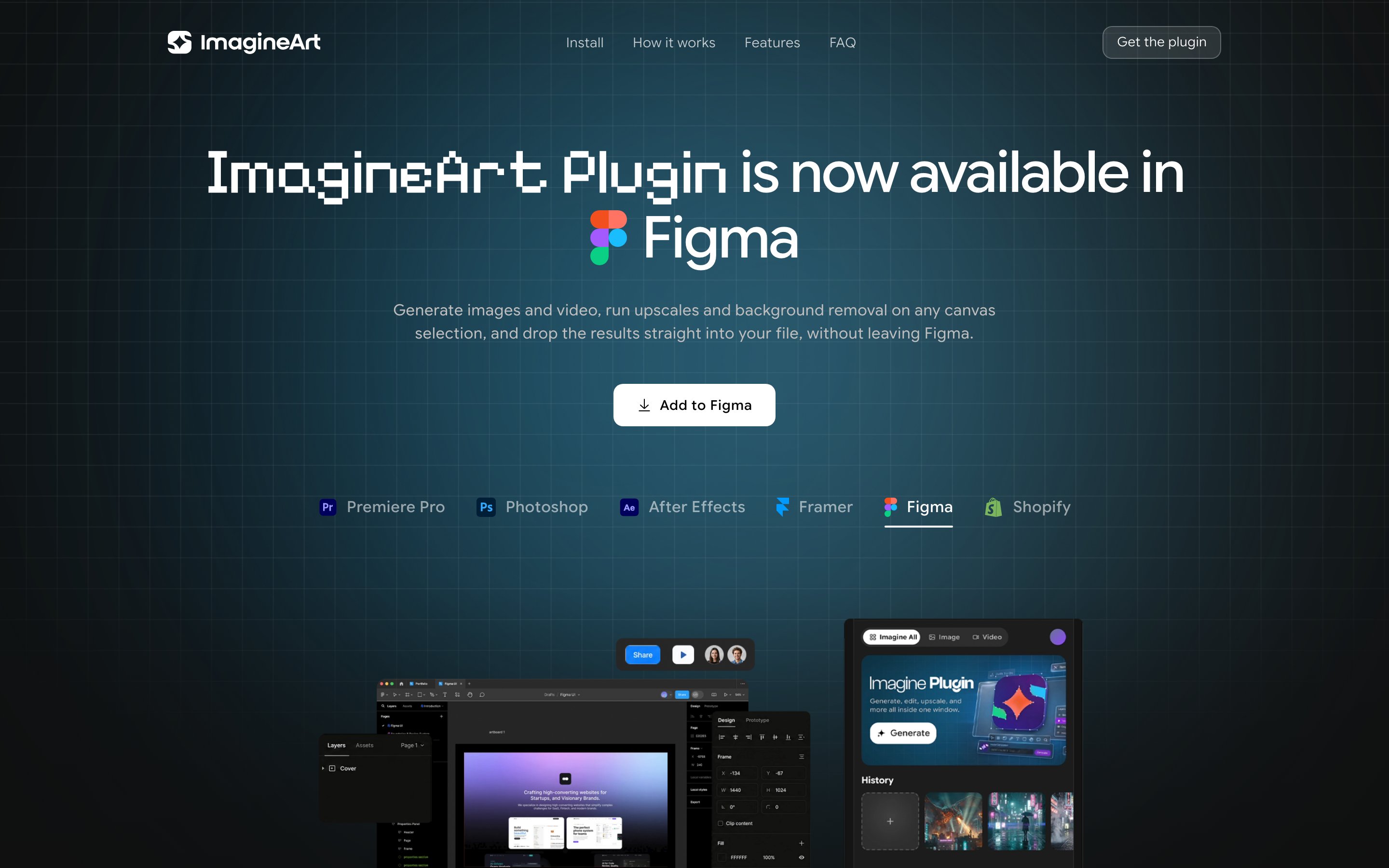
> Generate images and video, run upscales and background removal on any canvas selection, and drop the results straight into your file, without leaving Figma.
ImagineArt is live on Figma Community. Run it as a plugin inside any file — browser or desktop app — to generate images, video, and editable vectors, or edit what's already on your canvas.
 ## Install
Open the [Figma Community listing](https://imagine.art/plugins), or in Figma open **Plugins** and search "ImagineArt."
Click **Open in…** from the listing, or in any file open **Plugins → ImagineArt**. It runs everywhere Figma plugins run, browser included.
A browser tab opens — approve, and you're in. If it doesn't connect automatically, click **Copy sign-in code** and paste it into the panel. The session sticks across all your files.
## How the plugin works
Open the plugin in any file, browser or desktop app, and choose what to make — image, video, vector, upscale, or remove background.
Type a prompt and set the model and aspect ratio. The panel shows the credit cost before you run anything.
The plugin generates right inside the panel — no tab-hopping, no exporting out of Figma.
One click drops the result onto your canvas as a named, full-resolution layer, placed beside your selection.
Pick the Vector tool and the plugin drops your graphic onto the canvas as real, editable vector layers — recolor and reshape them like anything else in your file.
## What you can do
| Tool | What it does |
| ---------------------------- | ------------------------------------------------------------------------------------ |
| Image generation (txt2img) | Describe an idea, pick a model and aspect ratio, generate in the panel |
| Video generation (txt2video) | Text-to-video with resolution and duration controls |
| Image to video (i2v) | Turn a still into motion, or animate from a start frame |
| Creative upscale | Boost any image or selection to crisp, hi-res |
| Vector (Recraft → SVG) | Generate clean, editable vector graphics that drop in as real SVG layers |
| Remove background | Clean cutouts in one click |
| Camera angle | Re-angle a shot by spinning an orbit globe; the subject stays intact |
| Relight | Drag a light globe to relight a scene from any direction |
| Generative Fill | Brush a mask and fill, replace, or extend anything in the frame |
| Color grading | Cinematic presets, palettes, and color-correct sliders, applied in place — no tokens |
| Edit / reference (img2img) | Reimagine an image from a prompt or reference while keeping its structure |
| Outfit try-on | Dress a subject in any outfit from a reference image, fit and folds intact |
## FAQ
From Figma Community. It installs and auto-updates from there — no files to manage.
Both. It runs everywhere Figma plugins run, browser and desktop app alike.
Inserted on the canvas next to your selection, sized and named to match. They stay fully editable Figma layers.
Figma only allows video fills on paid plans, so placing generated video on the canvas needs one. Images work on any plan.
Return to Figma and give it a moment — the plugin picks up the session automatically. If it still doesn't connect, copy the code shown after sign-in and paste it into the plugin; it's accepted as a manual fallback.
Generation, upscaling, and background removal use the same ImagineArt credits as the web app, and the plugin shows the estimated cost next to each model and tool before you run anything.
Free with your ImagineArt account. Runs in the browser and the desktop app.
## Install
Open the [Figma Community listing](https://imagine.art/plugins), or in Figma open **Plugins** and search "ImagineArt."
Click **Open in…** from the listing, or in any file open **Plugins → ImagineArt**. It runs everywhere Figma plugins run, browser included.
A browser tab opens — approve, and you're in. If it doesn't connect automatically, click **Copy sign-in code** and paste it into the panel. The session sticks across all your files.
## How the plugin works
Open the plugin in any file, browser or desktop app, and choose what to make — image, video, vector, upscale, or remove background.
Type a prompt and set the model and aspect ratio. The panel shows the credit cost before you run anything.
The plugin generates right inside the panel — no tab-hopping, no exporting out of Figma.
One click drops the result onto your canvas as a named, full-resolution layer, placed beside your selection.
Pick the Vector tool and the plugin drops your graphic onto the canvas as real, editable vector layers — recolor and reshape them like anything else in your file.
## What you can do
| Tool | What it does |
| ---------------------------- | ------------------------------------------------------------------------------------ |
| Image generation (txt2img) | Describe an idea, pick a model and aspect ratio, generate in the panel |
| Video generation (txt2video) | Text-to-video with resolution and duration controls |
| Image to video (i2v) | Turn a still into motion, or animate from a start frame |
| Creative upscale | Boost any image or selection to crisp, hi-res |
| Vector (Recraft → SVG) | Generate clean, editable vector graphics that drop in as real SVG layers |
| Remove background | Clean cutouts in one click |
| Camera angle | Re-angle a shot by spinning an orbit globe; the subject stays intact |
| Relight | Drag a light globe to relight a scene from any direction |
| Generative Fill | Brush a mask and fill, replace, or extend anything in the frame |
| Color grading | Cinematic presets, palettes, and color-correct sliders, applied in place — no tokens |
| Edit / reference (img2img) | Reimagine an image from a prompt or reference while keeping its structure |
| Outfit try-on | Dress a subject in any outfit from a reference image, fit and folds intact |
## FAQ
From Figma Community. It installs and auto-updates from there — no files to manage.
Both. It runs everywhere Figma plugins run, browser and desktop app alike.
Inserted on the canvas next to your selection, sized and named to match. They stay fully editable Figma layers.
Figma only allows video fills on paid plans, so placing generated video on the canvas needs one. Images work on any plan.
Return to Figma and give it a moment — the plugin picks up the session automatically. If it still doesn't connect, copy the code shown after sign-in and paste it into the plugin; it's accepted as a manual fallback.
Generation, upscaling, and background removal use the same ImagineArt credits as the web app, and the plugin shows the estimated cost next to each model and tool before you run anything.
Free with your ImagineArt account. Runs in the browser and the desktop app.