> ## Documentation Index
> Fetch the complete documentation index at: https://docs.imagine.art/llms.txt
> Use this file to discover all available pages before exploring further.
# ImagineArt for Premiere Pro
> Generate images and video, upscale and clean up shots, and conform Film Studio projects into editable Premiere timelines, without leaving the edit.
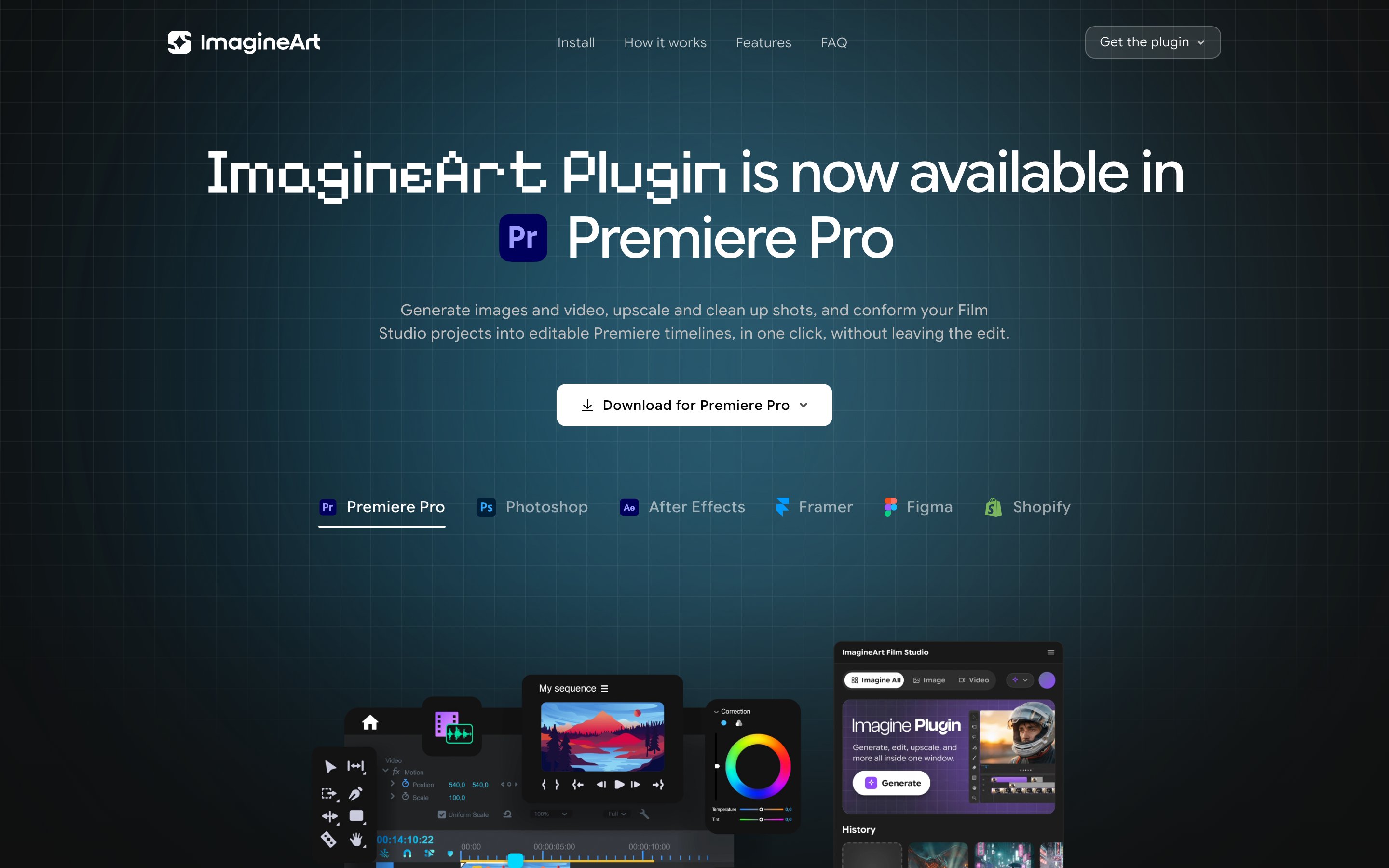
The ImagineArt panel docks inside Premiere Pro so you can generate, upscale, and edit footage right where you're cutting — no browser tab, no export, no round trip. It also rebuilds an exported Film Studio project as an editable Premiere sequence, scenes mapped to clips with transitions already applied.
 ## Install
Download `ImagineArt-Premiere.pkg` from the [Premiere Pro plugin page](https://imagine.art/plugins).
Double-click the `.pkg` and follow the prompts. Quit Premiere first if it's open.
If macOS says it "could not verify" the developer: click **Done**, open **System Settings → Privacy & Security**, scroll to the Security section, and click **Open Anyway** next to `ImagineArt-Premiere.pkg`. Run the installer again and choose **Open** — you only do this once.
In Premiere, go to **Window → Extensions → ImagineArt Film Studio**. Dock the panel and sign in once.
Get a free ZXP installer — [ZXPInstaller](https://zxpinstaller.com) or Anastasiy's Extension Manager — then drag `ImagineArt-Premiere.zxp` onto it (or **File → Install**). Quit Premiere first.
A one-click `.exe` installer is also available from the plugin page. It isn't code-signed yet, so Windows shows a SmartScreen warning — click **More info → Run anyway** to continue. The `.zxp` route skips this screen, which is why it's the default.
Reopen Premiere and go to **Window → Extensions → ImagineArt Film Studio**. Dock the panel and sign in once.
## How the panel works
Open the panel and choose what to make — image, video, upscale, remove background, or a full Film Studio export.
Type a prompt, then set the model, aspect ratio, resolution, and duration. The panel shows the credit cost before you run anything.
The panel generates right where you're docked — no browser tab, no export, no round trip.
Export a project from Film Studio on the web and the panel rebuilds it as an editable Premiere sequence, scenes mapped to clips with transitions applied.
Animate a still, upscale a clip, or clean a plate — every action targets the selection you already have open.
## What you can do
| Tool | What it does |
| ---------------------------- | ------------------------------------------------------------------------- |
| Film Studio Export | Conform a Film Studio project into an editable, ready-to-cut timeline |
| Image generation (txt2img) | Describe an idea, pick a model and aspect ratio, generate in the panel |
| Video generation (txt2video) | Text-to-video with resolution and duration controls |
| Image to video (i2v) | Turn a still into motion, or animate from a start frame |
| Remove object from video | Erase an object from a clip with a prompt — the background fills back in |
| Video object replace | Swap an object in a clip for something new, by description |
| Video reframe | Reframe a clip to a new aspect ratio while keeping the subject in shot |
| Video background changer | Replace a clip's background with a prompt — the subject stays put |
| AI video translator | Translate a clip into another language with natural voice and lip-sync |
| Text to speech | Turn a script into narration, dropped onto your timeline |
| Creative upscale | Boost any image or selection to crisp, hi-res |
| Remove background | Clean cutouts in one click |
| Camera angle | Re-angle a shot by spinning an orbit globe; the subject stays intact |
| Relight | Drag a light globe to relight a scene from any direction |
| Edit / reference (img2img) | Reimagine an image from a prompt or reference while keeping its structure |
## FAQ
No — nothing comes from the Marketplace. On macOS you download the `.pkg` and run it; on Windows you install the small `.zxp` with a free ZXP installer. Either way, open the panel in Premiere afterward.
Quit Premiere completely and reopen it — the extension is only picked up on launch. Then check **Window → Extensions → ImagineArt Film Studio**. If it's still missing, run the installer again with Premiere closed.
Return to Premiere and give it a moment — the panel picks up the session automatically. If it still doesn't connect, copy the code shown after sign-in and paste it into the panel; it's accepted as a manual fallback.
Make sure you're signed in inside the panel, then click **Export to Premiere** again in Film Studio. You can always build a project manually: open Film Studio Export in the panel and browse workspace → folder → project.
Each missing shot is named explicitly in the build summary. Open Premiere's Media Browser and relink them — everything else is already placed at the right position on the timeline.
Generation, upscaling, and background removal use the same ImagineArt credits as the web app, and the panel shows the estimated cost next to each model and tool before you run anything. Deductions happen on your account exactly as they would on imagine.art.
Free with your ImagineArt account. Works on macOS and Windows.
## Install
Download `ImagineArt-Premiere.pkg` from the [Premiere Pro plugin page](https://imagine.art/plugins).
Double-click the `.pkg` and follow the prompts. Quit Premiere first if it's open.
If macOS says it "could not verify" the developer: click **Done**, open **System Settings → Privacy & Security**, scroll to the Security section, and click **Open Anyway** next to `ImagineArt-Premiere.pkg`. Run the installer again and choose **Open** — you only do this once.
In Premiere, go to **Window → Extensions → ImagineArt Film Studio**. Dock the panel and sign in once.
Get a free ZXP installer — [ZXPInstaller](https://zxpinstaller.com) or Anastasiy's Extension Manager — then drag `ImagineArt-Premiere.zxp` onto it (or **File → Install**). Quit Premiere first.
A one-click `.exe` installer is also available from the plugin page. It isn't code-signed yet, so Windows shows a SmartScreen warning — click **More info → Run anyway** to continue. The `.zxp` route skips this screen, which is why it's the default.
Reopen Premiere and go to **Window → Extensions → ImagineArt Film Studio**. Dock the panel and sign in once.
## How the panel works
Open the panel and choose what to make — image, video, upscale, remove background, or a full Film Studio export.
Type a prompt, then set the model, aspect ratio, resolution, and duration. The panel shows the credit cost before you run anything.
The panel generates right where you're docked — no browser tab, no export, no round trip.
Export a project from Film Studio on the web and the panel rebuilds it as an editable Premiere sequence, scenes mapped to clips with transitions applied.
Animate a still, upscale a clip, or clean a plate — every action targets the selection you already have open.
## What you can do
| Tool | What it does |
| ---------------------------- | ------------------------------------------------------------------------- |
| Film Studio Export | Conform a Film Studio project into an editable, ready-to-cut timeline |
| Image generation (txt2img) | Describe an idea, pick a model and aspect ratio, generate in the panel |
| Video generation (txt2video) | Text-to-video with resolution and duration controls |
| Image to video (i2v) | Turn a still into motion, or animate from a start frame |
| Remove object from video | Erase an object from a clip with a prompt — the background fills back in |
| Video object replace | Swap an object in a clip for something new, by description |
| Video reframe | Reframe a clip to a new aspect ratio while keeping the subject in shot |
| Video background changer | Replace a clip's background with a prompt — the subject stays put |
| AI video translator | Translate a clip into another language with natural voice and lip-sync |
| Text to speech | Turn a script into narration, dropped onto your timeline |
| Creative upscale | Boost any image or selection to crisp, hi-res |
| Remove background | Clean cutouts in one click |
| Camera angle | Re-angle a shot by spinning an orbit globe; the subject stays intact |
| Relight | Drag a light globe to relight a scene from any direction |
| Edit / reference (img2img) | Reimagine an image from a prompt or reference while keeping its structure |
## FAQ
No — nothing comes from the Marketplace. On macOS you download the `.pkg` and run it; on Windows you install the small `.zxp` with a free ZXP installer. Either way, open the panel in Premiere afterward.
Quit Premiere completely and reopen it — the extension is only picked up on launch. Then check **Window → Extensions → ImagineArt Film Studio**. If it's still missing, run the installer again with Premiere closed.
Return to Premiere and give it a moment — the panel picks up the session automatically. If it still doesn't connect, copy the code shown after sign-in and paste it into the panel; it's accepted as a manual fallback.
Make sure you're signed in inside the panel, then click **Export to Premiere** again in Film Studio. You can always build a project manually: open Film Studio Export in the panel and browse workspace → folder → project.
Each missing shot is named explicitly in the build summary. Open Premiere's Media Browser and relink them — everything else is already placed at the right position on the timeline.
Generation, upscaling, and background removal use the same ImagineArt credits as the web app, and the panel shows the estimated cost next to each model and tool before you run anything. Deductions happen on your account exactly as they would on imagine.art.
Free with your ImagineArt account. Works on macOS and Windows.