> ## Documentation Index
> Fetch the complete documentation index at: https://docs.imagine.art/llms.txt
> Use this file to discover all available pages before exploring further.
# Understanding Credits
> Learn what credits are, how they're consumed, the three types available, and how to manage your balance.
Credits are how ImagineArt measures usage across Image, Video, and other tools. Every generation or edit you run deducts credits from your balance. Understanding how credits work helps you choose the right plan and avoid running out mid-project.
## What credits are (and what affects usage)
Credits are deducted each time you generate or edit content. The number of credits consumed depends on several factors:
* **Tool** — Image, Video, and other tools have different base costs.
* **Model** — some models (especially Pro-tier models) cost more credits per generation than standard models.
* **Settings** — options such as video duration, output quality, and resolution affect consumption.
* **Number of results** — generating more variants or re-running a generation multiplies the credit cost.
The "estimated generations" shown on plan pages is a baseline for standard model settings. Pro and premium models will consume more credits per generation than those estimates suggest.
## Types of credits
Your account can hold up to three separate credit balances at any time:
### Free credits (daily)
All accounts without an active subscription receive **100 free credits every day**. These credits reset each day and are a great way to explore the platform at no cost.
Pro models (labeled "Pro" in the interface) require an active subscription — free daily credits cannot be used to access them. If you've upgraded and still can't access Pro models, contact [support@imagine.art](mailto:support@imagine.art).
### Subscription credits (monthly)
When you subscribe to a paid plan, you receive a monthly credit allocation that refreshes on your billing cycle date.
Unused subscription credits do not roll over to the next month. Any remaining subscription credits expire when your cycle renews. Check your renewal date any time under [**Billing & Subscription**](https://www.imagine.art/subscription) in your account settings.
.png?fit=max&auto=format&n=9NJ1QvSO0ww6njue&q=85&s=34106128251b3e869a466323d4ff8833) For detailed information about how credits are assigned across monthly, quarterly, and yearly plans, see [Subscription Plans](/account/subscription-plans).
### Top-up credits (one-time)
Top-up credits are additional credits you purchase on top of your subscription, sold in bundles.
Top-up credits never expire, making them a good safety net for heavy production periods. However, you must have an active subscription to purchase them. If your subscription lapses, any remaining top-up credits can still be spent — but only on features available under your current plan tier (Free plan restrictions apply).
## Which credits get used first?
To help you use expiring credits before non-expiring ones, ImagineArt always draws from your balances in the following order:
1. **Free credits** (expire daily)
2. **Subscription credits** (expire at monthly renewal)
3. **Top-up credits** (never expire)
This order ensures you never waste credits that would otherwise expire.
## How to check your credit balance
1. Click your **profile picture** in the top-right corner of the platform.
2. Look at **Credits Left** for a quick summary. Click the tooltip beside it to view your credits broken down by type.
For detailed information about how credits are assigned across monthly, quarterly, and yearly plans, see [Subscription Plans](/account/subscription-plans).
### Top-up credits (one-time)
Top-up credits are additional credits you purchase on top of your subscription, sold in bundles.
Top-up credits never expire, making them a good safety net for heavy production periods. However, you must have an active subscription to purchase them. If your subscription lapses, any remaining top-up credits can still be spent — but only on features available under your current plan tier (Free plan restrictions apply).
## Which credits get used first?
To help you use expiring credits before non-expiring ones, ImagineArt always draws from your balances in the following order:
1. **Free credits** (expire daily)
2. **Subscription credits** (expire at monthly renewal)
3. **Top-up credits** (never expire)
This order ensures you never waste credits that would otherwise expire.
## How to check your credit balance
1. Click your **profile picture** in the top-right corner of the platform.
2. Look at **Credits Left** for a quick summary. Click the tooltip beside it to view your credits broken down by type.
.gif?s=97d2da6ed178c239240f138dbd9856a5) 3. Click on "Buy Credits" to replenish your credits or upgrade your plan.
## Estimating your credit needs
Use this formula to estimate how many credits you'll need per month before choosing a plan:
```text theme={null}
monthly credits = (images per month × image cost) + (videos per month × video cost) + buffer
```
Add a **20–30% buffer** to your estimate if you expect to: iterate through multiple variants, switch between different models, or use higher-quality output settings.
**Example calculation**
Suppose you generate:
* 30 images/day at 24 credits/image
* 10 videos/day at 210 credits/video
* Working 22 days/month
| Category | Calculation | Subtotal |
| --------- | ------------------------------------ | ------------------------ |
| Images | 30 × 22 days = 660 images; 660 × 24 | 15,840 credits |
| Videos | 10 × 22 days = 220 videos; 220 × 210 | 46,200 credits |
| **Total** | 15,840 + 46,200 | **62,040 credits/month** |
Add your 20–30% buffer on top of that total when selecting a plan.
For the latest credit costs per model and studio, see:
* [Image Credit Consumption](/image-tools/credit-consumption)
* [Video Credit Consumption](/video-tools/video-credits)
## What happens if you run out of credits?
You have three options when you exhaust your current balance:
1. **Wait for your next monthly refresh** — subscription credits renew automatically on your billing date.
2. **Buy a top-up** — available any time while you hold an active subscription.
3. **Upgrade your plan** — if you routinely run out, a higher-tier plan gives you a larger monthly allocation.
## Buying top-ups (additional credits)
Top-ups may appear labeled as **Tokens** inside the app.
Select **Buy Tokens** in the top-right area of the platform interface.
Review the available credit bundles and select the one that fits your needs.
Finish the checkout process. Top-up credits are added to your account immediately and never expire.
3. Click on "Buy Credits" to replenish your credits or upgrade your plan.
## Estimating your credit needs
Use this formula to estimate how many credits you'll need per month before choosing a plan:
```text theme={null}
monthly credits = (images per month × image cost) + (videos per month × video cost) + buffer
```
Add a **20–30% buffer** to your estimate if you expect to: iterate through multiple variants, switch between different models, or use higher-quality output settings.
**Example calculation**
Suppose you generate:
* 30 images/day at 24 credits/image
* 10 videos/day at 210 credits/video
* Working 22 days/month
| Category | Calculation | Subtotal |
| --------- | ------------------------------------ | ------------------------ |
| Images | 30 × 22 days = 660 images; 660 × 24 | 15,840 credits |
| Videos | 10 × 22 days = 220 videos; 220 × 210 | 46,200 credits |
| **Total** | 15,840 + 46,200 | **62,040 credits/month** |
Add your 20–30% buffer on top of that total when selecting a plan.
For the latest credit costs per model and studio, see:
* [Image Credit Consumption](/image-tools/credit-consumption)
* [Video Credit Consumption](/video-tools/video-credits)
## What happens if you run out of credits?
You have three options when you exhaust your current balance:
1. **Wait for your next monthly refresh** — subscription credits renew automatically on your billing date.
2. **Buy a top-up** — available any time while you hold an active subscription.
3. **Upgrade your plan** — if you routinely run out, a higher-tier plan gives you a larger monthly allocation.
## Buying top-ups (additional credits)
Top-ups may appear labeled as **Tokens** inside the app.
Select **Buy Tokens** in the top-right area of the platform interface.
Review the available credit bundles and select the one that fits your needs.
Finish the checkout process. Top-up credits are added to your account immediately and never expire.
.png?fit=max&auto=format&n=dSSXEmt0kV3UdAJL&q=85&s=c73022d7f803b32ddd0252751e533115) ## Usage Analytics dashboard
The Usage Analytics dashboard gives you a detailed breakdown of where your credits are going — by model, feature, and team member.
**To access analytics for your current workspace:**
1. Click your **profile picture** in the top-right corner.
2. Click **Usage Analytics**.
## Usage Analytics dashboard
The Usage Analytics dashboard gives you a detailed breakdown of where your credits are going — by model, feature, and team member.
**To access analytics for your current workspace:**
1. Click your **profile picture** in the top-right corner.
2. Click **Usage Analytics**.
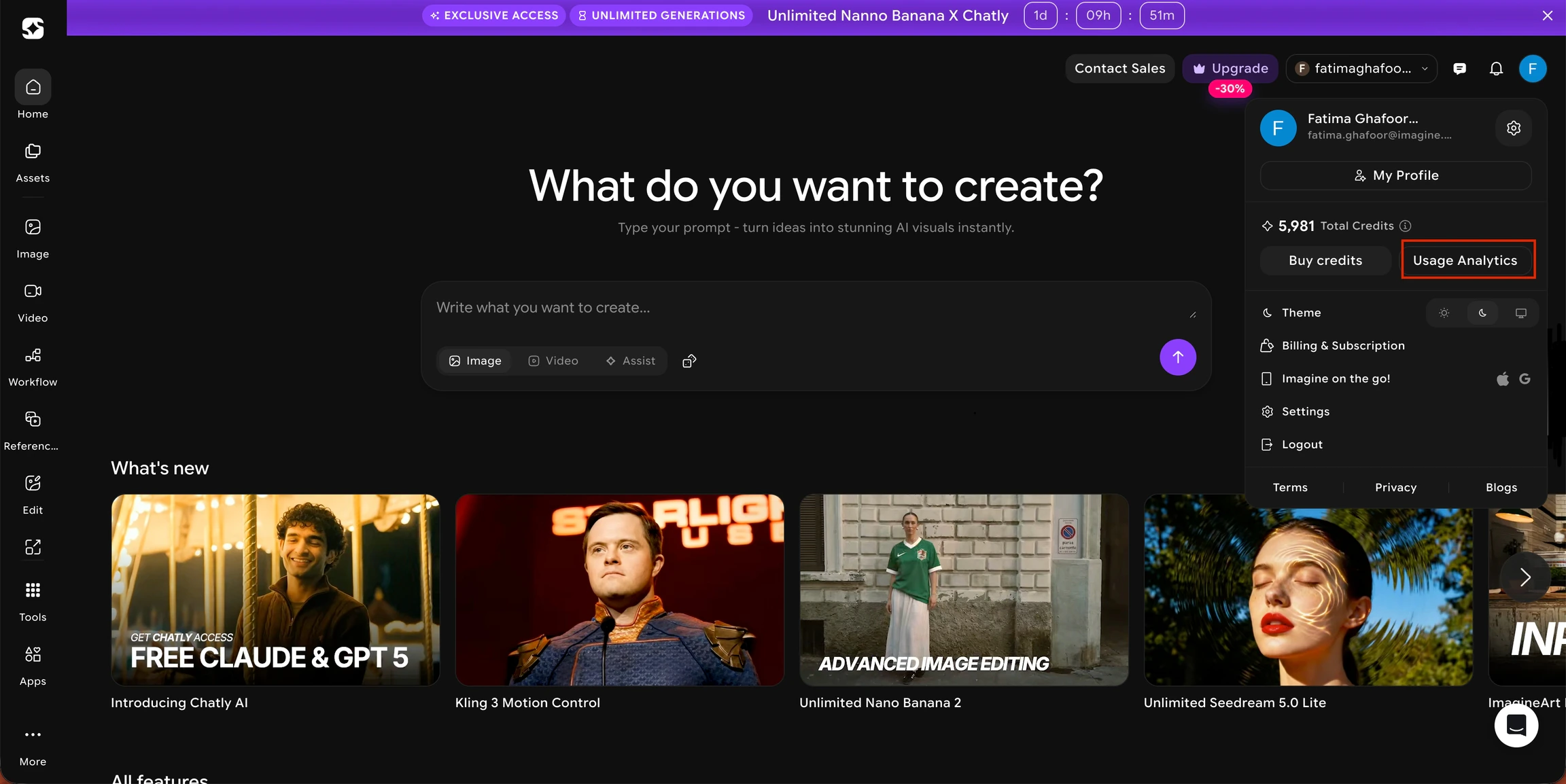 You can also go directly to [imagine.art/settings/analytics](https://www.imagine.art/settings/analytics).
**To access analytics for a different team or workspace:**
1. Click the **team dropdown** in the top-right corner.
2. Hover over the team or workspace you want to inspect.
3. Click the **Settings** icon that appears next to it.
You can also go directly to [imagine.art/settings/analytics](https://www.imagine.art/settings/analytics).
**To access analytics for a different team or workspace:**
1. Click the **team dropdown** in the top-right corner.
2. Hover over the team or workspace you want to inspect.
3. Click the **Settings** icon that appears next to it.
.jpeg?fit=max&auto=format&n=dSSXEmt0kV3UdAJL&q=85&s=a35db44275839e9bfee046c57aa47155) 4. In the left navigation panel, select **Analytics**.
4. In the left navigation panel, select **Analytics**.
.jpeg?fit=max&auto=format&n=dSSXEmt0kV3UdAJL&q=85&s=ea8693387df3d6378edcbe5e0dc9693a) On the **Analytics** page you can view:
* Which **models** you've used most frequently
* How many **credits** each model consumed
* Usage broken down by **user**, **feature**, and **model**
* A **date range filter** to view usage for any specific period
**Direct access:**\
You can go directly to the Analytics page here:\
[https://www.imagine.art/settings/analytics](https://www.imagine.art/settings/analytics)
This link will open the analytics dashboard for the **team/workspace you are currently working in**.
## Need help?
Email [support@imagine.art](mailto:support@imagine.art) and include:
* Your account email
* Your current plan
* A screenshot of your credits modal (optional)
On the **Analytics** page you can view:
* Which **models** you've used most frequently
* How many **credits** each model consumed
* Usage broken down by **user**, **feature**, and **model**
* A **date range filter** to view usage for any specific period
**Direct access:**\
You can go directly to the Analytics page here:\
[https://www.imagine.art/settings/analytics](https://www.imagine.art/settings/analytics)
This link will open the analytics dashboard for the **team/workspace you are currently working in**.
## Need help?
Email [support@imagine.art](mailto:support@imagine.art) and include:
* Your account email
* Your current plan
* A screenshot of your credits modal (optional)