> ## Documentation Index
> Fetch the complete documentation index at: https://docs.imagine.art/llms.txt
> Use this file to discover all available pages before exploring further.
# Quick Actions
**Available quick actions:**
* **Upscale** — Increase video resolution for better quality
* **Edit video** — Trim, crop, or add effects
* **Extend video** — Add additional content or length
* **Extract frame** — Capture a single frame as an image
**Available quick actions:**
* **Upscale** — Increase image resolution for improved quality
* **Edit image** — Apply color correction or saturation adjustments
* **Animate** — Create moving visuals from static images
* **Crop** — Remove unwanted areas and adjust composition
* **Remove background** — Isolate the subject by eliminating the backdrop
* **AI resize** — Smart resizing that maintains quality while adjusting dimensions.
**Video Node Quick Actions:**
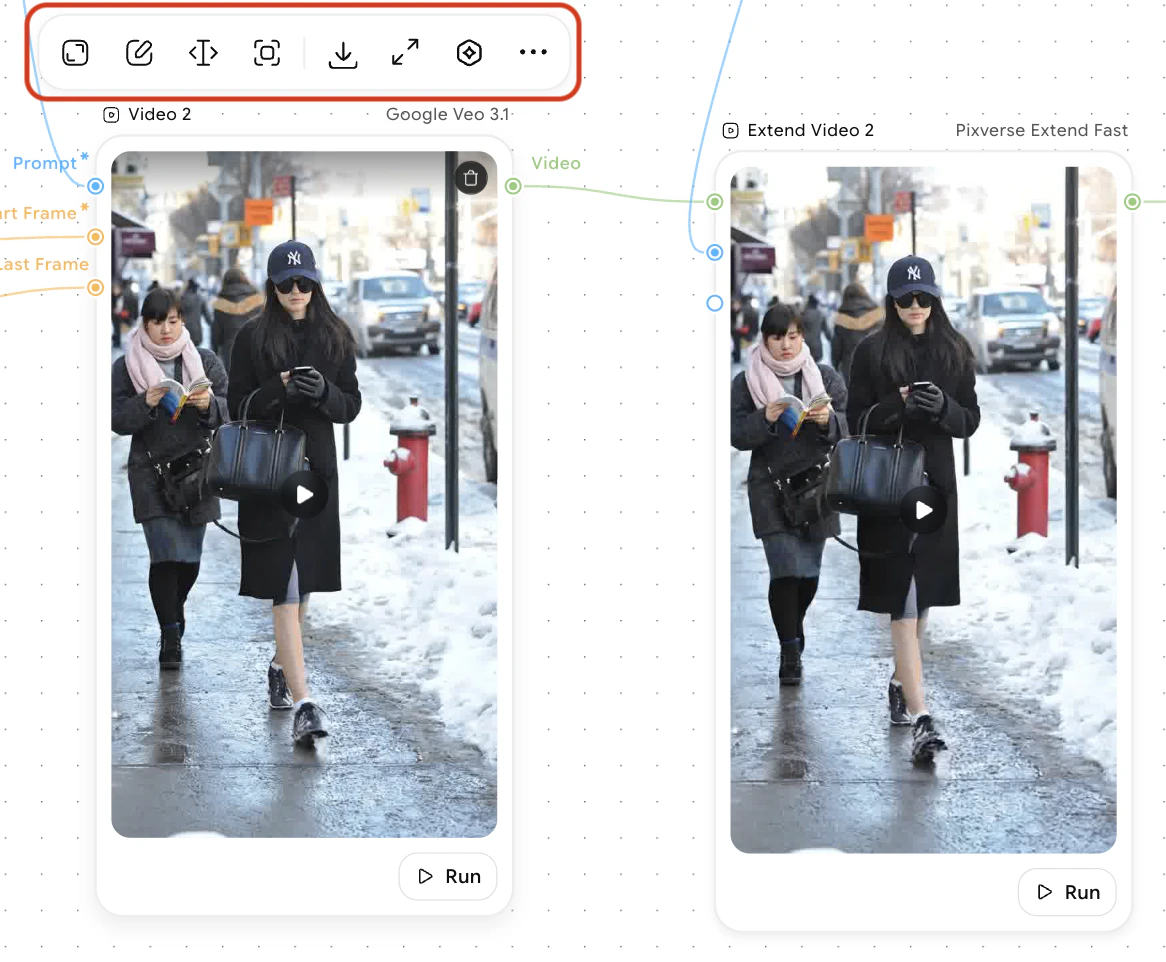 * **Upscale** — Enhance video resolution and clarity by increasing pixel density. Useful for improving the quality of lower-resolution source footage or preparing videos for higher-definition displays and platforms.
* **Edit video** — Trim unwanted sections, crop the frame to focus on specific areas, adjust playback speed, and apply visual effects such as filters, transitions, and color grading to refine your video.
* **Extend video** — Lengthen your video by adding additional content, inserting supplementary clips, or repeating sections. Helpful for creating longer-form content or filling specific duration requirements.
* **Extract frame** — Capture a single frame from your video and export it as a high-quality image. Ideal for creating thumbnails, promotional graphics, or still images from video content.
**Image Node Quick Actions:**
* **Upscale** — Enhance video resolution and clarity by increasing pixel density. Useful for improving the quality of lower-resolution source footage or preparing videos for higher-definition displays and platforms.
* **Edit video** — Trim unwanted sections, crop the frame to focus on specific areas, adjust playback speed, and apply visual effects such as filters, transitions, and color grading to refine your video.
* **Extend video** — Lengthen your video by adding additional content, inserting supplementary clips, or repeating sections. Helpful for creating longer-form content or filling specific duration requirements.
* **Extract frame** — Capture a single frame from your video and export it as a high-quality image. Ideal for creating thumbnails, promotional graphics, or still images from video content.
**Image Node Quick Actions:**
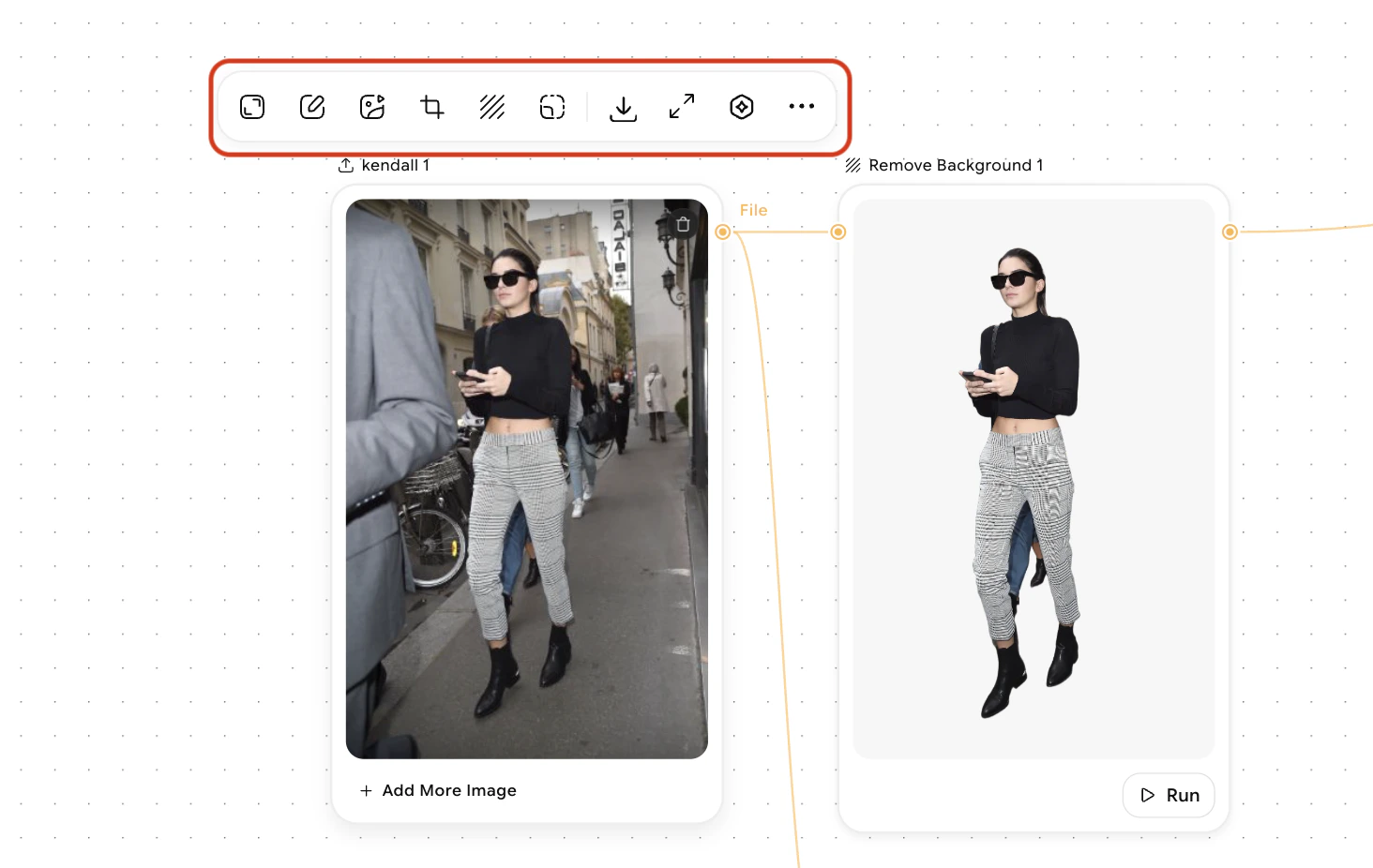 * **Upscale** — Enhance image resolution and clarity by increasing pixel density. Useful for improving the quality of lower-resolution source images or preparing images for high-definition displays, printing, or larger canvas sizes.
* **Edit image** — Apply color correction to adjust brightness, contrast, and white balance. Use saturation adjustments to enhance or mute colors, fine-tune hue, and make targeted tonal refinements to achieve your desired visual aesthetic.
* **Animate** — Transform static images into moving visuals by applying motion effects, transitions, or frame-by-frame animations. Create dynamic content suitable for social media, presentations, or video backgrounds.
* **Crop** — Remove unwanted areas from your image and adjust composition to improve framing. Reposition subjects, change aspect ratios, or focus on specific details by precisely defining the visible area.
* **Remove background** — Isolate your subject by automatically detecting and eliminating the backdrop. Useful for creating transparent backgrounds, compositing images, or preparing product shots and portraits for further editing.
* **AI resize** — Intelligently resize images while maintaining visual quality and detail. The AI-powered algorithm preserves important content and sharpness while adjusting dimensions to fit specific requirements or canvas sizes.
* **Upscale** — Enhance image resolution and clarity by increasing pixel density. Useful for improving the quality of lower-resolution source images or preparing images for high-definition displays, printing, or larger canvas sizes.
* **Edit image** — Apply color correction to adjust brightness, contrast, and white balance. Use saturation adjustments to enhance or mute colors, fine-tune hue, and make targeted tonal refinements to achieve your desired visual aesthetic.
* **Animate** — Transform static images into moving visuals by applying motion effects, transitions, or frame-by-frame animations. Create dynamic content suitable for social media, presentations, or video backgrounds.
* **Crop** — Remove unwanted areas from your image and adjust composition to improve framing. Reposition subjects, change aspect ratios, or focus on specific details by precisely defining the visible area.
* **Remove background** — Isolate your subject by automatically detecting and eliminating the backdrop. Useful for creating transparent backgrounds, compositing images, or preparing product shots and portraits for further editing.
* **AI resize** — Intelligently resize images while maintaining visual quality and detail. The AI-powered algorithm preserves important content and sharpness while adjusting dimensions to fit specific requirements or canvas sizes.