> ## Documentation Index
> Fetch the complete documentation index at: https://docs.imagine.art/llms.txt
> Use this file to discover all available pages before exploring further.
# Text iterator
The Text Iterator Node lets you feed multiple text inputs into a workflow and process each one individually through the connected downstream nodes. Enter multiple prompts, descriptions, or any text content — and the iterator passes each one separately to the next node in the chain. It's essential for workflows where you need to generate multiple outputs from different text inputs in a single run.
## Summary
The Text Iterator Node lets you feed multiple text inputs into a workflow and process each one individually through the connected downstream nodes. Enter multiple prompts, descriptions, or any text content — and the iterator passes each one separately to the next node in the chain. It's essential for workflows where you need to generate multiple outputs from different text inputs in a single run.
## How to Use
Click the Add (+) button and select Text Iterator from the Text node category.
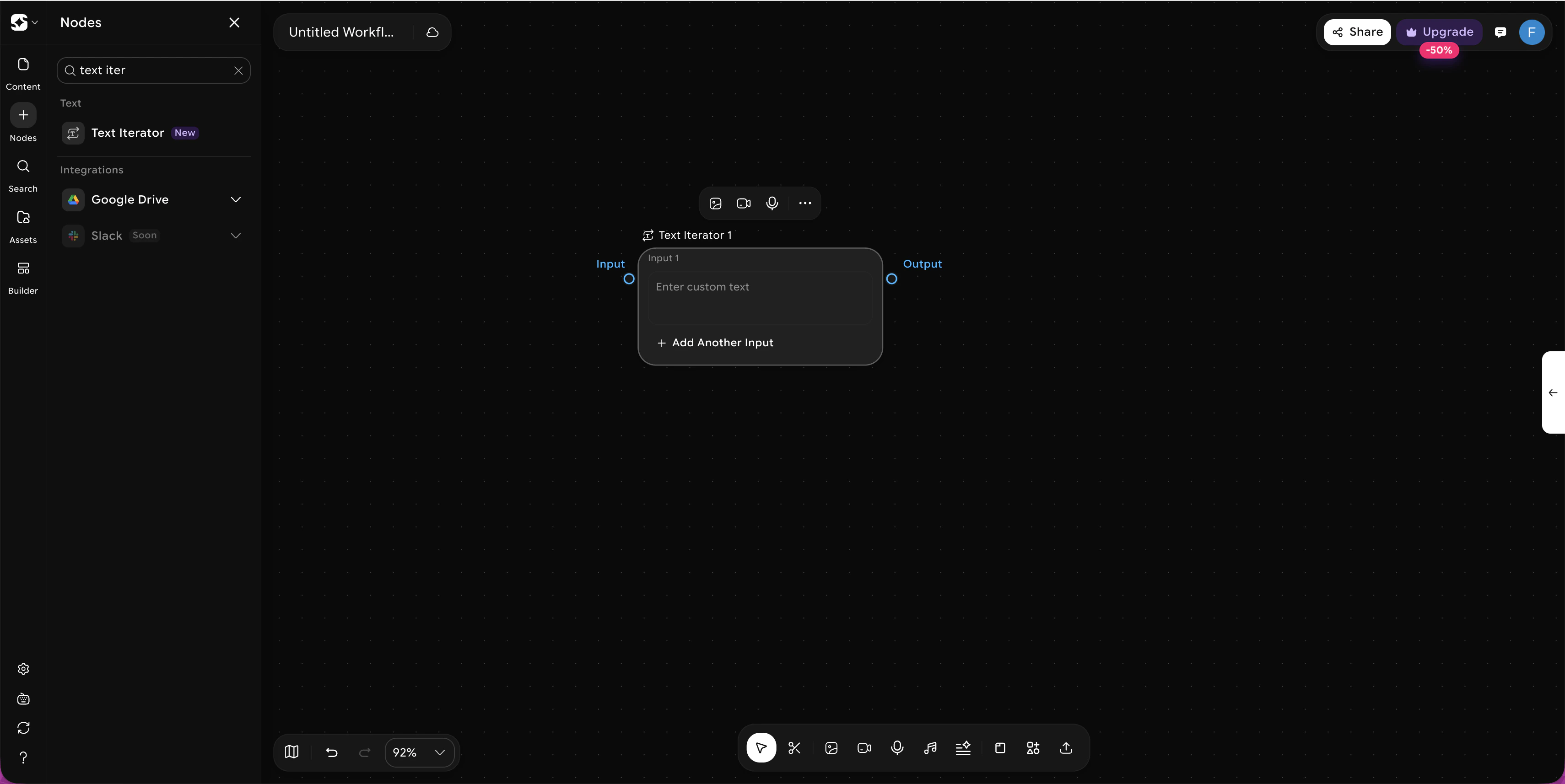 Type your content into the available input fields (Input 1, Input 2, Input 3, etc.). Click + Add Another Input to add more.
Link the iterator's output to any node you want to apply to each text input — such as Generate Image, Generate Video, or AI Copilot.
When the workflow runs, the iterator feeds each text input one by one through the connected nodes, generating a separate output for every input.
## Sample Use Cases
Enter a series of different scene descriptions and connect to a Generate Image node. Each prompt produces its own image — perfect for generating a full set of visuals in one run.
Write individual scene descriptions as separate inputs and connect to a Generate Video node. Each text input generates its own video clip, ready to be combined downstream.
Enter multiple ad copy variations and connect to an AI Copilot node to refine, expand, or translate each one — all in a single workflow run.
Type your content into the available input fields (Input 1, Input 2, Input 3, etc.). Click + Add Another Input to add more.
Link the iterator's output to any node you want to apply to each text input — such as Generate Image, Generate Video, or AI Copilot.
When the workflow runs, the iterator feeds each text input one by one through the connected nodes, generating a separate output for every input.
## Sample Use Cases
Enter a series of different scene descriptions and connect to a Generate Image node. Each prompt produces its own image — perfect for generating a full set of visuals in one run.
Write individual scene descriptions as separate inputs and connect to a Generate Video node. Each text input generates its own video clip, ready to be combined downstream.
Enter multiple ad copy variations and connect to an AI Copilot node to refine, expand, or translate each one — all in a single workflow run.