> ## Documentation Index
> Fetch the complete documentation index at: https://docs.imagine.art/llms.txt
> Use this file to discover all available pages before exploring further.
# Elements
> Save a character or object as a reusable reference that keeps its appearance consistent across your videos and Workflows.
Elements are a persistent reference library — a set of images (or videos) of the same character or object that the model uses to keep its appearance consistent throughout a generation, or across multiple projects. Once an element is created, you can reference it in any supported tool without re-uploading your references each time.
Elements are available in both the **Video Tools** suite and directly inside **Workflows**, where you can `@mention` any Element inline in a prompt.
## Where to create an element
Elements can be created from multiple places:
**Video Tools**
* Reference Image to Video
* Edit Video
* Reference Video
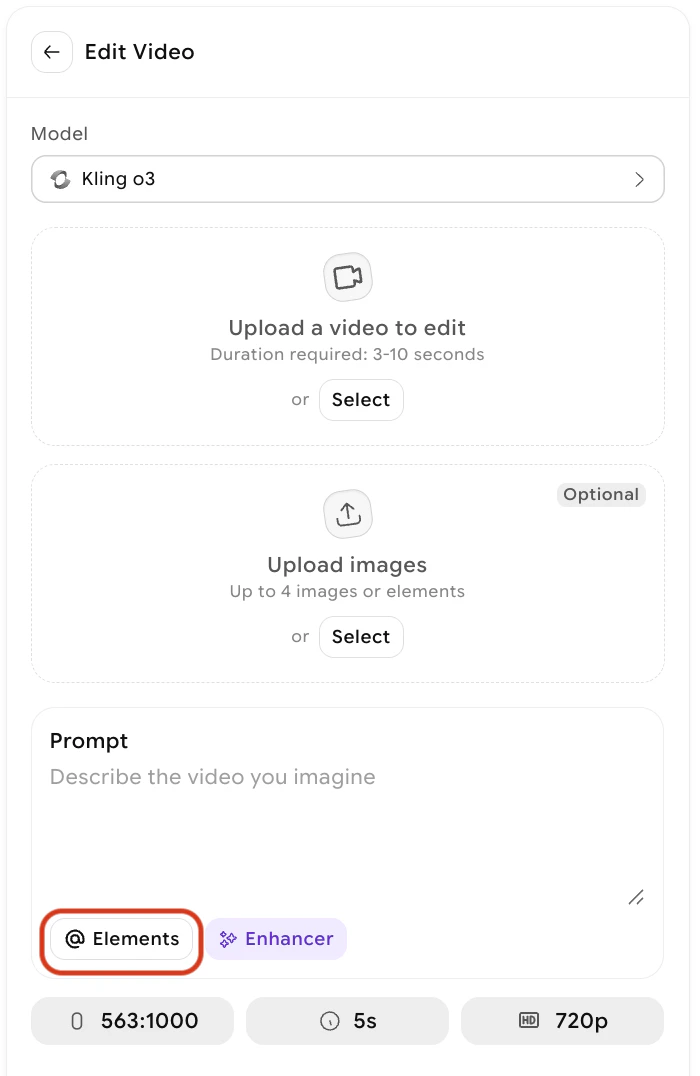
In any of these, look for the **Elements** button at the bottom left of the prompt box.
**Workflows**
* Any Generate Video node with a supported Kling model — use the **Create New Element** option in the Elements panel, or type `@` in any prompt field to reference an existing Element.
 ## How to create a new element
Click the **Elements** button at the bottom left of the prompt box from either **Reference Image to video**, **Reference Video** or **Edit Video.**
## How to create a new element
Click the **Elements** button at the bottom left of the prompt box from either **Reference Image to video**, **Reference Video** or **Edit Video.**
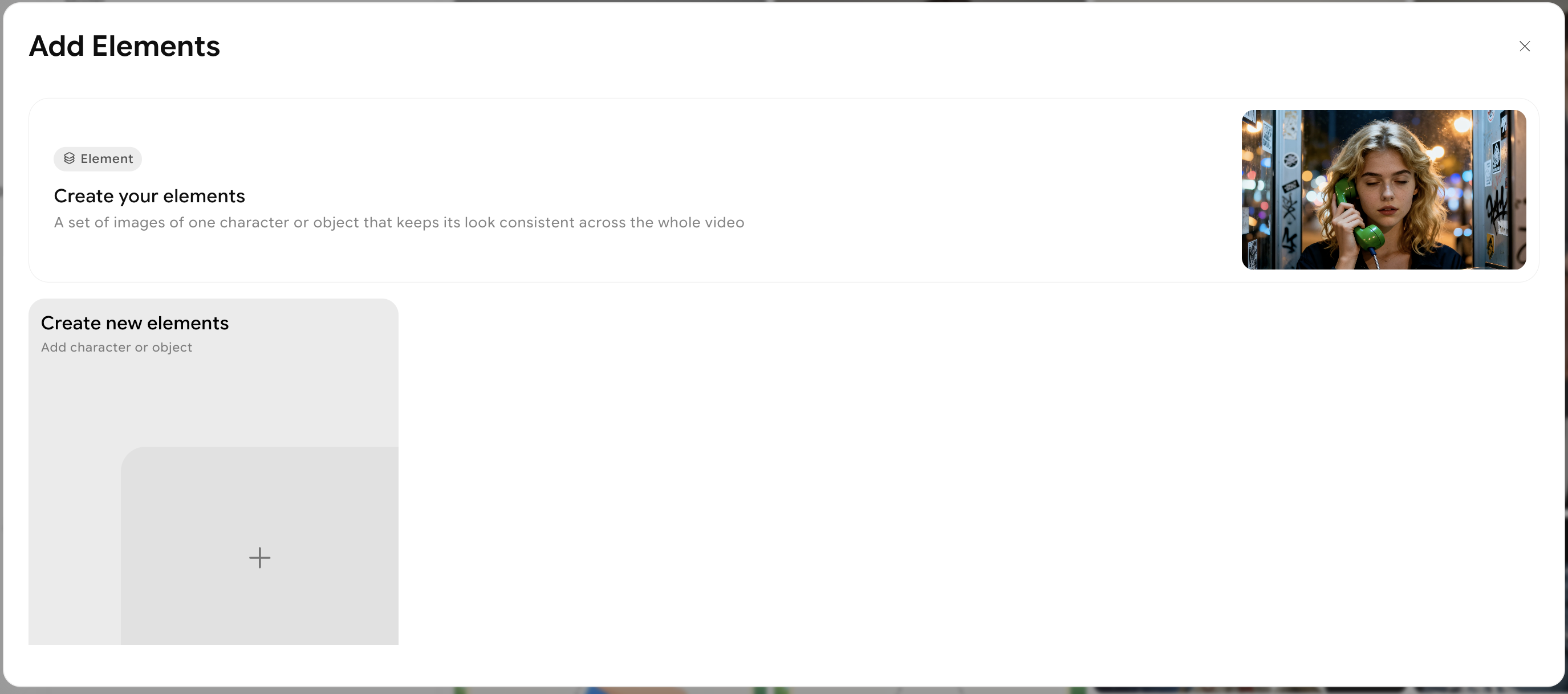 Click **Create a new element** in the panel that appears.
Upload up to 4 reference images of your character or object. A frontal image is required adn you may enter 3 more images. Adding images from different angles — side, three-quarter, back — trains the model on all sides of the element and produces more consistent results.
Click **Create a new element** in the panel that appears.
Upload up to 4 reference images of your character or object. A frontal image is required adn you may enter 3 more images. Adding images from different angles — side, three-quarter, back — trains the model on all sides of the element and produces more consistent results.
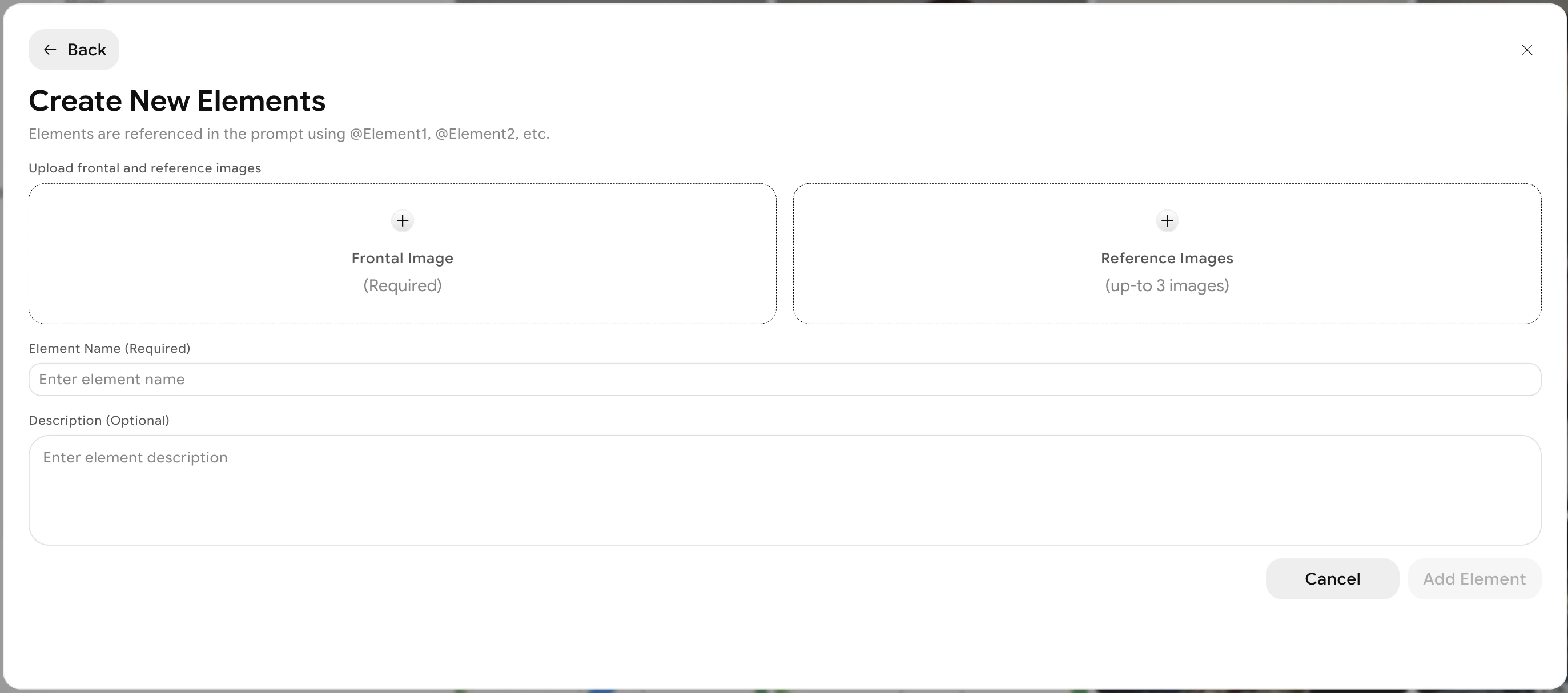 Set an element name and an optional description to keep your library organized.
Save the element. It will now appear in your Elements library, ready to reference in any supported workflow.
## Using an existing element
Once an element is saved, you can reference it in two ways:
* **From the Elements panel** — click the Elements button and select an existing element from your library to attach it to the current generation.
* **Using @ in your prompt** — type `@` followed by the element name directly in any prompt field. The element renders as a chip in the prompt itself, and the model uses it as a visual reference for that subject.
Set an element name and an optional description to keep your library organized.
Save the element. It will now appear in your Elements library, ready to reference in any supported workflow.
## Using an existing element
Once an element is saved, you can reference it in two ways:
* **From the Elements panel** — click the Elements button and select an existing element from your library to attach it to the current generation.
* **Using @ in your prompt** — type `@` followed by the element name directly in any prompt field. The element renders as a chip in the prompt itself, and the model uses it as a visual reference for that subject.
 Elements created in Video Tools are available in Workflows, and vice versa — your library is shared across the platform.
For best results, upload a clear frontal image as your primary reference and supplement it with side or three-quarter angle shots. The more angles the model has, the more reliably it maintains the element's appearance across different shots and camera angles.
## When to use elements
If your video features a recurring character, saving them as an element ensures their appearance stays consistent from shot to shot, regardless of changes in lighting, angle, or scene.
For product videos or branded content, saving a product as an element prevents visual drift between cuts and keeps details like color, shape, and texture accurate throughout.
Elements persist across sessions. You can reference the same character or object in separate videos without re-uploading your images each time.
Elements created in Video Tools are available in Workflows, and vice versa — your library is shared across the platform.
For best results, upload a clear frontal image as your primary reference and supplement it with side or three-quarter angle shots. The more angles the model has, the more reliably it maintains the element's appearance across different shots and camera angles.
## When to use elements
If your video features a recurring character, saving them as an element ensures their appearance stays consistent from shot to shot, regardless of changes in lighting, angle, or scene.
For product videos or branded content, saving a product as an element prevents visual drift between cuts and keeps details like color, shape, and texture accurate throughout.
Elements persist across sessions. You can reference the same character or object in separate videos without re-uploading your images each time.