> ## Documentation Index
> Fetch the complete documentation index at: https://docs.imagine.art/llms.txt
> Use this file to discover all available pages before exploring further.
# Text to Video

## What is Text to Video?
**Text to Video** is a tool designed to generate high-quality videos from textual descriptions. Simply describe a scene, action, or environment, and the AI model will generate a video that matches your vision. From dramatic action sequences to peaceful nature scenes, this feature allows creators to quickly generate engaging visual content based on nothing more than a few sentences.
## Make your first Video
Go to [Video Studio](https://imagine.art/video) to begin creating your video. You can choose from multiple options, choose "Text to Video"
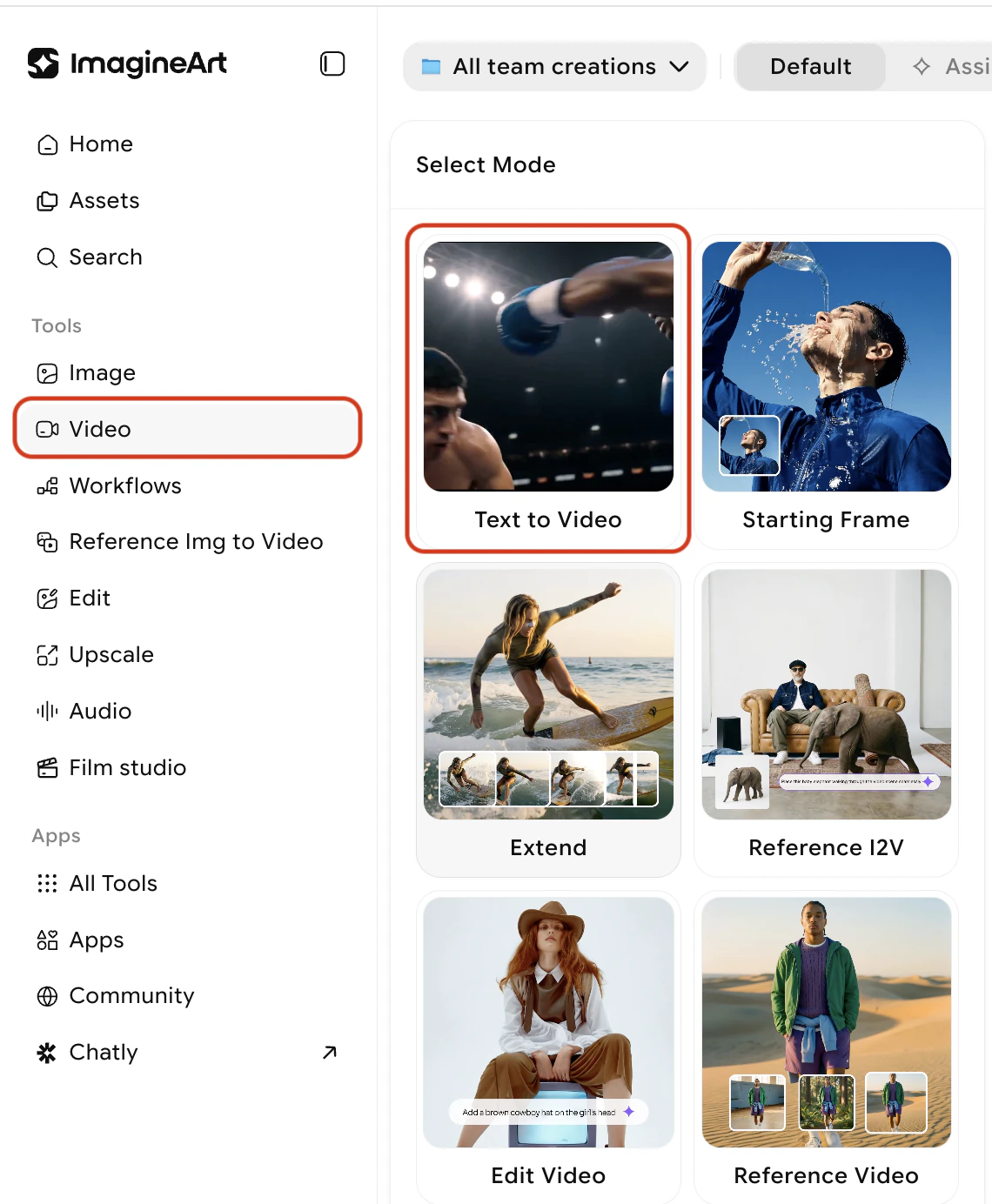 In the prompt field, type a detailed description of the video you want to create. The more specific you are, the better the AI will understand your needs and generate a video closer to your vision. Describe actions, scenes, and visual elements clearly.

Select the AI Video model you want to use from the available options, including WAN, Kling, and Hailuo AI, based on the video style you need (e.g., cinematic, realistic, etc.). Then, choose the aspect ratio and other generation settings such as video length and resolution.

After finalizing your settings and prompt, click the **Generate** button. The AI will process your request and create a video based on the input you've provided.
In the prompt field, type a detailed description of the video you want to create. The more specific you are, the better the AI will understand your needs and generate a video closer to your vision. Describe actions, scenes, and visual elements clearly.

Select the AI Video model you want to use from the available options, including WAN, Kling, and Hailuo AI, based on the video style you need (e.g., cinematic, realistic, etc.). Then, choose the aspect ratio and other generation settings such as video length and resolution.

After finalizing your settings and prompt, click the **Generate** button. The AI will process your request and create a video based on the input you've provided.