> ## Documentation Index
> Fetch the complete documentation index at: https://docs.imagine.art/llms.txt
> Use this file to discover all available pages before exploring further.
# Video Extend
Video Extend adds 5 seconds of new content to the end of an existing video. You can let the AI continue the clip naturally in Auto mode, or write a prompt in Manual mode to direct exactly what should happen in the extension.
## How to extend a video
Navigate to [Video Studio](https://www.imagine.art/video) and select **Video Extend** to begin.
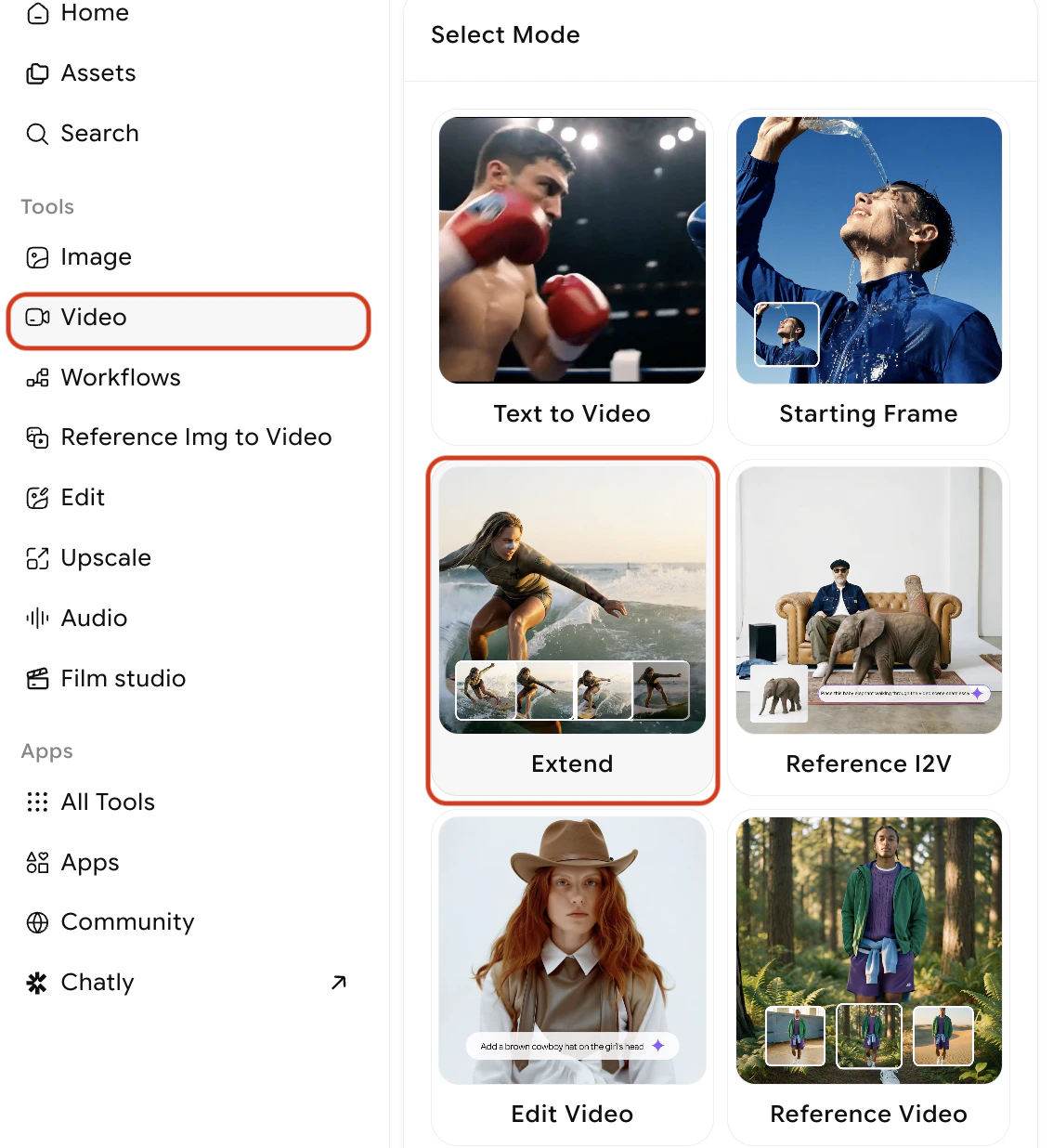 You can select an existing asset from your uploads or upload one from your computer
The model analyses the last frames of your clip and generates a natural continuation that maintains the same scene, motion, and style.
Best when:
* The existing video has clear, ongoing motion that should continue (e.g. a camera pan, a walking character, flowing water)
* You want a quick extension without writing a prompt
* The visual content at the end of the clip provides enough context for the AI to continue coherently
You can select an existing asset from your uploads or upload one from your computer
The model analyses the last frames of your clip and generates a natural continuation that maintains the same scene, motion, and style.
Best when:
* The existing video has clear, ongoing motion that should continue (e.g. a camera pan, a walking character, flowing water)
* You want a quick extension without writing a prompt
* The visual content at the end of the clip provides enough context for the AI to continue coherently
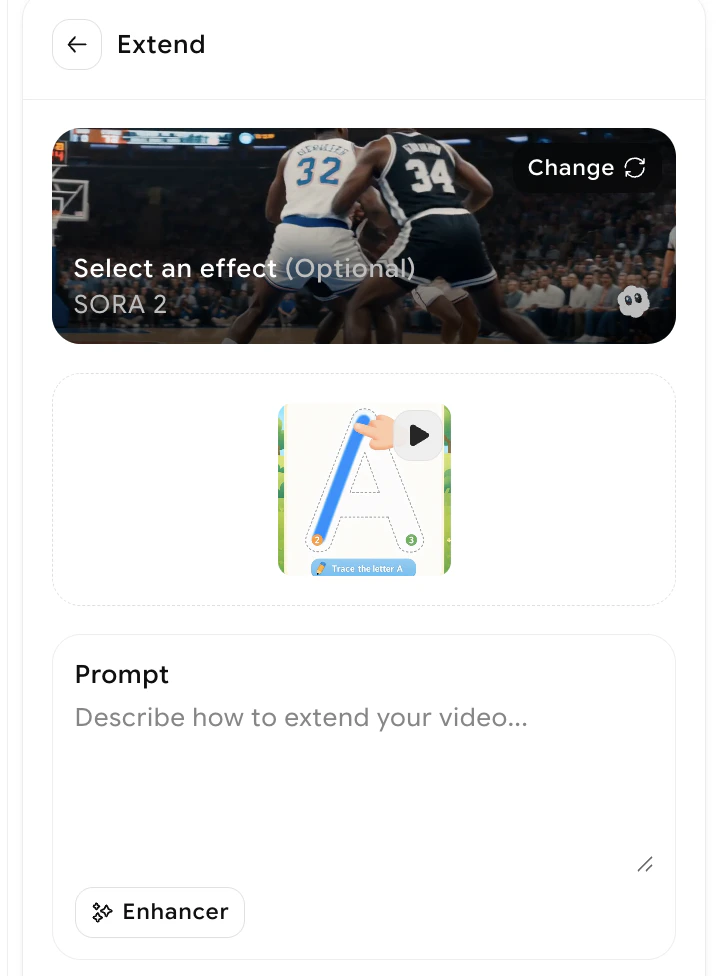 Write a custom prompt describing what should happen in the additional video. You can specify new actions, introduce new scene elements, or direct a change in camera angle or subject focus.
**Example prompts:**
* `The character continues walking and turns a corner, revealing a busy marketplace`
* `The camera slowly pulls back to reveal the full landscape`
* `Rain begins to fall, intensifying with each second`
This is best when:
* You want to direct a specific continuation rather than letting the AI decide
* The clip ends at a neutral or static moment that doesn't naturally suggest what comes next
* You're building a multi-segment narrative and need each extension to advance the story
Click **Generate**. The AI produces the extension and appends it to your original clip, delivering a combined video as the output.
## What to do next
Change specific elements in your video using a text description.
Apply VFX effects to a generated or extended video.
Add talking-avatar lip animations to your clip.
Understand how credits are calculated for Video Extend.
Write a custom prompt describing what should happen in the additional video. You can specify new actions, introduce new scene elements, or direct a change in camera angle or subject focus.
**Example prompts:**
* `The character continues walking and turns a corner, revealing a busy marketplace`
* `The camera slowly pulls back to reveal the full landscape`
* `Rain begins to fall, intensifying with each second`
This is best when:
* You want to direct a specific continuation rather than letting the AI decide
* The clip ends at a neutral or static moment that doesn't naturally suggest what comes next
* You're building a multi-segment narrative and need each extension to advance the story
Click **Generate**. The AI produces the extension and appends it to your original clip, delivering a combined video as the output.
## What to do next
Change specific elements in your video using a text description.
Apply VFX effects to a generated or extended video.
Add talking-avatar lip animations to your clip.
Understand how credits are calculated for Video Extend.