

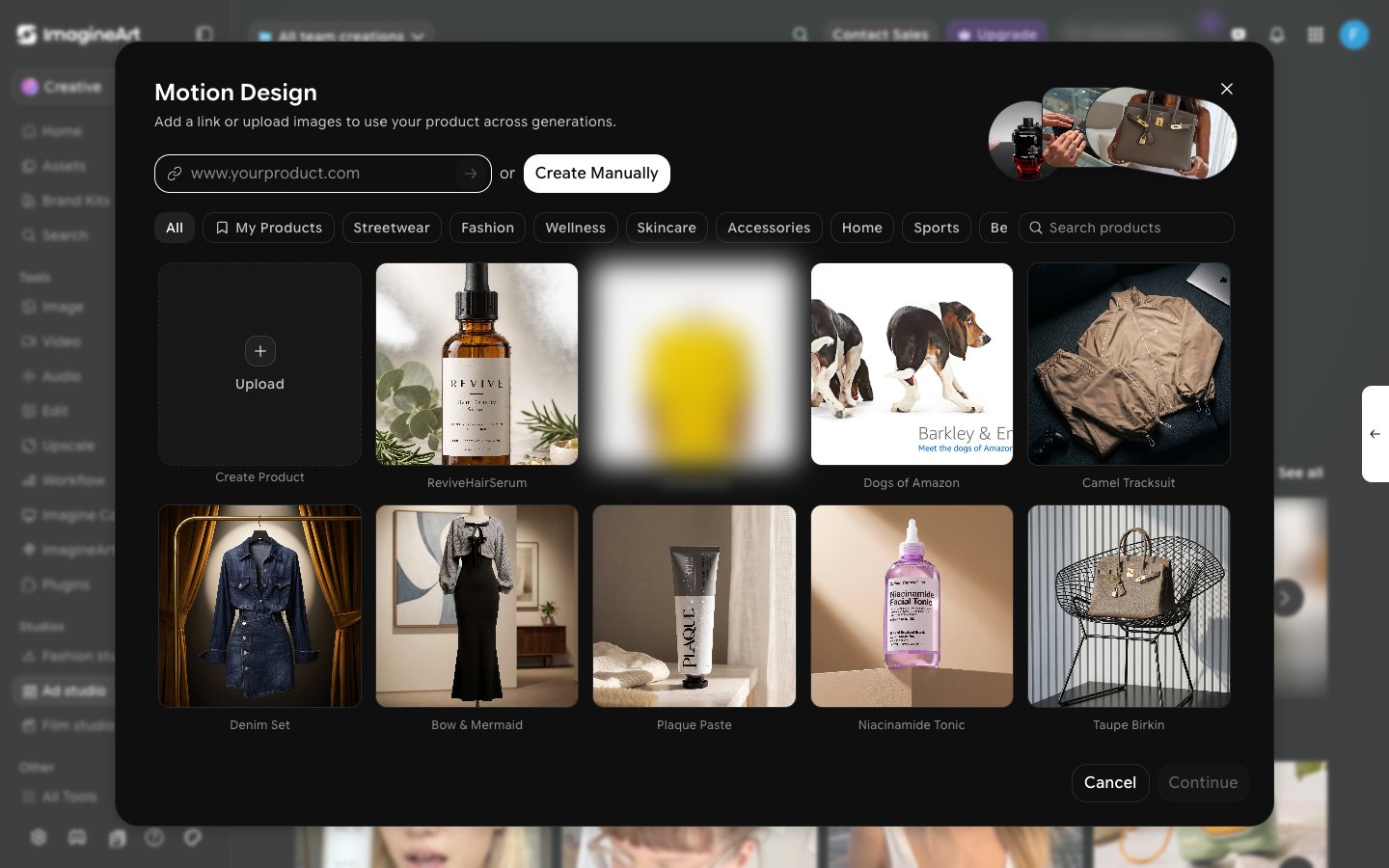
How Motion Design works
1
Pick a product
On the Ad Studio home, click the Motion Design card in the Tools row. If you’re already inside a project, click Motion Design under Tools in the project sidebar instead. This opens the same product picker as URL to Ad — paste a URL, upload images, or pick an existing product from your library or the preset categories.
2
Describe your video and pick a style
On Choose a style, describe the video, the product, and the vibe, then pick a style template — Product Showcase, SaaS Explainer, Mobile App Launch, Brand Campaign, Location Promotion, and more.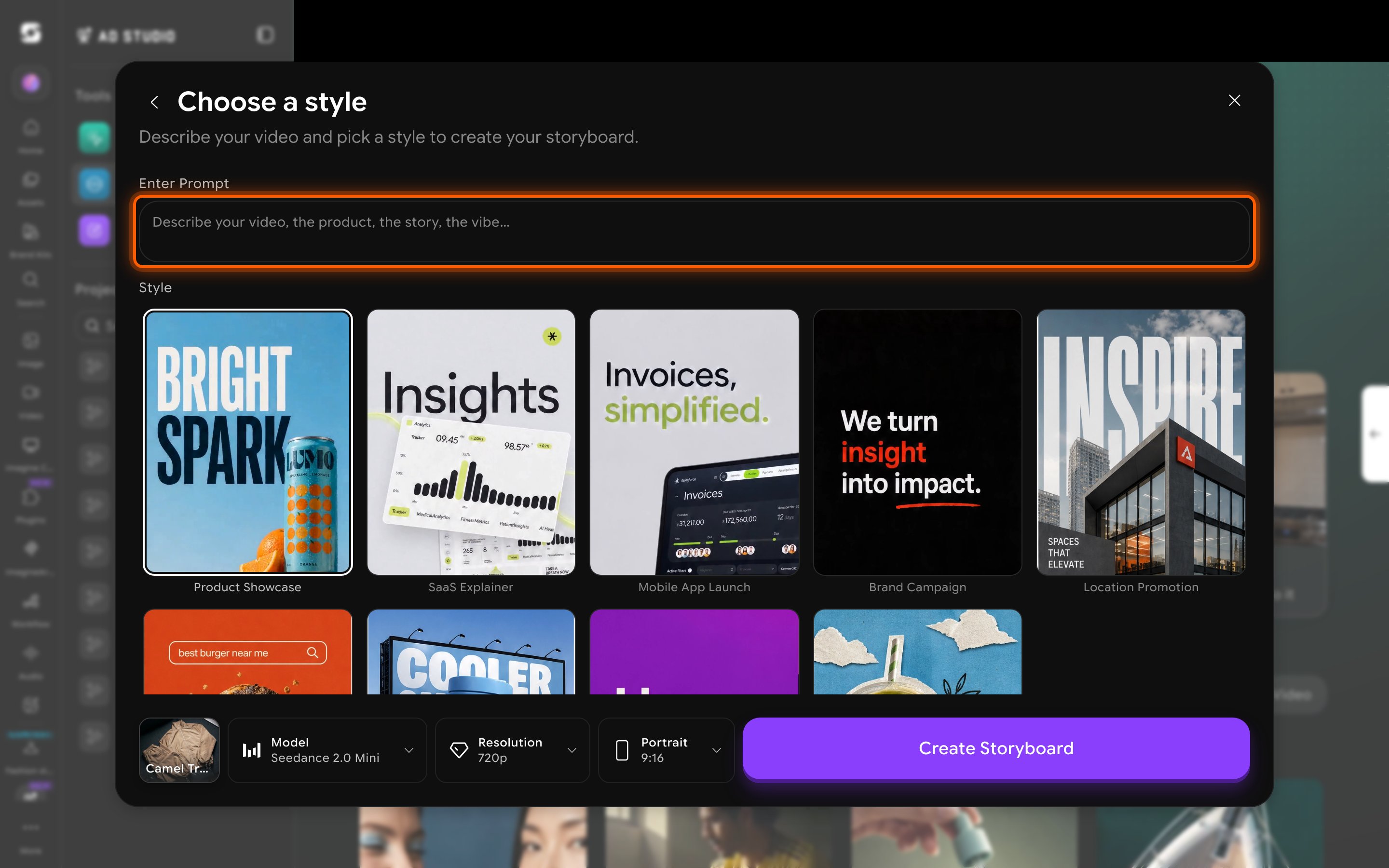
3
Set the model, resolution, and aspect ratio
Motion Design is scoped to ByteDance’s Seedance lineup only — a narrower, purpose-built set compared to the much larger model list in the general Video tool.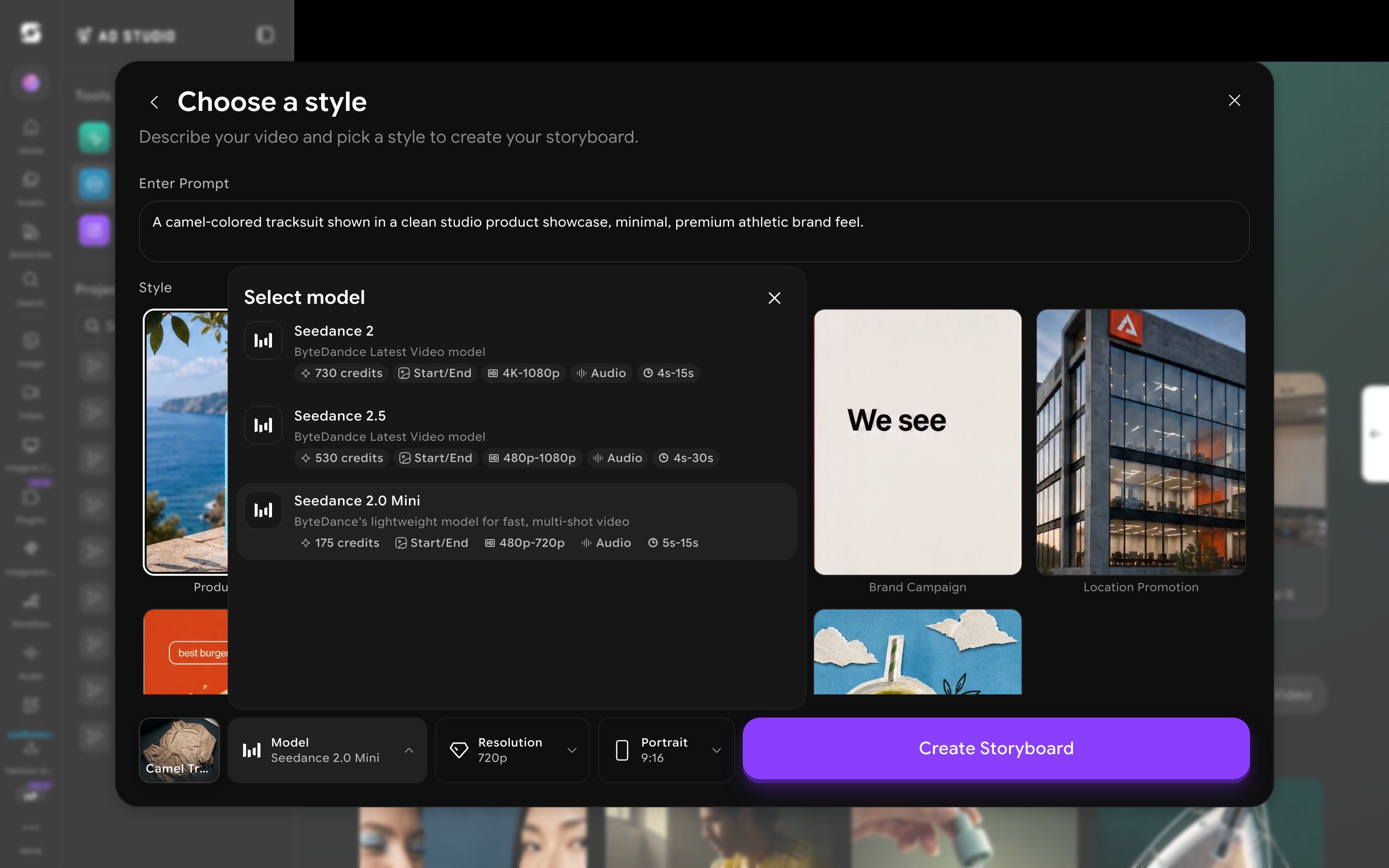
All three support Start/End frame control and audio.
4
Create the storyboard
Click Create Storyboard. This kicks off a multi-stage background job — computing grid geometry, assembling a “mega-prompt,” generating the storyboard, then receiving split frames.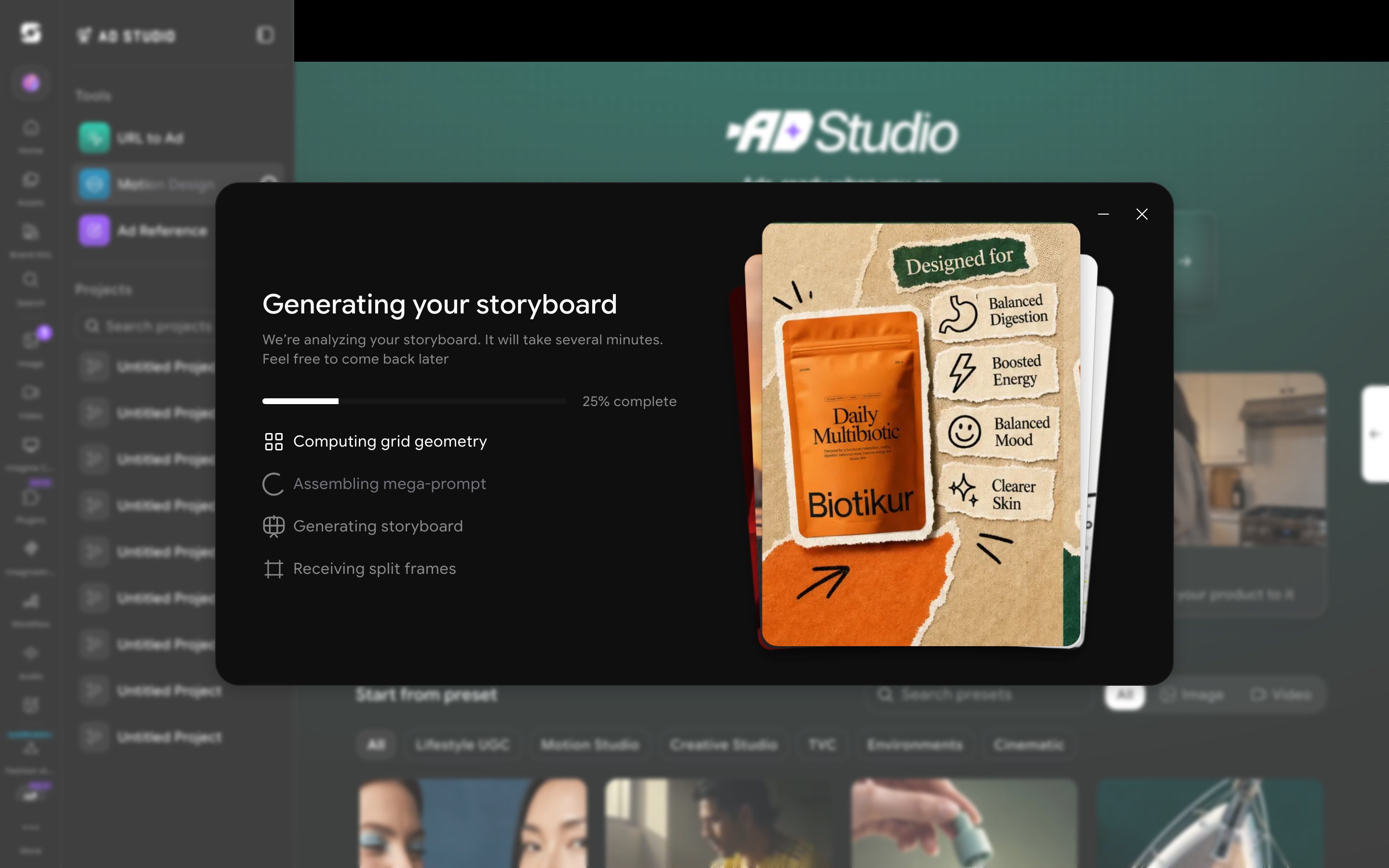
Generation runs in the background. Click the minimize button on the generation screen and keep working anywhere else in Ad Studio — inside a project, the Motion Design entry under Tools in the project sidebar shows a spinner until the storyboard is ready.
What you get back
Motion Design doesn’t generate one clip — it produces a storyboard of individual scenes:- Per-scene editing. Each scene in the storyboard can be regenerated on its own without affecting the others — useful for fixing one weak beat in an otherwise good sequence.
- Background generation. Your product photo carries through into a generated background for each scene.
- Premium output. The finished export includes typography and transitions applied automatically, not just raw clips stitched together.
Not the same as Film Studio’s Storyboard mode. Both features use the word “storyboard,” but they’re different mechanisms. Film Studio’s Storyboard mode generates a single contact-sheet grid image that you manually split into frames. Motion Design’s storyboard is an automated multi-scene pipeline purpose-built for ads — you don’t do the splitting yourself.
When to use Motion Design
- You want a polished, template-driven motion graphics ad rather than a single straight-through video generation.
- You’re open to a longer, asynchronous generation in exchange for a multi-scene result with independently editable beats.
- You want typography and transitions applied automatically rather than adding them yourself afterward.