

Update your billing information
1
Open Billing & Subscription
Click your profile picture in the top-right corner of the dashboard and select Billing and Subscription from the dropdown.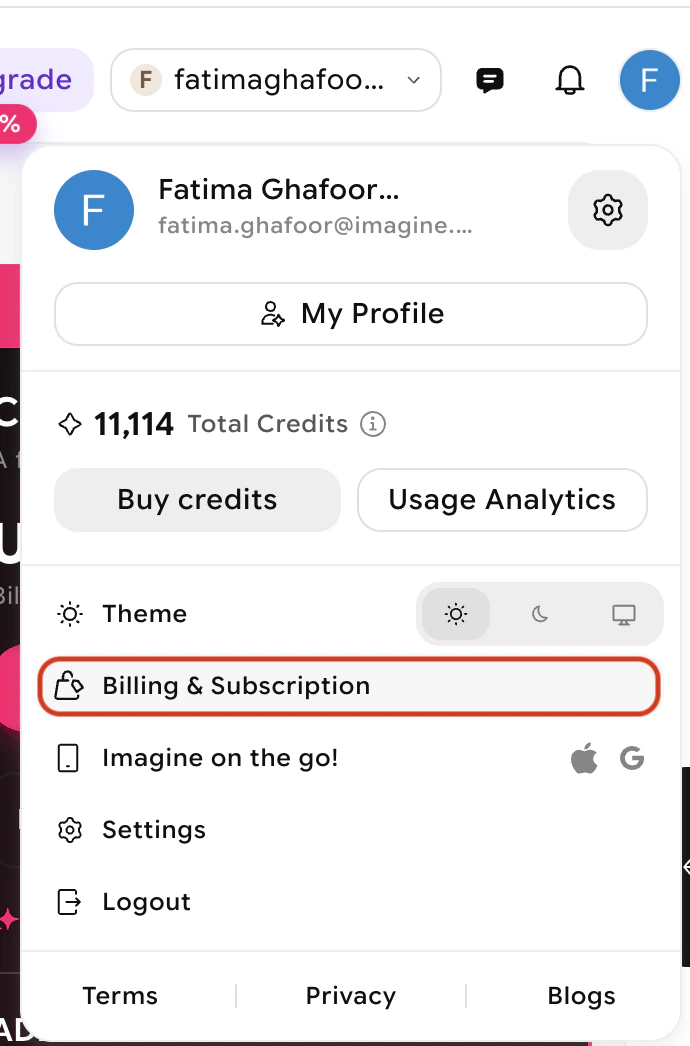
2
Click Edit Billing
Click the Edit Billing button on the billing page. You can also view your current plan and next charge date here.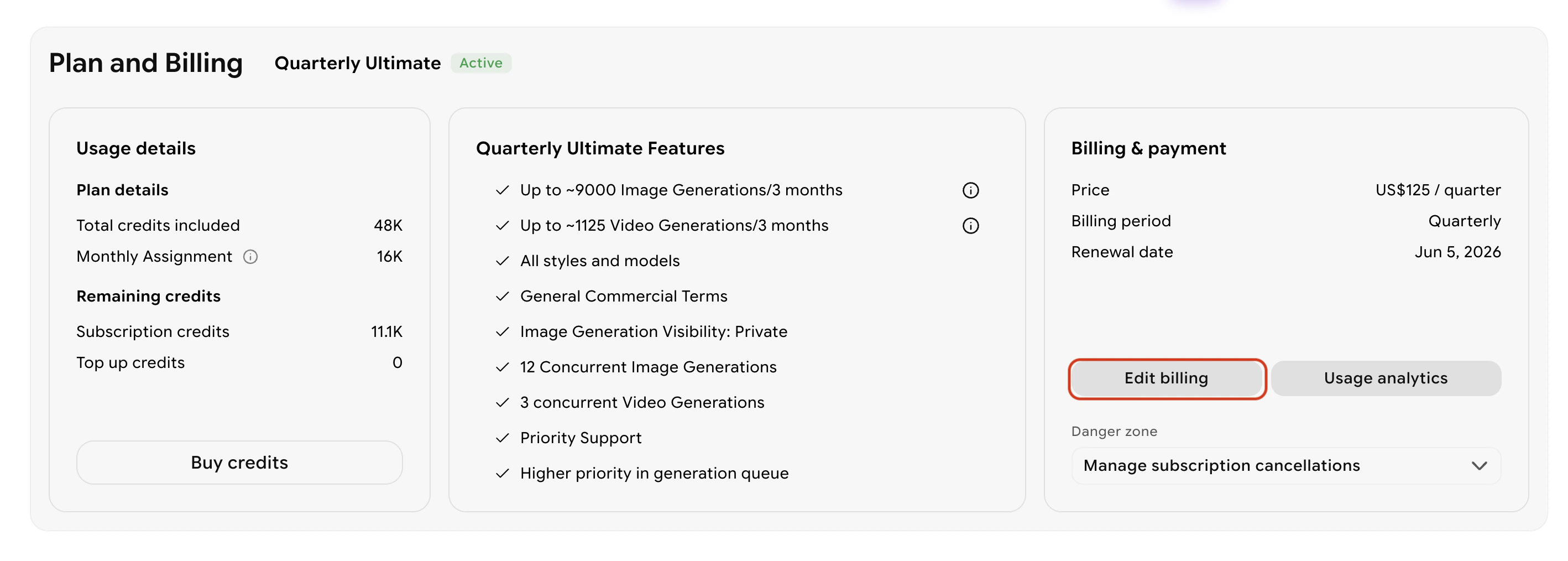
3
Update your details on Stripe
You will be taken to Stripe’s official payment page where you can update your payment method, billing address, and other details.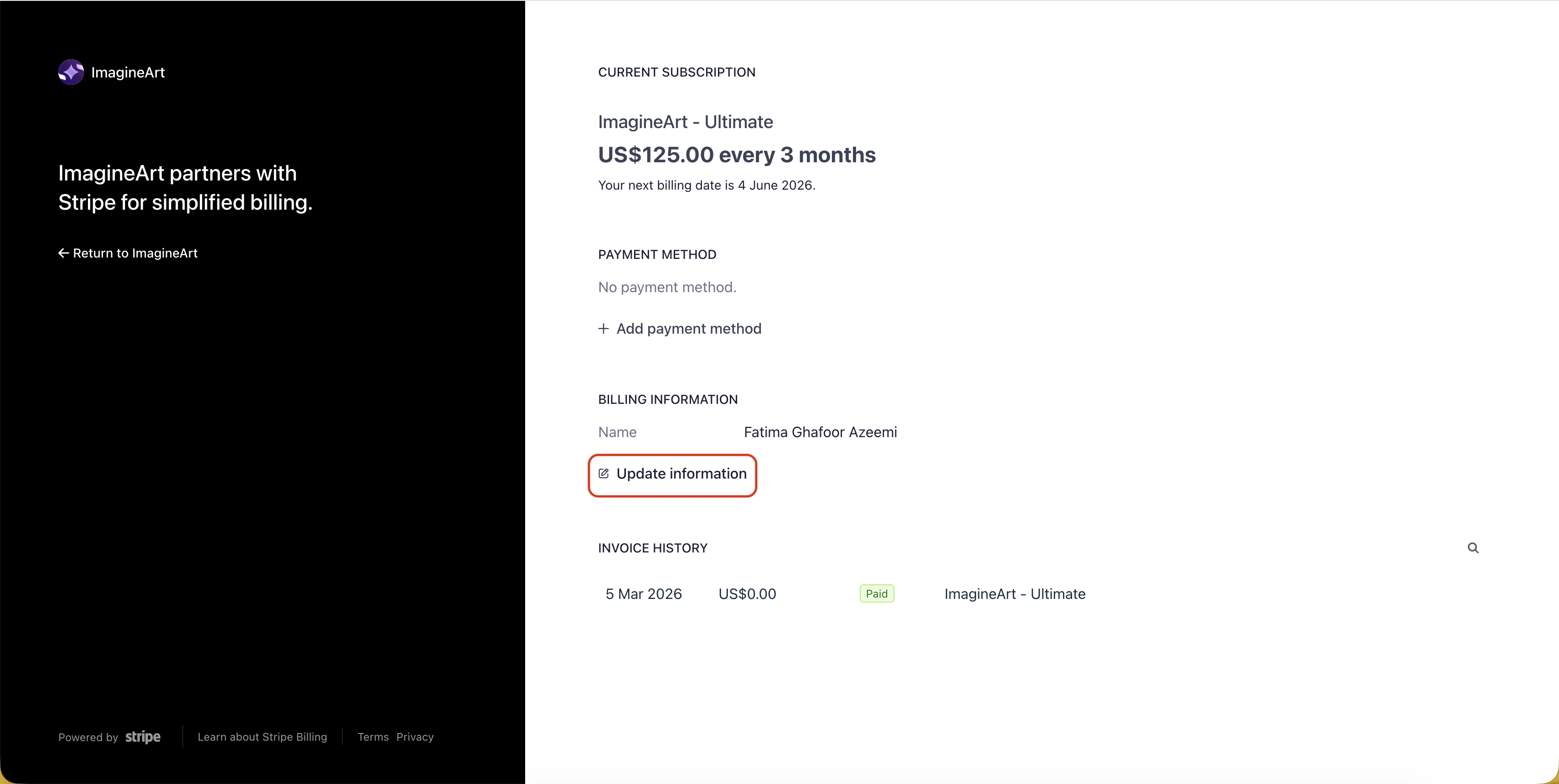
Download invoices
From the same Stripe billing page, you can view all past invoices. Select a specific invoice to view its details, then download either the invoice or receipt for your records.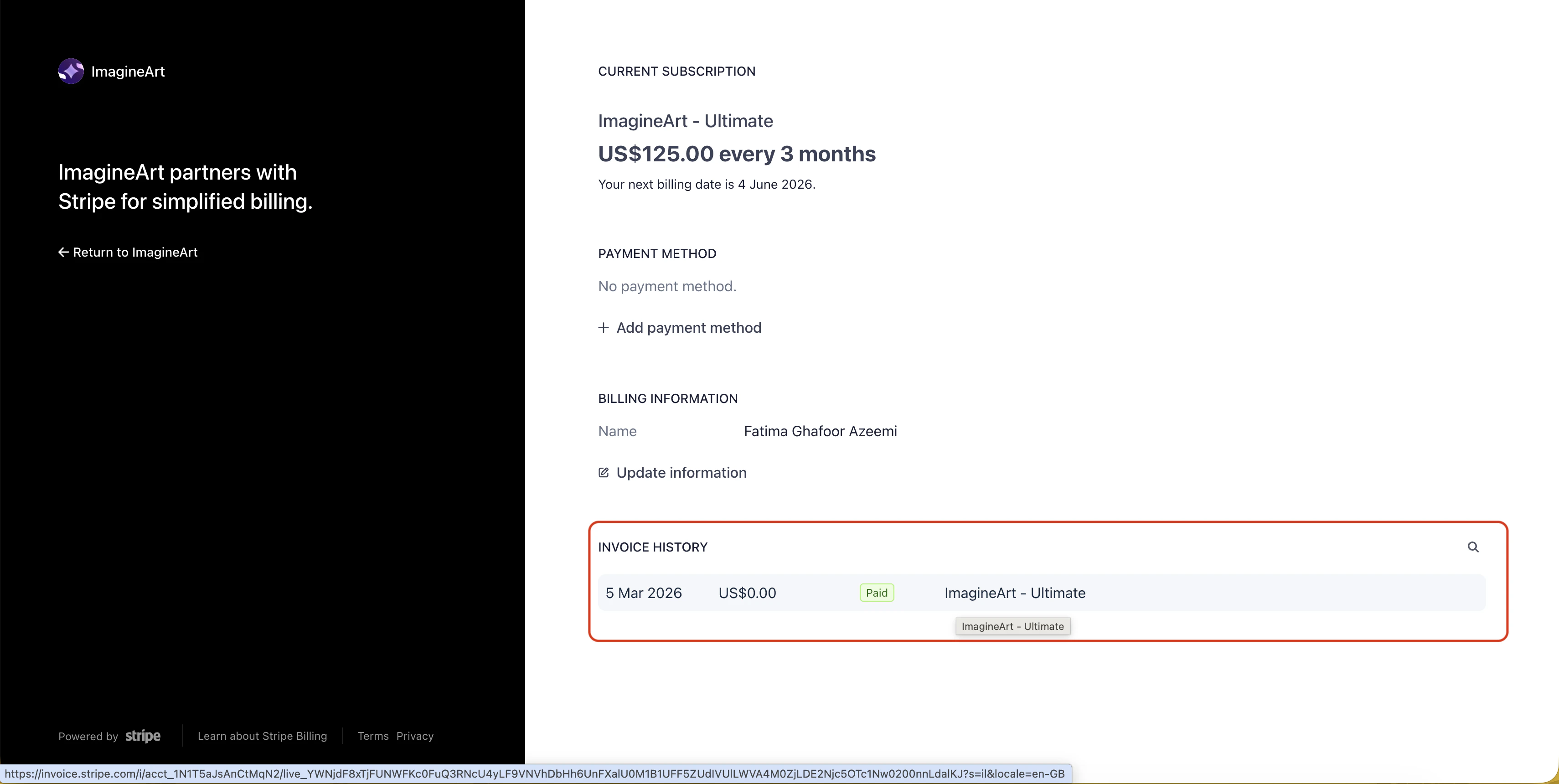
Common issues
I don't have an active subscription
I don't have an active subscription
Billing information can only be updated when you have an active subscription. Purchase a plan first — billing updates will be available from your second invoice onward.
I can't change the address on my first invoice
I can't change the address on my first invoice
- New customers can add a billing address during checkout.
- Returning customers using the same email address cannot directly edit the first invoice’s billing address. Contact support@imagine.art or purchase a new plan to apply address updates to future invoices.
I need to update the name on my invoices
I need to update the name on my invoices
Name changes apply to future invoices only. To update the name on past invoices, contact support@imagine.art.
How are taxes calculated?
How are taxes calculated?
Taxes are calculated by Stripe, ImagineArt’s payment processor, based on the country associated with your billing address.