In the ImagineArt Workflows canvas, nodes are the fundamental building blocks of every pipeline. Every operation—importing a file, running an AI model, trimming a video, combining prompts—lives inside a node. Connect nodes together to form a visual data pipeline that automates your creative process.

What is a node?

A node is a self-contained unit designed to perform one specific task. Each node has:
  • Inputs (left side): Where the node receives data—text, images, video, or audio.
  • Outputs (right side): Where the node sends its processed result to the next step.
  • Parameters: Settings inside the node that let you fine-tune how it performs its task.
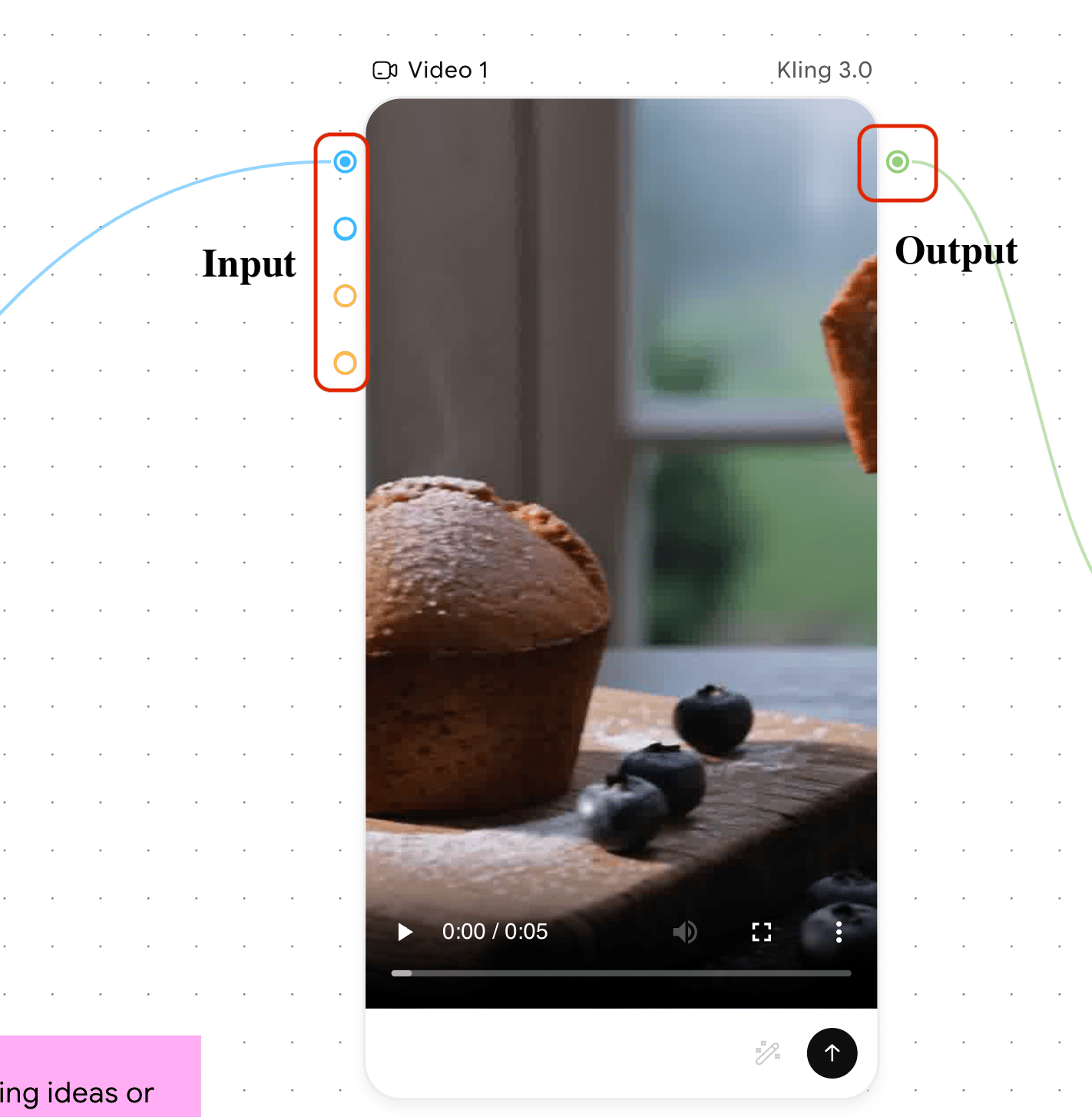
Data flows left to right across the canvas. Nodes are type-safe: a video output can only connect to a video input. When you trigger a workflow, data travels through the chain you’ve built—a text prompt might become an image, which flows into a background remover, and finally into an export node. Nodes fall into four categories: Generational (AI-powered creators), Transformation (specialists that modify content), Utility (organizers that route and adjust data), and Essential (import/export gates).
Image nodes cover the full image creation pipeline, from generating visuals from scratch to fine-tuning lighting, resizing for multiple platforms, and batch-processing asset sets.To add an image node: Click + in the left toolbar, select Image, then choose the node. You can also double-click the canvas and search by name.

Generate Image

Purpose: Create high-quality images from text prompts (text-to-image) or transform existing images using a reference and a description (image-to-image).The Generate Image node supports a wide range of AI models, each with its own style characteristics. Key parameters:
SettingTypeEffect
PromptTextDescribes the visual elements the AI generates
StylePresetApplies a stylistic preset (3D, Cyberpunk, Watercolor, etc.)
Strength0–100%Controls how strongly the prompt influences the output
Image SizeDropdownSets the output aspect ratio (16:9, 4:3, 1:1, etc.)
SeedNumberLocks the result for reproducible outputs
Guidance Scale0–20%Balances prompt adherence against creative randomness
ResolutionDropdownSets output resolution: High (4K), Medium (2K), or Low (1K)
Prompt OptimizerButtonEnhances or rewrites your prompt for better results
Inputs: Text prompt (from a Prompt or AI Copilot node), optional reference image. Output: Generated image.

Edit Image

Purpose: Generate new images inspired by one or more reference images. Rather than modifying an image directly, this node uses your uploaded references as creative inspiration—combining styles, concepts, and visual elements into a fresh output.Models like Nano Banana Pro, Nano Banana 2, and Seedream V4.5 support uploading 10+ reference images, making this node useful for complex compositions that blend multiple visual ideas.Common use cases: Fashion lookbooks, virtual try-ons, 3D art from flat designs, vintage poster variations, mythical creatures in real-world settings.Inputs: One or more reference images, text prompt describing the desired output. Output: Newly generated image based on the references and prompt.

Upscale Image

Purpose: Increase the resolution and sharpness of any image using AI. Ideal for preparing low-resolution assets for print, large displays, or professional presentations.
SettingTypeEffect
Upscaling Factor2×, 4×, 8×, 16×Higher values increase resolution and detail
Strength0–100%Controls the AI’s impact on fine details and sharpness
Noise ReductionSliderSmooths the image; high values may remove fine details
Sharpness0–100%Increases edge definition; too high may over-sharpen
Detail Level0–100%Controls how much detail is added during upscaling
SeedNumberEnsures reproducible results
Input: Image. Output: Upscaled image at the specified factor.

Multiple Camera Angles

Purpose: Generate new perspective views of a subject from a single reference image. Rotate, tilt, and zoom a virtual camera using an interactive 3D controller to produce angles that weren’t in the original shot.
SettingTypeEffect
Camera Controller3D widgetDrag to orbit the camera around your subject
Rotation (Left/Right)SliderHorizontal rotation; negative = left, positive = right
Move (Up/Down)SliderVertical camera position
ZoomSlider (default: 5)Camera distance; higher = closer
Wide Angle LensCheckboxSimulates a wide-angle lens for more immersive perspectives
Guidance ScaleSlider (default: 4.5)Controls adherence to input and camera settings
SeedNumberEnsures reproducible results
Input: Reference image. Output: New image from the configured camera angle.

Relight

Purpose: Reposition, recolor, and adjust the intensity of the light source on any image. Use the interactive 3D light controller or quick-position presets (Top, Front, Back, Bottom, Left, Right) to transform the mood and depth of a scene without regenerating it.
SettingTypeEffect
Light Controller3D widgetDrag to reposition the light source
Quick PositionsButtonsSnap to a preset direction in one click
ResetButtonReturns the light to its default position
Light IntensitySlider (default: 7)Controls brightness; higher = stronger, more pronounced lighting
ColorColor picker (default: #ffffff)Sets the light’s color; use warm tones for golden-hour, cool for moonlit
Aspect RatioDropdownDefines the output image dimensions
ResolutionDropdown (1k, 2k, 4k)Determines output resolution
Input: Reference image. Output: Relit version of the image.

AI Resize

Purpose: Intelligently resize images to different aspect ratios without awkward cropping or stretching. The AI adapts the composition—extending backgrounds and repositioning elements—to fit the new ratio.Unlike the standard Resize utility node (which scales dimensions directly), AI Resize understands the scene and fills in new areas coherently.
SettingTypeEffect
Aspect RatioDropdown (1:1, 16:9, 4:3, 9:16, etc.)Target dimensions for the resized image
Common use cases: Multi-platform ad campaigns (1:1 for Instagram, 9:16 for Stories, 16:9 for YouTube), poster format variations, e-commerce banner adaptation.Input: Image. Output: Image resized to the target aspect ratio.

Split Image

Purpose: Divide a single image into a grid of smaller cropped sections. A visual preview shows exactly where the cuts will be made before you run the node.
SettingTypeEffect
Grid SizeDropdown (2×2, 3×2, 3×3, 4×2, 4×3, 4×4, 5×5)Number of output sections (2×2 = 4 images; 5×5 = 25)
Common use cases: Breaking storyboards into individual frames, extracting panels from comic pages, dividing mood boards into separate reference images.Input: Image. Output: Multiple cropped section images, each passed individually downstream.

Image Iterator

Purpose: Feed multiple images into a workflow and process each one individually through the connected downstream nodes. Instead of running your workflow manually for every image, the iterator handles the batch automatically.Common use cases: Batch style transfer across product photos, bulk ad variations with consistent branding, multi-image upscaling in a single run.Inputs: Multiple images (from Import, generated images, or added directly in the node). Output: Each image passed one by one to the next connected node, generating a separate output per input.

Common image node combinations

CombinationUse case
Generate → UpscaleCreate an image, then enhance resolution for print
Generate → Multiple Camera AnglesProduce a base image, then generate product or character perspectives
Import → Image Iterator → Edit ImageBatch-process reference photos through the same style prompt
Generate → AI ResizeCreate a hero visual, then resize for every ad platform
Generate → RelightProduce a scene, then experiment with different lighting setups
Split Image → UpscaleBreak a storyboard into frames, then upscale each one