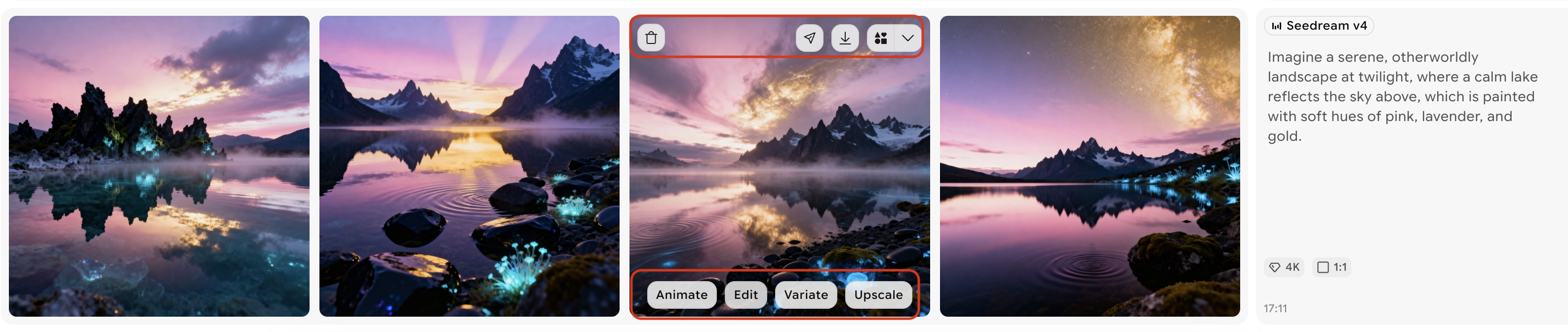
Quick Actions are one-click tools that let you act on any generated image without opening a separate editor or starting a new project. Hover over any image in your gallery to reveal the Quick Actions menu, then choose the action you need.

Accessing Quick Actions

Navigate to the home view where your generated images are displayed. Hover over any image to reveal the Quick Actions overlay. The available actions appear as icon buttons directly on the image.

Available actions

Animate

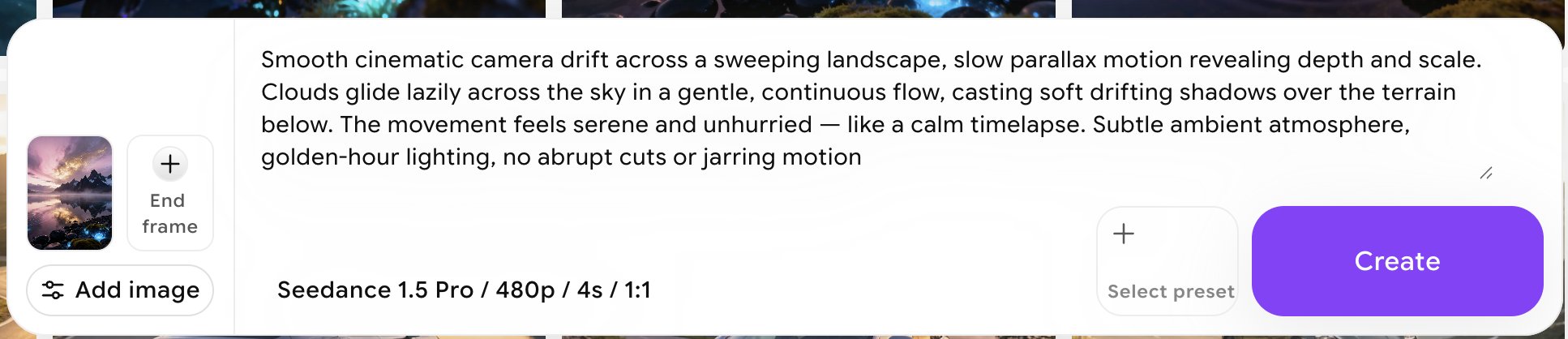
Transform a still image into a short video clip by adding motion effects. ImagineArt automatically uses your image as the animation reference. You can customize the level and type of motion using a text prompt before generating.How to use:
  1. Hover over your image and click Animate.
  2. Your image is automatically loaded as the animation reference.
  3. Write a motion prompt to describe the movement (e.g., “gentle camera drift forward,” “leaves blowing in the wind,” “character slowly turns their head”).
  4. Click Create to generate the animation.
Best for: Social media content, dynamic presentations, and any project where motion adds visual impact.

Variate

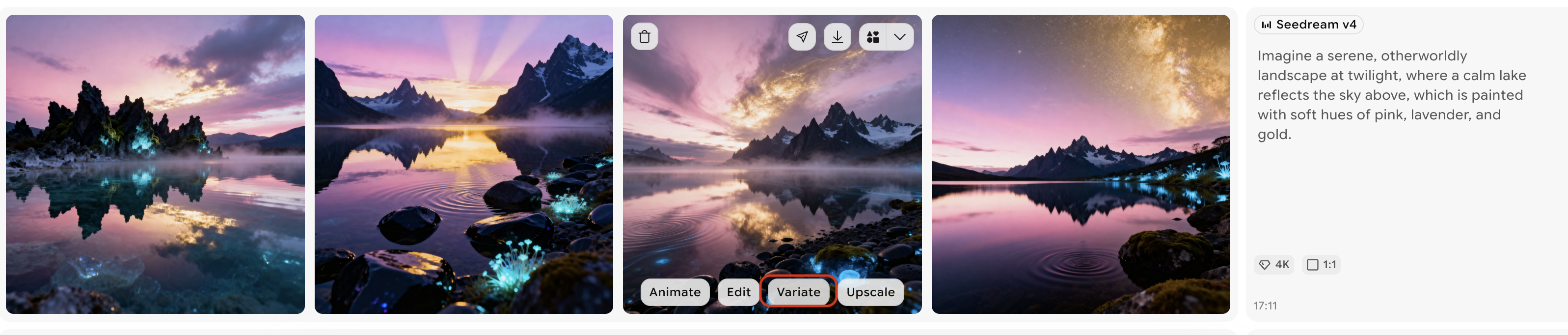
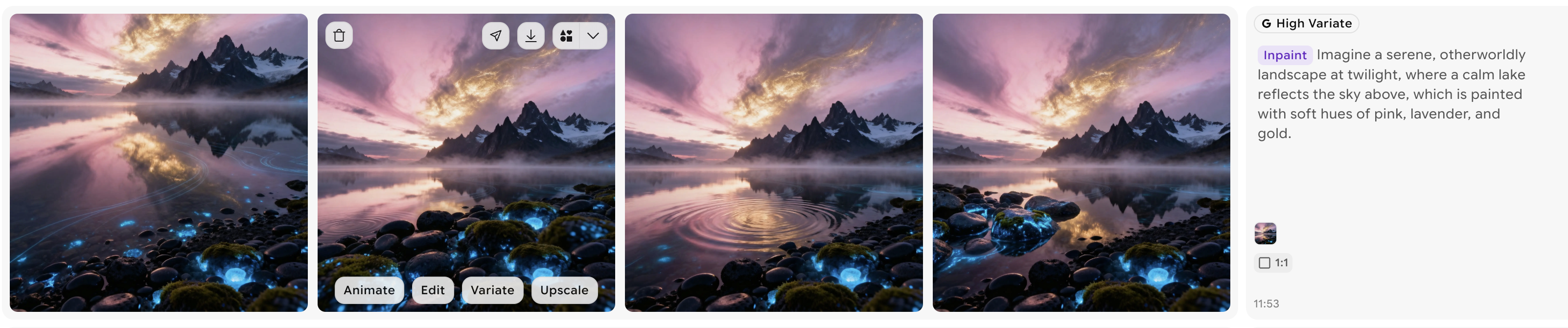
Generate 4 new variations of the selected image instantly. Each variation introduces slight creative differences while staying close to the original composition, style, and subject matter.How to use:
  1. Hover over your image and click Variate.
  2. Four variations are queued and processed immediately—no prompt required.
  3. Review and keep your favorites.
Best for: Exploring creative directions, A/B testing visual concepts, and finding alternative takes on a composition you like without starting from scratch.

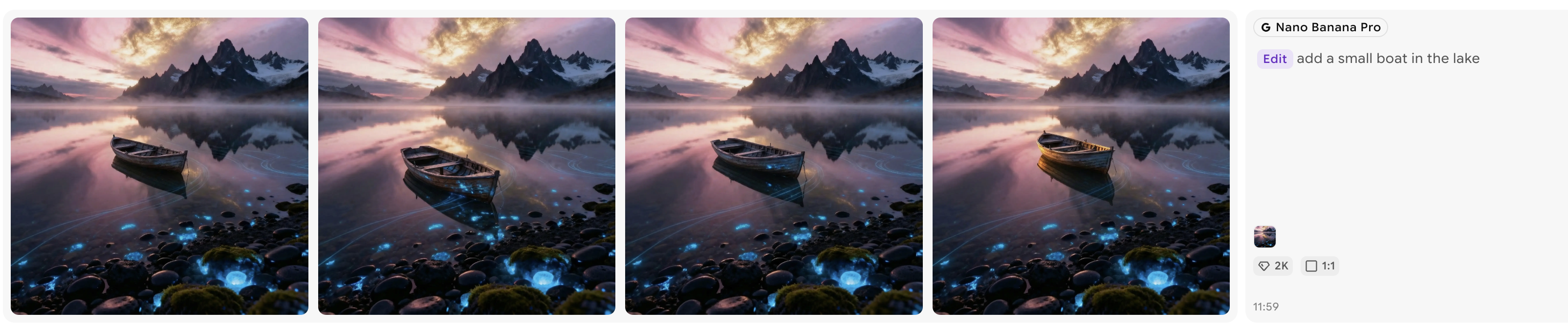
Edit

Open the image directly in Edit mode with it pre-loaded as the reference. Apply text-based edits to change colors, adjust elements, modify the background, or alter the composition.How to use:
  1. Hover over your image and click Edit.
  2. Your image loads automatically as the edit reference in Edit mode.
  3. Select an editing model (Flux Kontext, Nano Banana, ChatGPT, etc.).
  4. Write a specific edit prompt describing what you want to change.
  5. Click Create to apply the edit.
Best for: Making targeted changes to specific elements—replacing backgrounds, adjusting lighting, adding or removing objects, or refining a generated image without regenerating from scratch.

Upscale

Increase the resolution of your image using AI-powered upscaling. Choose between a faithful resolution increase or a creative enhancement that adds new detail.How to use:
  1. Hover over your image and click Upscale.
  2. Choose Subtle (faithful upscale) or Creative (enhanced upscale with added detail).
  3. Select your scale factor (2×, 4×, or higher depending on the engine).
  4. Click Create.
Best for: Preparing images for print, large-format display, or any use case requiring higher resolution output than the original generation.See Image Credits for upscale pricing details.

Best practices

  • Use Variate to explore ideas quickly — When you have a result you mostly like but want to see alternatives, Variate lets you branch out instantly without writing new prompts.
  • Use Animate for social engagement — Animated images perform well on social media and in presentations. Even subtle motion (a slow pan, a light flicker) makes images more attention-grabbing.
  • Use Edit for precision refinement — When specific elements of an image need fixing—a distracting background, an object in the wrong place, or an awkward shadow—Edit gives you targeted control without redoing the entire generation.
  • Upscale before downloading for print — If you plan to use an image at large sizes, run it through Upscale first to ensure it holds up at high resolution.