

For a full explanation of how credits work, how they are allocated, and how to manage your balance, see the Understanding Credits page.
Check your cost before generating
You never need to guess what a generation will cost. ImagineArt shows you the exact credit cost in real time.1
Hover the model name
In Image mode, hover over any model name for about 3 seconds to see its base credit cost and a short description.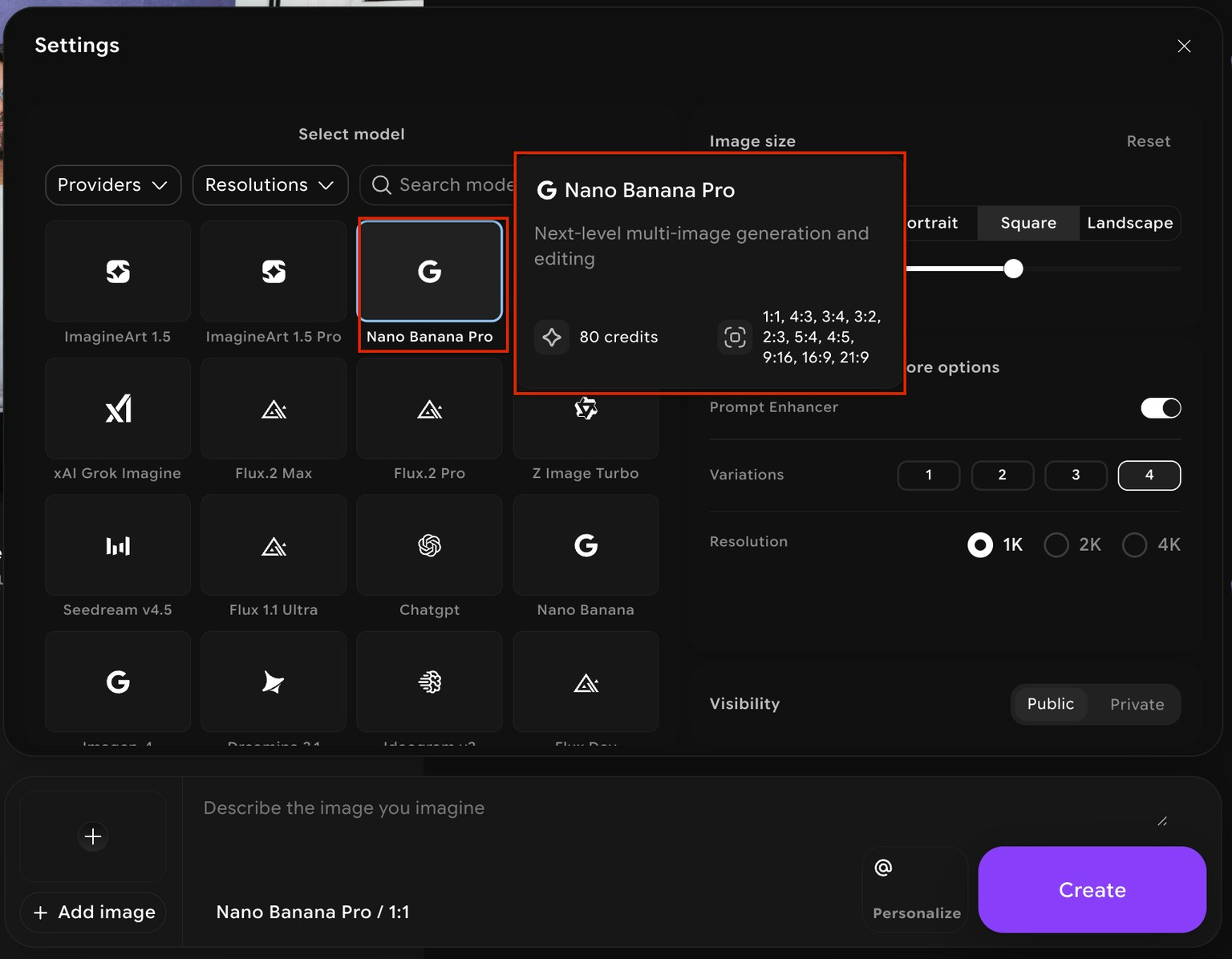
2
Adjust your settings
As you change your settings, the credit cost updates automatically. Settings that affect cost include:
- Image size and aspect ratio — Larger output dimensions cost more.
- Resolution — 2K and 4K outputs cost more than 1K.
- Prompt enhancer — Enabling the prompt enhancer adds a small credit cost.
- Number of images — Generating 4 images costs 4× the per-image rate.
3
Hover the Create button
Before clicking Create, hover over the button to see the total credit cost for your exact current settings. This is the definitive cost—use it to confirm before generating.-2.avif?fit=max&auto=format&n=2i1lxqk1SMoBGaWs&q=85&s=98d06fe2b959e67199787aee629df445)
Create / Edit image (base cost per image)
Credits shown are the base cost for generating 1 image. Generating multiple images multiplies this cost.
¹ During the October 2026 “50% OFF & Unlimited Free Generations” promotion, the tooltip shows promotional prices for these models (1 credit for Nano Banana models, 3 to 6 credits for GPT Image models). Check the tooltip for the current price.
Edit-only models
These models appear only in the Edit tab’s model picker. Most Create models, such as Nano Banana 2.1, GPT Image 2, and Seedream v5 pro, are available in Edit too.Upscale image
Upscale costs vary depending on the input image size and the selected output scale factor.Example: A 1920×1080 image at 2× costs approximately 41 credits with the Topaz model
Note: Credit consumption for each generation may differ depending on the number of images generated. The breakdown provided above is for single image generation.