Avatar Studio turns a script into a video of an avatar speaking it. You choose who appears on screen, how they sound, and what they say. Avatar Studio generates the voice, renders the avatar, and gives you an editor for captions, text, music, and export. Open it from Studios > Avatar studio in the AI Toolkit sidebar, or go to imagine.art/avatar-studio.
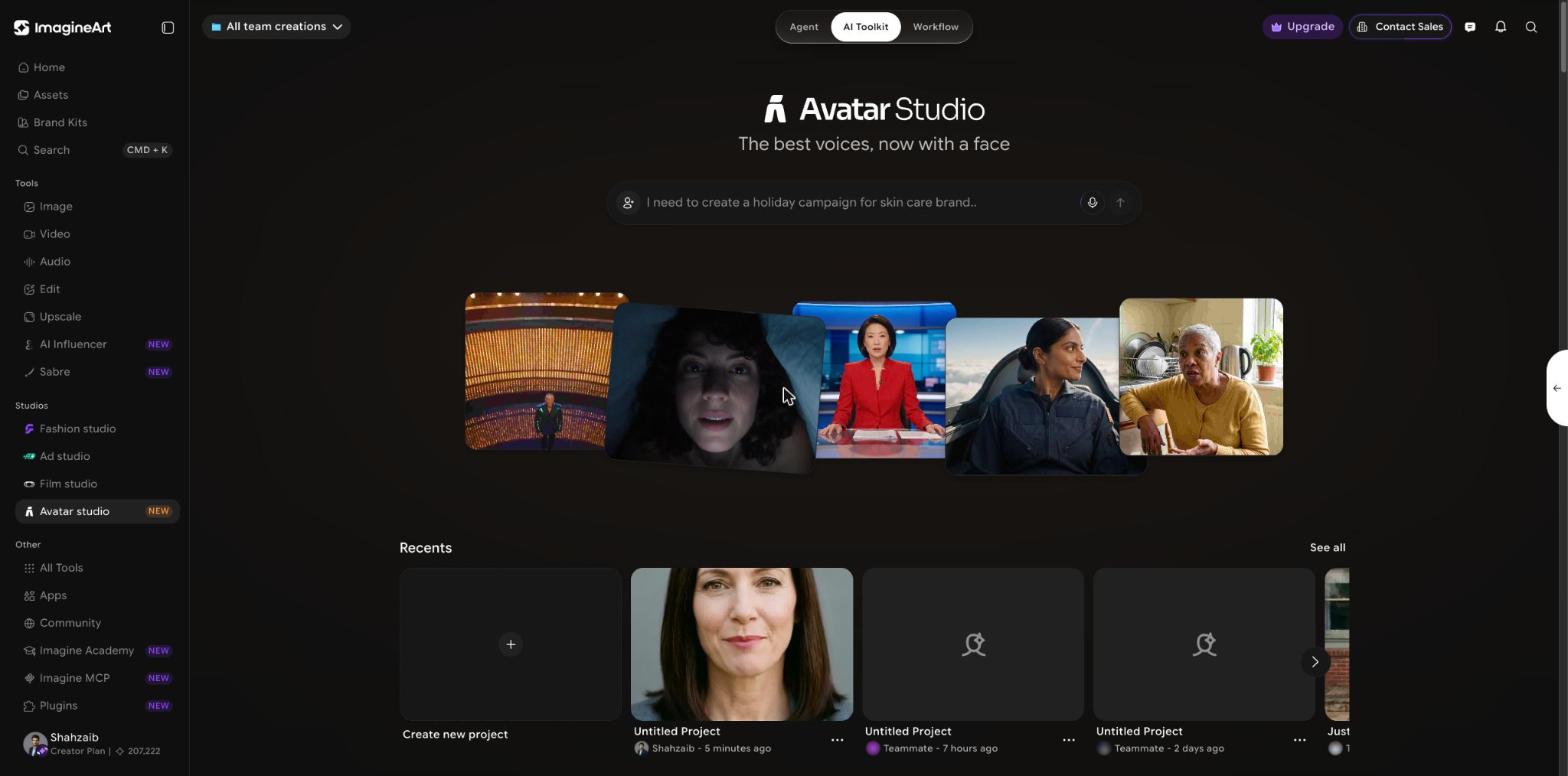
Avatar Studio home with the prompt box, the Recents row, and the Start from templates section

What you can make

  • Explainers and training videos with a presenter, without filming anyone.
  • Product walkthroughs that combine a screen recording with an avatar.
  • Social videos in vertical, square, or landscape formats.
  • Announcements and updates for a local business, a clinic, a class, or a team.

How it works

1

Start a project

Describe your video in the prompt box, click Create new project, or pick a template.
2

Choose an avatar and a voice

Pick from the public library, or create your own avatar and clone your own voice.
3

Write the script

Type what the avatar should say, or let Script Writer draft it for you.
4

Generate

Click Generate. Avatar Studio creates the audio first, then renders the scene.
5

Finish the video

Add captions, text, music, or more scenes, then click Export.
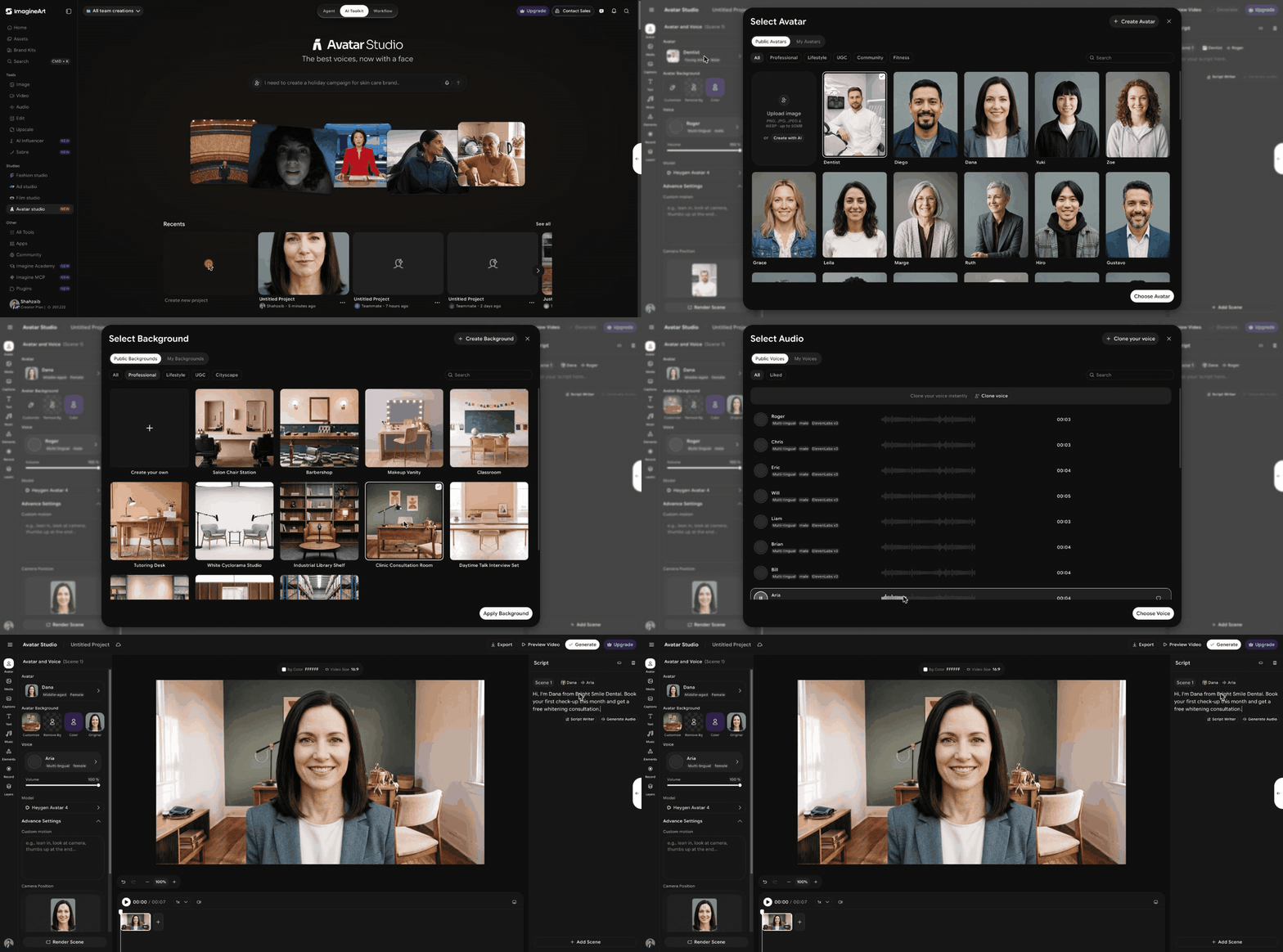
Animated walkthrough of creating a project, choosing an avatar, applying a background, choosing a voice, and typing a script in Avatar Studio

Building a scene: choose an avatar, apply a background, pick a voice, and write the script.

For the full walkthrough, see Create a video.

The Avatar Studio home

Prompt box

Describe the video you want and press Enter. Avatar Studio opens a new project, names it, writes a first script, and adds an avatar and a voice so you have something to edit straight away. Nothing is rendered until you click Generate in the editor. Click the prompt box to show its options before you send:
  • Avatar: choose who appears in the video.
  • Model: choose the video model that renders the avatar.
  • Voice: choose who speaks the script.
  • Aspect ratio: choose the shape of the video.

Recents

Recents lists your latest projects. Click one to reopen it, click Create new project to start with a blank project, or click See all for the full list.

Start from templates

Templates are ready-made videos grouped by use: Local Business, Health & Wellness, Education, Podcasts, Creators, Business, Training, HR & People, and Real Estate. Hover over a template and click Use Template to open it as your own project, then change the script, avatar, and voice.

Video models

The model decides how the avatar is rendered. You can change it per scene in the editor.

Video sizes

Credits

Generating audio and rendering a scene both use credits. The amount depends on the video model, the voice, and how long the script is. To see what a render used, open your profile menu and click Usage Analytics. See Understanding credits.
Get the script right before you render. Editing text is free, and each new render of a scene uses credits again.