

-2.avif?fit=max&auto=format&n=2i1lxqk1SMoBGaWs&q=85&s=bb56b686adf75686b6285225813b6eb2)
How to create a lipsync video
1
Open Lipsync
Select Lipsync from the modal that appears when you hover over Video from the left navbar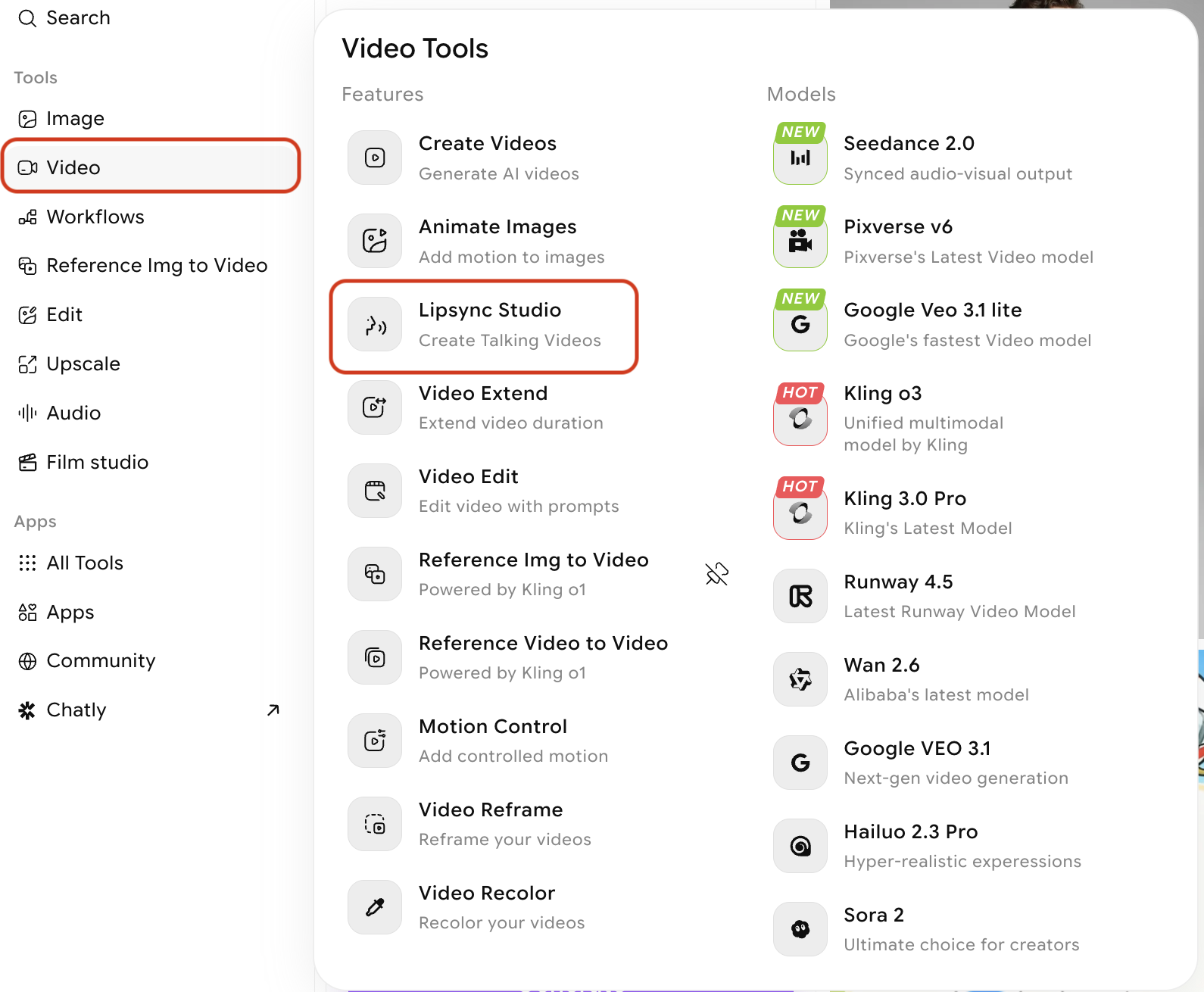
2
Choose a lipsync model
Select the model that best fits your project requirements. Each model offers different duration, resolution, and aspect ratio options.-2.avif?fit=max&auto=format&n=2i1lxqk1SMoBGaWs&q=85&s=2e769c94ca265b3ff1f1d122963abbf5)
3
Upload your image
Upload a clear photo or illustration of the face you want to animate. Select from your library of existing ImagineArt creations, or upload a new image.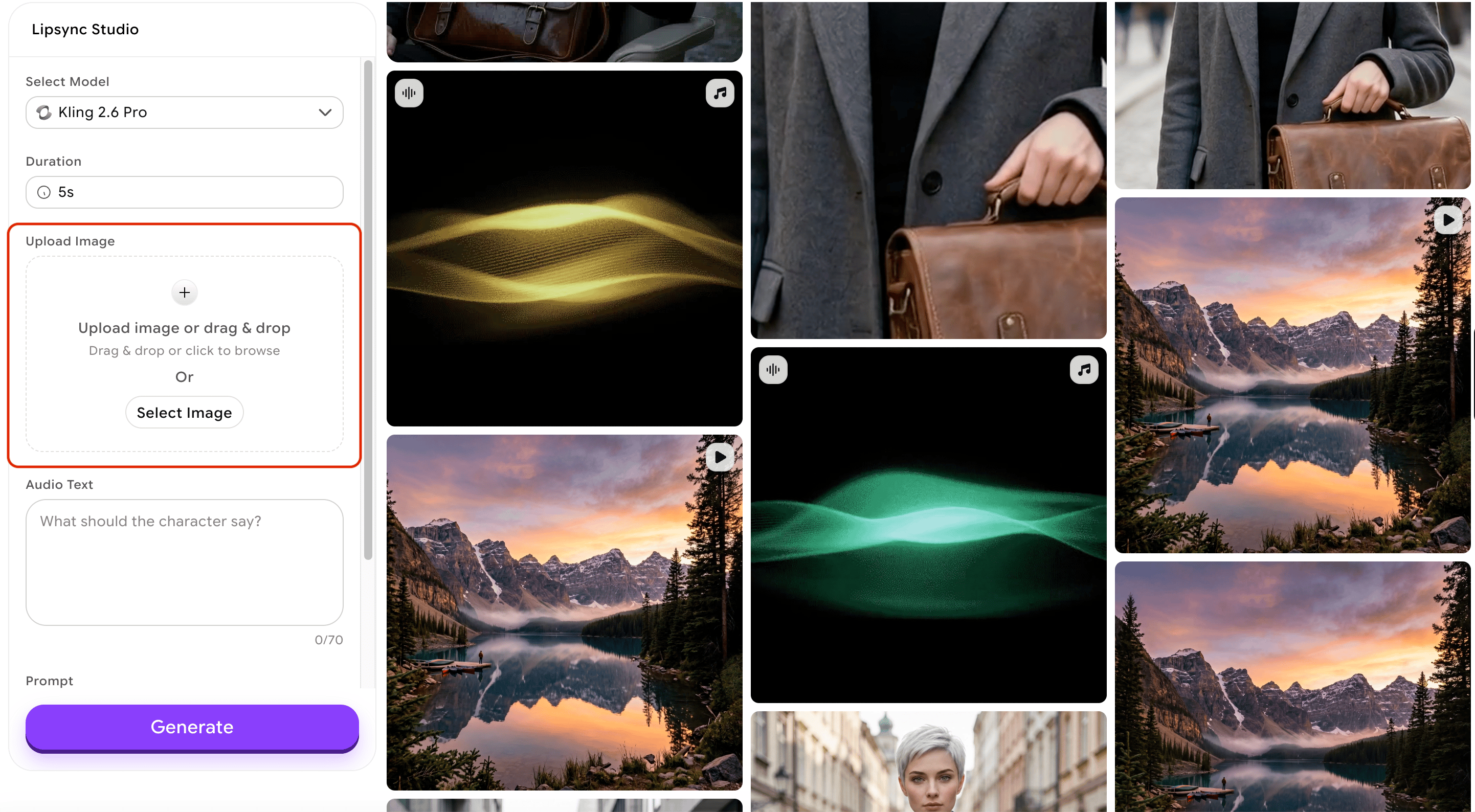
- Use a front-facing or near-front-facing portrait (slight angles are acceptable)
- Ensure the face occupies a significant portion of the frame
- Avoid heavy occlusion of the mouth area (scarves, masks, hands)
- Use a well-lit image with the face clearly in focus
- A clean or simple background produces cleaner output
4
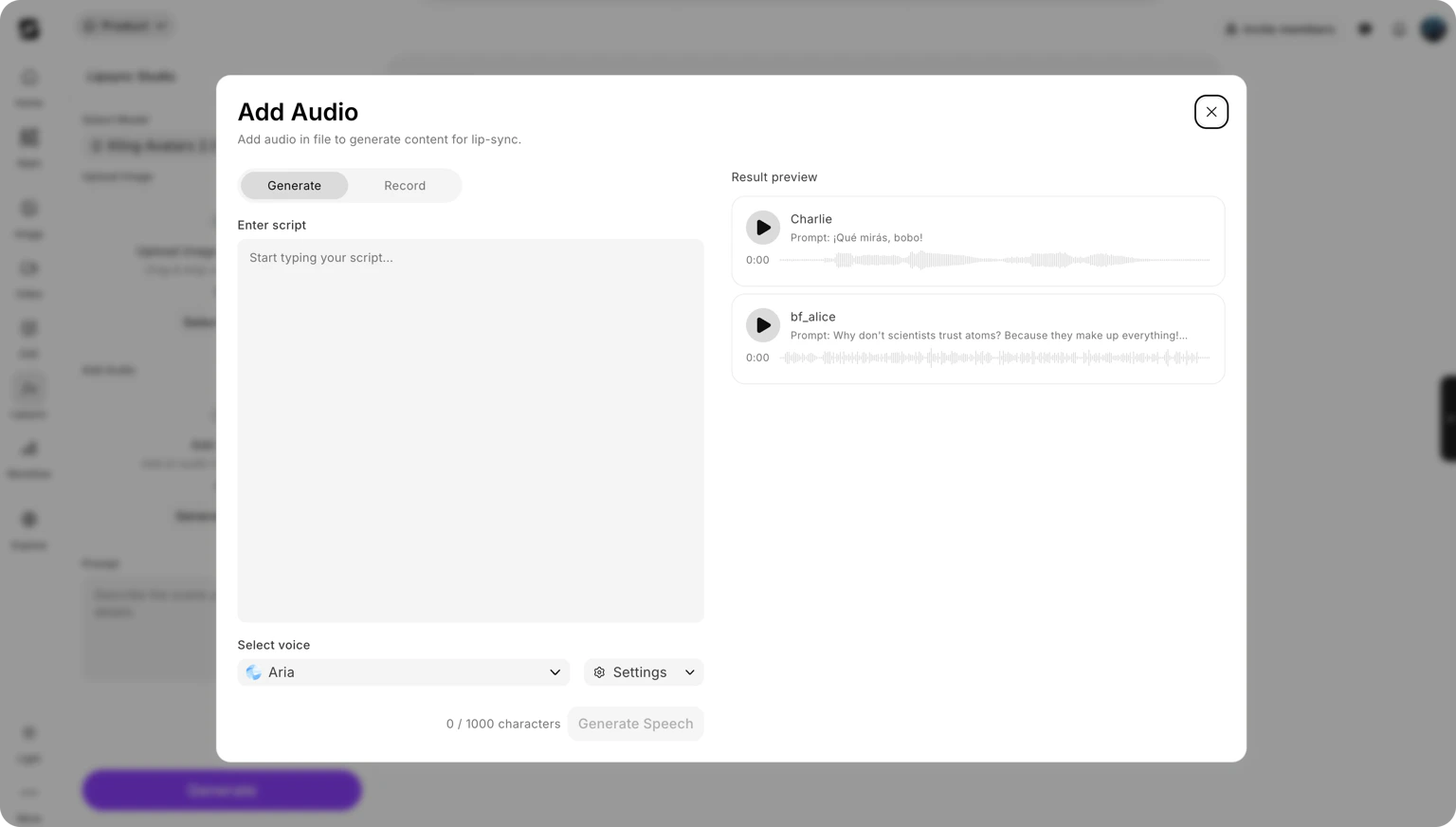
Provide audio or write your script
Depending on the model, you have two input options:
- Text to speech
- Upload audio
Type the script you want the avatar to speak. The model converts your text to speech using a built-in voice and syncs the facial animation to match. This option is supported by all lipsync models.
5
Describe the scene (optional)
Some models accept a text prompt alongside the image and audio. Use this to describe the context or setting, for example:
avatar speaking in a classroom or presenter delivering a keynote on stage. This can influence the generated background, lighting, and overall mood.6
Click "Generate"
Click Generate. The AI processes the image and audio or text, then produces a video with the avatar’s face animated to match the speech. Generation typically takes 30–60 seconds.
Tips for best results
- Use a high-quality source image. Blurry or low-resolution portraits produce less accurate facial animations. A sharp, well-lit photo at 512px or above gives the model more detail to work with.
- Keep audio clear and clean. Audio with background noise, music, or multiple overlapping voices can confuse the sync algorithm. Use isolated speech recordings when possible.
- Match duration to content. Choose a model duration that fits your script length. If your script is 4 seconds of speech, selecting a 10-second model will result in silence or padding at the end.
- Front-facing portraits perform best. Profiles and severe three-quarter angles reduce the quality of lip movement mapping. The more of the front of the face that is visible, the more accurate the animation.
- Simple backgrounds reduce visual artefacts. Busy or complex backgrounds can sometimes show distortion around the face boundary. Solid or blurred backgrounds produce cleaner-looking output.
What to do next
Create Videos
Generate video from text prompts to create the source clip you want to lipsync.
Edit Video
Change the background, lighting, or environment of an existing video.
Extend Video
Add 5 more seconds of content to the end of your video.
Video Credits
Understand how credits are consumed for lipsync generations.