

How to use Starting Frame
1
Open Video mode
Navigate to Video Studio from the left sidebar
2
Select the Starting Frame mode
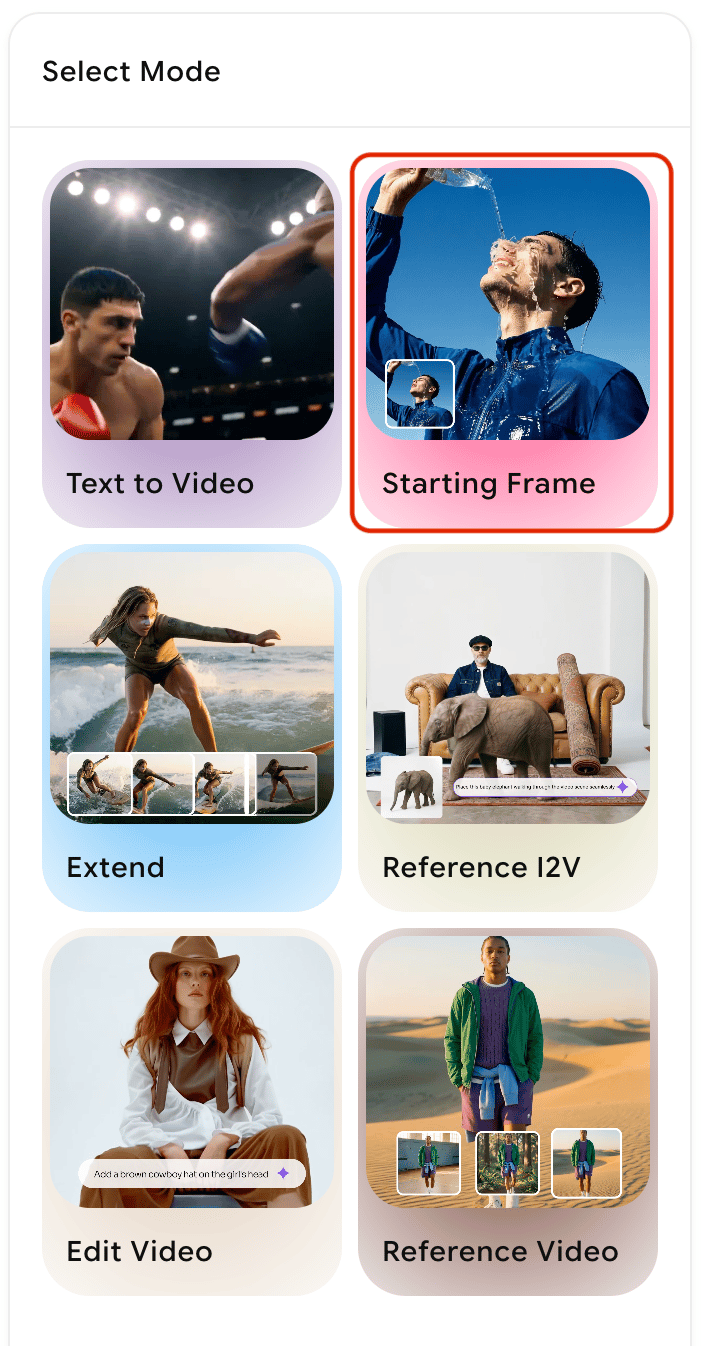
3
Upload your start frame
Upload the image you want the video to begin from. This image defines the opening scene — the AI uses it as a precise anchor and builds outward from this frame.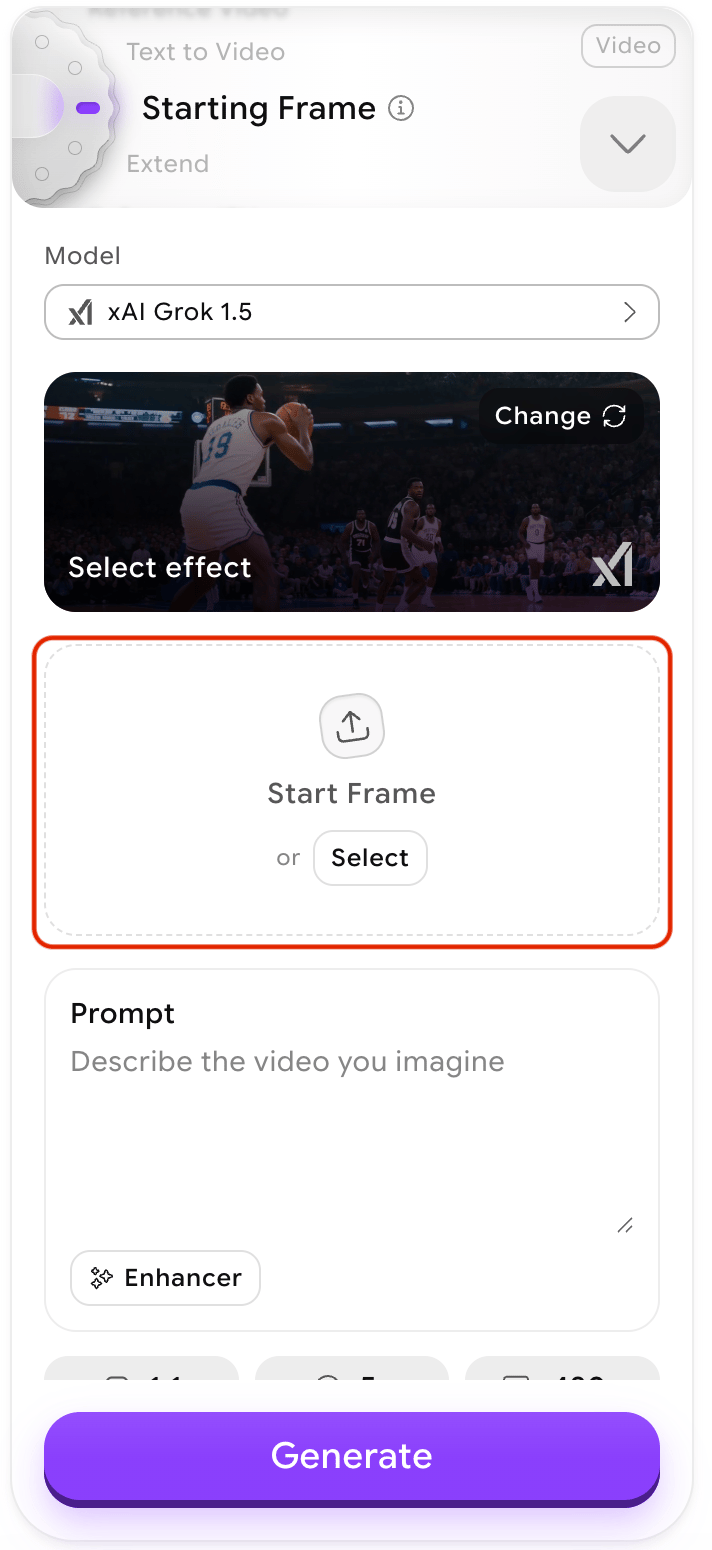
- Use a high-resolution image (minimum 300px on the shortest side)
- Prefer JPG, JPEG, PNG, or WEBP formats
- Keep the file under 10 MB
- Choose images with clear subjects and unambiguous composition
4
Upload an end frame (optional)
If you want to control where the video ends, upload a second image as the end frame. The model will generate the transition between your two images, interpolating motion, lighting, and perspective changes to create a coherent sequence. This option is available only with specific models and if you cannot find an option to upload your end frame, try changing the model selected.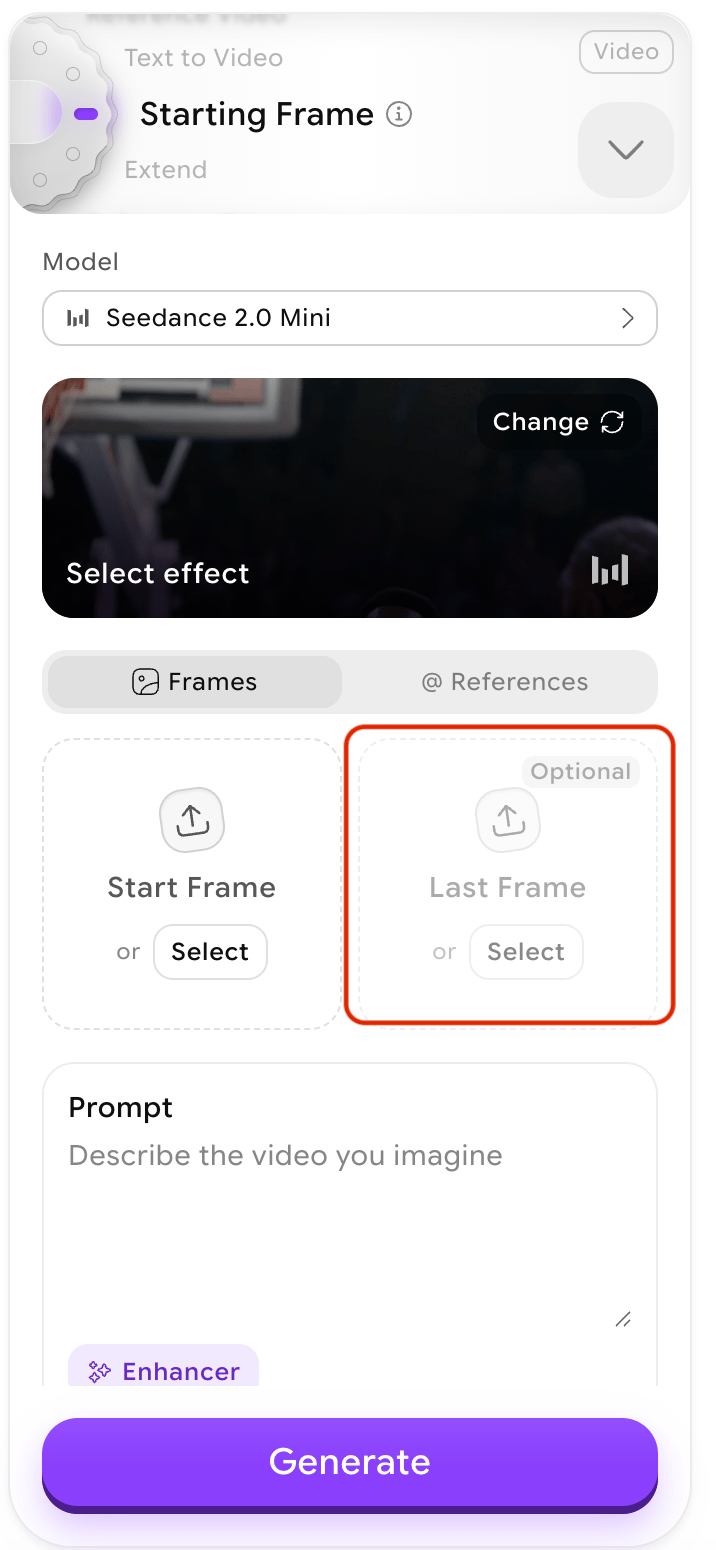
5
Configure settings
Select the aspect ratio, duration, and resolution that match your output requirements. The available options depend on the model you choose.Not all models support end frames. Models that do are marked with Start/End frame in the credit consumption table.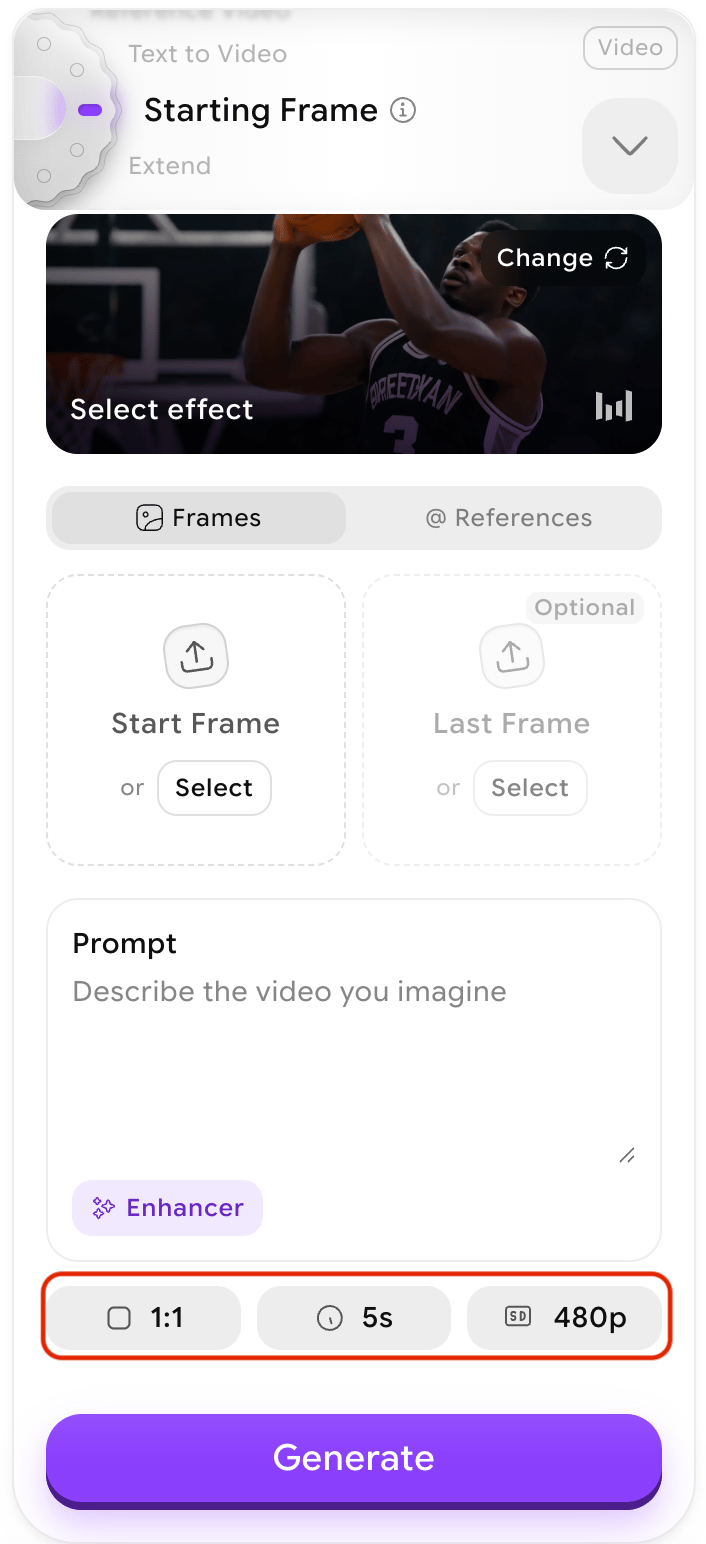
6
Generate the video
Click Generate. The AI produces a video that transitions smoothly from your start frame, and to your end frame if provided. Generation typically completes within 30–60 seconds.
Example use cases
Scene transitions
Scene transitions
Use a daytime landscape as the start frame and a night version of the same scene as the end frame. The model generates a natural time-lapse-style transition, shifting light, shadows, and atmosphere across the clip.
Object and character movement
Object and character movement
Upload a still of a character or vehicle and use a text prompt alongside the image to describe the intended motion — for example, “a racing car accelerating from a standing start.” The AI animates the subject based on both the visual and descriptive inputs.
Artistic flow
Artistic flow
Use two images with different lighting or compositional states to create an abstract visual journey. Gradual shifts in colour, background detail, or perspective can produce compelling artistic animations with minimal effort.
Supported input formats
Image to Video uses the same video models as Text to Video. Each model has different support for start-only vs start-and-end frames. Check the tooltip in Video mode or the credit consumption page to confirm what a specific model supports before uploading.
What to do next
Reference to Video
Use multiple reference images to guide the style and content of a new video, rather than defining start and end frames.
Extend Video
Add 5 more seconds to the end of your generated clip.
Video Effects
Apply cinematic VFX effects to your animated output.
Video Credits
See how credits are calculated for Image to Video generations.