

- Motion Transfer: Extracts the motion from the reference video and applies it to your subject.
- Object Swap: Keeps the reference video and swaps a person or object in it for the one in your images.
How to remake a video
1
Open Viral Remake
Go to Video Studio and select Viral Remake under Choose a Mode.
2
Pick a preset (optional)
The Presets panel opens next to the settings. Click a preset, such as Store Exit Dance or Paris Street Walk, to load its reference video, sample image, and prompt, and switch to the mode it uses. Click Change to browse the presets again, or Reset preset to clear it.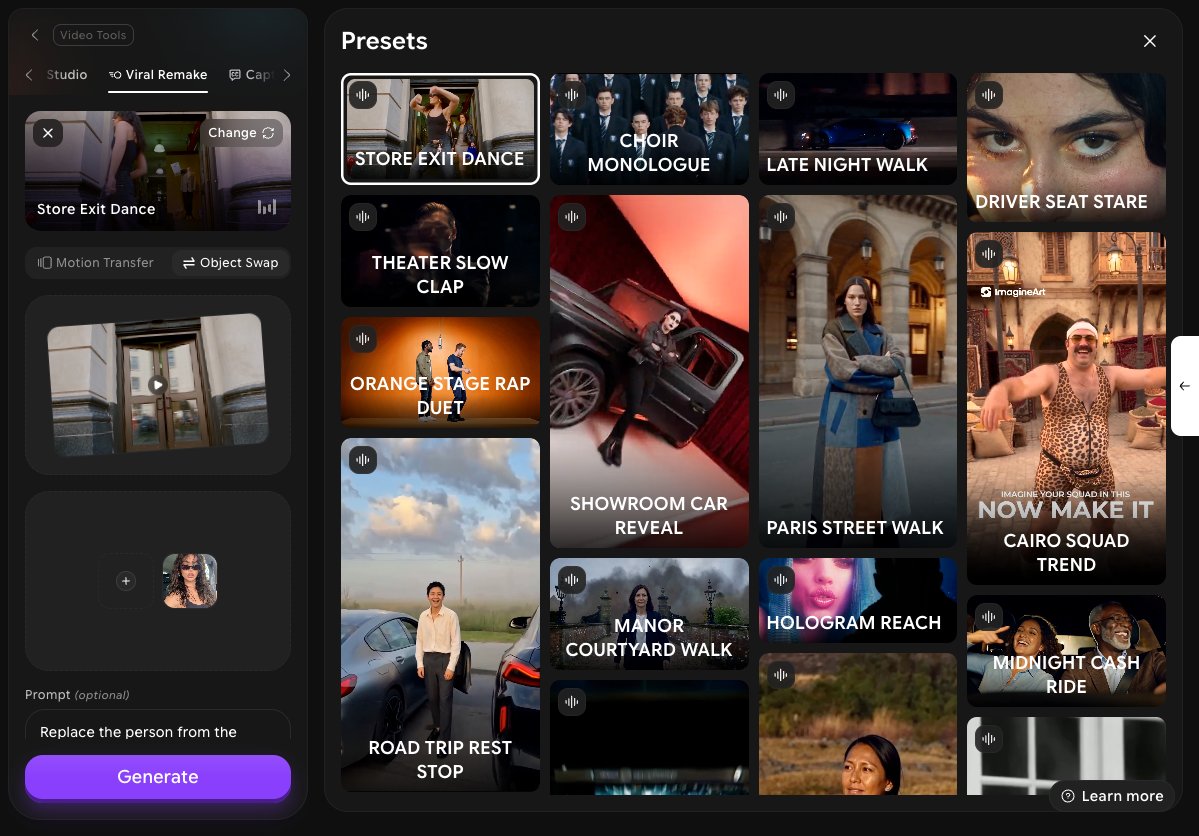
3
Choose a mode
Select Motion Transfer or Object Swap.
4
Add your reference video
Click the video box and upload the video you want to remake. The video must be 4–30 seconds long. If you picked a preset, click Replace to use your own video instead.
5
Add your characters, products, or clothes
Click the image box under the video and add up to 30 images of the subject you want in the remake. Click Add more to add further images, or Replace and Remove to change them.
6
Describe the scene (optional)
Under Prompt (optional), describe what you want, such as “the character from @Image1 dancing on a rooftop”. Type @ to refer to the images or videos you attached.
7
Set the quality and generate
Choose a Quality: 480p, 720p, or 1080p. Hover over Generate to see the credit cost, then click Generate. Your video appears in History when it’s ready.
What to do next
Captions
Add styled captions to your remake before you post it.
Video Upscale
Increase the resolution of your video.