

Credit costs are updated regularly as new models are added and pricing changes. The tooltip in Video mode is always the authoritative source — check it before generating if you want to confirm the exact cost for your current settings.
How to check credits before generating
1
Hover the model name
In any Video mode, click on the model dropdown and all video models display base credit cost 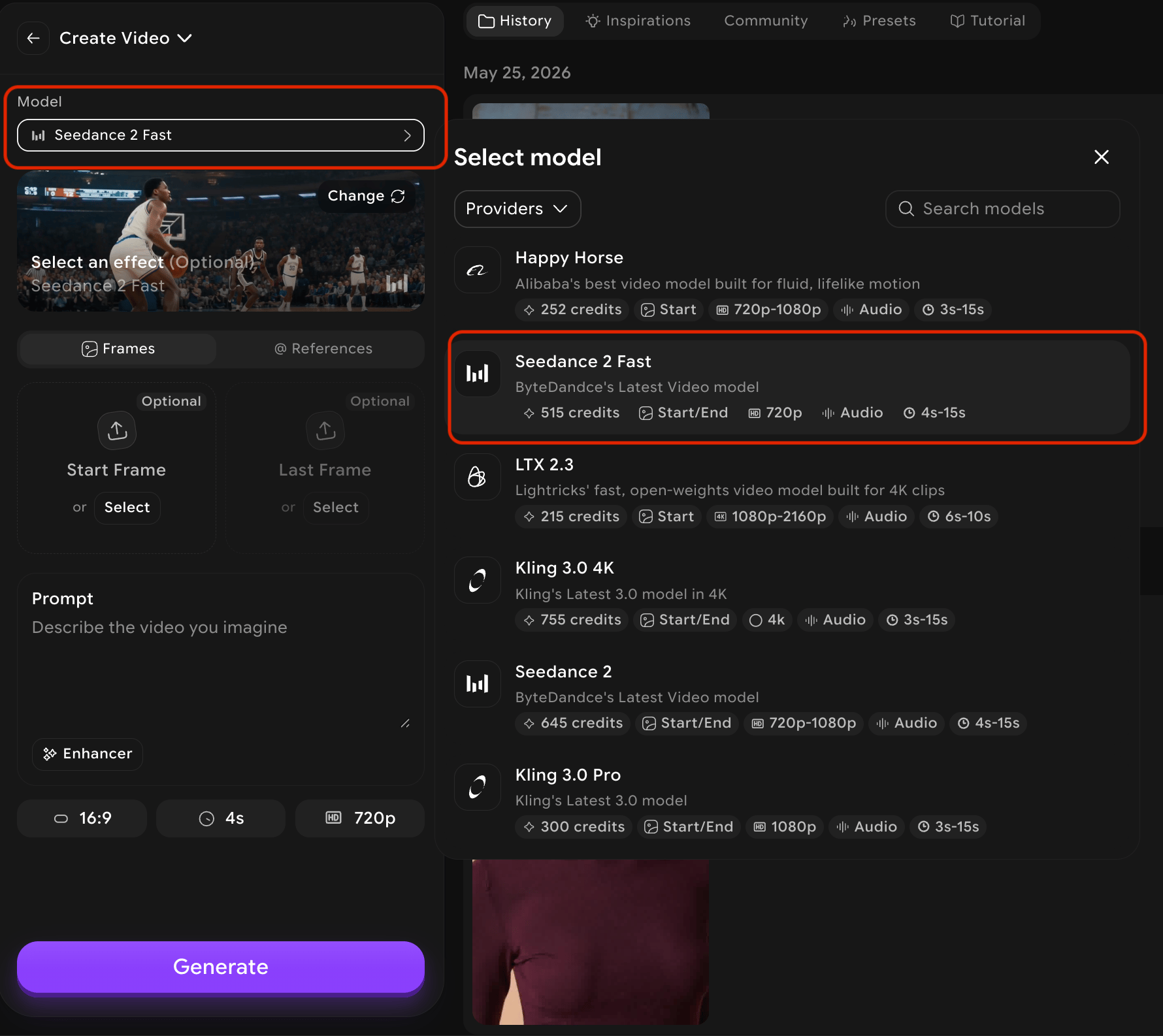
2
Adjust your settings
Select your desired options. The following settings can change the total credit cost depending on the model:
- Duration — longer videos cost more credits
- Resolution — higher resolutions (720p → 1080p → 4K) increase cost
- Generate Preview — creates preview frames before the final video, adding to the total
- Prompt enhancer — AI-assisted prompt improvement may consume additional credits
3
Hover the Create button
Hover over the Create button (or Preview, depending on the mode) to see the total credits for your exact current settings before you commit.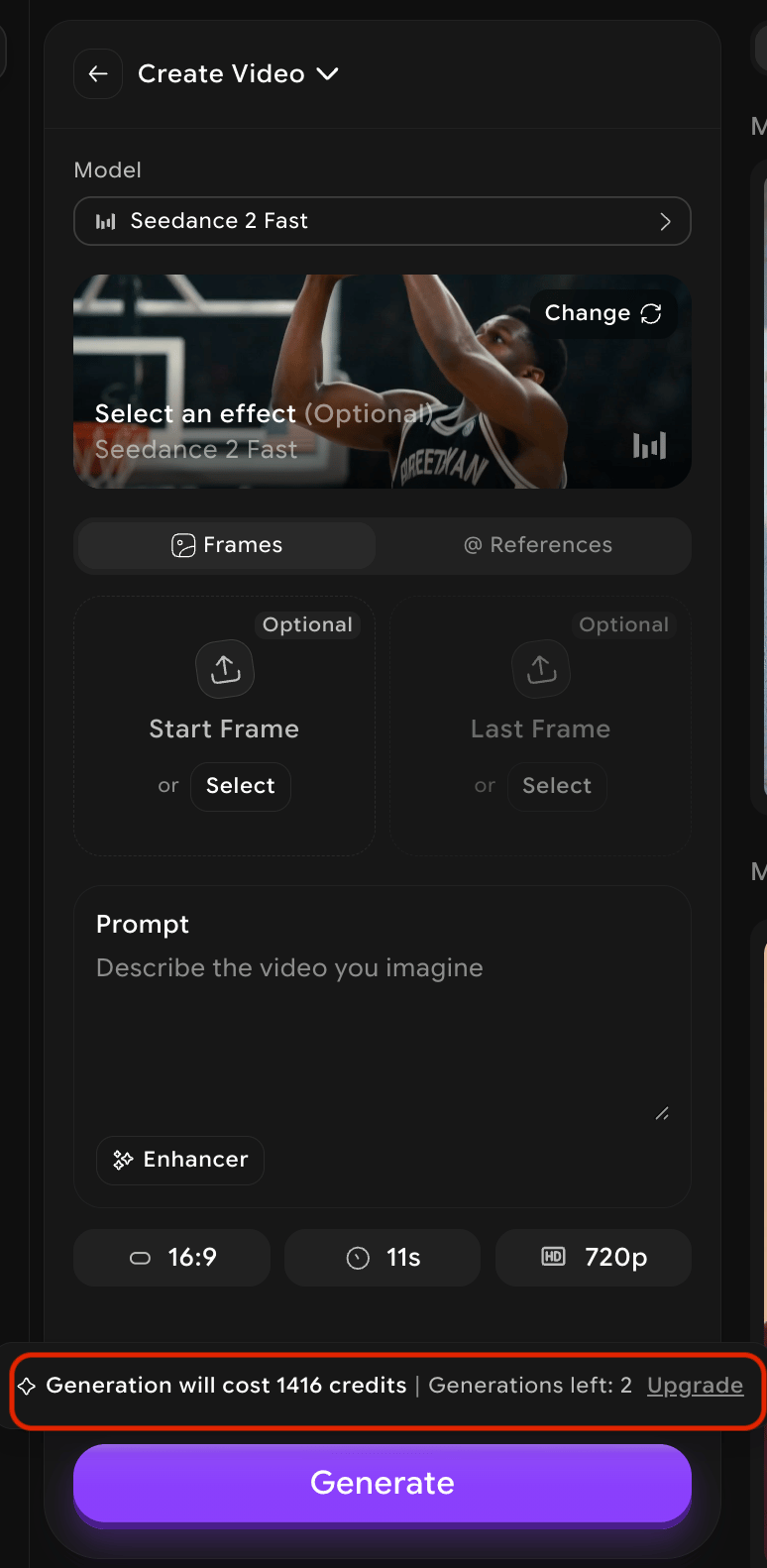
Base cost vs total cost
Base cost is the starting price for a model at its minimum duration and default settings. Total cost increases when you select longer durations, higher resolutions, or optional features like preview generation. Use the base cost table below to compare models, then use the in-app tooltip to confirm the exact cost for your specific configuration.Image to Video — base credit costs
Credits shown are the base cost for generating 1 video at the model’s minimum duration. The table lists the 37 models in the Create Video model picker, in picker order, as of October 2026.Other video modes
These modes use different inputs and have their own credit structures.Factors that affect credit cost
For a full explanation of how credits work, see Understanding Credits.