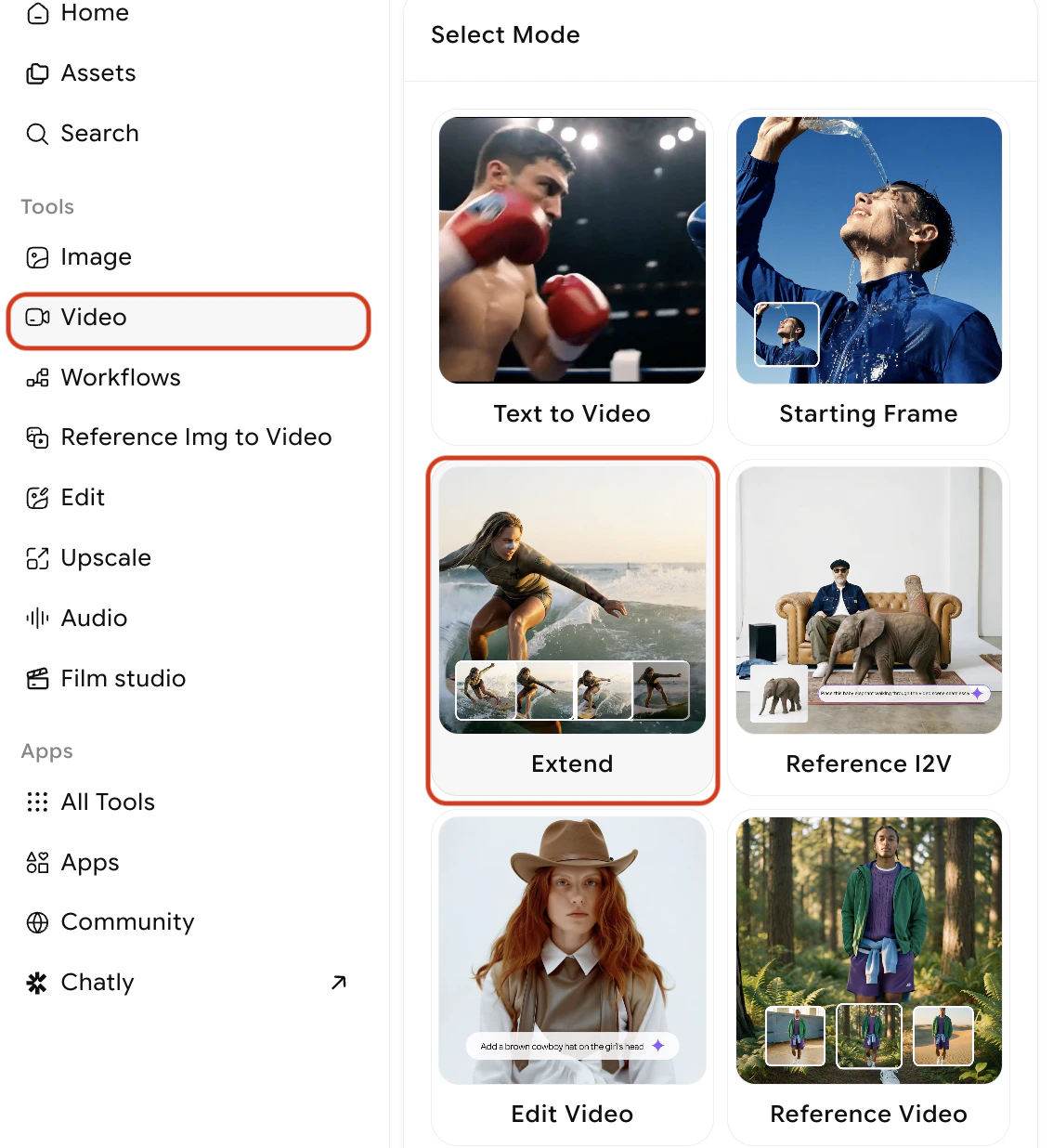
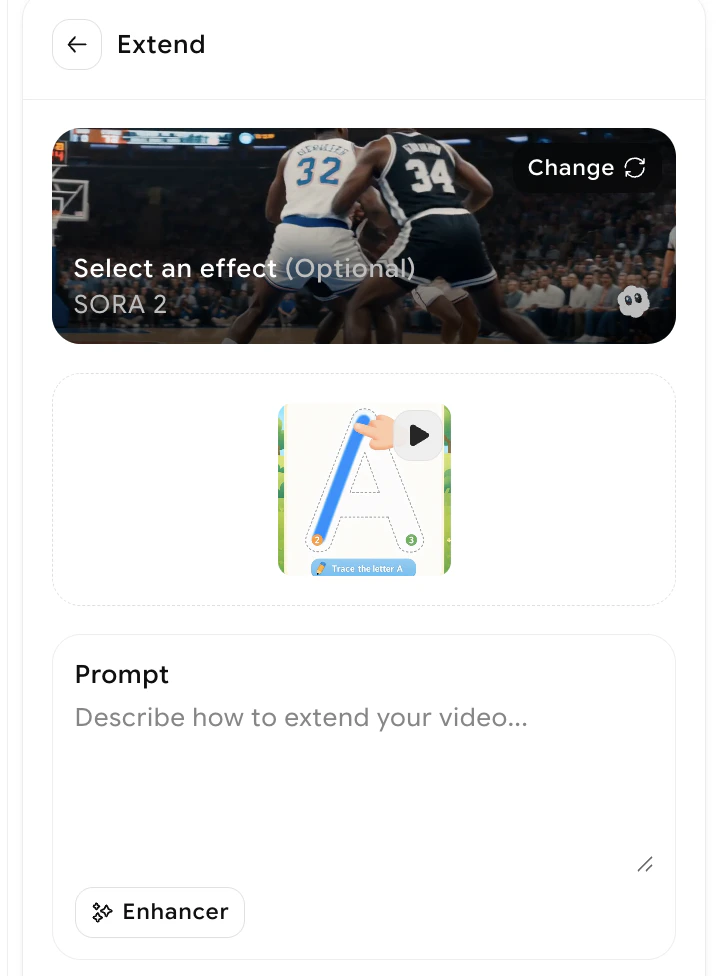
Video Extend adds 5 seconds of new content to the end of an existing generated video. You can let the AI continue the clip naturally in Auto mode, or write a prompt in Manual mode to direct exactly what should happen in the extension.
Video Extend is available only on videos you have generated in ImagineArt. It uses the same model that produced the original clip, so the extended footage maintains visual consistency with the original.

How to extend a video

1

Open your video from creations

Go to your creations and find the video you want to extend. Hover over the video thumbnail or open the video detail view to reveal the available actions.
2

Select the Extend option

Click Extend on the video. This opens the extension settings panel, where you choose between Auto and Manual mode.
3

Choose Auto or Manual mode

Select Auto to let the AI continue the video without any additional input. The model analyses the last frames of your clip and generates a natural continuation that maintains the same scene, motion, and style.Auto mode is best when:
  • The existing video has clear, ongoing motion that should continue (e.g. a camera pan, a walking character, flowing water)
  • You want a quick extension without writing a prompt
  • The visual content at the end of the clip provides enough context for the AI to continue coherently
4

Generate the extension

Click Generate. The AI produces the 5-second extension and appends it to your original clip, delivering a combined video as the output.

Limitations

  • Each use of Video Extend adds exactly 5 seconds to the video. The extension length cannot be changed.
  • Video Extend uses the same model as the original generation. You cannot switch to a different model for the extension.
  • You can extend a video multiple times by running Extend again on the extended output. This allows you to build up longer clips in 5-second increments.
  • Credit cost for extending is based on the same model and settings used in the original generation. See Video Credits for details.
Very long sequences built from multiple extensions may show increasing visual drift or inconsistency between segments, as each extension is generated independently from the previous clip’s final frames. For best results, keep total extended length reasonable relative to the original clip length.

What to do next

Edit Video

Change specific elements in your video using a text description.

Video Effects

Apply VFX effects to a generated or extended video.

Lipsync

Add talking-avatar lip animations to your clip.

Video Credits

Understand how credits are calculated for Video Extend.