

What you can edit
Objects
Add, remove, or replace characters, props, or items anywhere in the scene. Remove distracting elements cleanly without visible artifacts.
Environments
Swap the background or relocate the scene entirely — from a city street to a forest, from an office to an open field.
Lighting and time of day
Shift the lighting mood (sunset, dawn, overcast), change the time of day, or adjust colour temperature and shadow intensity.
Weather and atmosphere
Add atmospheric effects such as falling snow, rain, fog, or heat haze. Create dramatic environmental changes from a single description.
Style transfer
Apply a new visual style to the entire video — convert footage to look like a painting, sketch, or cinematic grade.
Camera angle
Alter the camera’s perspective, tilt, or zoom to change the viewpoint of a scene without reshooting.
How to edit a video
1
Open Video mode and select Edit Video
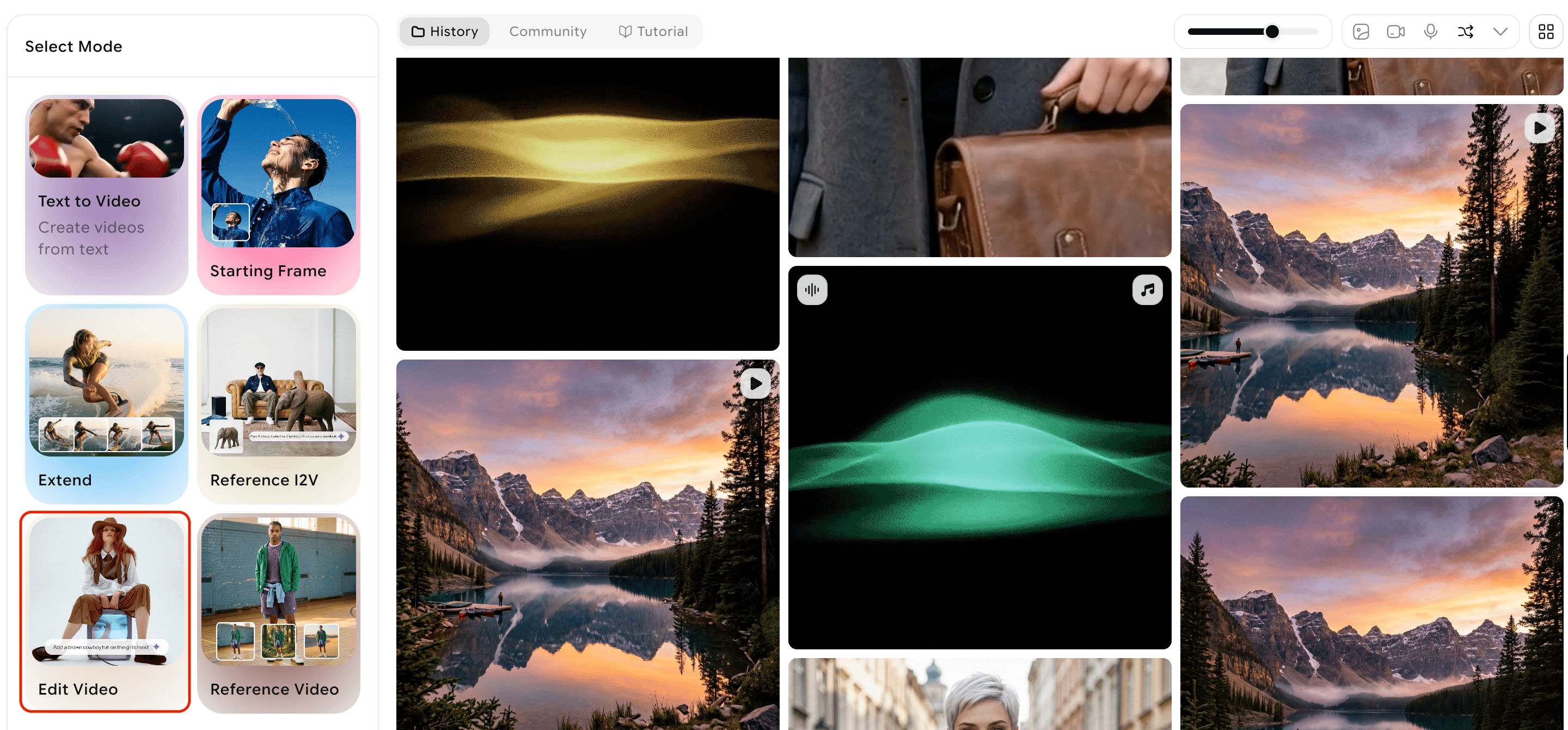
2
Upload your video
Upload the video clip you want to edit.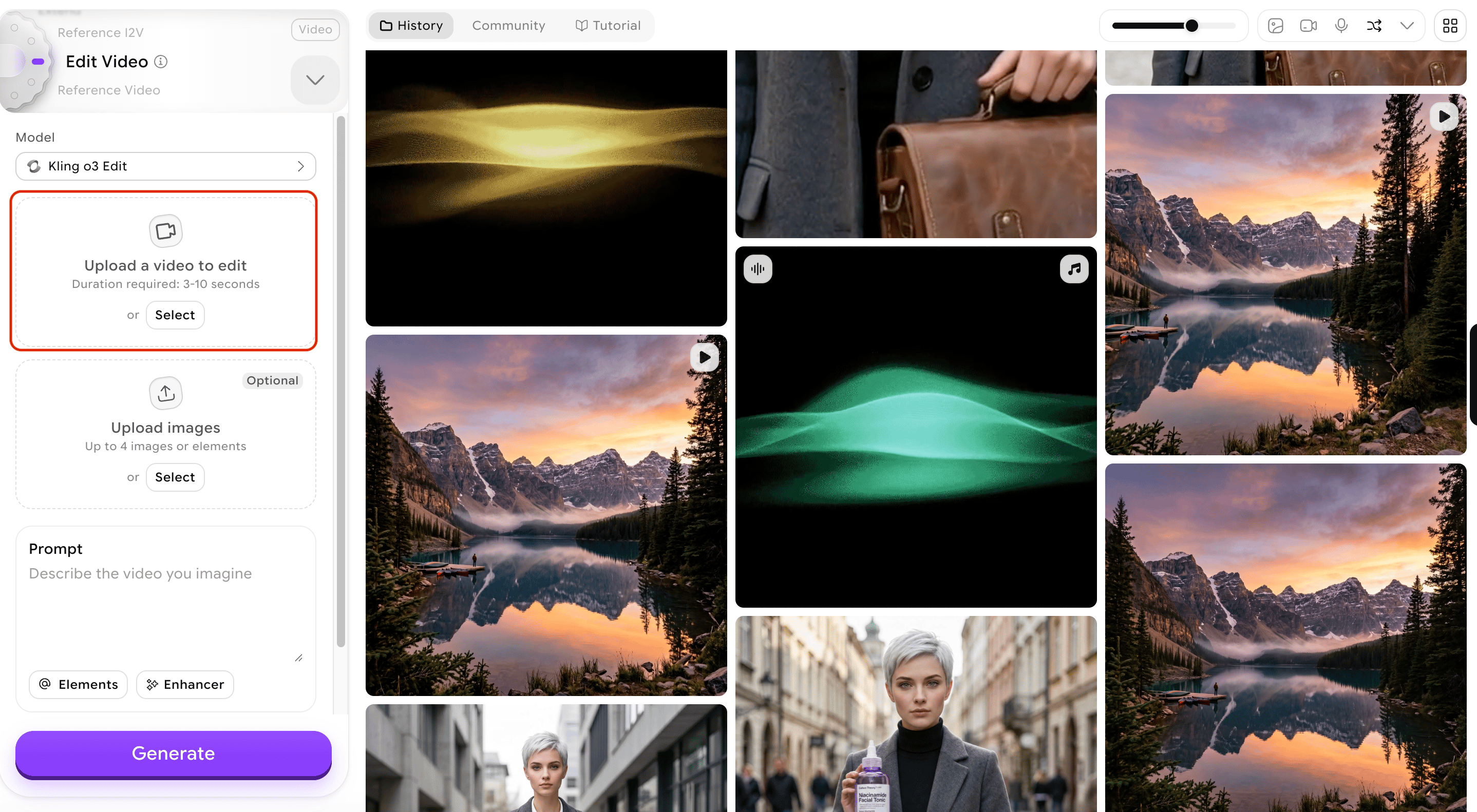
- Duration: 3–10 seconds
- Maximum file size: 200 MB
- Maximum resolution: 2K
3
Describe your edit
Write a clear, specific natural language command describing the change you want to make.Example edit prompts:
Remove all cars from the street and change the time of day to sunsetAdd snow falling in the backgroundReplace the concrete wall with a dense forestChange the lighting to a warm golden hour glowApply a vintage film grain style to the entire video
4
Add reference elements (optional)
You can upload up to 4 reference images or elements alongside the video to guide how new content should look. For example, if you want to replace a character’s outfit, upload a reference image of the target clothing style.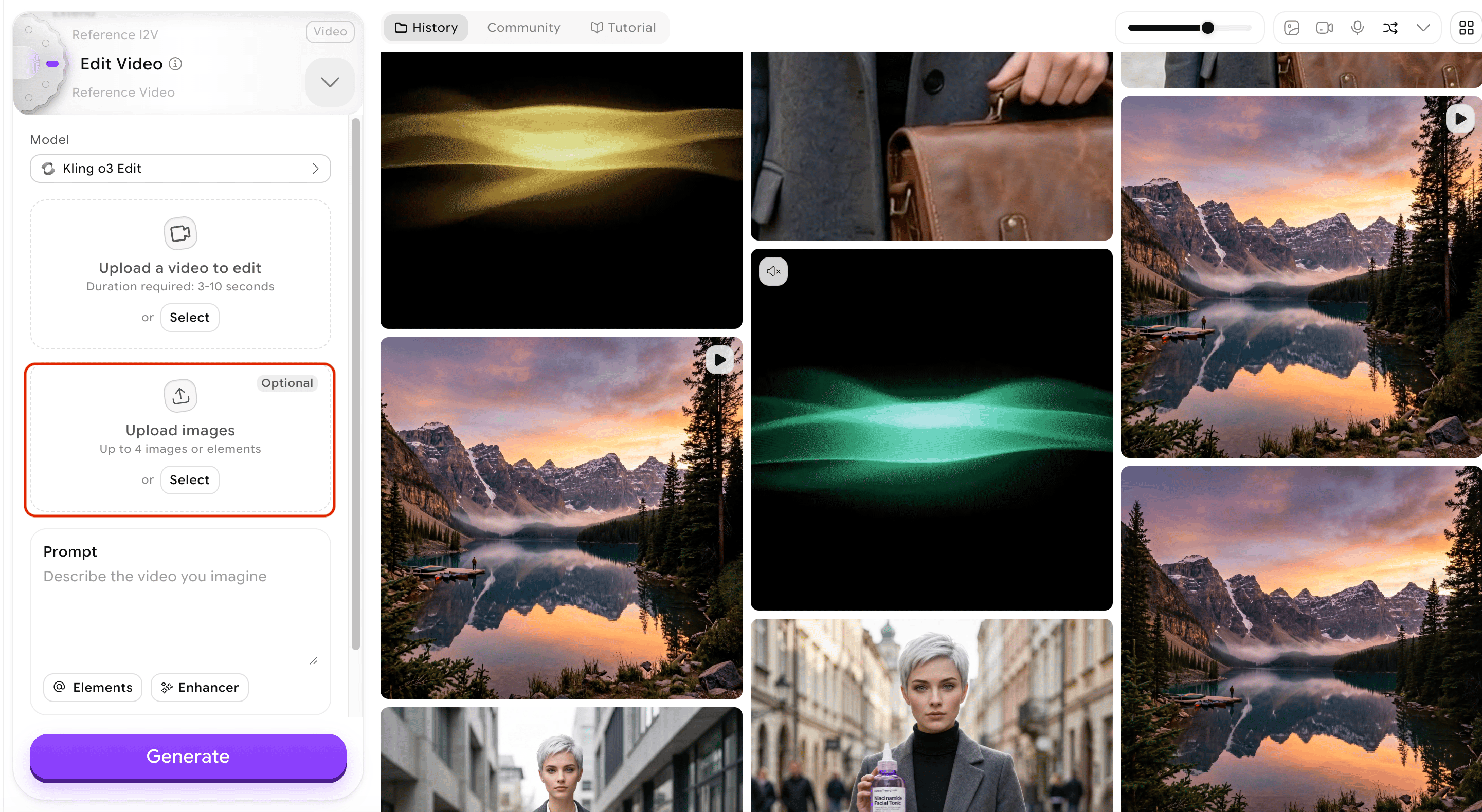
When a video is present, you can upload up to 4 images or elements combined. Without a video, you can upload up to 7 images or elements.
5
Set parameters
Choose the video duration, resolution, and output format for the edited result.
6
Generate the video
Click Generate. The AI applies your described edits to the uploaded video while preserving the elements you haven’t asked to change, maintaining subject consistency throughout the clip.
Supported input media
What to do next
Video Extend
Add 5 seconds of new content to the end of your edited video.
Reference to Video
Generate a new video from scratch using reference images to guide appearance.
Lipsync
Add talking-avatar lip movements to a video using audio or text.
Video Credits
See credit costs for Edit Video generations.