

How to upscale a video
1
Open Video Upscale
Click Upscale in the left sidebar, then select Video Upscale under Choose a Mode.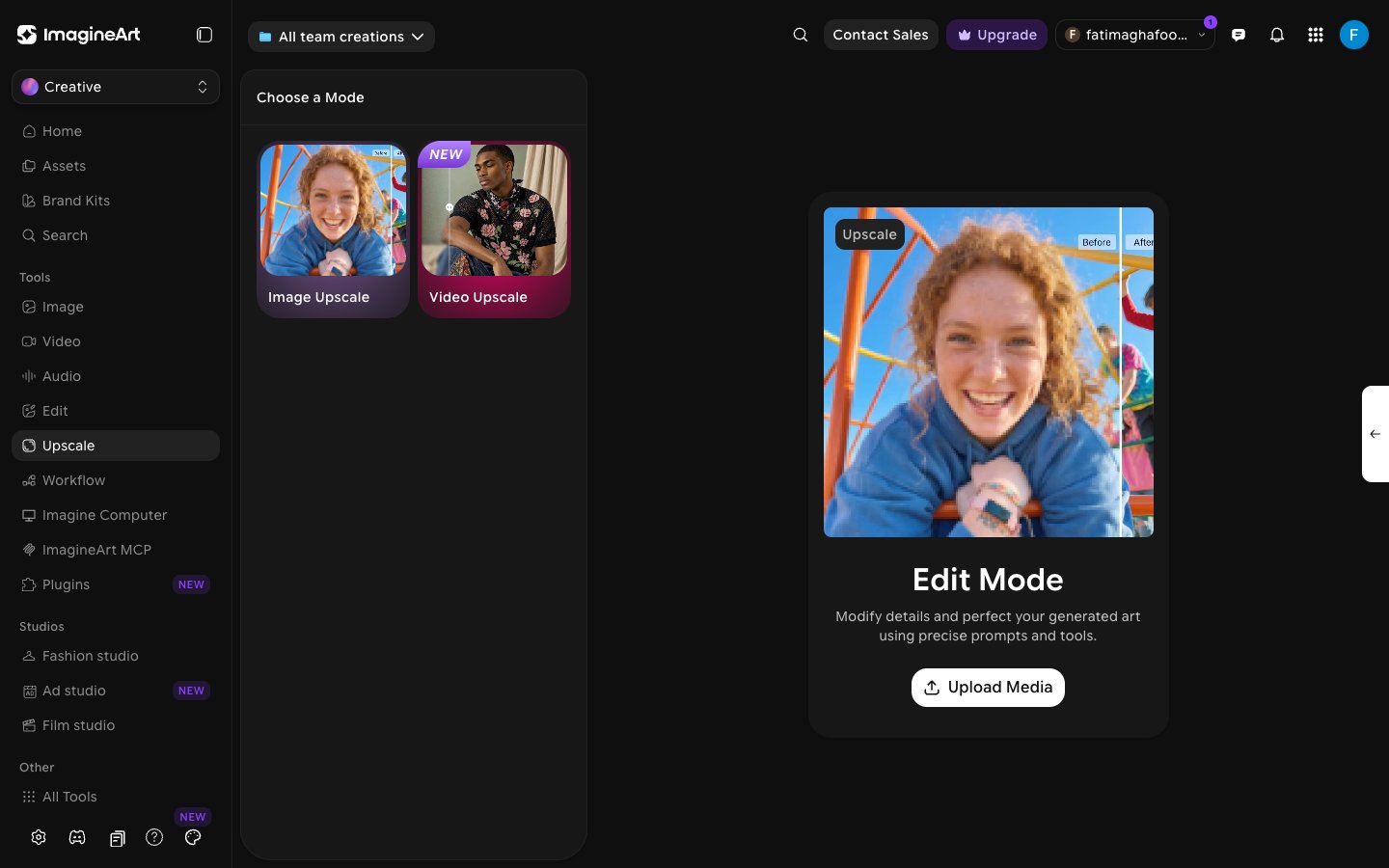
2
Add your video
Under Video, click Upload video or drag & drop. You can choose a video from your Uploads or Creations, or upload a new MP4, MOV, or WEBM file up to 100MB.
3
Select a model
Open the Select model dropdown and choose a model: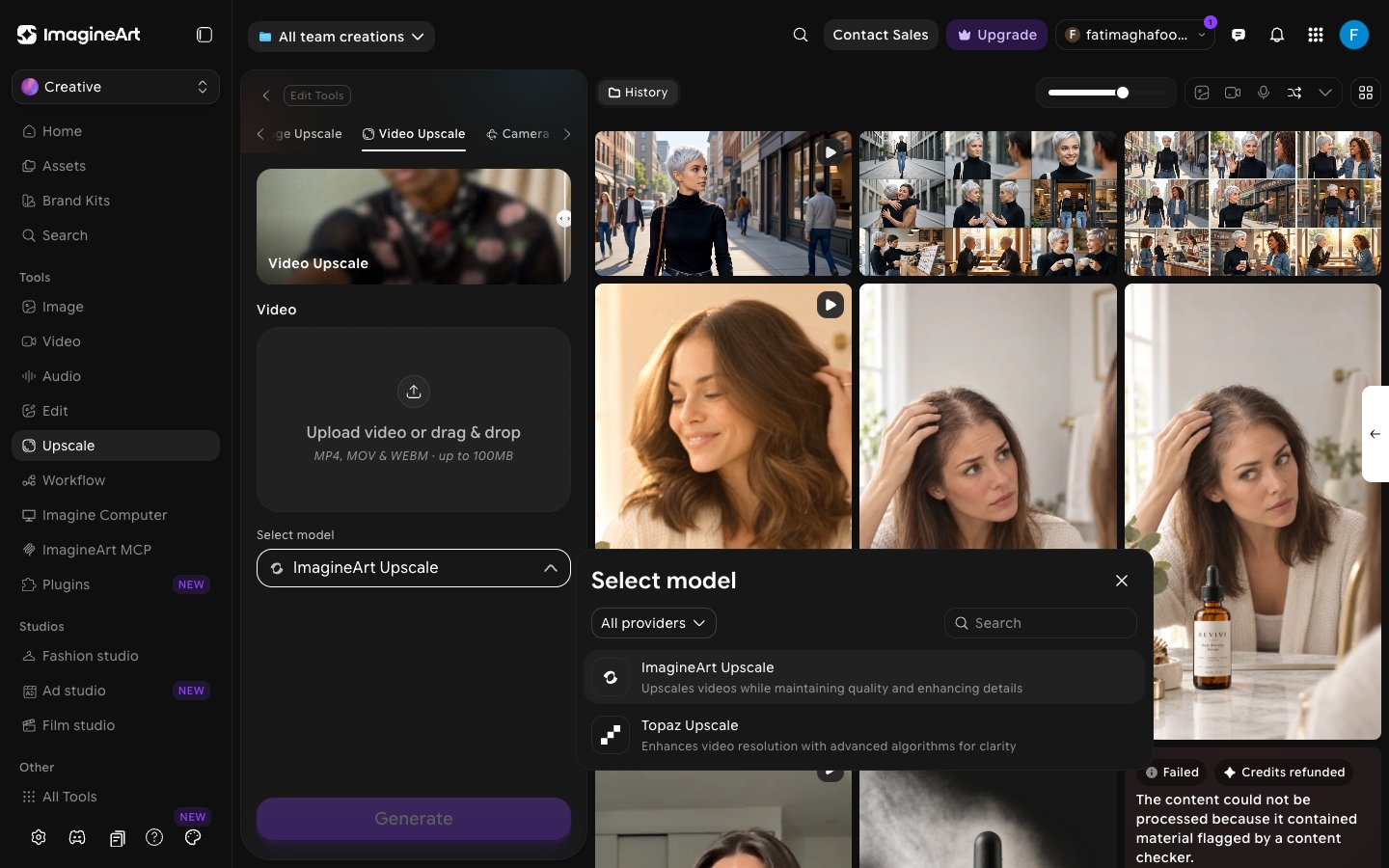
- ImagineArt Upscale: Upscales videos while maintaining quality and enhancing details.
- Topaz Upscale: Enhances video resolution with advanced algorithms for clarity.
4
Adjust parameters (Topaz Upscale)
When you select Topaz Upscale, a Parameters section appears: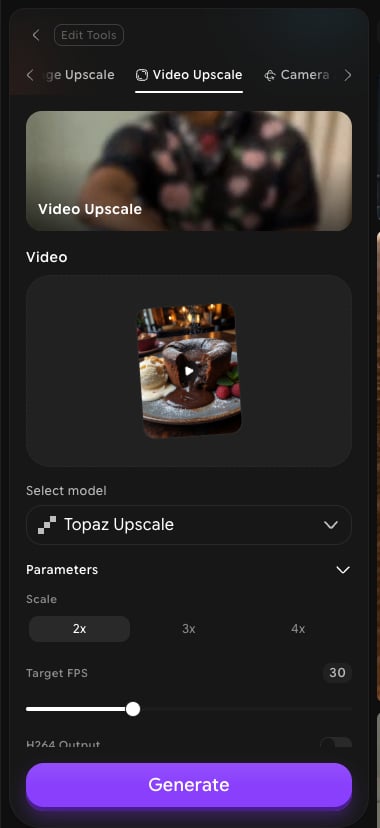
ImagineArt Upscale has no extra parameters.
5
Generate
Hover over Generate to see the total credit cost for your settings, then click Generate. The upscaled video appears in History.
You can also upscale videos inside a workflow with the Upscale Video node.
What to do next
Auto Clipper
Turn a long video into short, ready-to-post clips.
Video Credits
Learn how credits are calculated for video tools.