1
Browse by concept, before you open an editor
On the Fashion Studio landing page, scroll to Generate across formats and filter by All, Brand, Outfit styling, E-commerce, or Influencers. Each filter shows a curated set of named looks (e.g. “Urban Sport,” “Parisian Rooftops”) built around a mood or use case rather than a specific model.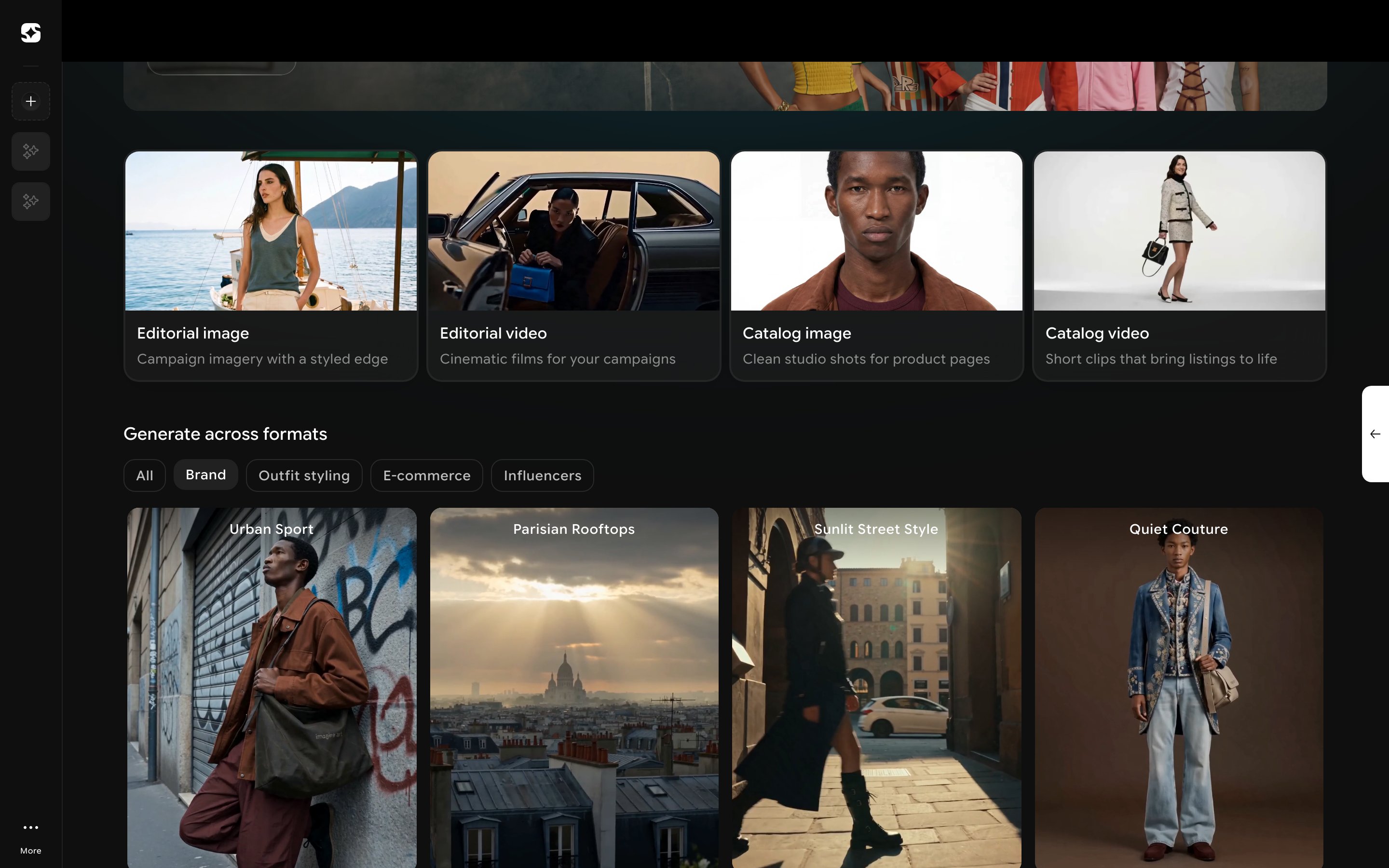
2
Or browse by model, from inside the editor
Once you’re in an Editorial or Catalog Shoot editor, click the Templates tab above the results. This opens a much larger Generate across formats gallery — hundreds of looks — organized by individual model persona rather than use case, filterable only by All, Female, or Male.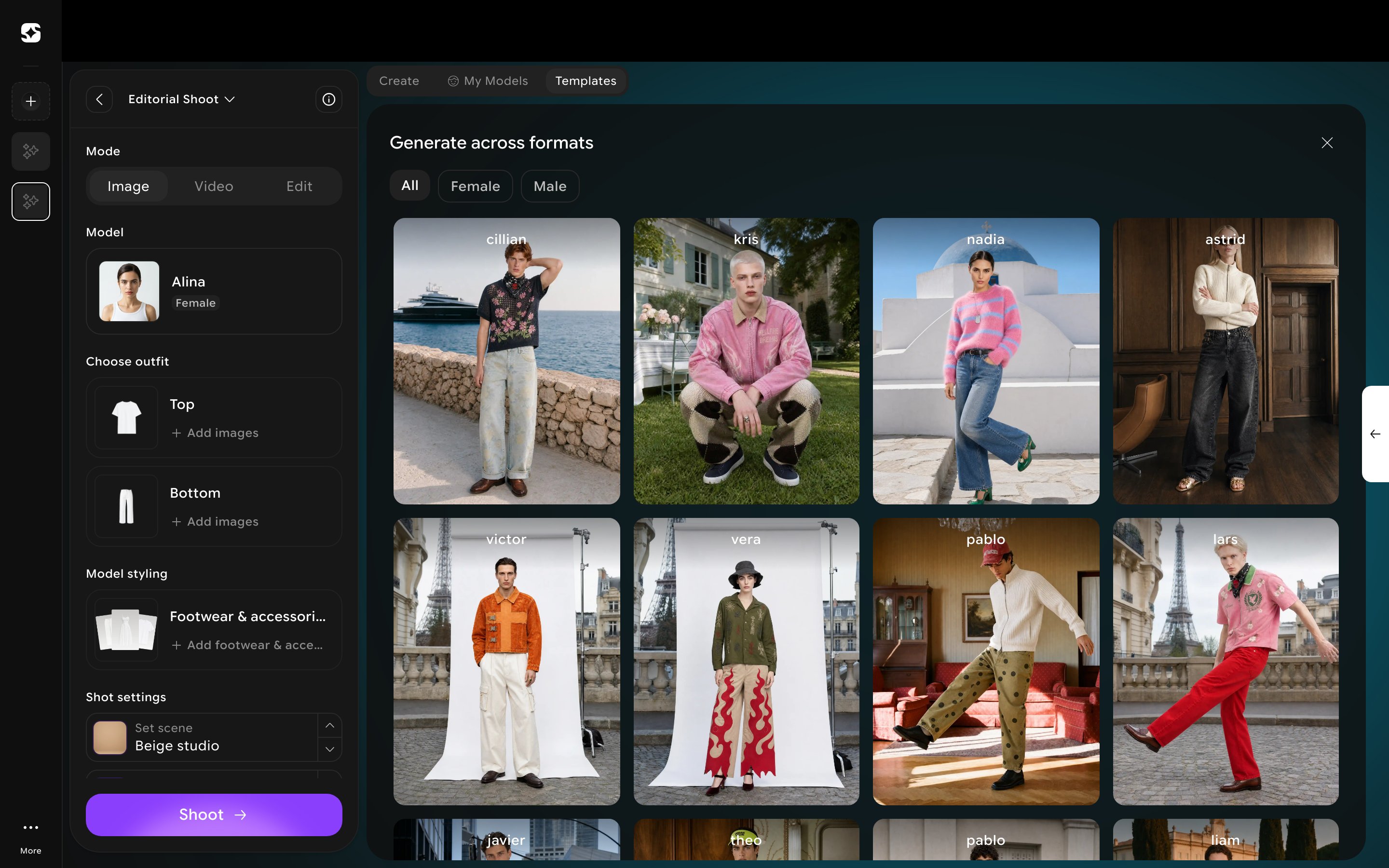
3
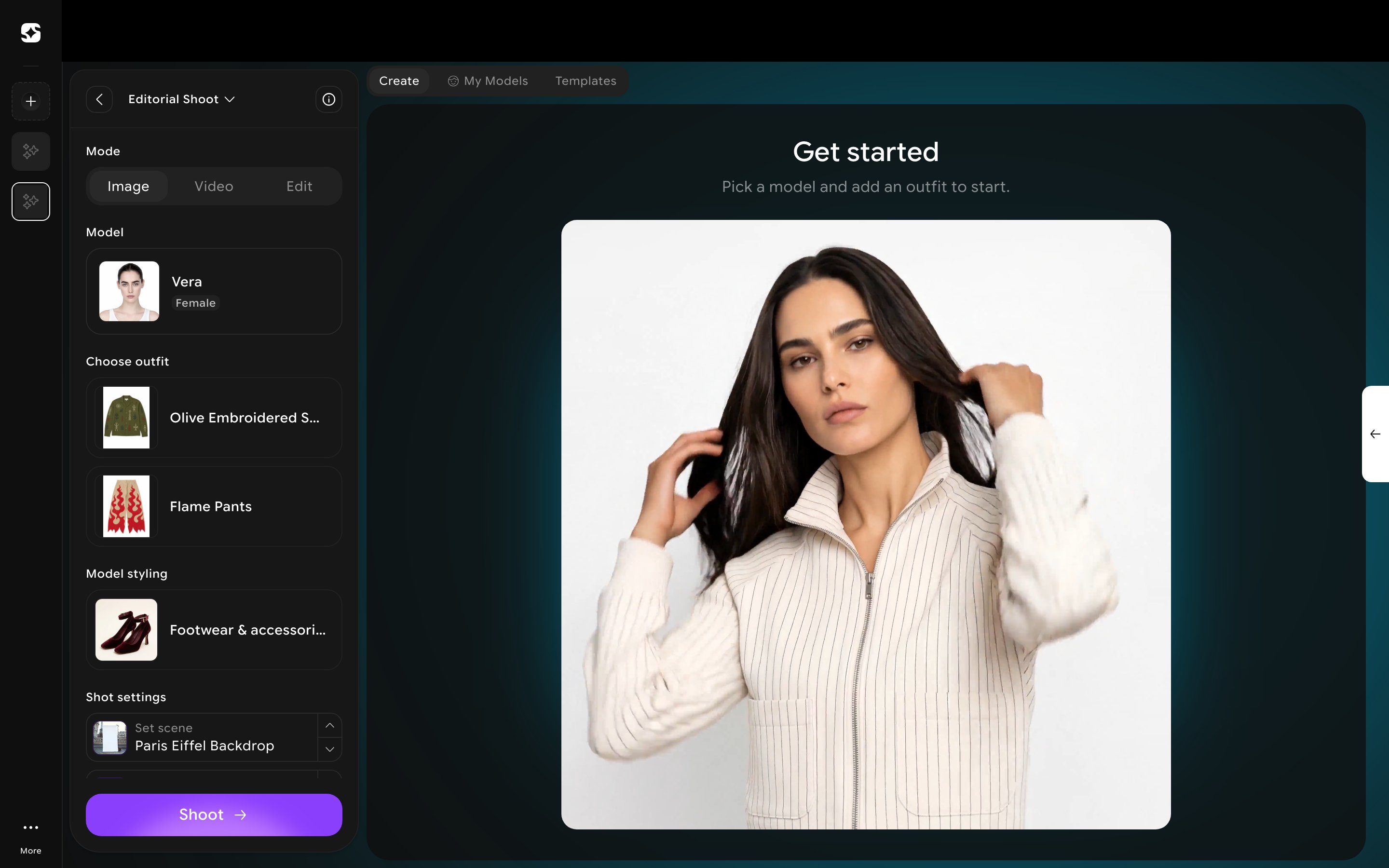
Pick one to generate from directly
Click any template card. There’s no preview or confirmation step — it immediately switches to the Create tab with the model, outfit, footwear, and scene all filled in to match, ready to click Shoot as-is or tweak first.