

The home screen
1
Open Imagine Computer
Go to imagine.art/computer, or click Agent in the switcher at the top of ImagineArt Home. You’ll land on the Agent home: a greeting, the prompt box, and a row of prompt suggestions.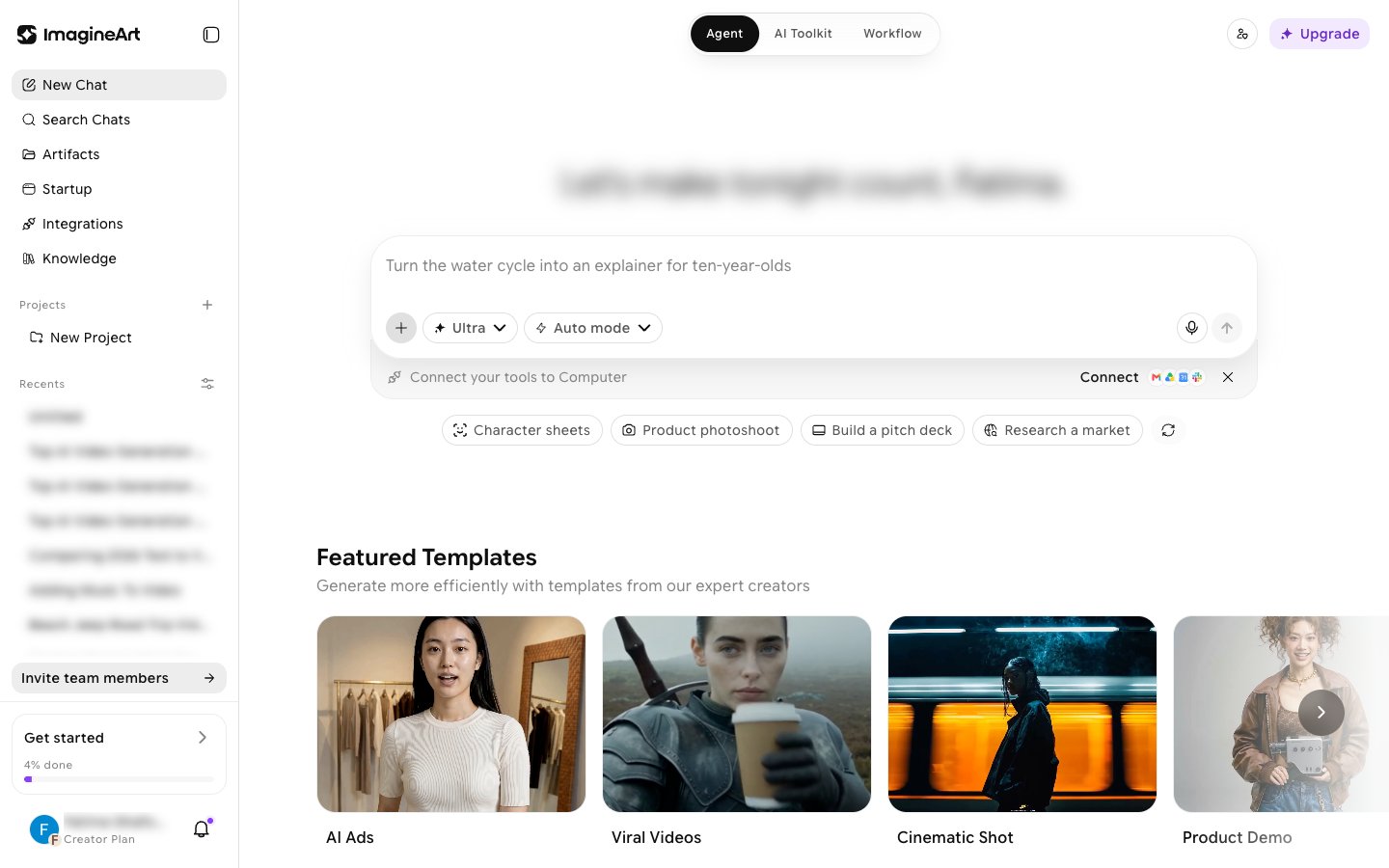
2
Switch between Agent, AI Toolkit, and Workflow
The tabs at the top of the page move you between ImagineArt’s three surfaces:
- Agent: the Imagine Computer home, where you chat with the agent.
- AI Toolkit: the main ImagineArt home with the Image, Video, Audio, and other creation tools.
- Workflow: the Workflows home, where you build node-based AI workflows.
3
Orient yourself in the sidebar
- New Chat: start a fresh conversation.
- Search Chats: find a past conversation.
- Artifacts: a library of everything your chats have produced, filterable by Slides, Websites, Documents, Sheets, Images, and Audio & Video.
- Startup: the website builder. Describe a game, 2D or 3D site, or landing page and publish it. See Startup.
- Integrations: connect your tools.
- Knowledge: your team’s files and data, which you can use in chats.
- Projects and Recents: your saved work and chat history.
4
Start from a suggestion or a template
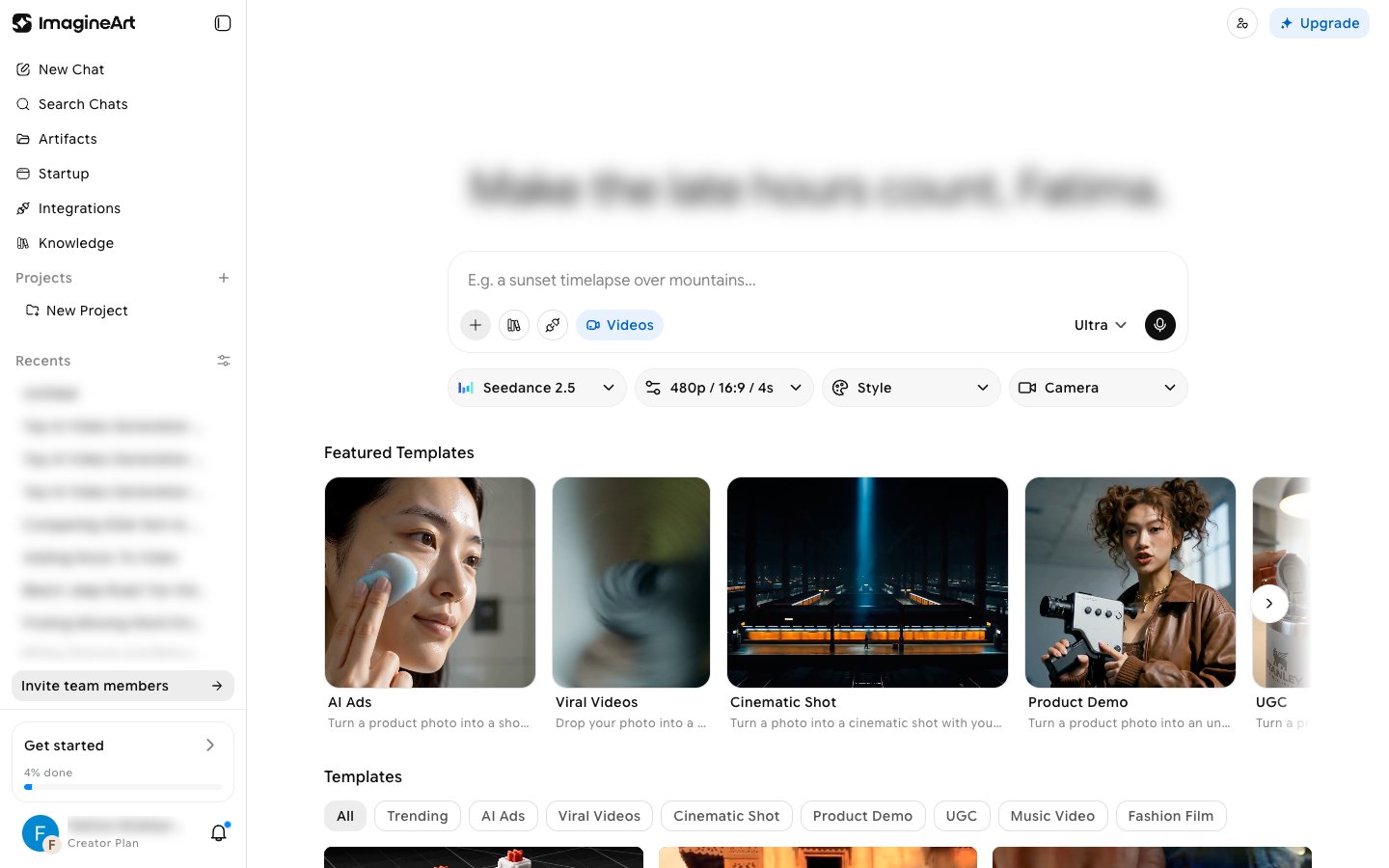
Below the prompt box, click a suggestion (for example, Character sheets, Product photoshoot, Build a pitch deck, or Compose a jingle) to start from it. Click the shuffle button at the end of the row to see different suggestions.Scroll down for Featured Templates, Seedance 2.5 Templates & Effects, Get started with Tools, and Start from templates, a template gallery you can filter by Trending, AI Ads, Viral Videos, Cinematic Shot, Product Demo, UGC, Music Video, and Fashion Film.
Tools: presets on the same chat
The Get started with Tools section on the home lists every tool as a card. It shows six at first. Click See all to show the rest: Chat, AI Ads, AI Images, Video Editor, AI Videos, AI Docs, Graphs, AI Music, Deep Research, AI Resumes, Plan Trips, Motion Design, AI Contracts, AI Explainer, Startup, Create Slides, and AI Sheets.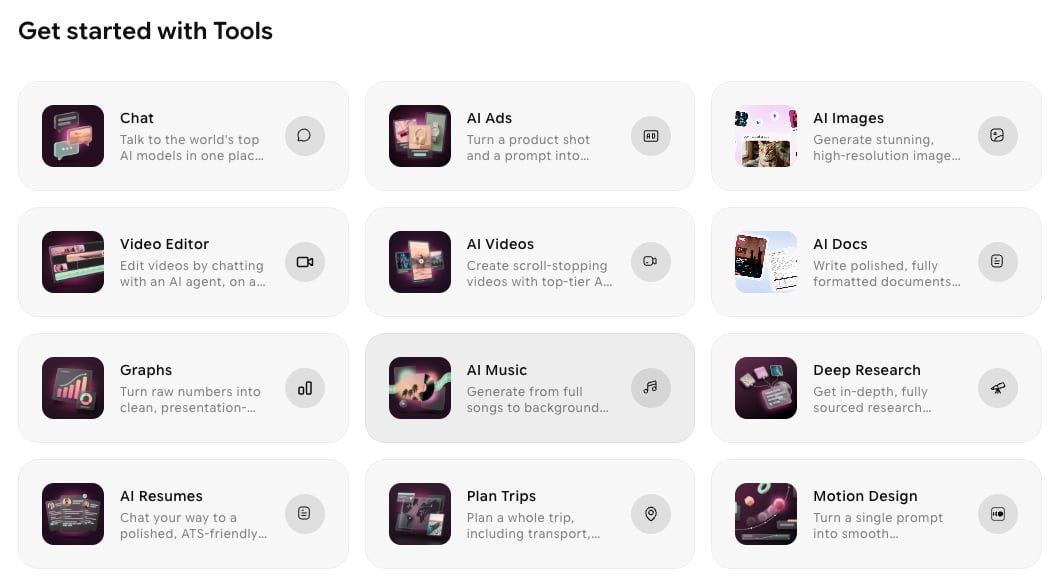
Startup is the exception. The Startup card opens the separate website builder, with its own Build composer, rather than a chat preset.
Two controls that shape every task
The prompt box on the Agent home has two controls worth understanding before you run anything: the model tier and the run mode, side by side on the left, next to +.Model tier
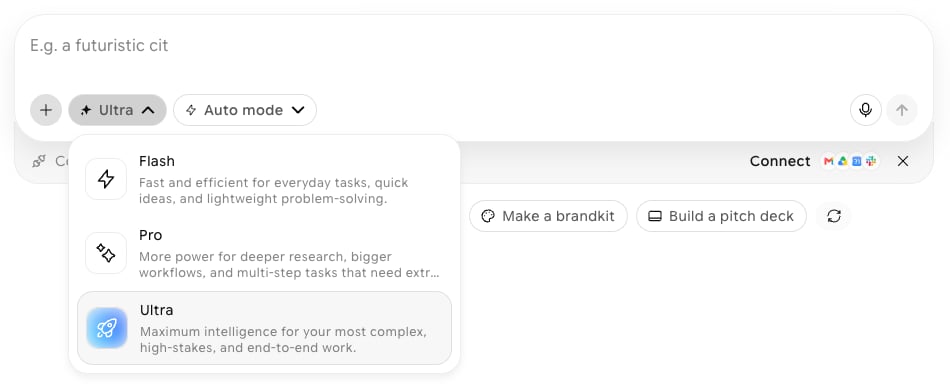
- Flash — fast and efficient for everyday tasks, quick ideas, and lightweight problem-solving.
- Pro — more power for deeper research, bigger workflows, and multi-step tasks that need extra capacity.
- Ultra — maximum intelligence for your most complex, high-stakes, and end-to-end work.
Ask mode and Auto mode
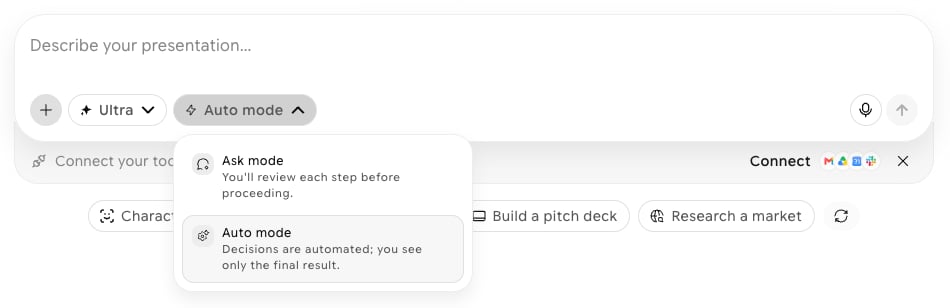
- Auto mode (default): decisions are automated; you see only the final result.
- Ask mode: you’ll review each step before proceeding.
The + menu
Click + in the prompt box to Add Files, Add Commands, pick from your Knowledge or Connectors, turn Web search on or off, or open Personalization.Start from a preset in AI Images and AI Videos
The AI Images and AI Videos homes let you start from a ready-made look instead of a blank prompt. Open them from the AI Images or AI Videos card under Get started with Tools on the home.1
Set up your generation
Below the prompt box, four dropdowns control the output: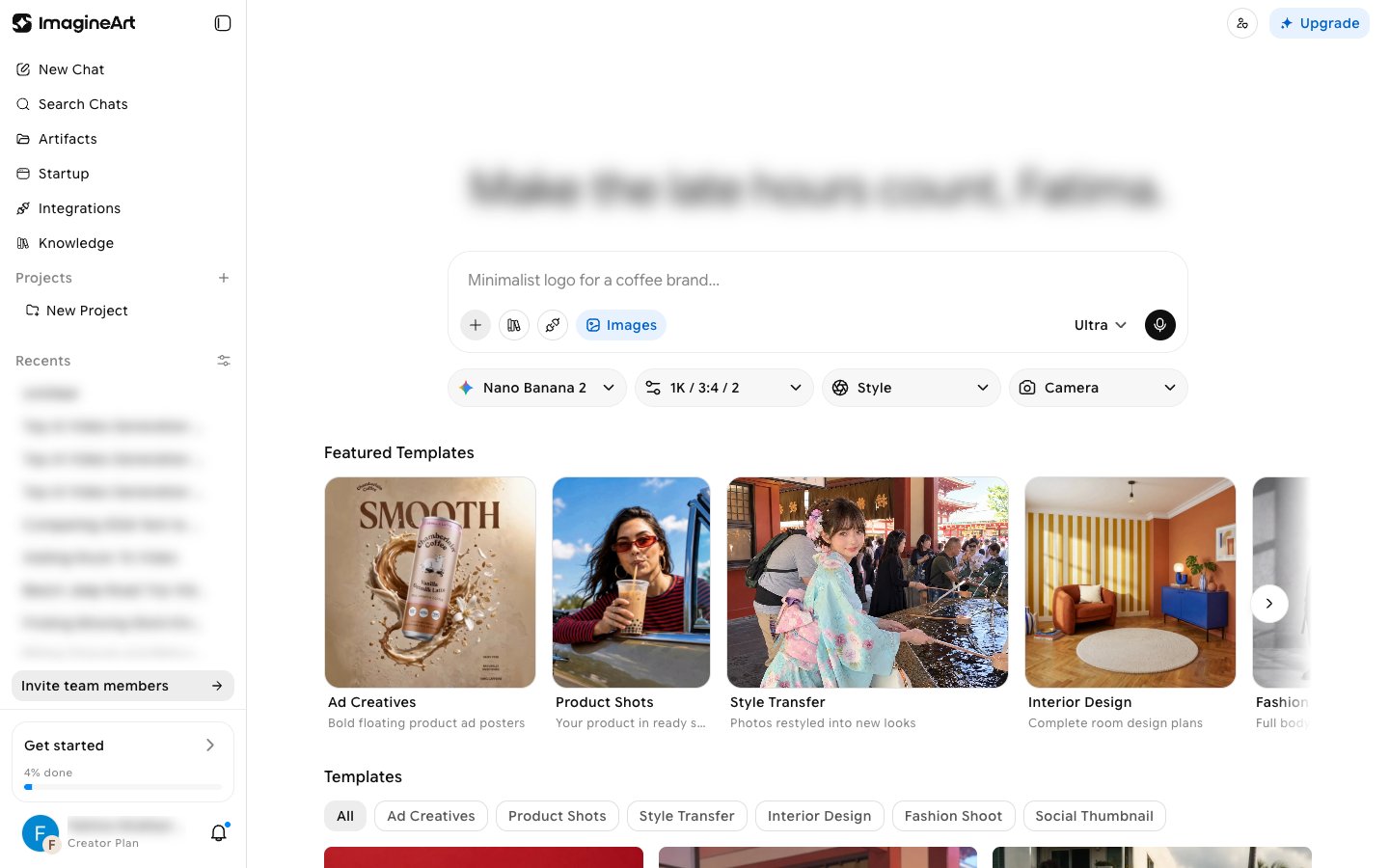
- Model: pick a model, or Auto in AI Images to let Computer choose.
- Settings: in AI Images, set Quality (1K, 2K, 4K), Aspect Ratio, and Variations (1, 2, or 4). In AI Videos, set Quality (480p, 720p, 1080p), Aspect Ratio, and Duration.
- Style: apply a visual preset. AI Images includes 20 styles, such as Photorealistic, Anime, Cinematic, Ghibli, Pixel Art, and Watercolor.
- Camera: choose a camera angle. AI Images offers Birdseye, Dutch, Low Hero, Medium, and Wide.
2
Pick a template
Browse Featured Templates, or filter the Templates gallery by category. Hover a template and click Use Template.
3
Add your input and create
The template opens in its own window with example results, a prompt that’s already written for you, and the inputs it needs. For example, Product Shots asks you to Add Product, lets you change the Style Reference, and has controls for the number of images, aspect ratio, and quality. Edit the prompt if you like, then click the create button (for example, Create Product Shot).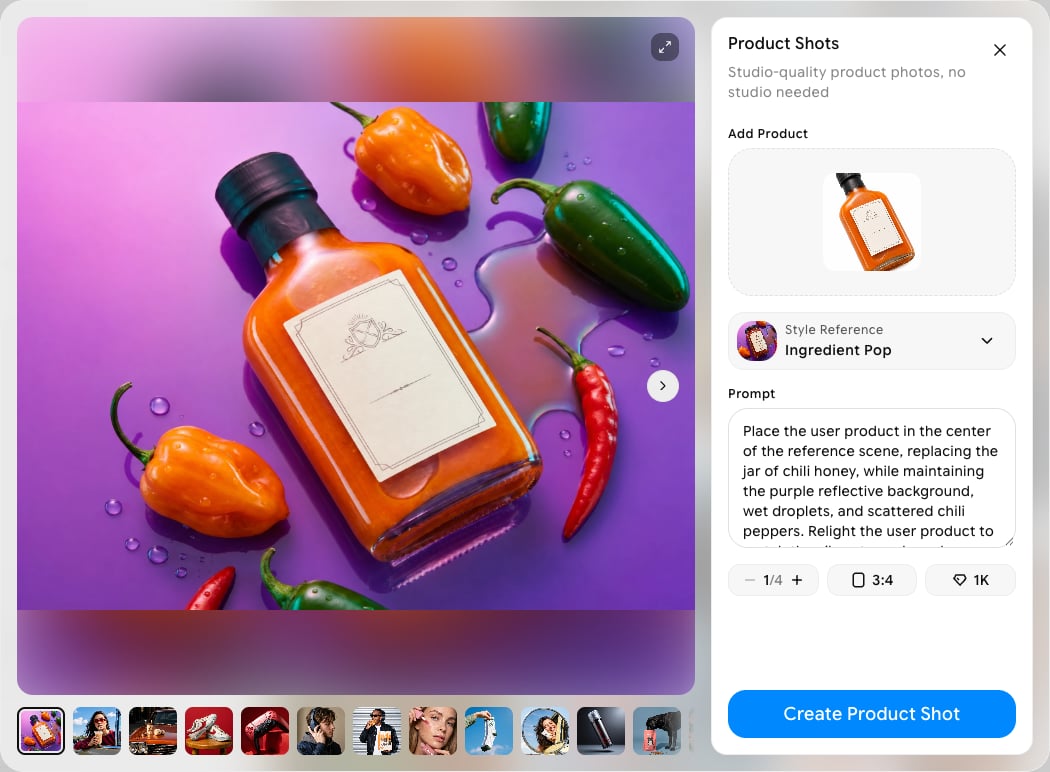
Generate media in the Video Editor
The Video Editor is a timeline editor that opens in the side panel of a chat. Its Generate with AI panel lets you create images, videos, and voiceovers with ImagineArt models without leaving the editor.1
Open the Video Editor
In a chat, click Interface at the top of the page to open the side panel. Click the type menu at the top of the panel and choose Video Editor. The editor has Media, Text, Sound Effects, Captions, Effects, and Transitions tabs above a timeline.
2
Open Generate with AI
On the Media tab, click Generate. The Generate with AI panel replaces the media library. Click the back arrow next to Generate with AI to return to Media.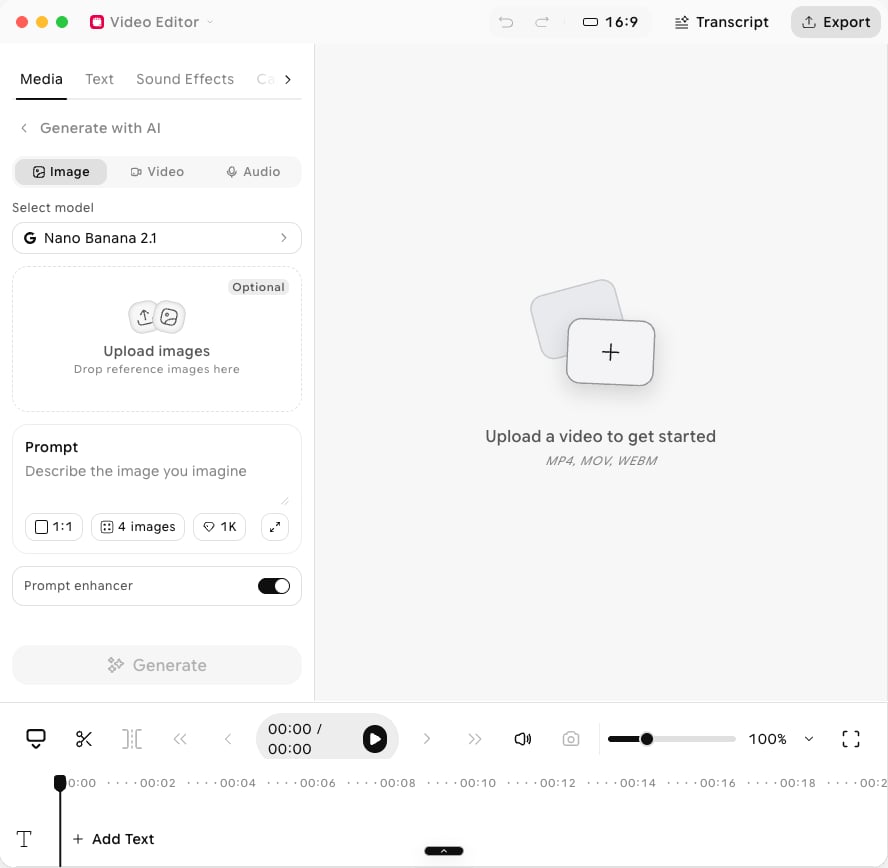
3
Choose what to make
Pick a tab at the top of the panel, then click the model under Select model to change it.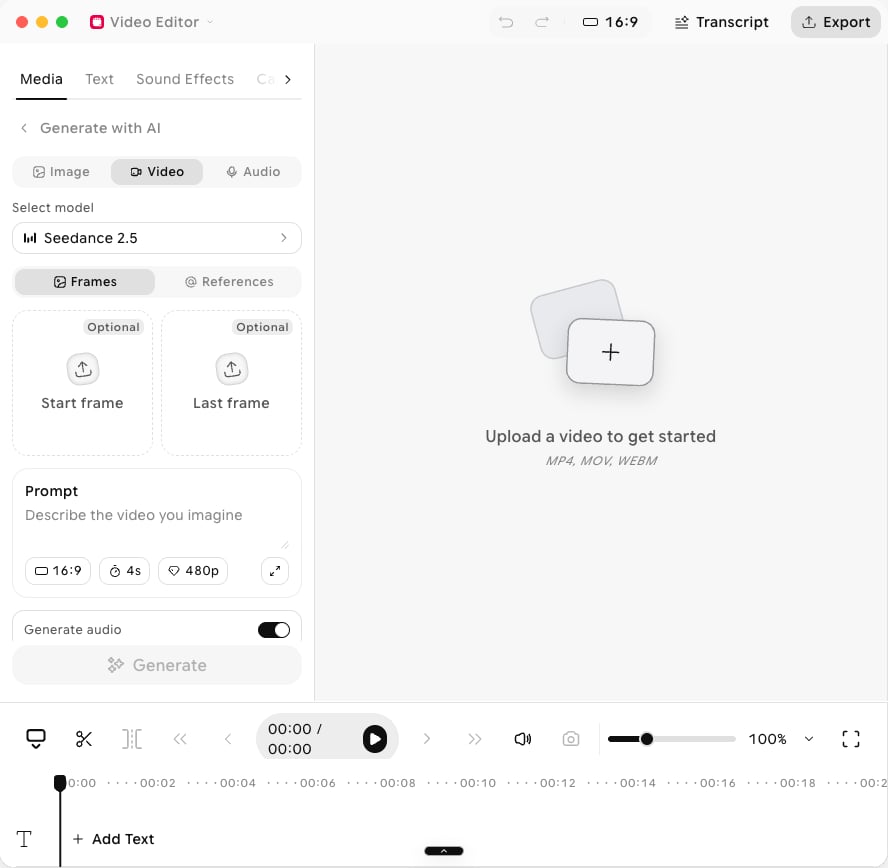
- Image: add optional reference images under Upload images, describe the image, and set the aspect ratio, number of images, and resolution. Prompt enhancer is on by default.
- Video: on Frames, add an optional Start frame and Last frame, or switch to References. Describe the video and set the aspect ratio, Duration, and resolution. Generate audio is on by default.
- Audio: choose a voice under Select voice, type your script, and open Advanced settings for more options.
4
Generate
Click Generate. The button stays disabled until you enter a prompt or script. The Assets list on the Media tab collects your generated and uploaded clips.