

1
Open Scheduled
Click Scheduled in the sidebar. It tracks Active, Pending, and Total job counts, and lists your scheduled agents below.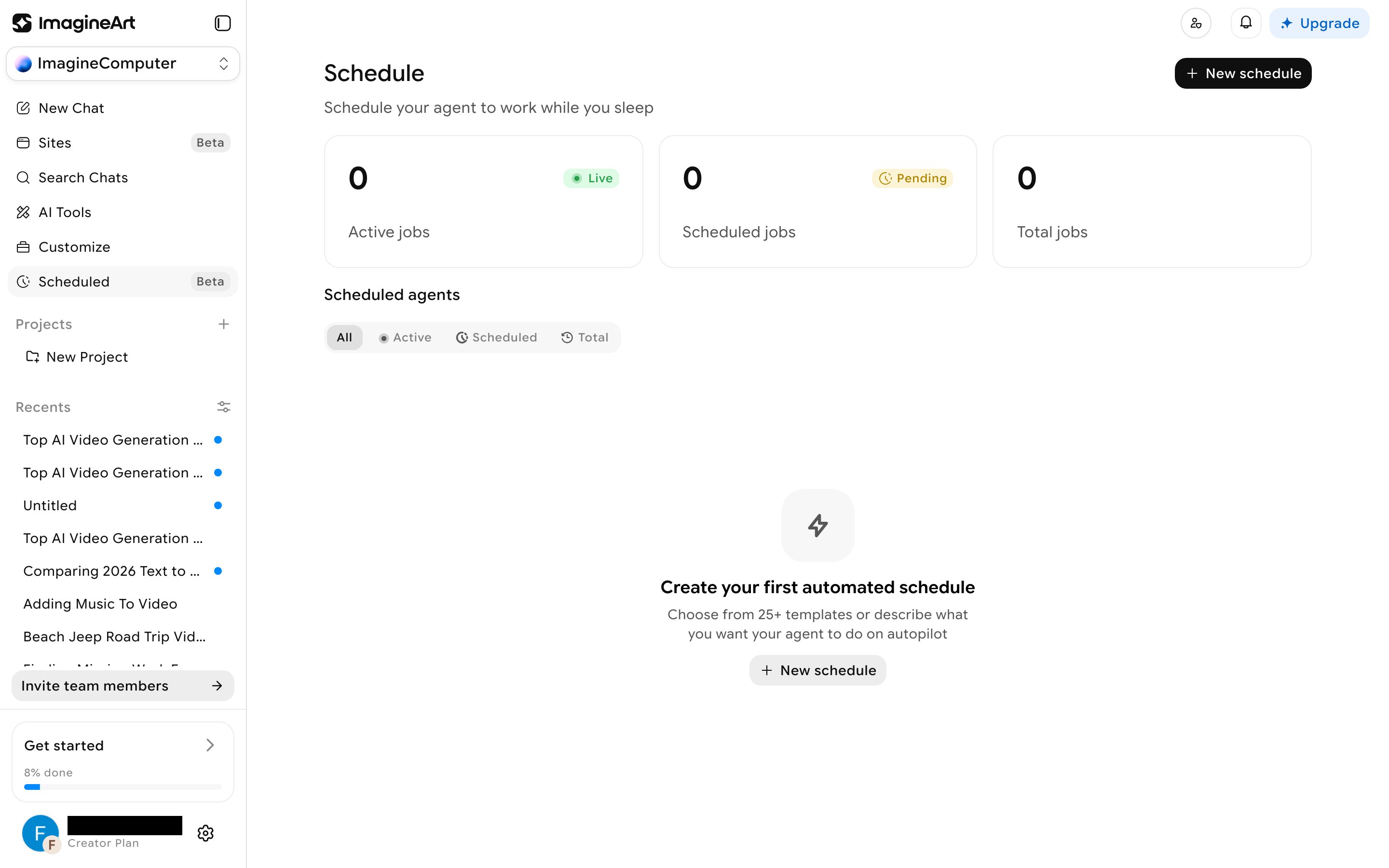
2
Start from a template, or from scratch
Click New schedule to open a template gallery — over 24 real, named templates (Annual Vision Deck, Bedtime Wind-Down Audio, Daily Affirmation Audio, Daily Habit Tracker Prompt, and more), filterable by Analysis, Automation, Communication, and Information. Each template shows its own default schedule (e.g. “Daily at 7:00 AM”). Click Start from scratch if none fit.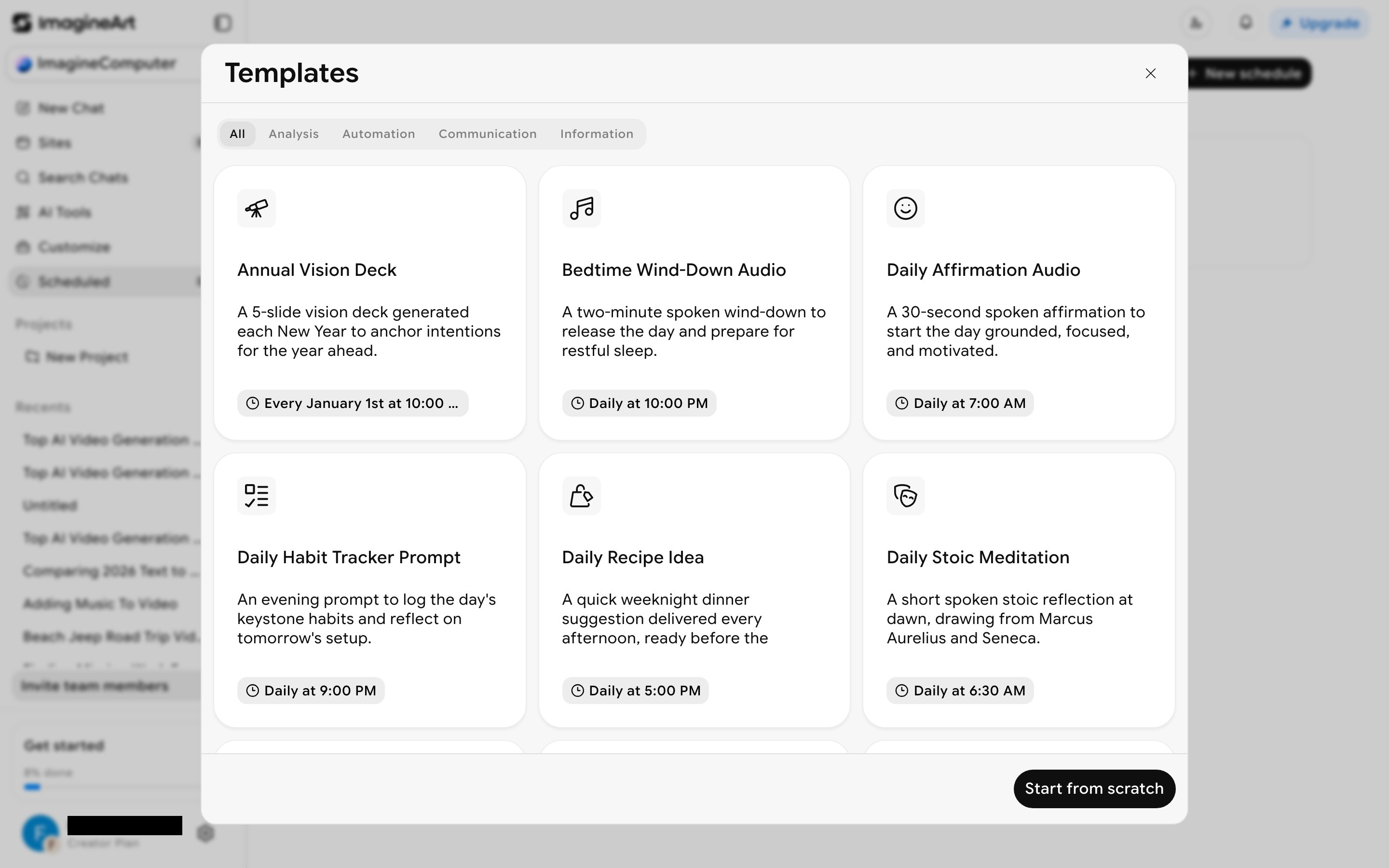
3
Configure the schedule
Fill in a Name and Task description, then set the Trigger — click it to open Repeat options (Run once, Daily, Daily on weekdays, Weekly, Monthly, Quarterly, Annually, or Custom) and a time picker. No raw cron syntax is exposed.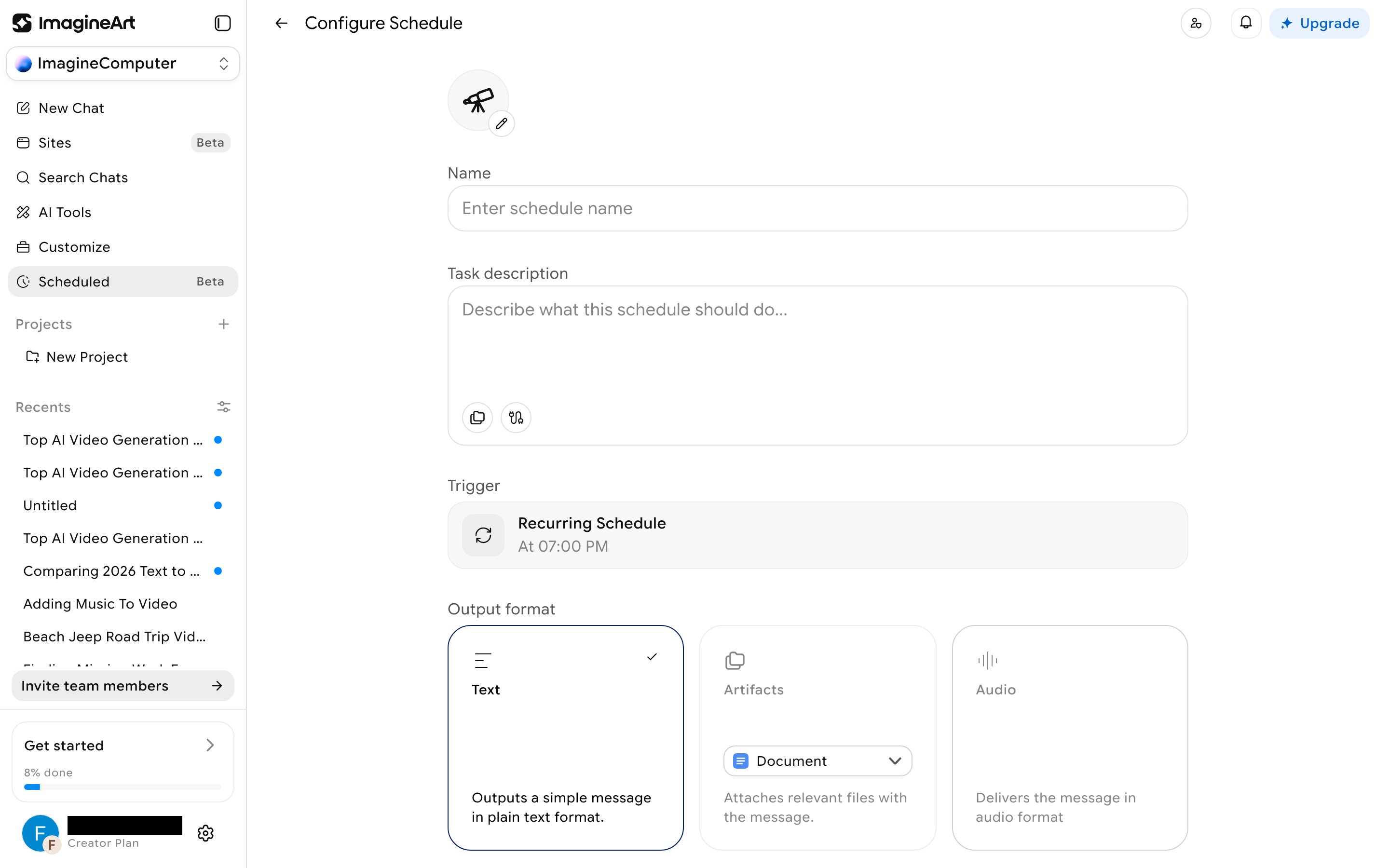
4
Pick an output format and destination
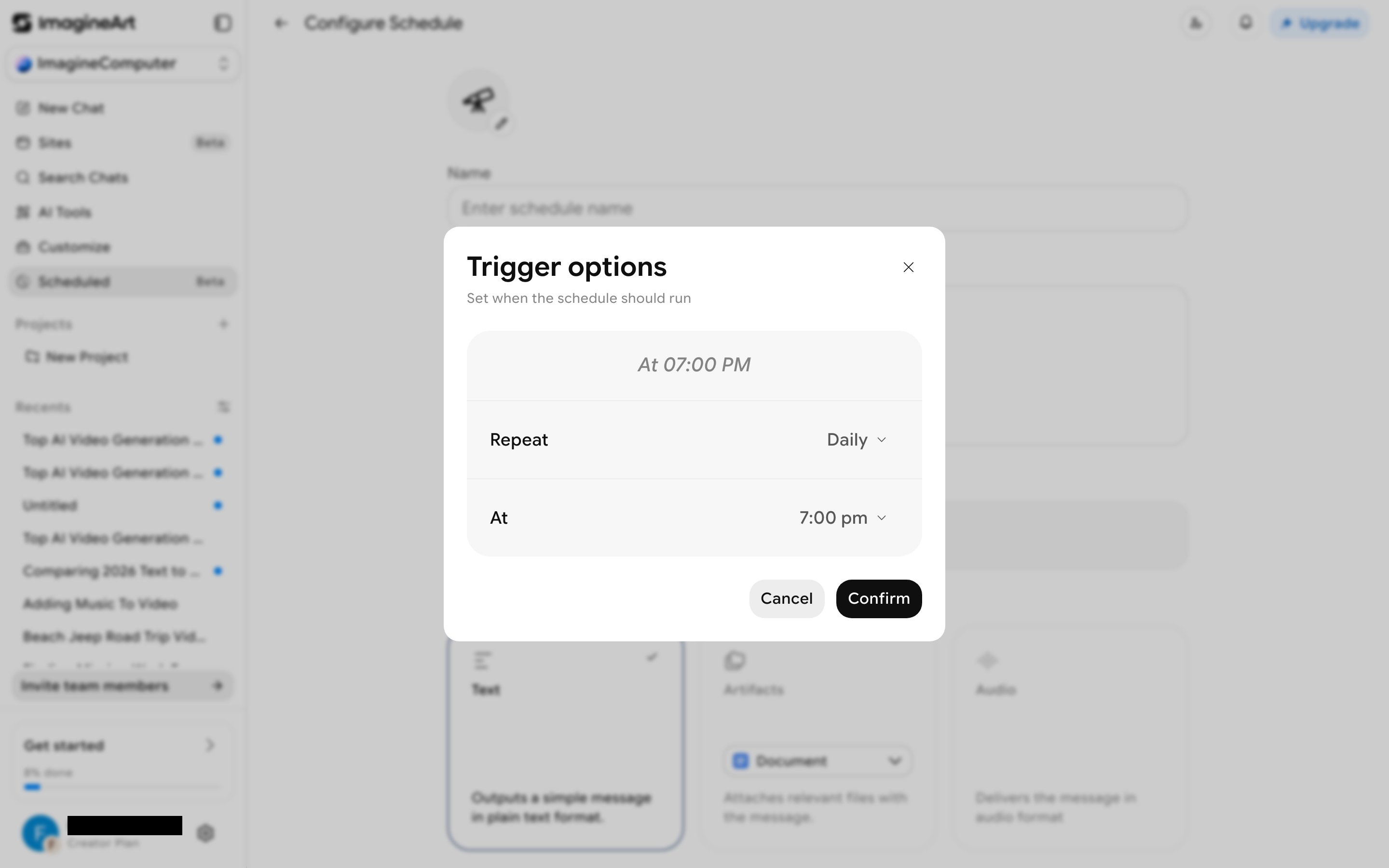
Choose an Output format — Text (a simple plain-text message), Artifacts (attaches relevant files, e.g. a Document), or Audio (delivers the message as speech) — and an Output destination: the default in-Computer chat, a Slack channel, a Slack DM, or Gmail.