Creating or joining a team
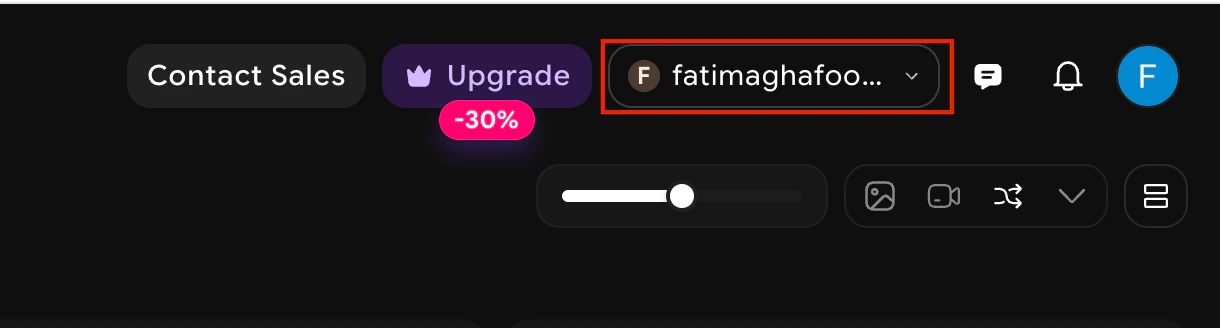
- To change your team/workspace, start by navigating to the top left corner of your screen.
- Click on the team name dropdown located beside the upgrade button. This action will open a dropdown menu where you can choose from the teams you are already a part of.
- If you are looking to create a new team, select the option to create a new one.
Provide the name and description for this team and it will create your dedicated workspace.
You can optionally also select or upload a team icon. This will be displayed in the team profile picture beside its name.
Once you have successfully created a team, you will be greeted with a confirmation pop-up. This will include an invitation link that you can copy and distribute to the relevant individuals you’d like to add to your team. Alternatively, you can manually invite members by entering their email addresses into the invitation field, streamlining the process.
To reopen the invitation popup, click the invite button next to the desired workspace name.
Once a user requests access using your invitation link, the workspace admin will receive a notification. The admin can then review the pending request by accessing the teams dropdown. Here, admins have the ability to accept or decline the request, ensuring that only the appropriate individuals gain access to the collaborative workspace.
All assets created in a shared workspace will be visible to all individuals in that workspace.


.png?fit=max&auto=format&n=dSSXEmt0kV3UdAJL&q=85&s=7025f112e420e36489a2ace8a1228125)
.avif?fit=max&auto=format&n=dSSXEmt0kV3UdAJL&q=85&s=0912f296b268e1e20b635a3952ca556c)
.avif?fit=max&auto=format&n=dSSXEmt0kV3UdAJL&q=85&s=6588a048fe8ad87722d54c0774d29bcb)
.avif?fit=max&auto=format&n=dSSXEmt0kV3UdAJL&q=85&s=83778847b6814038806e73c3c607626e)
.png?fit=max&auto=format&n=dSSXEmt0kV3UdAJL&q=85&s=e01ff3e592d0777d4d8c6bb3c8a28c9c)