

Credits, refresh, and top-ups
All monthly plan credits go directly into the team’s shared credit pool. Top-up credits purchased by the owner also go into the same pool. Subscription credits refresh monthly and do not roll over. Top-up credits never expire. If the team runs out of credits mid-cycle, the owner can purchase a top-up to replenish the shared pool without waiting for the next renewal. For more detail, see Understanding Credits.Auto Top-ups
Auto top-ups are available exclusively on enterprise plans and can only be configured by Admins and Owners.
1
Open Workspace Settings
Navigate to your workspace settings from the team dropdown in the top-left corner.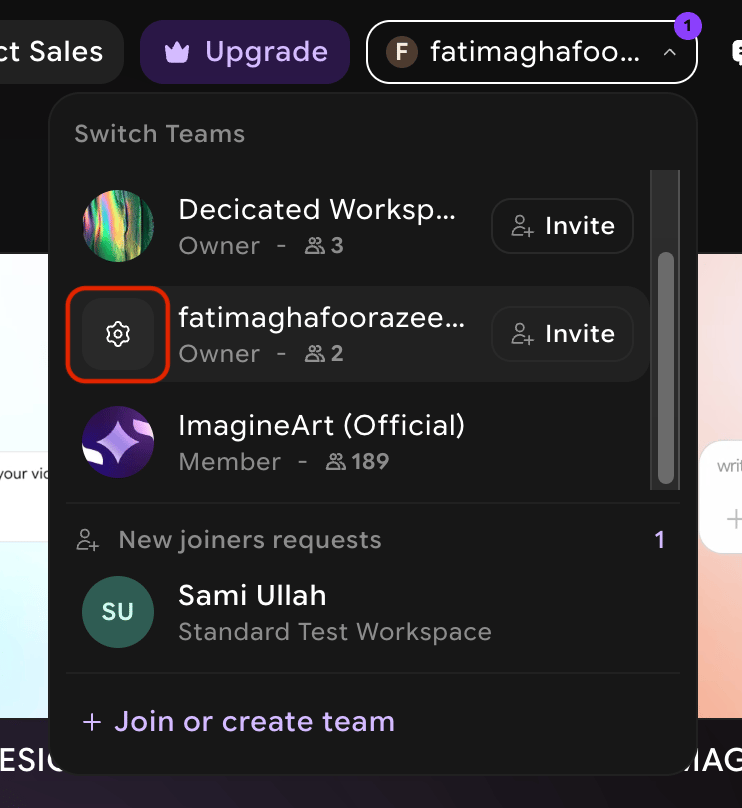
2
Go to Plan & Billing
Select the Plan & Billing tab inside your workspace settings.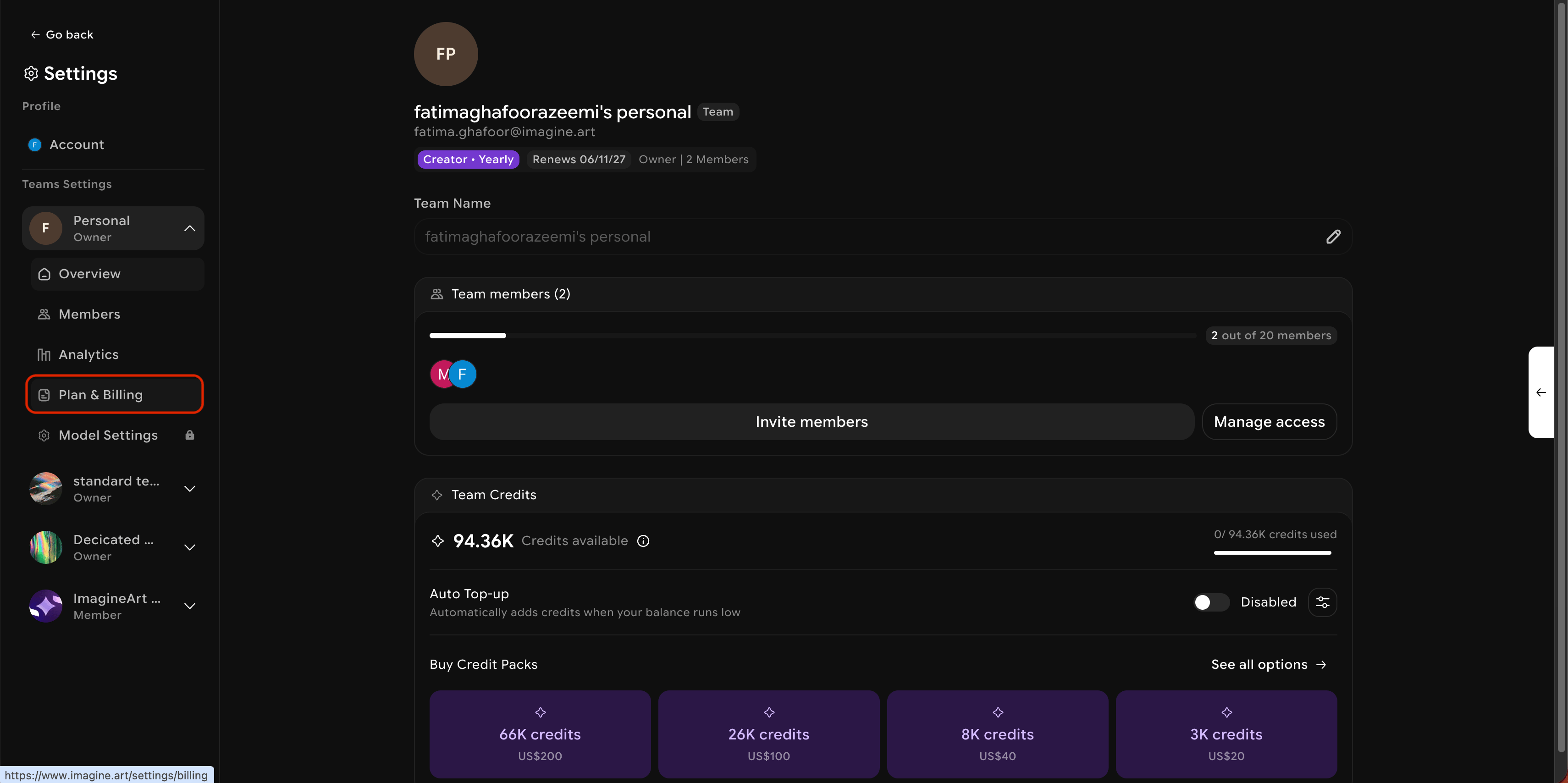
3
Enable Auto Top-up
Toggle Auto Top-up on, then set your threshold (the credit level that triggers a replenishment) and the top-up amount to add each time it fires.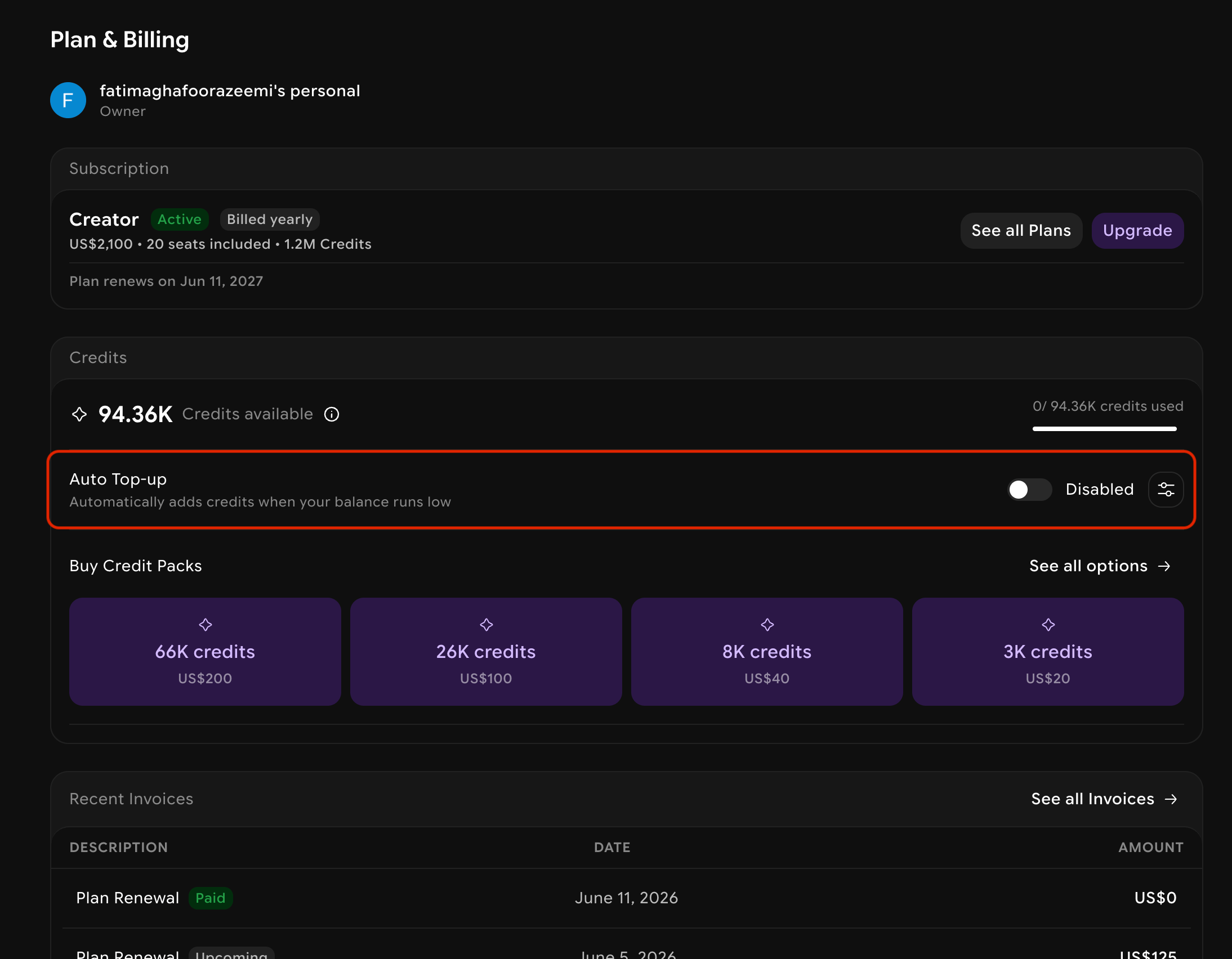
4
Save you configuration
Confirm and save. The system will automatically purchase the configured top-up amount whenever the shared pool drops below the threshold.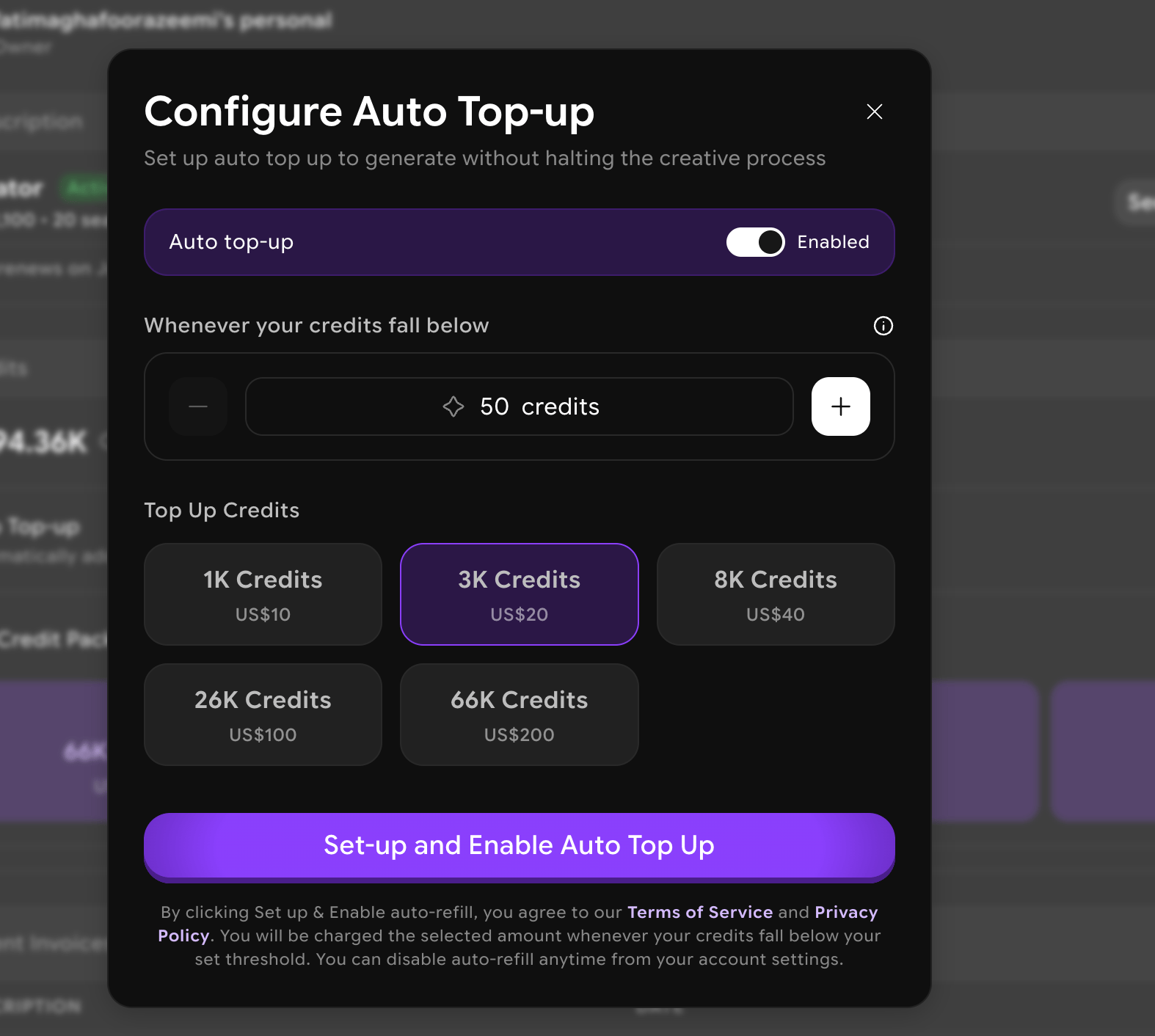
Setting Credit Limits per Member
Administrators have the ability to set monthly credit limits for individual team members, or they can choose to allow members to use unlimited credits. When monthly credit limits are set for a member, their usage is automatically reset at the beginning of each month, allowing for consistent and manageable tracking of credit consumption over time. To edit the monthly credit limit of your team members, simply go to your workspace settings:.png?fit=max&auto=format&n=dSSXEmt0kV3UdAJL&q=85&s=598d5f8dd41782e7fe15f7b8d0cd09f7)
.avif?fit=max&auto=format&n=dSSXEmt0kV3UdAJL&q=85&s=53fff37f3e7949e3e7e1b7a5f3abc21a)
.avif?fit=max&auto=format&n=dSSXEmt0kV3UdAJL&q=85&s=91fc9357596bf8f8add28f5c70a83759)