Quick Mode lets you generate from a single prompt bar on the Workflows canvas. You type a prompt, pick a model, and generate. You don’t add or connect any nodes. Use Quick Mode for one-step generations, like a single image or a short video clip. Switch to node mode when you need to chain models into a multi-step pipeline.

Switch modes

The mode switcher sits at the right end of the bottom toolbar. It has three buttons: Hover a button to see its name, then click it to switch.

Bottom toolbar in node mode, with the mode switcher on the right and the Switch to quick mode tooltip above the lightning bolt
Both modes work on the same project. In Quick Mode, the canvas shows your outputs without the nodes and connections. Switch back to node mode to see the full graph. In Quick Mode, the left sidebar shows only Content, Assets, and Presets.

Generate in Quick Mode

1

Open a project

Go to imagine.art/flow and open a project or create a new one.
2

Switch to Quick Mode

Click the lightning bolt in the mode switcher at the bottom right.
3

Pick what to create

In the bottom toolbar, click Image, Video, Audio, or Ad Maker. The prompt bar opens with the inputs and settings for that type.
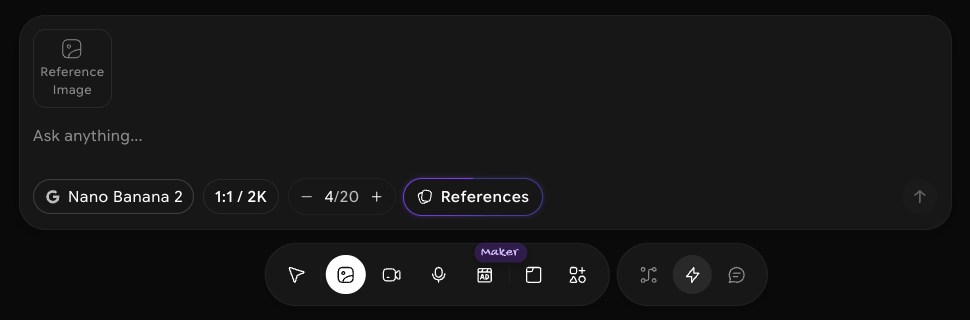
Quick Mode prompt bar for Image above the bottom toolbar, with the Reference Image slot, the Ask anything field, Nano Banana 2, 1:1 / 2K, 4/20, and References
4

Write your prompt and adjust settings

Describe what you want in the prompt field, add any reference media, and choose a model and output settings.
5

Generate

Click the arrow button at the right end of the prompt bar. Your results appear on the canvas.

The prompt bar by type

Each type has its own inputs and settings. The available options change with the model you pick.

Image

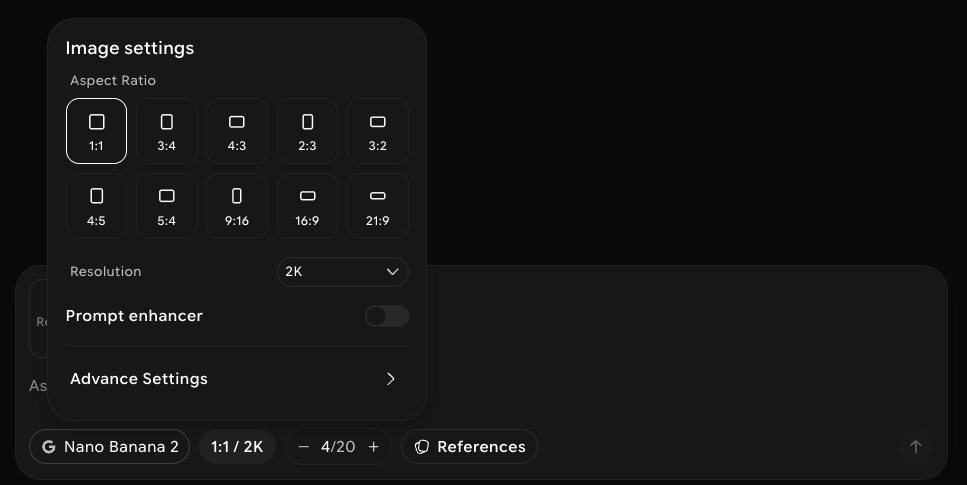
Image settings popover with aspect ratios from 1:1 to 21:9, the Resolution menu set to 2K, the Prompt enhancer toggle, and Advance Settings
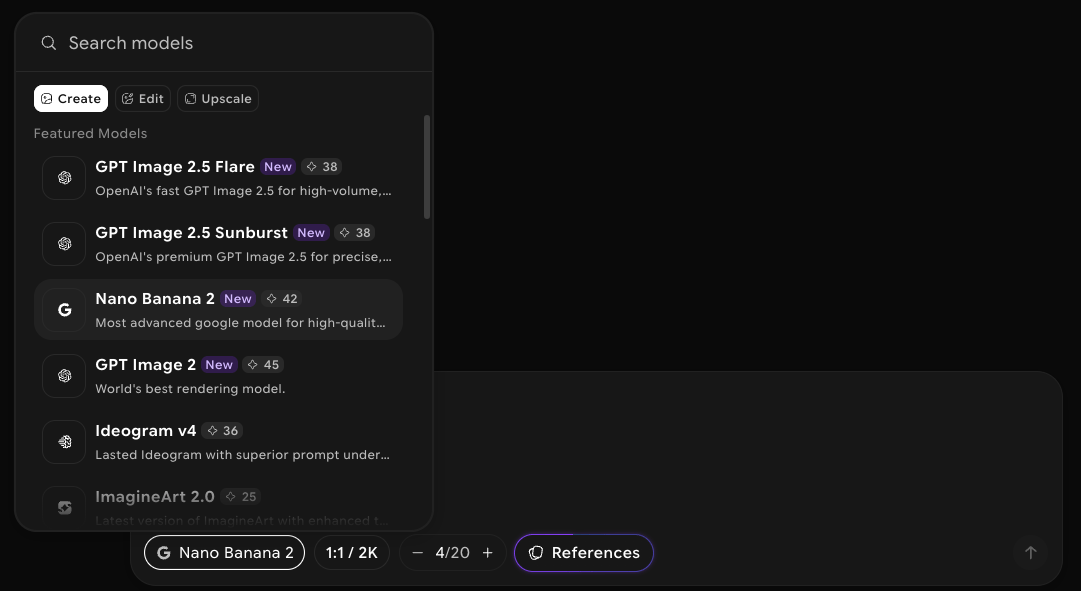
Model picker open above the prompt bar, with a Search models field, Create, Edit, and Upscale tabs, and a list of featured image models with their credit costs
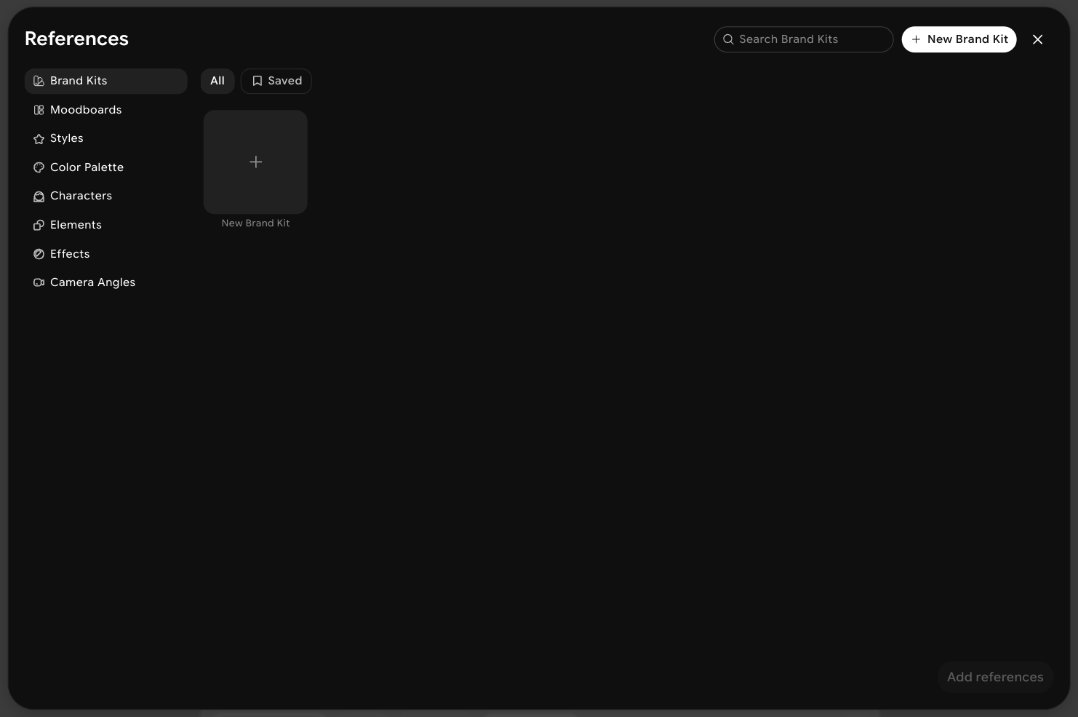
References panel listing Brand Kits, Moodboards, Styles, Color Palette, Characters, Elements, Effects, and Camera Angles, with a New Brand Kit button and Add references

Video

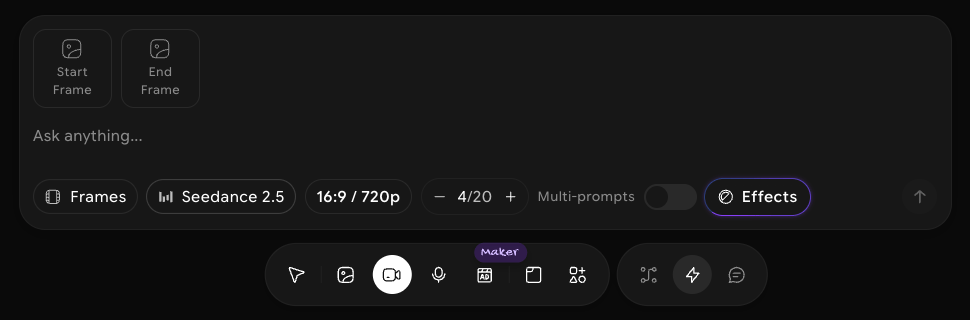
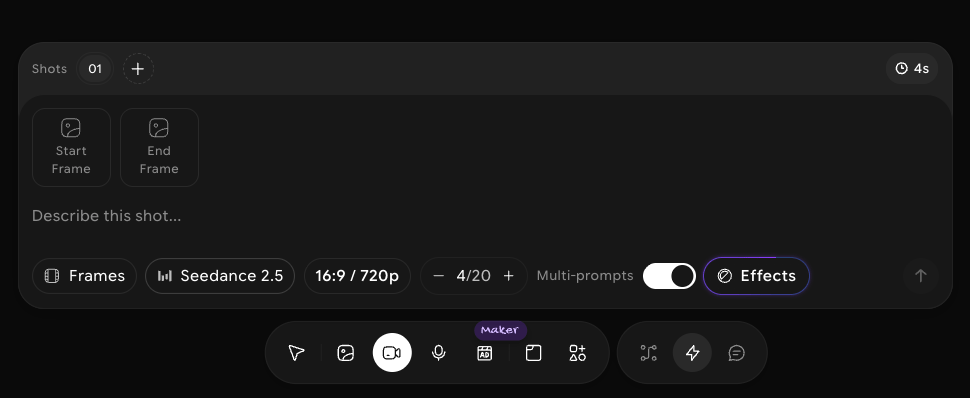
Video prompt bar with Start Frame and End Frame slots, Frames, Seedance 2.5, 16:9 / 720p, 4/20, the Multi-prompts toggle, and Effects
With Multi-prompts on, a Shots row appears above the inputs. Each shot has its own prompt field, and the shot length shows on the right.
Video prompt bar with Multi-prompts on, showing the Shots row with shot 01, a plus button, a 4s length, and the Describe this shot field

Audio

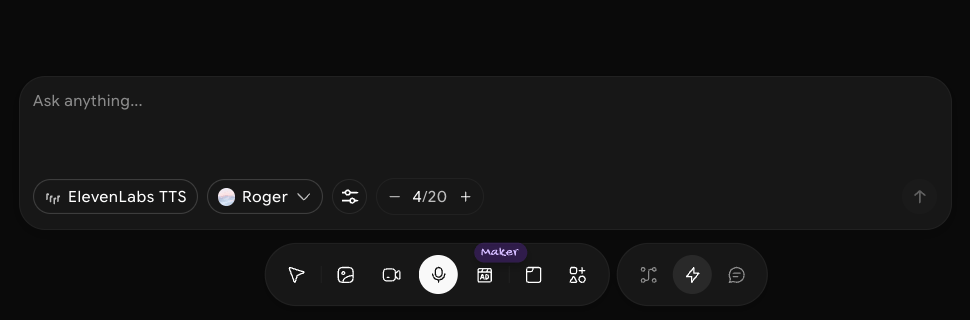
Audio prompt bar with the Ask anything field, ElevenLabs TTS, the Roger voice menu, a settings button, and 4/20

Ad Maker

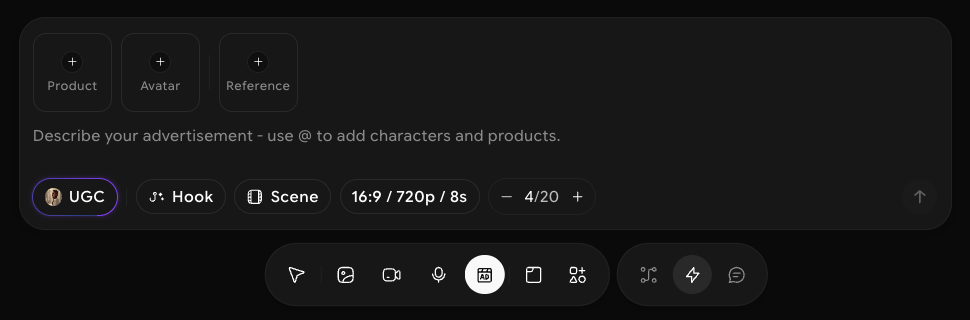
Ad Maker prompt bar with Product, Avatar, and Reference slots, the Describe your advertisement field, and UGC, Hook, Scene, 16:9 / 720p / 8s, and 4/20

Work with results

Results appear as cards on the canvas. Click an image to select it and use the quick actions on the card: Animate, Edit, and Upscale.

Quick Mode or node mode?

A common pattern is to explore ideas in Quick Mode, then switch to node mode to build a repeatable pipeline around the result you like.
The generation count multiplies the cost of a run. Keep it low while you test prompts, then raise it once you like the direction.