

1
Choose Drama when creating a project
Click Create Project from the Film Studio home page. The Create Project dialog asks what you want to create: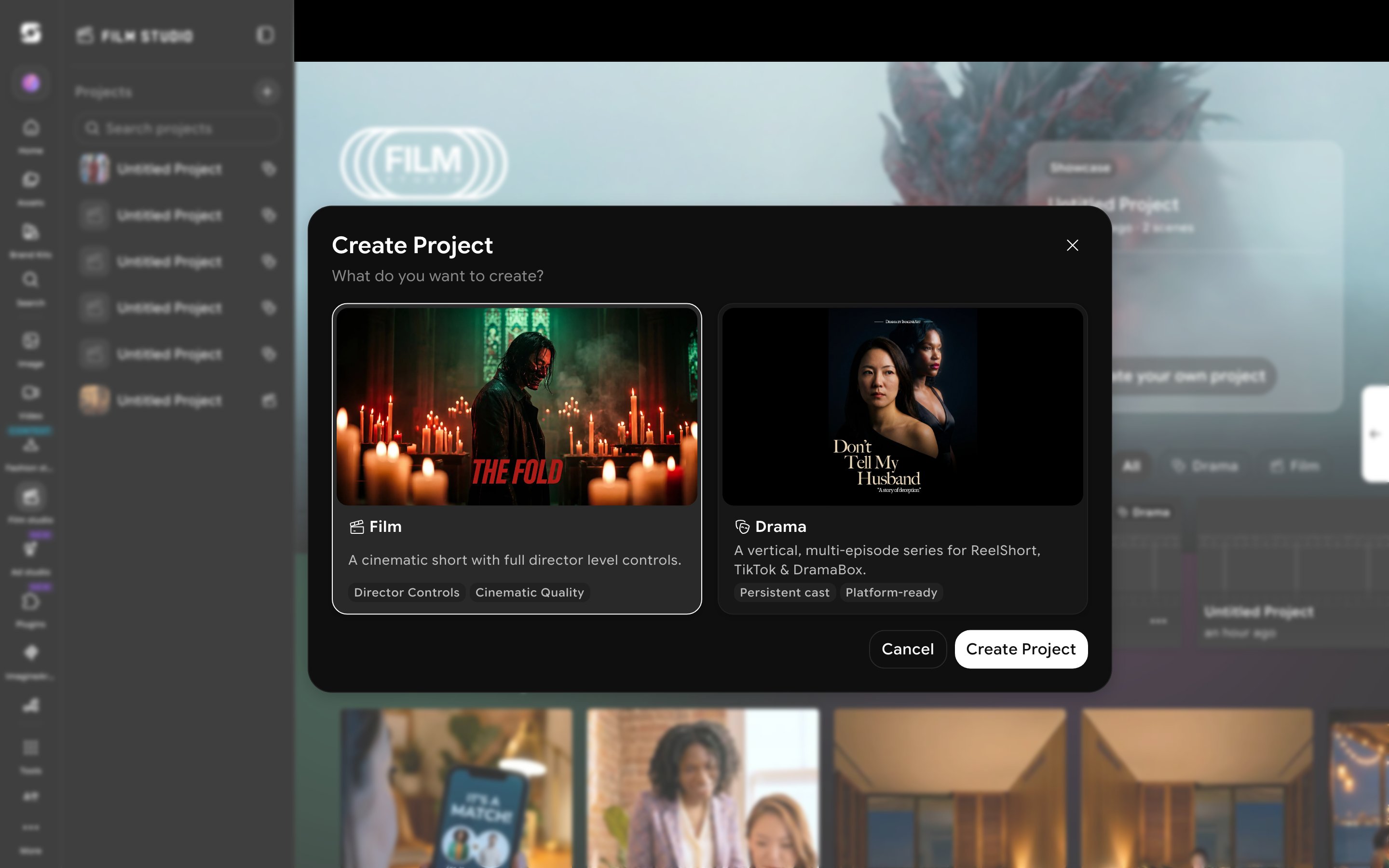
- Film — a cinematic short with full director-level controls.
- Drama — a vertical, multi-episode series for ReelShort, TikTok & DramaBox, with persistent cast and platform-ready output.
2
The Drama Studio editor
Selecting Drama opens an editor with Create Image, Create Video, and Edit Video tabs — the same shell as a Film project, but everything inside is oriented around building a series: an Episodes panel on the right (starting with Episode 1), and a Scene Builder built around Characters, Props, and Locations.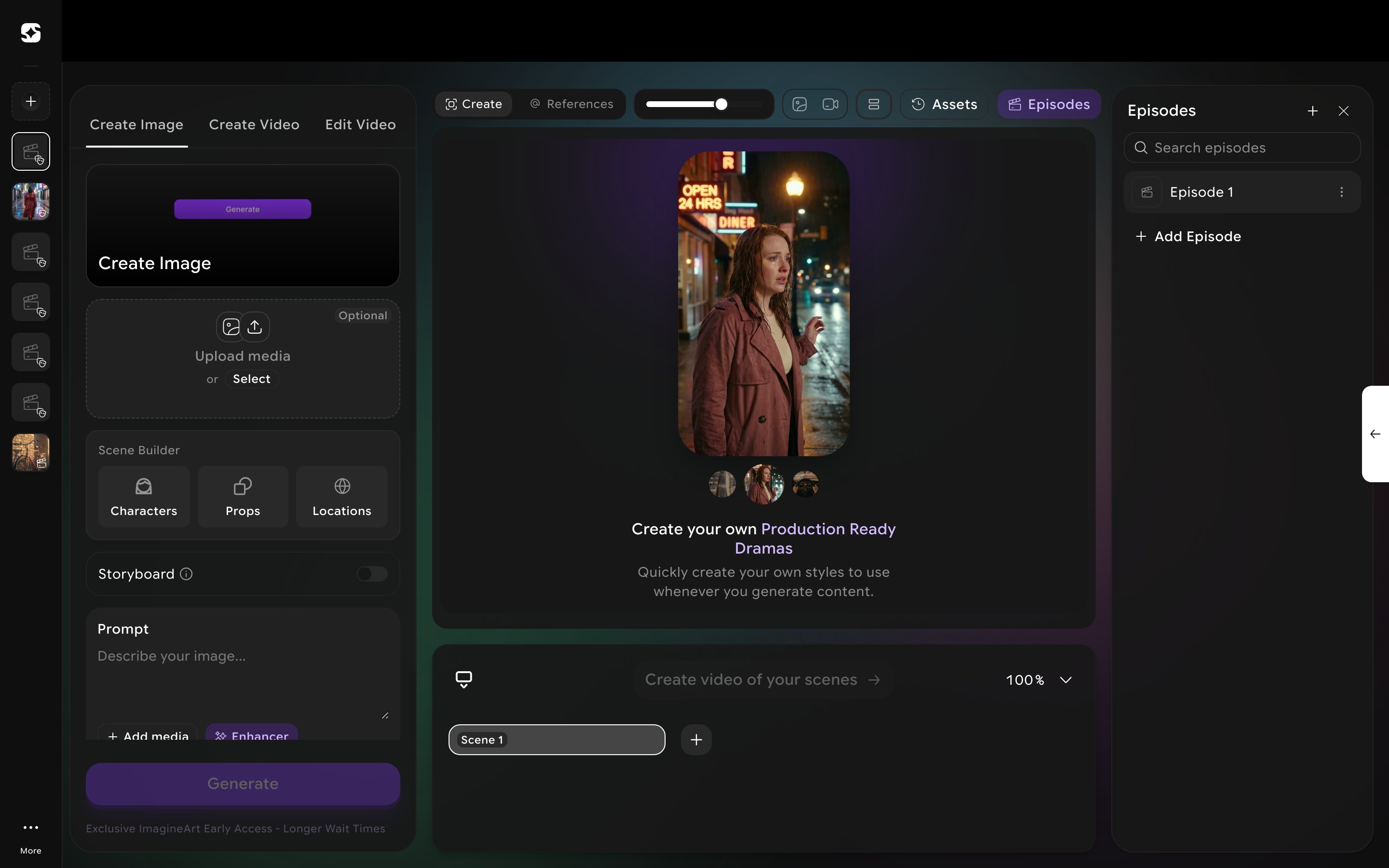
3
Manage episodes
The Episodes panel lists your episodes and an Add Episode row. Adding one simply appends the next sequentially-numbered episode — there’s no separate naming or synopsis prompt at creation time. Each episode has its own Scene 1 / Shot timeline underneath, but the character/prop/location library itself is shared across every episode (and every project), not scoped per-episode.
4
Build a persistent cast
Click Characters (in Scene Builder or the References panel) to see your character library — a real preset roster (Nova, Atlas, Pixel, Luna, and more) alongside All / Saved / My Characters filters. Click the + tile to create your own: upload reference photos (up to 10 images), give it a Name, pick Male / Female / Neutral, and optionally add instructions describing the character further.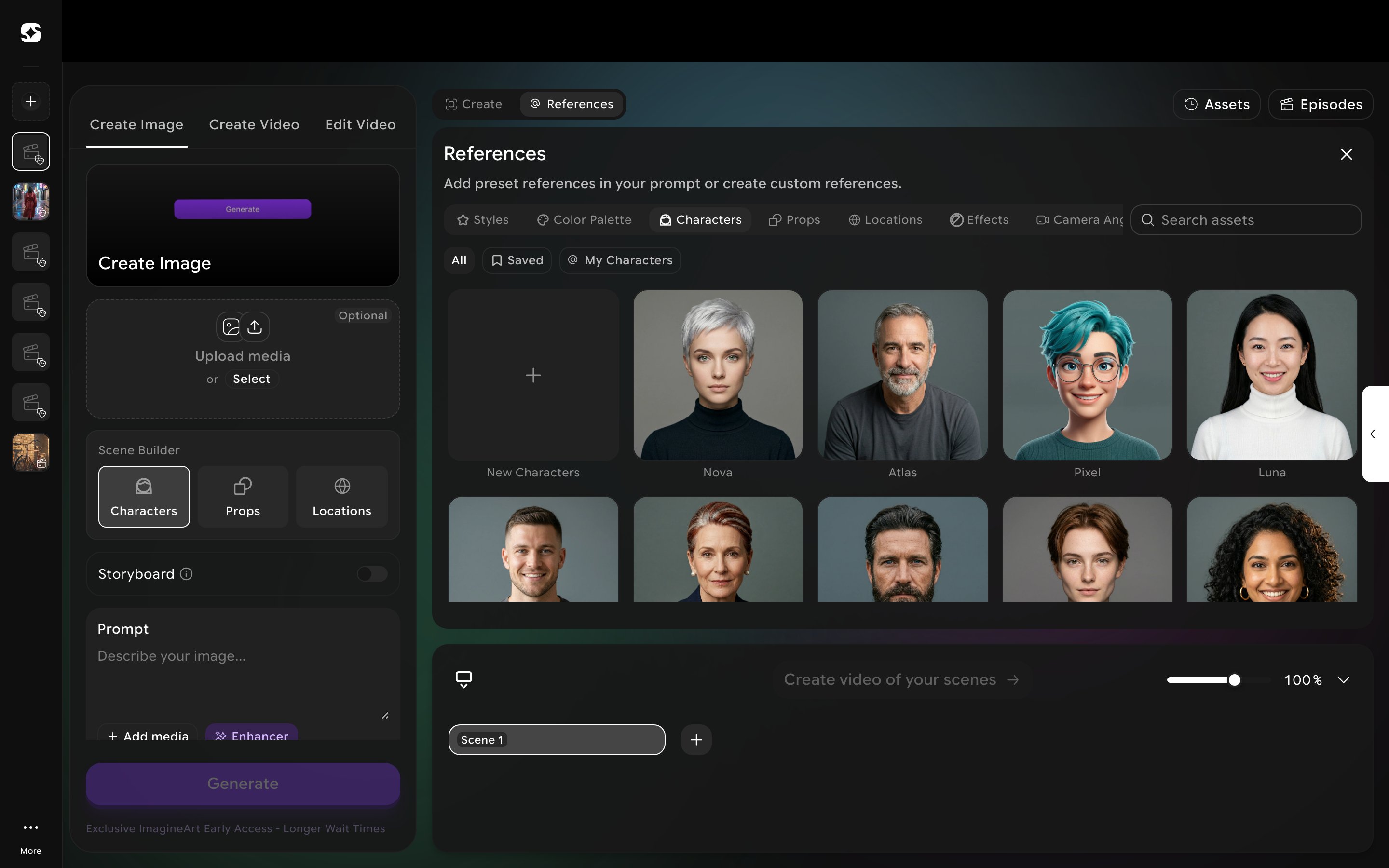
5
Generate a vertical shot
Create Video inside Drama Studio looks like Film Studio’s, with real differences: aspect ratio is fixed vertical (9:16) with no ratio picker, duration defaults to 3s per shot, resolution defaults to 720p, and Style / Genre / Movement all default to Auto rather than exposing Film Studio’s full genre/movement library. Camera controls (camera body, lens, focal length, aperture) are still present underneath, so you aren’t fully locked out of cinematographic control. Add Audio works the same way as regular Film Studio, directly on the scene timeline.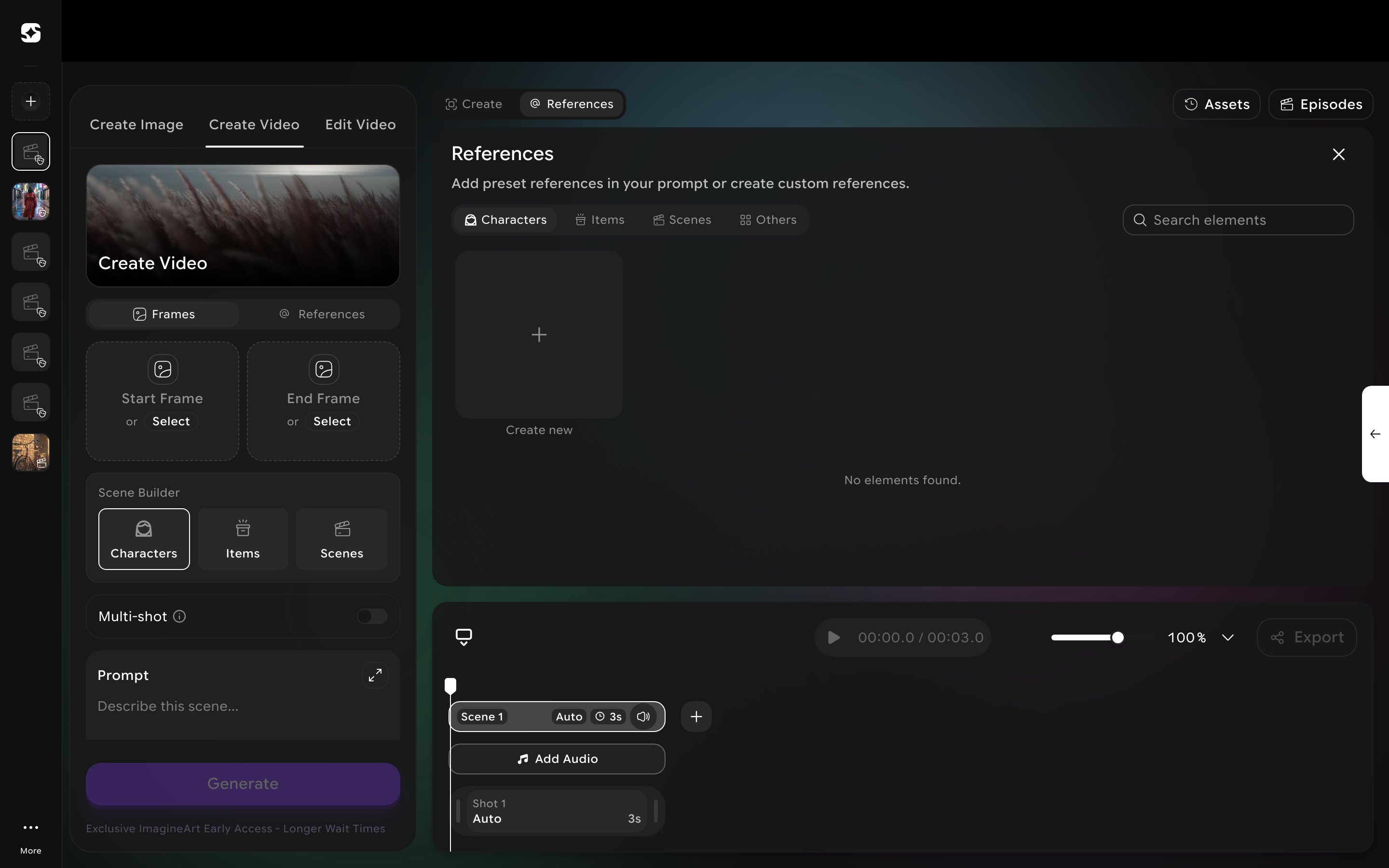
The video model Drama Studio generates with isn’t shown anywhere in the interface — Style, Genre, and Movement all default to Auto, and the model is selected automatically behind the scenes.