

When to use Extend
- You generated a clip that ends too soon and you want to see more of the same.
- You have a 5-second moment and want it to play out for 10 seconds.
- You want a sequel-style continuation — same subject, same world, what happens next.
How to extend a video
1
Open Extend
Open the Extend tab.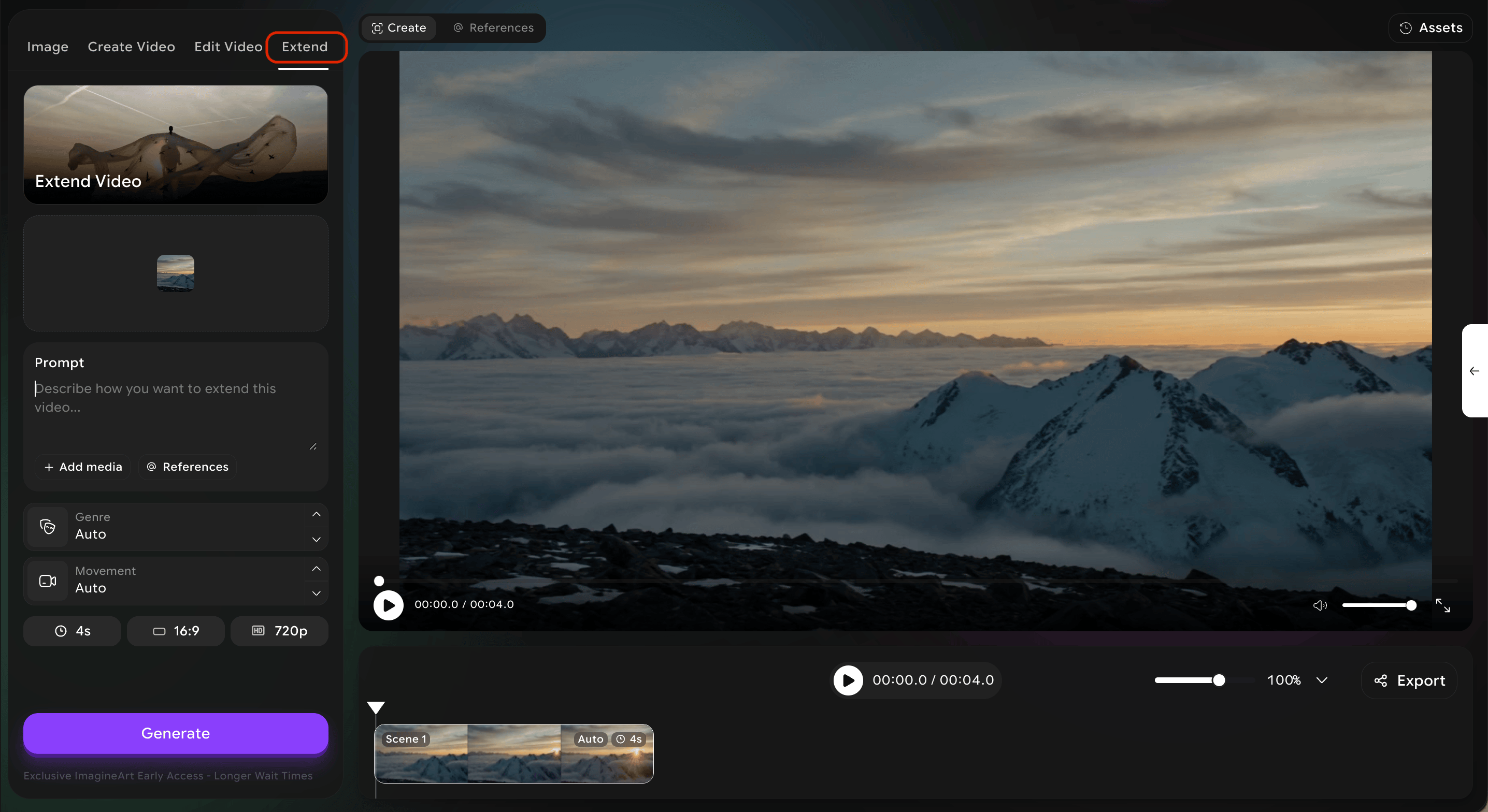
2
Provide the source video
Provide the source video — upload a file or pick from your project library.
3
Write your extension prompt
Write a prompt that describes what should happen in the extension. The system will use the end of your original clip as the starting point, and your prompt as the direction forward.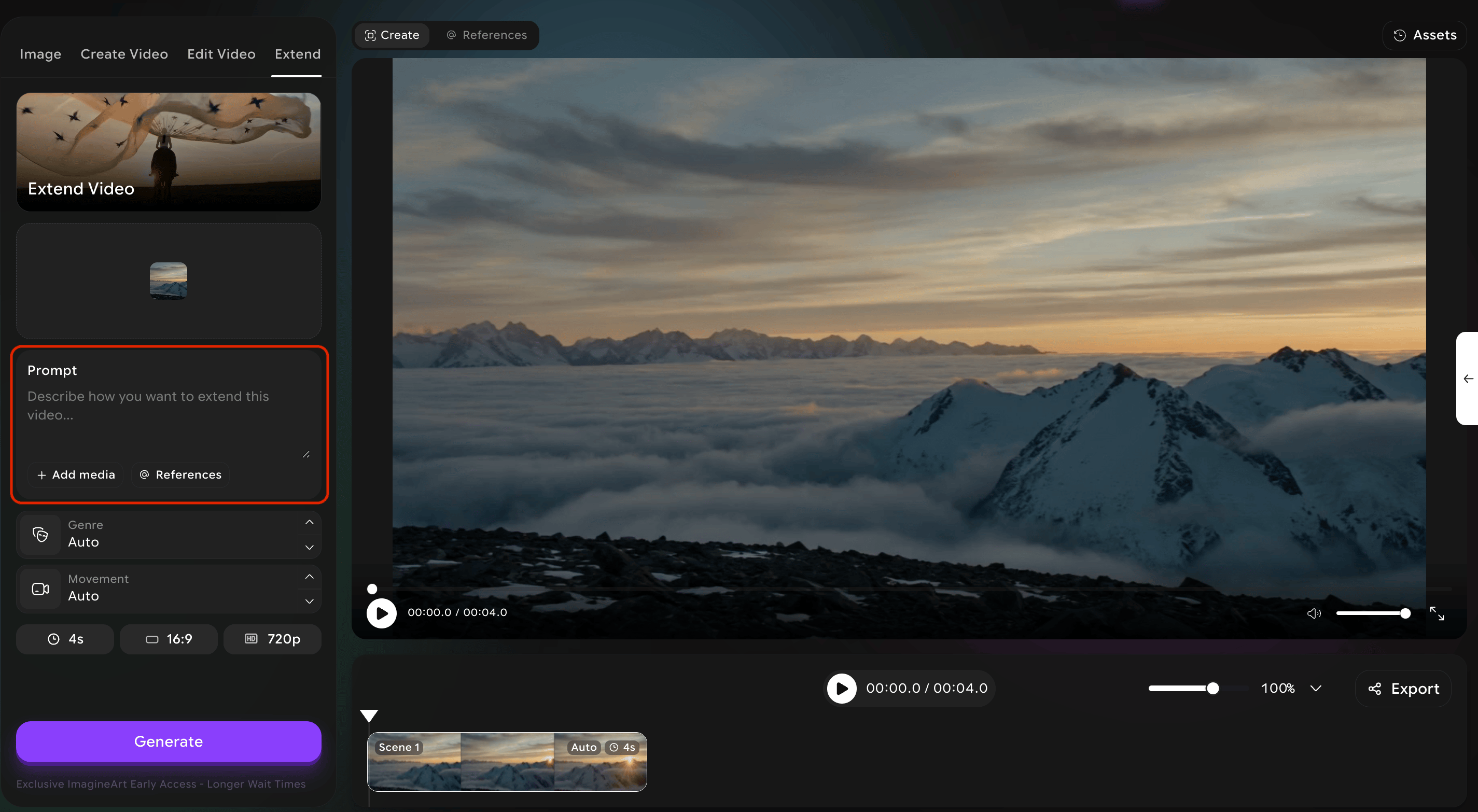
4
Add references and tune controls (optional)
Optionally add reference media and tune cinematic controls (genre, movements) for the extended portion.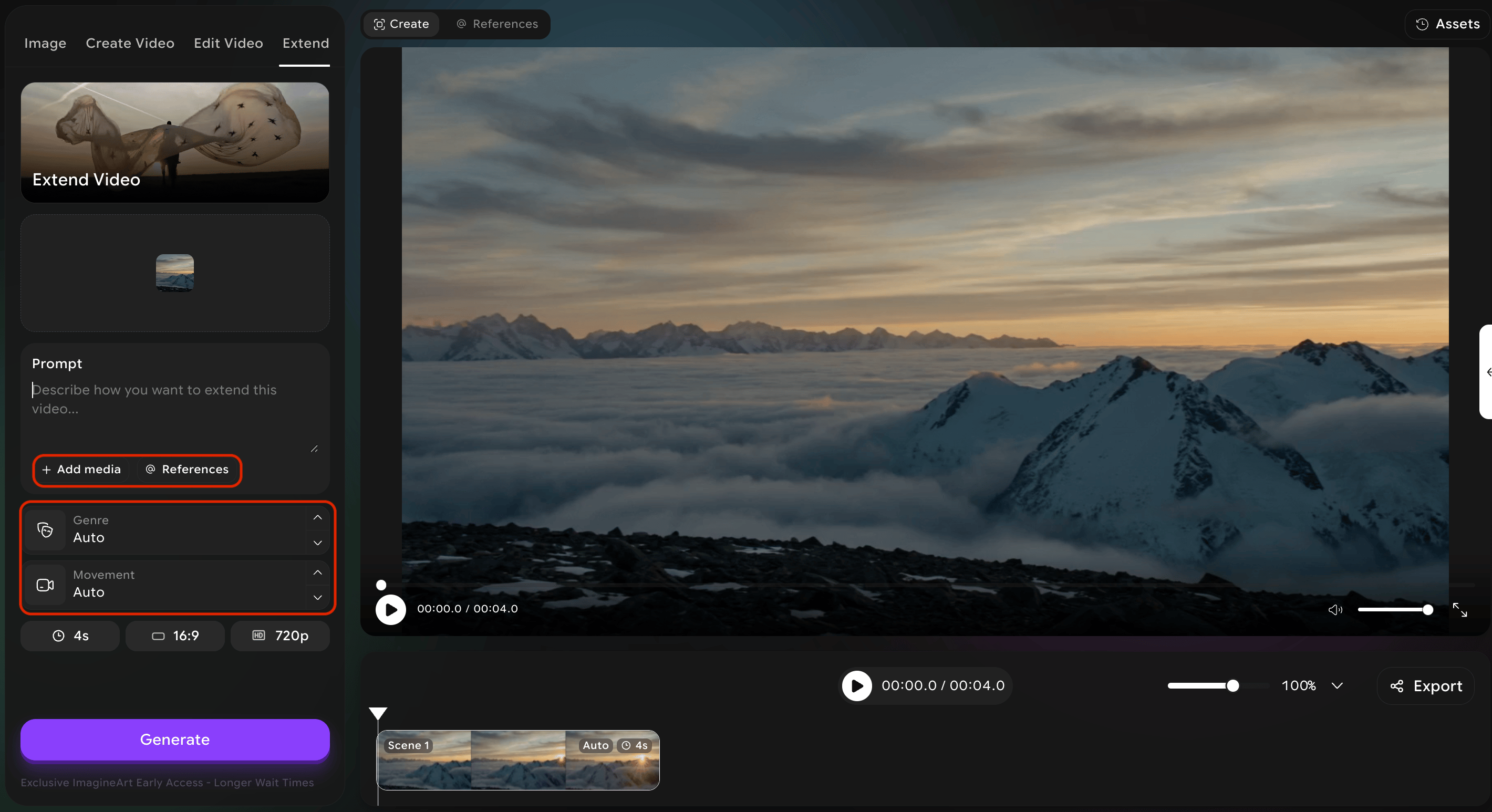
5
Generate
Hit Generate. You will receive a new clip that continues from the original.
Tips for natural-feeling extensions
- Describe an action that naturally follows the end of your source. “She turns and walks away” is easier to extend from a clip of someone standing than “she suddenly flies into space.”
- Reuse your camera preset so the optical character matches across the seam.
- Keep the lighting consistent in your prompt — sudden changes in lighting are the most common reason extensions feel disjointed.