

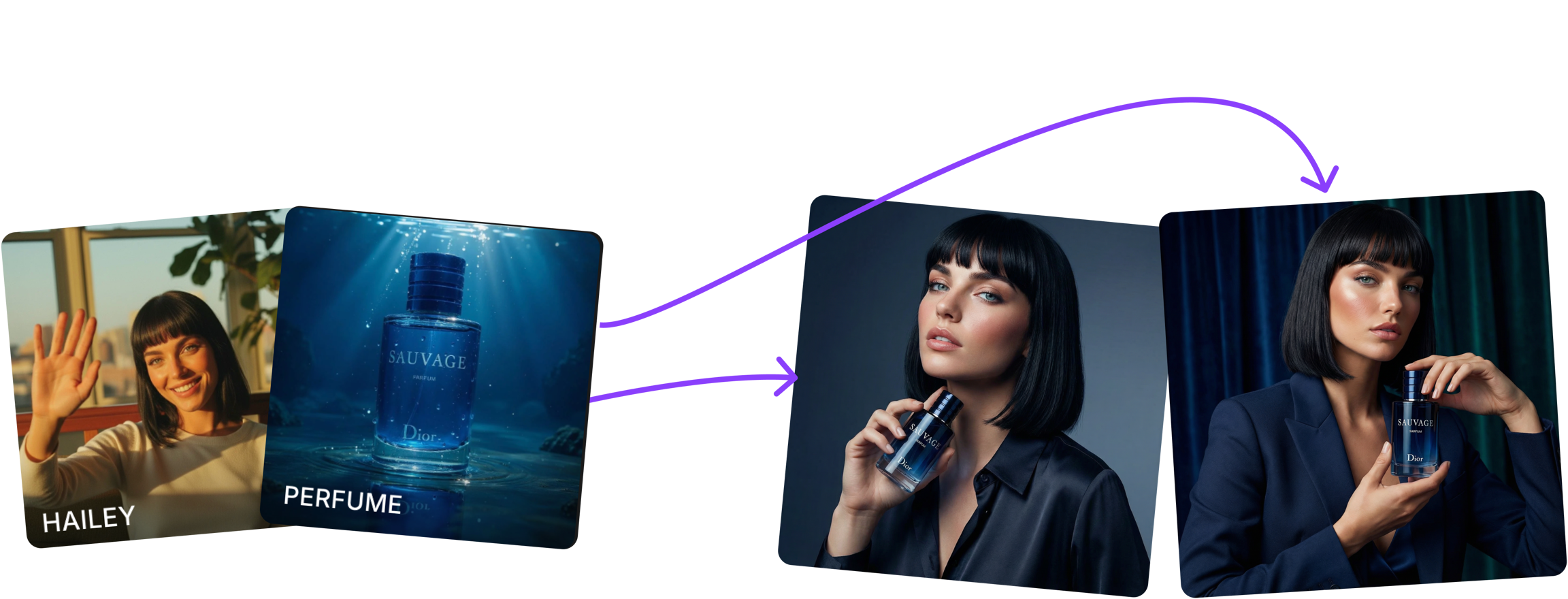
How Characters works
When you create a character, ImagineArt analyzes your uploaded reference images and builds an internal representation of that subject’s visual identity. You can then call that identity into any prompt, either by selecting it from the image panel or by tagging it with@CharacterName directly in your prompt text.
Setting up a Character
1
Open Add References
In the image generation panel, click Add References and select the Characters tab.
2
Open Characters tab
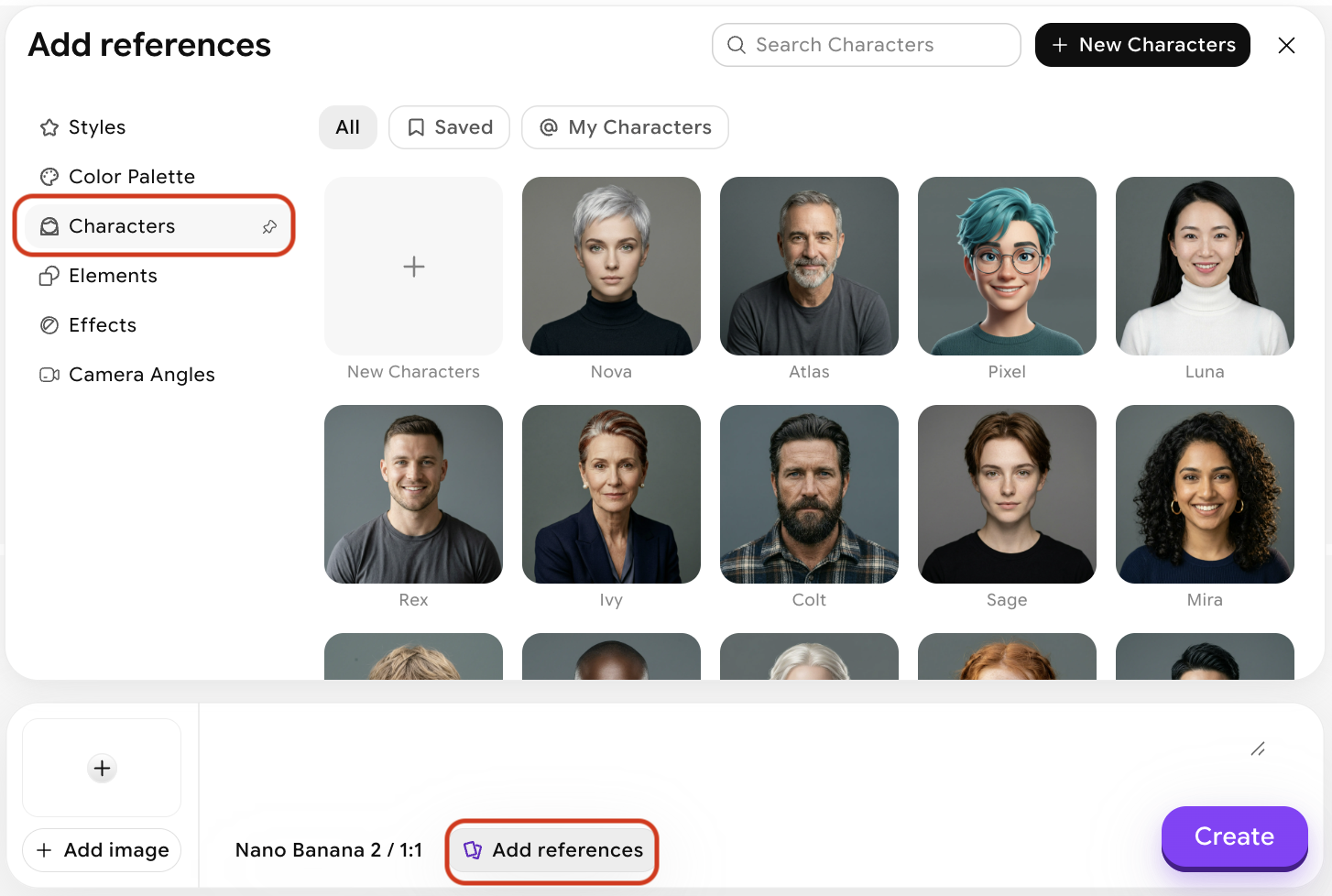
3
Choose your character or create a new one
Click New Characters (+) to create your own, or select one of our presets. Upload up to 10 reference images for your character — including different angles improves consistency. Give your character a name, select their gender, and optionally add a description.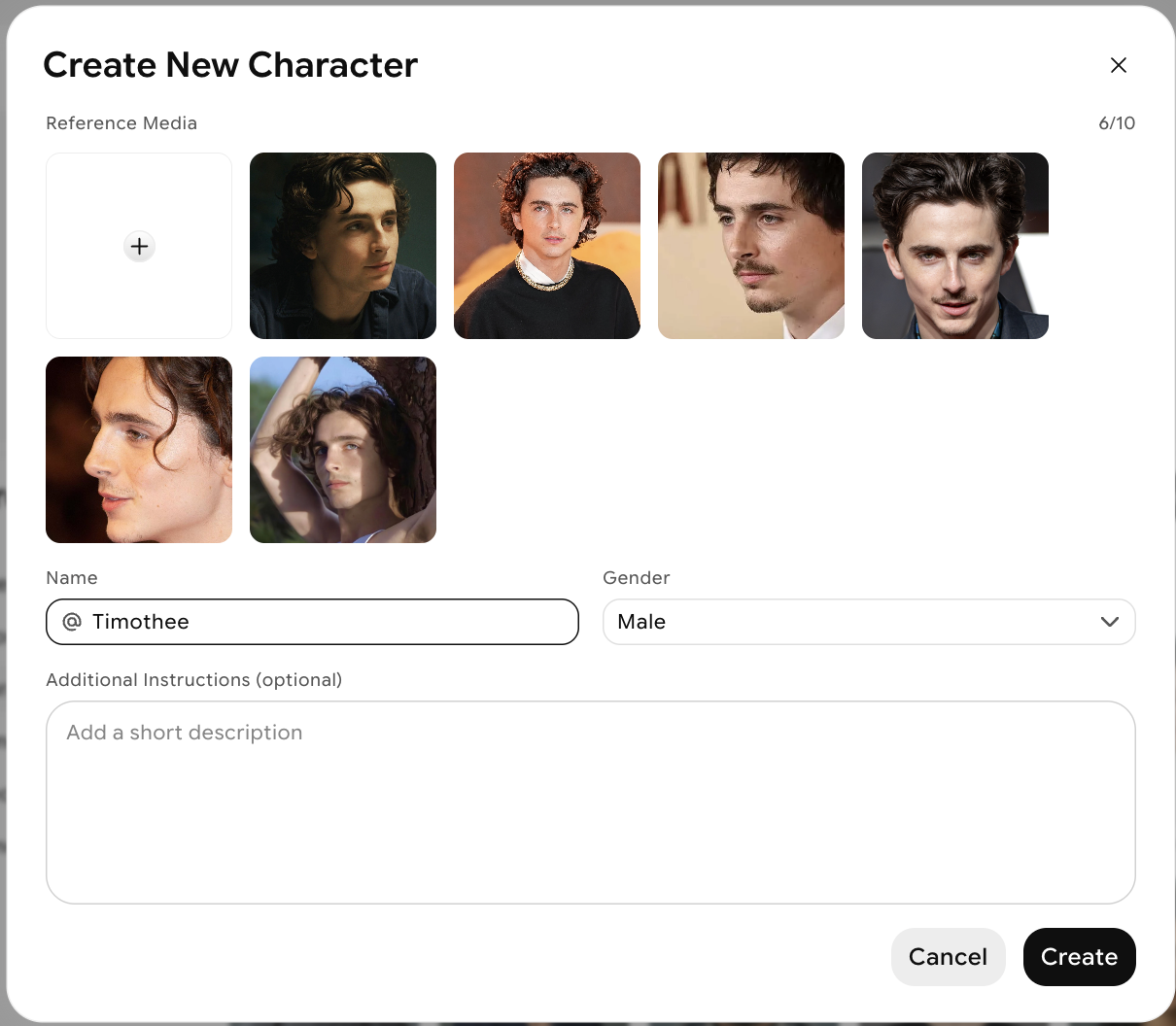
4
Create your character
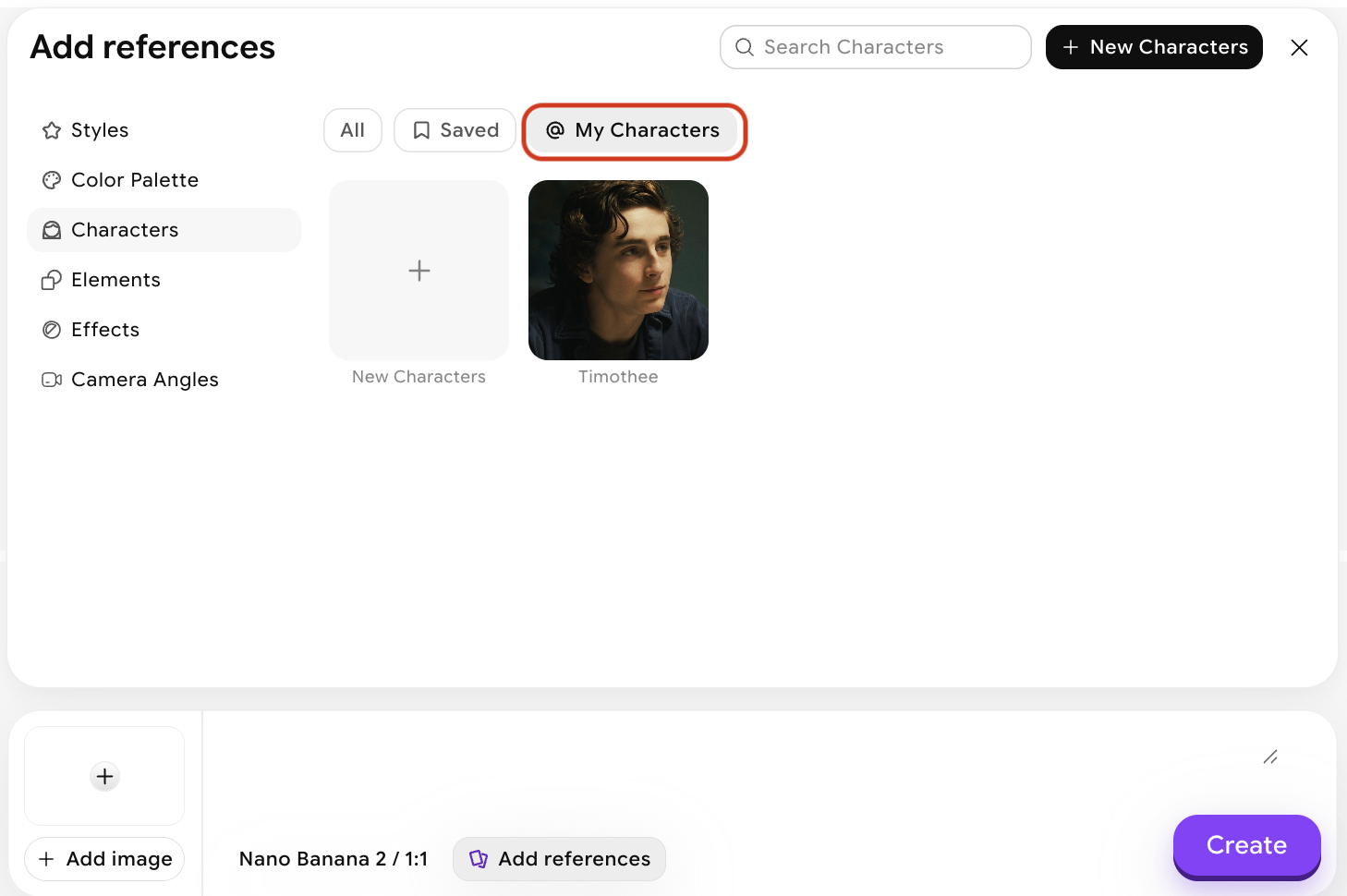
@CharacterName.Tips for better results
- Use 4–10 reference images for characters when possible. A wider variety of reference angles significantly improves consistency.
- Name your characters descriptively — names like
ElenaStudiomake it easier to remember which reference to call. - Combine with other references — You can use Characters alongside Style and Image Prompt to further control the output’s composition and aesthetic.